To turn off highlighting until the next search inside VIM application:
:noh To turn off hightlight completely inside VIM application
:set nohlsearch
To turn off highlighting until the next search inside VIM application:
:noh To turn off hightlight completely inside VIM application
:set nohlsearchThis article can be taken from OpenSource.com titled “Manage Linux users’ home directories with systemd-homed“

The systemd-homed service supports user account portability independent of the underlying computer system. A practical example is to carry around your home directory on a USB thumb drive and plug it into any system which would automatically recognize and mount it. According to Lennart Poettering, lead developer of systemd, access to a user’s home directory should not be allowed to anyone unless the user is logged in. The systemd-homed service is designed to enhance security, especially for mobile devices such as laptops. It also seems like a tool that might be useful with containers.
This objective can only be achieved if the home directory contains all user metadata. The ~/.identity file stores user account information, which is only accessible to systemd-homed when the password is entered. This file holds all of the account metadata, including everything Linux needs to know about you, so that the home directory is portable to any Linux host that uses systemd-homed. This approach prevents having an account with a stored password on every system you might need to use.
The home directory can also be encrypted using your password. Under systemd-homed, your home directory stores your password with all of your user metadata. Your encrypted password is not stored anywhere else thus cannot be accessed by anyone. Although the methods used to encrypt and store passwords for modern Linux systems are considered to be unbreakable, the best safeguard is to prevent them from being accessed in the first place. Assumptions about the invulnerability of their security have led many to ruin.
This service is primarily intended for use with portable devices such as laptops. Poettering states, “Homed is intended primarily for client machines, i.e., laptops and thus machines you typically ssh from a lot more than ssh to, if you follow what I mean.” It is not intended for use on servers or workstations that are tethered to a single location by cables or locked into a server room.
The systemd-homed service is enabled by default on new installations—at least for Fedora, which is the distro that I use. This configuration is by design, and I don’t expect that to change. User accounts are not affected or altered in any way on systems with existing filesystems, upgrades or reinstallations that keep the existing partitions, and logical volumes.
Manage Linux users’ home directories with systemd-homed (OpenSource.com)
For more Read-Up, do take a look at “Manage Linux users’ home directories with systemd-homed“

What is AlmaLinux? According to the website https://almalinux.org/
AlmaLinux is an enterprise-grade server OS, a stable Linux distribution with regular releases that come with long support windows. You can rely on AlmaLinux to run you and your clients’ critical workloads.
File System in /home can be clustered very quickly nowadays where the amount of data are massive. Residing all the users in one /home directory will cause the administrator to quickly reach the limits of the File System especially if the File System is not a Parallel File System.
One thought is to perhaps using the /home directory to store their user specific files that govern the user environment such as .bashrc .bash_profile .login etc only. All other files such as output, project files etc should not be stored immediately under the /home/user1 files system. Of course no one should be running their computation on the home directory.
If the users is large and you know that the /home directory will be broken further into further hierachy which can be divided into more volume. For example, /home/student/users1 or /home/staff/user2, /home/Department/user3
For more information, do see http://www.tldp.org/LDP/Linux-Filesystem-Hierarchy/html/home.html
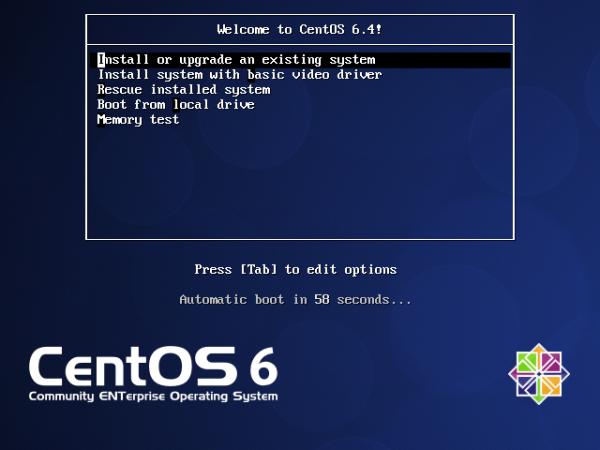
9. Put the CentOS CD into the Client and reboot. When you get to the initial CentOS 6 menu selection screen, you press “esc” so you will go to a boot prompt.
boot: linux ks=http://192.168.1.1/kickstart/base.cfg ksdevice=eth0 text asknetwork
(where 192.168.1.1 is the webserver which contains the anaconda file)
10. The System should install automatically and create an exact copy with the same configuration and password
11. To ease modification of the anaconda file, add and remove packages you may want to install kickstart config files
# yum install system-config-kickstart
For more information, you can also read
For this tutorial, we assume we wish to automate the installation of a CentOS Server using the Kickstart
Step 1: Setup of CentOS Server and looking at Anaconda Config File
Step 2: Setting up a On Demand Kickstart Server
# chmod 744 base.cfg
clearpart --linux --drives=sda
part /boot --fstype ext3 --size=100 --ondisk=sda
part pv.3 --size=0 --grow --ondisk=sda
volgroup VolGroup00 --pesize=32768 pv.3
logvol / --fstype ext3 --name=LogVol00 --vgname=VolGroup00 --size=1024 --grow
logvol swap --fstype swap --name=LogVol01 --vgname=VolGroup00 --size=1000 --grow --maxsize=5952
network --device eth0 --bootproto static
--ip 192.168.1.2 --netmask 255.255.255.0
--gateway 192.168.1.1
--nameserver 192.168.1.100,192.168.101
--hostname mylinux.homelinux.org
url --url=http://url-to-web-install-server/CentOS-6.8
....
....
....
repo --name="CentOS" --baseurl="http://url-to-web-install-server/CentOS-6.8"
selinux --disabled
1. You have to compile OpenMPI 1.4.x with g77 and gfortran. I’m compiling with OpenIB and Torque as well
./configure --prefix=/usr/local/mpi/gnu-g77/ \
F77=g77 FC=gfortran \
--with-openib \
--with-openib-libdir=/usr/lib64 \
--with-tm=/opt/torque
2. Download BLACS from www.netlib.org/blacs. Remember to download both mpiblacs.tgz and the mpiblacs-patch03.tgz
# cd /root
# tar -xzvf mpiblacs.tgz
# tar -xzvf mpiblacs-patch03.tgz
# cd BLACS
# cp ./BMAKES/BMake.MPI-LINUX Bmake.inc
3. Edit Bmake.inc according to the recommendation from OpenMPI FAQ
# Section 1:
# Ensure to use MPI for the communication layer

   COMMLIB = MPI

# The MPIINCdir macro is used to link in mpif.h and
# must contain the location of Open MPI's mpif.h.
# The MPILIBdir and MPILIB macros are irrelevant
# and should be left empty.

   MPIdir = /path/to/openmpi-1.4.3
   MPILIBdir =
   MPIINCdir = $(MPIdir)/include
   MPILIB =

# Section 2:
# Set these values:

   SYSINC =
   INTFACE = -Df77IsF2C
   SENDIS =
   BUFF =
   TRANSCOMM = -DUseMpi2
   WHATMPI =
   SYSERRORS =

# Section 3:
# You may need to specify the full path to
# mpif77 / mpicc if they aren't already in
# your path. IF not type the whole path out.

   F77            = /usr/local/mpi/gnu-g77/bin/mpif77
   F77LOADFLAGS   =

   CC             = /usr/local/mpi/gnu-g77/bin/mpicc
   CCLOADFLAGS    =
4. Following the recommendation from BlACS Errata (Necessary flags for compiling the BLACS tester with g77)
blacstest.o : blacstest.f
	$(F77) $(F77NO_OPTFLAGS) -c $*.f
to:
blacstest.o : blacstest.f
	$(F77) $(F77NO_OPTFLAGS) -fno-globals -fno-f90 -fugly-complex -w -c $*.f
5. Compile the Blacs tests. You should see
# cd /root/BLACS/TESTING
# make clean
# make
You should see xCbtest_MPI-LINUX-1 and xFbtest_MPI-LINUX-1
6. Tun the Tests
# mpirun -np 5 xCbtest_MPI-LINUX-0
# mpirun -np 5 xFbtest_MPI-LINUX-0
7. If the test is successful, you may wish to copy the BLACS library to /usr/local/lib. But I like to separate my compiled libraries separately to /usr/local/blacs/lib
# cp /root/BLACS/LIB*.a /usr/local/blacs/lib
# chmod 555 /usr/local/blacs/lib/*.a
Download the lapack latest stable version (lapack-3.3.0.tgz) from http://www.netlib.org/lapack
# cd /root
# tar -xzvf lapack-3.3.0.tgz
# cd /root/lapack-3.3.0
# cp make.inc.example make.inc
Assuming Edit make.inc. Assuming the Compiling ATLAS on CentOS 5
#BLASLIB = ../../blas$(PLAT).a
BLASLIB = /usr/local/atlas/lib/libf77blas.a /usr/local/atlas/lib/libatlas.a
Compile lapack package
# make
Copy the libraries to
# mkdir /usr/local/lapack/lib
# cp /root/lapack-3.3.0/*.a /usr/local/lapack/lib
# cd /usr/local/lapack/lib/
# chmod 555 *.a
Other related Information
This tutorial is to help you compile ATLAS (Automatically Tuned Linear Algebra Software) with gFortran. For those who are using Intel Compiler, you have the reliable Intel MKL (Math Kernel Library)
First thing first, some comparison between ATLAS and MKL.
ATLAS
ATLAS The Automatically Tuned Linear Algebra Software (ATLAS) provides a complete implementation of the BLAS API 3 and a subset of LAPACK 3. A big number of instructions-set specific optimizations are used throughout the library to achieve peak-performance on a wide variety of HW-platforms.
ATLAS provides both C and Fortran interfaces.
ATLAS is available for all HW-platforms capable of running UNIX or UNIX-like operating systems as well as Windows ™.
MKL
Intel’s Math Kernel Library (MKL) implements a set of linear algebra, fast Fourier transforms and vector math functions. It includes LAPACK 3, BLAS 3 and extended BLAS and provides both C and Fortran interfaces.
MKL is available for Windows ™ and Linux (x86/i686 and above) only.
Download the latest stable package from ATLAS (http://sourceforge.net/projects/math-atlas/files/Stable/). The current stable version is atlas3.8.0.tar.gz. Do note that ATLAS don’t like configuration on its original location, hence the need to create ATLAS_BUILD directory.
# cd /root
# tar -xzvf atlas3.8.3.tar.gz
# mkdir /root/ATLAS_BUILD
# cd /root/ATLAS_BUILD
# /root/ATLAS/configure
You will need to turn off CPU Throttling. For CentOS and Fedora, you will use
# /usr/bin/cpufreq-selector -g performance
For more information, you can see my blog entry Switching off CPU Throttling on CentOS or Fedora
Compile ATLAS
make
make check
make ptcheck
make time
make install
By default, ATLAS installed to /usr/local/atlas
Finally remember to add /usr/local/atlas/lib to your LD_LIBRARY_PATH
Notes:
 The Linux Cluster