Compiling GotoBLAS2 in Nehalem and newer CPU

GotoBLAS2 uses new algorithms and memory techniques for optimal performance of the BLAS routines. The download site can be found at GotoBLAS2 download

# wget http://cms.tacc.utexas.edu/fileadmin/images/GotoBLAS2-1.13_bsd.tar.gz
# tar -zxvf GotoBLAS2-1.13_bsd.tar.gz
# cd GotoBLAS2
# gmake clean
# gmake TARGET=NEHALEM

you will get

GotoBLAS build complete.

  OS               ... Linux
  Architecture     ... x86_64
  BINARY           ... 64bit
  C compiler       ... GCC  (command line : gcc)
  Fortran compiler ... INTEL  (command line : ifort)
  Library Name     ... libgoto2_nehalemp-r1.13.a (Multi threaded; Max num-threads is 8)

you will see the resulting libraries and softlinks

libgoto2.a -> libgoto2_nehalemp-r1.13.a
libgoto2_nehalemp-r1.13.a
libgoto2_nehalemp-r1.13.so
libgoto2.so -> libgoto2_nehalemp-r1.13.so

You can create a /usr/local/GotoBLAS2 and copy the files there and do the PATHING.

If you are having issues, do take a look at Error in Compiling GotoBLAS2 in Westmere Chipsets

Taxonomy of File System (Part 2)

This writeup is a replica subset copy of the presentation of “How to Build a Petabyte Sized Storage System” by Dr. Ray Paden as given in LISA’09. This information is critical for Administrators to make decision on File Systems. For full information do look at “How to Build a Petabyte Sized Storage System”

Taxonomy of File System (Part 1) dealt with 3 file system – Convention I/O, Networked File System, Networked Attached Storage.

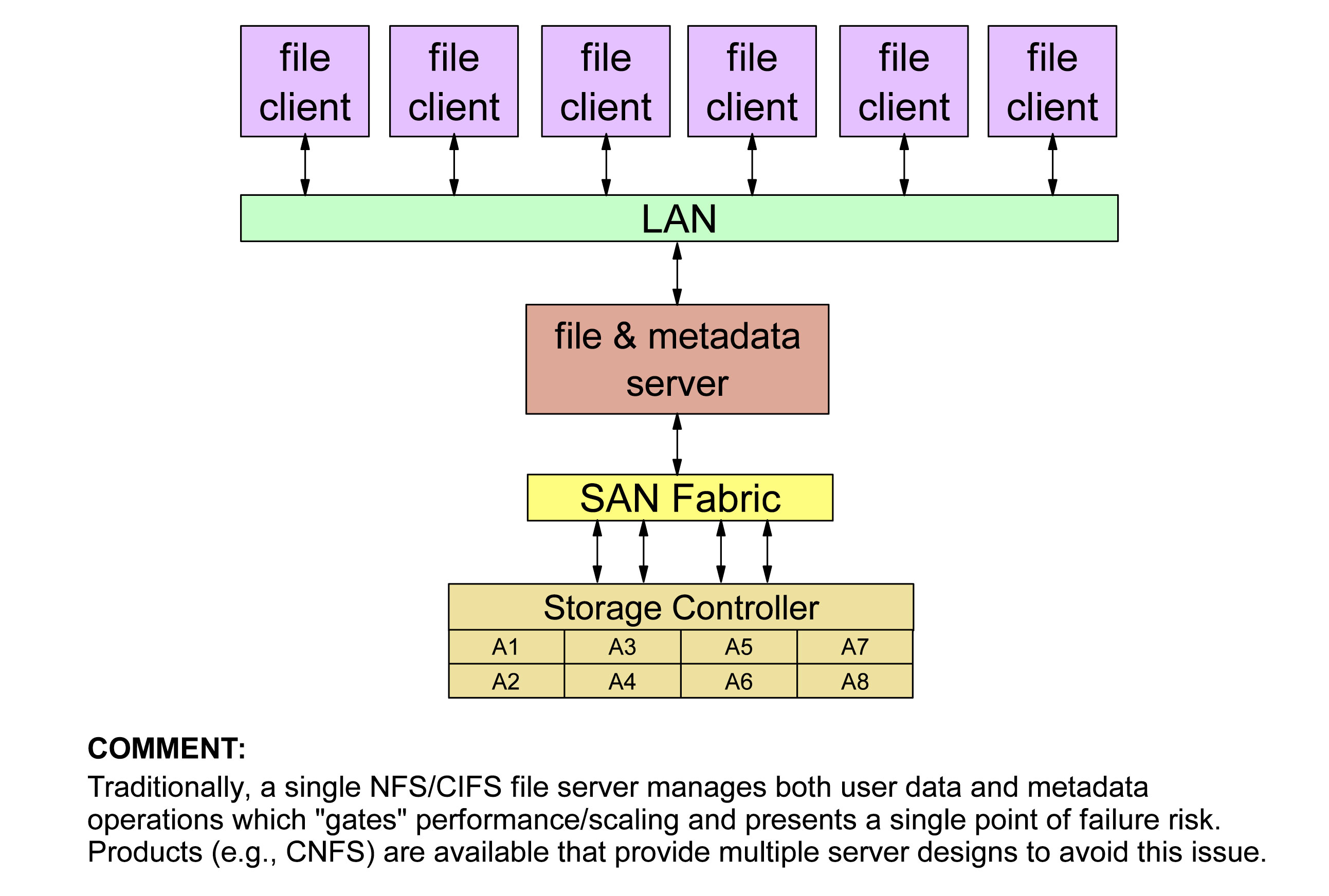
4. Basic Clustered File Systems

  1. File access is parallel
    • supports POSIX API, but provides safe parallel file access semantics
  2. File system overhead operations
    • File System overhead operations is distributed and done in parallel
    • No single server bottlenecks ie no metadata servers
  3. Common component architecture
    • commonly configred using seperate file clients and file servers (costs too much to have a seperate storage controller for every node)
    • some file system allow a single component architecture where file clients and file serves are combined (ie no distinction between client and server -> yield very good scalling for async applications)
  4. File System access file data through file servers via the LAN
  5. Example: GPFS, GFS, IBRIX Fusion

5. SAN File Systems

  1. File access in parallel
    • supports POSIX API, but provides parallel file access semantics
  2. File System overhead operations
    • Not done in parallel
    • single metadata with a backup metadata server
    • metadata server is accessed via LAN
    • metadata server is a potential bottleneck, but this is not considered a limitation since these file system are generally used for smaller cluster.
  3. Dual Component Architecture
    • file client/server and metadata server
  4. All disks connected to all file client/server nodes via the SAN, not the LAN
    • file data accessed via the SAN, not the LAN
    • inhibits scaling due to cost of FC SAN
  5. Examples: Stornext, CXFS, QFS

6. Multi-Components File System

  1. File access in parallel
    • Supports POSIX API
  2. File System overhead operations
    • Lustre: metadata server per file system (with backup) accessed via LAB
    • Lustre: potential bottleneck (deploy multiple file systems to avoid backup)
    • Panasas: Director Blade manages protocol
    • Panasas: contains a director blade and 10 disks accessible via Rthernet
    • Pasanas: This provides multiple metadata servers reducing contention
  3. Multi-Component Architecture
    • Lustre: file clients, file servers, metadata servers
    • Panasas: file clients, director blade
    • Panasas: Director Blade encapsulates file service, metadata service,storage controller operations
  4. File clients access file data through file servers or director blades via the LAN
  5. Examples: Lustre, Panasas

Taxonomy of File System (Part 1)

This writeup is a replica subset copy of the presentation of “How to Build a Petabyte Sized Storage System” by Dr. Ray Paden as given in LISA’09. This information is critical for Administrators to make decision on File Systems. For full information do look at “How to Build a Petabyte Sized Storage System”

1. Conventional I/O

  1. Used generally for “Local File Systems”
  2. Support POSIX I/O  model
  3. Limited form of parallelism
    • Disk level parallelism possible via striping
    • Intra-Node process parallelism (within the node)
  4. Journal extent based semantics
    • Journalling (AKA logging). Log information about operations performed on the file system meta-data as atomic transactions. In the event of a system failure, a file system is restored to a consistent state by replaying the log for the appropriate transactions.
  5. Caching is done via Virtual Memory which is slow….
  6. Example: ext3, NTFS, ReiserFS

2. Networked File Systems

  1. Disk access from remote nodes via network access
    • Generally based TCP/IP over ethernet
    • Useful for in-line interactive access (e.g. home directories)
  2. NFS is ubiquitos in UNIX/Linux Environments
    • Does not provide genuinely parallel model of I/O
      • Not cache coherent
      • Parallel write requires o_sync and -noac options to be safe
    • Poorer performance for HPC jobs especially parallel I/O
      • write: only 90MB/s on system capable of 400MB/s (4 tasks)
      • read: only 381 MB/s on a system capable of 40MB/s (16 tasks)
    • Used POSIX I/O API, but not its esmantics
    • Traditional NFS is limited by “single server” bottleneck
    • Parallel is not designed for parallel file access, by placing restriction on an file access and/or doing non-parallel file server, it may be good enough performance.

3. Network Attached Storage (AKA: Appliances)

  1. Appliance Concept
    • Focused on CIFS and/or NFS protocols
    • Integrated HW/SW storage product
      • Integrate servers, storage controllers, disks, networks, file system, protocol all into single product
      • Not intended for high performance storage
      • “black box” design
    • Provides an NFS server and/or CIFS/Samba solution
      • Server-based product; they do not improve client access or operation
      • Generally based on Ethernet LANS
    • Examples:
      • NetApp, Scale-out File System (SoFS)

Which File System Blocksize is suitable for my system?

Taken from IBM Developer Network “File System Blocksize”

Although the article has referenced to General Parallel File System (GPFS), but there are many good pointers System Administrators can take note of.

Here are some excerpts from the article……..

This is one question that many system administrator asked before we start preparing the system. How do choose a blocksize for your file system? IBM Developer Network (File System Blocksize) recommends the following block size for various type of application.

IO Type Application Examples Blocksize
Large Sequential IO Scientific Computing, Digital Media 1MB to 4MB
Relational Database DB2, Oracle 512kb
Small I/O Sequential General File Service, File based Analytics,Email, Web Applications 256kb
Special* Special 16KB-64KB

What if I do not know my application IO profile?

Often you do not have good information on the nature of the IO
profile or the applications are so diverse it is difficult to optimize
for one or the other. There are generally two approaches to designing
for this type of situation separation or compromise.

Separation

In this model you create two file systems, one with a large file system blocksize for sequential applications and one with a smaller block size for small file applications. You can gain benefits from having file systems of two different block sizes even on a single type of storage. Or you can use different types of storage for each file system to further optimize to the workload. In either case the idea is that you provide two file systems to your end users, for scratch space on a compute cluster for example. Then the end users can run tests themselves by pointing the application to one file system or another to and determining by direct testing which is best for their workload. In this situation you may have one file system optimized for sequential IO with a 1MB blocksize and one for more random workloads at 256KB block size.

Compromise

In this situation you either do not have sufficient information on workloads (i.e. end users won’t think about IO performance) or enough storage for multiple file systems. In this case it is generally recommended to go with a blocksize of 256KB or 512KB depending on the general workloads and storage model used. With a 256KB block size you will still get good sequential performance (though not necessarily peak marketing numbers) and you will get good performance and space utilization with small files (256KB has minimum allocation of 8KB to a file). This is a good configuration for multi-purpose research workloads where the application developers are focusing on their algorithms more than IO optimization.

Using mpstat to display SMP CPU statistics

mpstat is a command-line utilities to report CPU related statistics.

For CentOS, to install mpstat, you have to install the sysstat package (http://sebastien.godard.pagesperso-orange.fr/)

# yum install sysstat

1. mpstat is very straigtforward. Use the command below. On my 32-core machine,

# mpstat -P ALL
11:10:11 PM  CPU   %user   %nice    %sys %iowait    %irq   %soft  %steal   %idle    intr/s
11:10:13 PM  all   40.75    0.00    0.03    0.00    0.00    0.00    0.00   59.22   1027.50
11:10:13 PM    0    0.00    0.00    0.00    0.00    0.00    0.00    0.00  100.00   1000.50
11:10:13 PM    1    0.00    0.00    0.00    0.00    0.00    0.00    0.00  100.00      0.00
11:10:13 PM    2  100.00    0.00    0.00    0.00    0.00    0.00    0.00    0.00      0.00
11:10:13 PM    3    0.00    0.00    0.00    0.00    0.00    0.00    0.00  100.00      0.00
11:10:13 PM    4  100.00    0.00    0.00    0.00    0.00    0.00    0.00    0.00      0.00
11:10:13 PM    5  100.00    0.00    0.00    0.00    0.00    0.00    0.00    0.00      0.00
11:10:13 PM    6    0.00    0.00    0.00    0.00    0.00    0.00    0.00  100.00      0.00
11:10:13 PM    7  100.00    0.00    0.00    0.00    0.00    0.00    0.00    0.00      0.00
11:10:13 PM    8    0.00    0.00    0.00    0.00    0.00    0.00    0.00  100.00     16.50
11:10:13 PM    9    0.00    0.00    0.00    0.00    0.00    0.00    0.00  100.00      0.00
11:10:13 PM   10    0.00    0.00    0.00    0.00    0.00    0.00    0.00  100.00      0.00
11:10:13 PM   11    0.00    0.00    0.00    0.00    0.00    0.00    0.00  100.00      0.00
11:10:13 PM   12  100.00    0.00    0.00    0.00    0.00    0.00    0.00    0.00     10.50
11:10:13 PM   13    0.00    0.00    0.00    0.00    0.00    0.00    0.00  100.00      0.00
11:10:13 PM   14   99.50    0.00    0.50    0.00    0.00    0.00    0.00    0.00      0.00
11:10:13 PM   15  100.00    0.00    0.00    0.00    0.00    0.00    0.00    0.00      0.00
11:10:13 PM   16    0.00    0.00    0.00    0.00    0.00    0.00    0.00  100.00      0.00
11:10:13 PM   17    0.00    0.00    0.00    0.00    0.00    0.00    0.00  100.00      0.00
11:10:13 PM   18    0.00    0.00    0.00    0.00    0.00    0.00    0.00  100.00      0.00
11:10:13 PM   19  100.00    0.00    0.00    0.00    0.00    0.00    0.00    0.00      0.00
11:10:13 PM   20  100.00    0.00    0.00    0.00    0.00    0.00    0.00    0.00      0.00
11:10:13 PM   21    0.00    0.00    0.00    0.00    0.00    0.00    0.00  100.00      0.00
11:10:13 PM   22    0.00    0.00    0.00    0.00    0.00    0.00    0.00  100.00      0.00
11:10:13 PM   23    0.00    0.00    0.00    0.00    0.00    0.00    0.00  100.00      0.00
11:10:13 PM   24  100.00    0.00    0.00    0.00    0.00    0.00    0.00    0.00      0.00
11:10:13 PM   25  100.00    0.00    0.00    0.00    0.00    0.00    0.00    0.00      0.00
11:10:13 PM   26    0.00    0.00    0.00    0.00    0.00    0.00    0.00  100.00      0.00
11:10:13 PM   27  100.00    0.00    0.00    0.00    0.00    0.00    0.00    0.00      0.00
11:10:13 PM   28    0.00    0.00    0.00    0.00    0.00    0.00    0.00  100.00      0.00

where

CPUProcessor number. The keyword all indicates that statistics are calculated as averages among all processors.

%user – Show the percentage of CPU utilization that occurred while executing at the user level (application).

%nice – Show the percentage of CPU utilization that occurred while executing at the user level with nice priority.

%sys  – Show the percentage of CPU utilization that occurred while executing at the system level (kernel). Note that this does not include time spent servicing interrupts or softirqs.

%iowaitShow the percentage of time that the CPU or CPUs were idle during which the system had an outstanding disk I/O request.

%irq Show the percentage of time spent by the CPU or CPUs to service interrupts.

%softShow the percentage of time spent by the CPU or CPUs to service softirqs. A softirq (software interrupt) is one of up to 32 enumerated software interrupts which can run on multiple CPUs at once.

%stealShow the percentage of time spent in involuntary wait by the virtual CPU or CPUs while the hypervisor was servicing another virtual processor.

%idleShow the percentage of time that the CPU or CPUs were idle and the system did not have an outstanding disk I/O request.

intr/sShow the total number of interrupts received per second by the CPU or CPUs.

2. Getting average from mpstat

To get an average you have to invoke the interval and count argument. In the example, interval is 2 second for 5 count

# mpstat -P ALL 2 5

At the end of the statistics report, you will see an average

Average:     CPU   %user   %nice    %sys %iowait    %irq   %soft  %steal   %idle    intr/s
Average:     all   40.76    0.00    0.03    0.00    0.00    0.00    0.00   59.21   1047.50
Average:       0    0.00    0.00    0.00    0.00    0.00    0.00    0.00  100.00   1000.60
Average:       1    0.00    0.00    0.00    0.00    0.00    0.00    0.00  100.00      0.00
Average:       2  100.00    0.00    0.00    0.00    0.00    0.00    0.00    0.00      0.00
Average:       3    0.00    0.00    0.00    0.00    0.00    0.00    0.00  100.00      0.00
Average:       4   99.90    0.00    0.10    0.00    0.00    0.00    0.00    0.00      0.00
Average:       5  100.00    0.00    0.00    0.00    0.00    0.00    0.00    0.00      0.00
Average:       6    0.00    0.00    0.00    0.00    0.00    0.00    0.00  100.00      0.00
Average:       7  100.00    0.00    0.00    0.00    0.00    0.00    0.00    0.00      0.00
Average:       8    0.00    0.00    0.10    0.00    0.00    0.00    0.00   99.90     17.30
Average:       9    0.00    0.00    0.00    0.00    0.00    0.00    0.00  100.00      0.00
Average:      10    0.00    0.00    0.00    0.00    0.00    0.00    0.00  100.00      0.00
Average:      11    0.00    0.00    0.00    0.00    0.00    0.00    0.00  100.00      0.00
Average:      12   99.90    0.00    0.00    0.00    0.00    0.10    0.00    0.00     29.70
Average:      13    0.00    0.00    0.10    0.00    0.00    0.00    0.00   99.90      0.00
Average:      14   99.50    0.00    0.50    0.00    0.00    0.00    0.00    0.00      0.00
Average:      15  100.00    0.00    0.00    0.00    0.00    0.00    0.00    0.00      0.00
Average:      16    0.00    0.00    0.00    0.00    0.00    0.00    0.00  100.00      0.00
Average:      17    0.00    0.00    0.00    0.00    0.00    0.00    0.00  100.00      0.00
Average:      18    0.00    0.00    0.00    0.00    0.00    0.00    0.00  100.00      0.00
Average:      19  100.00    0.00    0.00    0.00    0.00    0.00    0.00    0.00      0.00
Average:      20  100.00    0.00    0.00    0.00    0.00    0.00    0.00    0.00      0.00
Average:      21    0.00    0.00    0.00    0.00    0.00    0.00    0.00  100.00      0.00
Average:      22    0.00    0.00    0.00    0.00    0.00    0.00    0.00  100.00      0.00
Average:      23    0.00    0.00    0.00    0.00    0.00    0.00    0.00  100.00      0.00
Average:      24  100.00    0.00    0.00    0.00    0.00    0.00    0.00    0.00      0.00
Average:      25   99.90    0.00    0.10    0.00    0.00    0.00    0.00    0.00      0.00
Average:      26    0.00    0.00    0.00    0.00    0.00    0.00    0.00  100.00      0.00
Average:      27  100.00    0.00    0.00    0.00    0.00    0.00    0.00    0.00      0.00
Average:      28    0.00    0.00    0.00    0.00    0.00    0.00    0.00  100.00      0.00
Average:      29    0.00    0.00    0.00    0.00    0.00    0.00    0.00  100.00      0.00
Average:      30  100.00    0.00    0.00    0.00    0.00    0.00    0.00    0.00      0.00
Average:      31    0.00    0.00    0.00    0.00    0.00    0.00    0.00  100.00      0.00

Using iperf to measure the bandwidth and quality of network

According to iperf project site. This writeup is taken from iPerf Tutorial by OpenManiak. For a more detailed and in-depth writeup, do real up the iPerf Tutorial 

Iperf was developed by NLANR/DAST as a modern alternative for measuring maximum TCP and UDP bandwidth performance. Iperf allows the tuning of various parameters and UDP characteristics. Iperf reports bandwidth, delay jitter, datagram loss.

Iperf can generate traffic using TCP and UDP Traaffic to perform the following kinds of test

  • Latency (response time or RTT): can be measured with the Ping utility.
  • Jitter: can be measured with an Iperf UDP test.
  • Datagram loss: can again, be measured with an Iperf UDP test.
  • Bandwidth tests are done using the Iperf TCP tests

Iperf uses the unique characteristics of TCP and UDP to provide statistics about network links. (TCP checks that the packets are correct sent to the receiver. UDP is sent without any checks.

Iperf can be easily installed on the linux box. After downloading the package,  you can do a

# tar -zxvf iperf-2.0.5.tar.gz
# cd iperf-2.0.5
# ./configure
# make
# make install
# cd src

IPerf follows a client-server model. The Server or the Client can be linux or windows. Since this blog is linux, our server and client will be both linux.

Do note that the ipef client connects to the iperf server through port 5001. The bandwidth is from the client to the server.

1. Single Data Uni-Direction with Data Formatting

On the Client, we can use the following format

  1. -f argument display the results in the desired format
  2. The following parameter for formatting ( bits(b), bytes(B), kilobits(k), kilobytes(K), megabits(m), megabytes(M), gigabits(g) or gigabytes(G).
# iperf -c 192.168.50.1 -f G

On the Server, we just use

# iperf -s

2. Bi-directional bandwidth measurement (-r parameter )

By default, the connection from client connection to the server is measured. But with the “-r” argument inclusion, the iperf server will re-connects back to the client thus allowing the bi-drectional measurement.

On the Client Side

# iperf -c 192.168.50.1 -r -f G

On the Server Side

# iperf -s

3. Simultaneous bi-directional bandwidth measurement: (-d argument)

# iperf -c 192.168.50.1 -d -f G

On the Server Side

# iperf -s

4. Interval Settings ( -t timing, -i interval)

On the Client Side, 

# iperf -c 192.168.50.1 -t 20 -i 1

On the Server Side

# iperf - s

5. UDP Settings (-u) and Bandwidth Settings (-b)

The UDP tests with the -u argument will give invaluable information about the jitter and the packet loss. If there is no -u parameter, iperf will default to TCP

On the Client Side

# iperf -c 192.168.50.1 -u -b 10m

On the Server side, (-i interval)

# iperf -c 192.168.50.1 -u -i 2

6. Parallel tests (-P argument, number of parallel):

On Client side

# iperf -c 192.168.50.1 -P 4

On Server  side,

# iperf -s

Recommended /etc/sshd_config parameters for OpenSSH

There are a few settings at /etc/ssh/sshd_config we can set to improve security, performance and user experience. Many of this information comes from SSH The Secure Shell, 2nd Edition from O’Reilly

1. Using SSH-2 Protocol and disable SSH-1 protocol altogether

Protocol 2

2. Ensure that the HostKey and PidFile are located on a machine’s local disk and not over the NFS mount. The default setting should be in the machine local file like those below

HostKey /etc/ssh/ssh_host_key
PidFile /var/run/sshd.pid

3. File and directory permissions

The StrictModes value requires users to protect their SSH-related files and directories or else they will not authenticate.The default values is yes

StrictModes yes

4. Enable KeepAlive messages

Keepalive messages are enabled so that the connections to clients that have crashed or unreachable will terminate rather than be an orphaned process which require manual intervention by sysadmin to eliminate it.

Port 22 
ListenAddress 0.0.0.0
TcpKeepAlive yes

5. Disable Reverse DNS lookup

UseDNS no

6. Select a shorter grace login time

The default grace login is 2 minute which you might want to change. The value here is 30 seconds

LoginGraceTime 30

7. Authentication

The default setting are fine unless you wish to use Public-Key Authentication and wish to disabled Kerberos, Interactive and GSSAPIAuthentication

PubkeyAuthentication yes
PasswordAuthentication no
PermitEmptyPasswords no
RSAAuthentication yes
RhostsRSAAuthentication no
HostbasedAuthentication no
KerberosAuthentication no
ChallengeResponseAuthentication yes
GSSAPIAuthentication no
IgnoreRhosts yes

8. Access Control

If you wish to allow only selected users or groups to use ssh, you would like to use

AllowGroups users
AllowUsers me_only
DenyGroups black_list
DenyUsers hacker_id

For more information, see How do I permit specific users SSH access?
9. Securing TCP port forwarding and X forwarding

AllowTcpForwarding yes
X11Forwarding yes

Copper Twisted-Pair versus Optical Fibre at 10Gb/s

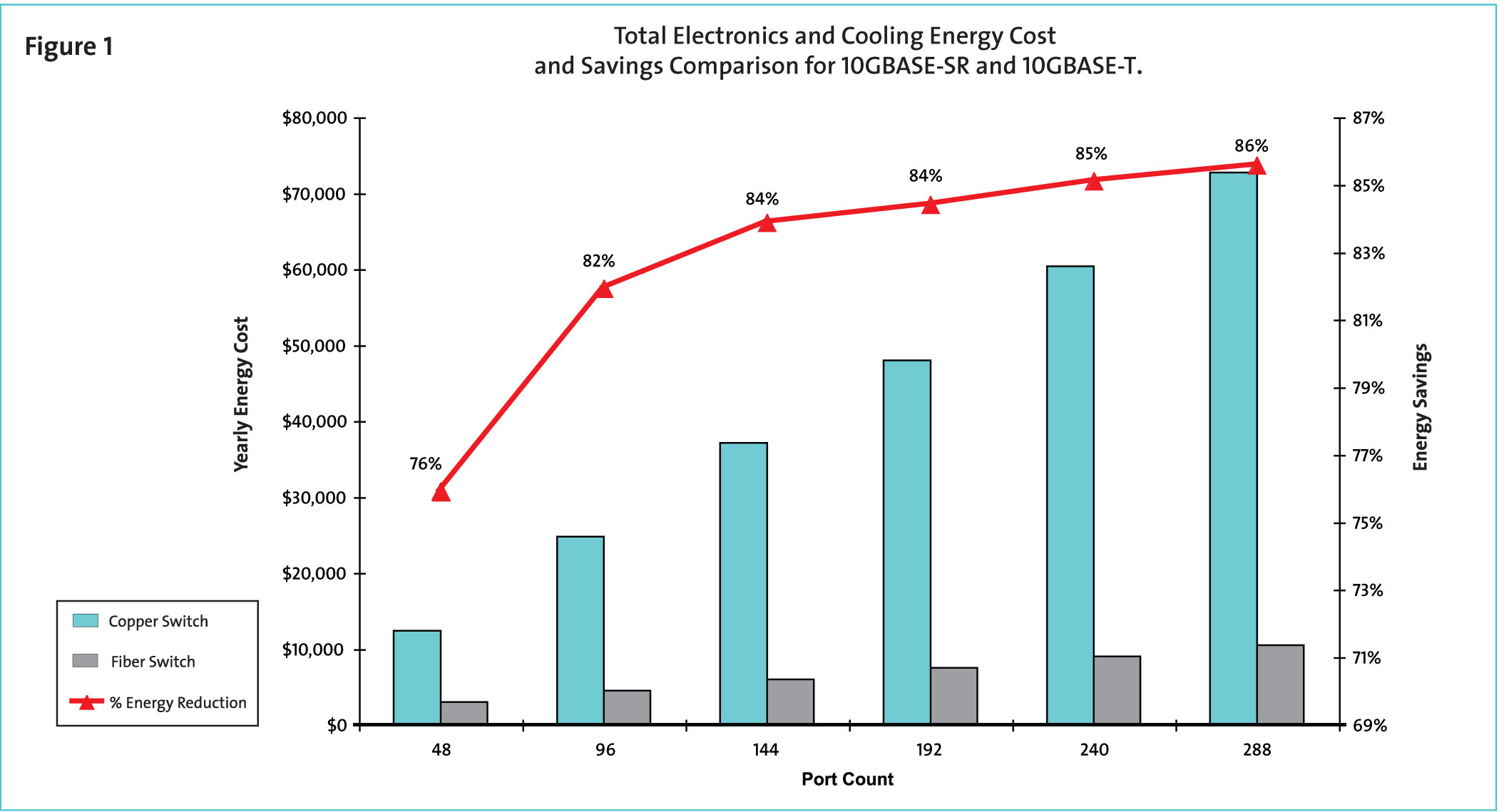
This write up entry is taken from this wonderful article from Corning titled “The Real Facts About Copper Twisted-Pair at 10 Gb/s and Beyond” (pdf)

    1. The IEEE 802.3an 10GBASE-T Standard was  approved in July 2006. This standard provides guidance for data transmission of 10 Gb/s in which multi-gigabit rates are sent over 4-pair copper cable within a 500 MHz bandwidth.
    2. CAT 6A is intended to support 10G Operation up to 100m.
    3. For 10GB require 500 Mhz frequency range requires power consumption (10-15KW) of the 10G interfaces due to increased insertion loss, as well as needing to overcome internal and external cross talk issues.
    4. 10G optical PHY latency has 1000 times better latency performance than 10G copper. 10G optical has typical PHY latency measurable in the nanosecond range, whereas 10G copper has PHY latency in microseconds.
      • What is Latency?  Extensive data encoding and signal processing is required to achieve an aceptable bit error rate (BER). Electronic digital signal processing (DSP) technique are required to corrct internal noise impairments, which contributes significantly to an inherent time delay while recovering the transmitted data packets.
    5. According to Sun Microsystems IEEE 302.3an Task Force, states that “PHY latency should not exceed one microsecond … it may start affecting Ethernet over TCP/IP application performance in the foreseeable future.”
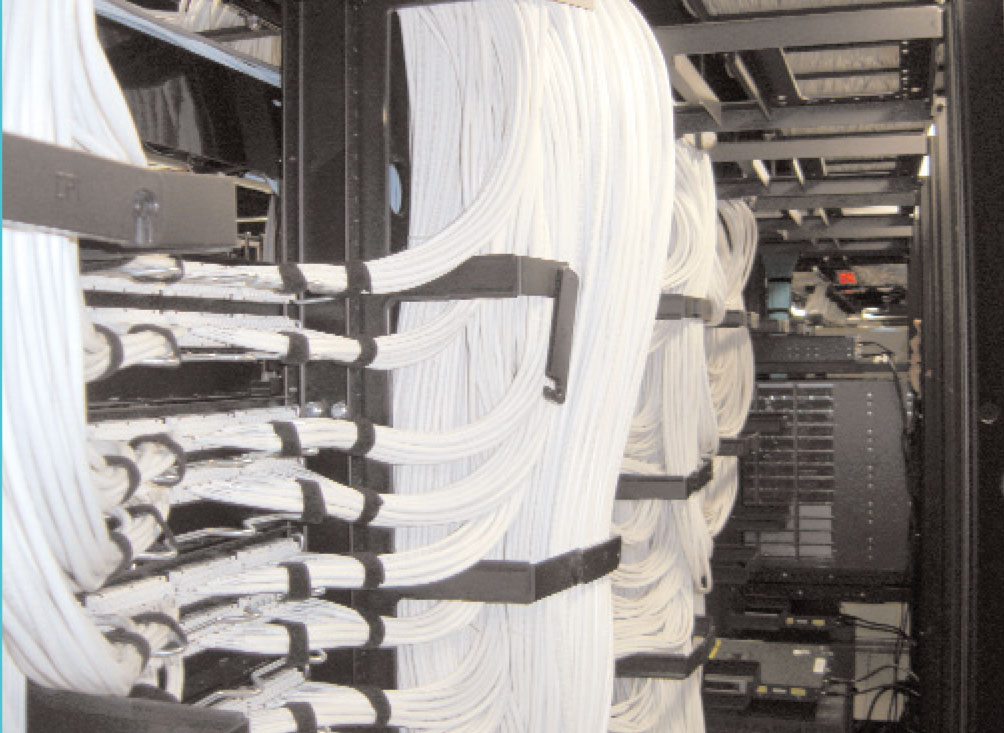
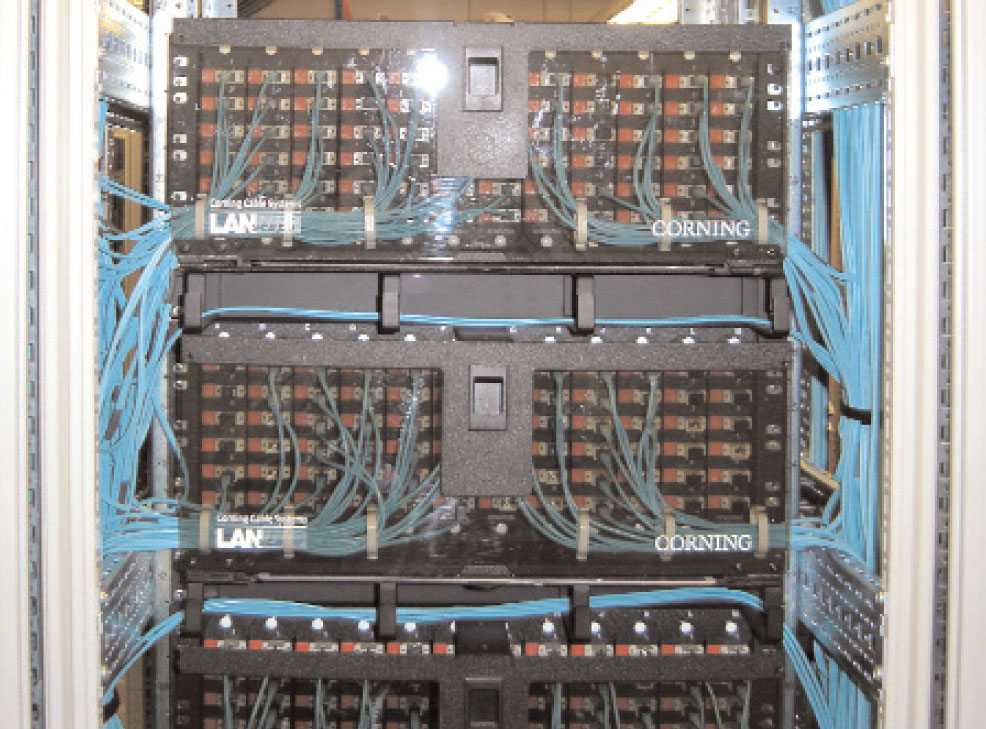
    6. CAT 6A cable has a larger diameter, designed to alleviate internal and external cross talk noise issues. The 0.35 in maximum cable diameter is 40 percent larger than CAT 6 (0.25 in).This contributes to significant pathway and space problems when routing in wire baskets, trays, conduits, patch panels and racks. A typical plenum CAT 6A UTP cable weighs 46 lbs per 1000 ft of cable.
    7. 10G optical electronics provide clear advantages over copper twisted-pair.
      • 10G X2 transceivers support up to 16 ports per line card. Maximum power dissipation is 4 W per port.
      • 10G XFP optical transceivers support up to 24-36 ports per line card. Maximum power dissipation is 2.5 W per port.
      • Emerging 10G SFP+ optical transceivers will support up to 48 ports per line card. Maximum power dissipation will be 1 watt per port. The SFP+ transceiver will offer significantly lower cost compared to the X2 and XFP transceivers.
    8. High Port Density for Fibre provides a higher 10G port density per electornic line card and patch panel as compared to copper. One 48-port line card equals 6 9-port copper line cards
    9. Fibre provide less congestion in pathways and spaces. The high-fiber density, combined with the small diameter of optical cable, maximizes the raised floor pathway and space utilization for routing and cooling


Network File System ( NFS ) in High Performance Networks (White Papers)

This article “Network File System ( NFS ) in High Performance Networks” by Carnegic Mellon is very interesting article about NFS Performance. Do take a look. Here is a summary of their fundings

  1. For point-to-point throughput, IP over InfiniBand (Connected Mode) is comparable to a native InfiniBand.
  2. When a disk is a bottleneck, NFS can benefit from neither IPoIB nor RMDA
  3. When a disk is not a bottleneck, NFS benefits significantly from both IPoIB and RDMA. RDMA is better than IPoIB by ~20%
  4. As the number of concurrent read operations increases, aggregate throughputs achieved for both IPoIB and RDMA significantly improve with no disadvantage for IPoIB

Tweaking the Linux Kernel to manage memory and swap usage

This writeup is assuming you are tweaking to the minimise swap and maximise physical memory. This tweaking should be considered especially for High Performance MPI applications where good low latency parallelism between nodes is very essential.

In addition, this writeup also help you to “kill” runaway memory  applications


1. Preventing Swapping unless absolutely necessary

If you have lots of RAM, you may want to use RAM as I/O caches and buffers. The benefits of using RAM as I/O caches and buffers are definitely speed when compared to swapping data.

To review the value of swappiness can be seen by running the following commands

# cat /proc/sys/vm/swappiness

To modified by running the following command (0 will prevent swapping unless absolutely required)

# echo 0 > /proc/sys/vm/swappiness

To make the settings permanent, edit /etc/sysctl.conf.

vm.swappiness=0

Remember to reboot.


2. Memory Management – Preventing the kernel from dishing out more memory than required

I think for us who have been running computational jobs have seen the memory got eaten up by some buggy or stray applications. Hopefully the kernel kills it. But somehow you must have seen that the kernel may not have kill the culprit and the server go to a linbo.

Let’s say if we wish to ensure that the kernel only gives out memory to processes equal to the physical memory, then we have to do the following at /etc/sysctl.conf or /etc/sysctl.d/myapp.conf

My assumption is that you have 10GB of swap and 20GB of memory and you wish the kernel to stop handling processes at  18GB RAM, then the calculation should be (swap size +  0.4 * RAM size)

So at /etc/sysctlf.conf, the configuration will be

vm.overcommit_memory = 2
vm.overcommit_ratio = 40

Note: The ratio is (40/100). For explanation of vm.overcommit_memory =2. Do look at Tweaking Linux Kernel Overcommit Behaviour for memory

Once the memory hits 18GB, the so-called OOM killer of the Linux kernel will kick in.

Another calculation example is that your RAM size and  SWAP size are the same and you wish exactly the physical memory to be used only. then

vm.overcommit_memory = 2
vm.overcommit_ratio = 0

For more information, do read

  1. Preventing Swapping unless absolutely necessary (Linux Toolkit)
  2. Speeding up boot time by Optimising Physical Memory and Swap (Linux Toolkit)
  3. Memory Management – Preventing the kernel from dishing out more memory than required (Linux Toolkit)
  4. Tweaking Linux Kernel Overcommit Behaviour for memory (Linux Toolkit)