OFED Performance Micro-Benchmark Latency Test

Open Fabrics Enterprise Distribution (OFED) has provided simple performance micro-benchmark has provided a collection of tests written over uverbs. Some notes taken from OFED Performance Tests README

  1. The benchmark uses the CPU cycle counter to get time stamps without a context switch.
  2. The benchmark measures round-trip time but reports half of that as one-way latency. This means that it may not be sufficiently accurate for asymmetrical configurations.
  3. Min/Median/Max results are reported.
    The Median (vs average) is less sensitive to extreme scores.
    Typically, the Max value is the first value measured Some CPU architectures
  4. Larger samples only help marginally. The default (1000) is very satisfactory.   Note that an array of cycles_t (typically an unsigned long) is allocated once to collect samples and again to store the difference between them.   Really big sample sizes (e.g., 1 million) might expose other problems with the program.

On the Server Side

# ib_write_lat -a

On the Client Side

# ib_write_lat -a Server_IP_address
------------------------------------------------------------------
                    RDMA_Write Latency Test
 Number of qps   : 1
 Connection type : RC
 Mtu             : 2048B
 Link type       : IB
 Max inline data : 400B
 rdma_cm QPs     : OFF
 Data ex. method : Ethernet
------------------------------------------------------------------
 local address: LID 0x01 QPN 0x02ce PSN 0x1bd93e RKey 0x014a00 VAddr 0x002b7004651000
 remote address: LID 0x03 QPN 0x00f2 PSN 0x20aec7 RKey 0x010100 VAddr 0x002aeedfbde000
------------------------------------------------------------------

#bytes #iterations    t_min[usec]    t_max[usec]  t_typical[usec]
2       1000          0.92           5.19         1.24
4       1000          0.92           65.20        1.24
8       1000          0.90           72.28        1.23
16      1000          0.92           19.56        1.25
32      1000          0.94           17.74        1.26
64      1000          0.94           26.40        1.20
128     1000          1.05           53.24        1.36
256     1000          1.70           21.07        1.83
512     1000          2.13           11.61        2.22
1024    1000          2.44           8.72         2.52
2048    1000          2.79           48.23        3.09
4096    1000          3.49           52.59        3.63
8192    1000          4.58           64.90        4.69
16384   1000          6.63           42.26        6.76
32768   1000          10.80          31.11        10.91
65536   1000          19.14          35.82        19.23
131072  1000          35.56          62.17        35.84
262144  1000          68.95          80.15        69.10
524288  1000          135.34         195.46       135.62
1048576 1000          268.37         354.36       268.64
2097152 1000          534.34         632.83       534.67
4194304 1000          1066.41        1150.52      1066.71
8388608 1000          2130.80        2504.32      2131.39

Common Options you can use.

Common Options to all tests:
-p, --port=<port>            listen on/connect to port <port> (default: 18515)
-m, --mtu=<mtu>              mtu size (default: 1024)
-d, --ib-dev=<dev>           use IB device <dev> (default: first device found)
-i, --ib-port=<port>         use port <port> of IB device (default: 1)
-s, --size=<size>            size of message to exchange (default: 1)
-a, --all                    run sizes from 2 till 2^23
-t, --tx-depth=<dep>         size of tx queue (default: 50)
-n, --iters=<iters>          number of exchanges (at least 100, default: 1000)
-C, --report-cycles          report times in cpu cycle units (default: microseconds)
-H, --report-histogram       print out all results (default: print summary only)
-U, --report-unsorted        (implies -H) print out unsorted results (default: sorted)
-V, --version                display version number
Switching between Ethernet and Infiniband using Virtual Protocol Interconnect (VPI)

According to the Open Fabrics Alliance Documents, Open Fabrics Enterprise Distribution (OFED) ConnectX driver (mlx4) in OFED 1.4 Release Notes.

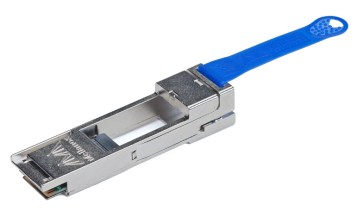
It is recommended to use the QSA Adapter (QSFP+ to SFP+ adapter) which is the world’s first solution for the QSFP to SFP+ conversion challenge for 40GB/Infiniband to 10G/1G. For more information, see Quad to Serial Small Form Factor Pluggable (QSA) Adapter to allow for the hardware

gfx_01604

Here is the summary of the excerpts from the document.

Overview
mlx4 is the low level driver implementation for the ConnectX adapters designed by Mellanox Technologies. The ConnectX can operate as an InfiniBand adapter, as an Ethernet NIC, or as a Fibre Channel HBA. The driver in OFED 1.4 supports Infiniband and Ethernet NIC configurations. To accommodate the supported configurations, the driver is split into three modules:

  1. mlx4_core
    Handles low-level functions like device initialization and firmware commands processing. Also controls resource allocation so that the InfiniBand and Ethernet functions can share the device without interfering with each other.
  2. mlx4_ib
    Handles InfiniBand-specific functions and plugs into the InfiniBand midlayer
  3. mlx4_en
    A new 10G driver named mlx4_en was added to drivers/net/mlx4. It handles Ethernet specific functions and plugs into the netdev mid-layer.

Using Virtual Protocol Interconnect (VPI) to switch between Ethernet and Infiniband

Loading Drivers

    1. The VPI driver is a combination of the Mellanox ConnectX HCA Ethernet and Infiniband drivers. It supplies the user with the ability to run Infiniband and Ethernet protocols on the same HCA.
    2. Check the MLX4 Driver is loaded, ensure that the
      # vim /etc/infiniband/openib.conf
      # Load MLX4_EN module
      MLX4_EN_LOAD=yes
    3. If the MLX4_EN_LOAD=no, the Ethernet Driver can be loaded by running
      # /sbin/modprobe mlx4_en

Port Management / Driver Switching

  1. Show Port Configuration
    # /sbin/connectx_port_config -s
    --------------------------------
    Port configuration for PCI device: 0000:16:00.0 is:
    eth
    eth
    --------------------------------
  2. Looking at saved configuration
    # vim /etc/infiniband/connectx.conf
  3. Switching between Ethernet and Infiniband
    # /sbin/connectx_port_config
  4. Configuration supported by VPI
    - The following configurations are supported by VPI:
    	Port1 = eth   Port2 = eth
    	Port1 = ib    Port2 = ib
    	Port1 = auto  Port2 = auto
    	Port1 = ib    Port2 = eth
    	Port1 = ib    Port2 = auto
    	Port1 = auto  Port2 = eth
    
      Note: the following options are not supported:
    	Port1 = eth   Port2 = ib
    	Port1 = eth   Port2 = auto
    	Port1 = auto  Port2 = ib

For more information, see

  1. ConnectX -3 VPI Single and Dual QSFP+ Port Adapter Card User Manual (pdf)
  2. Open Fabrics Enterprise Distribution (OFED) ConnectX driver (mlx4) in OFED 1.4 Release Notes

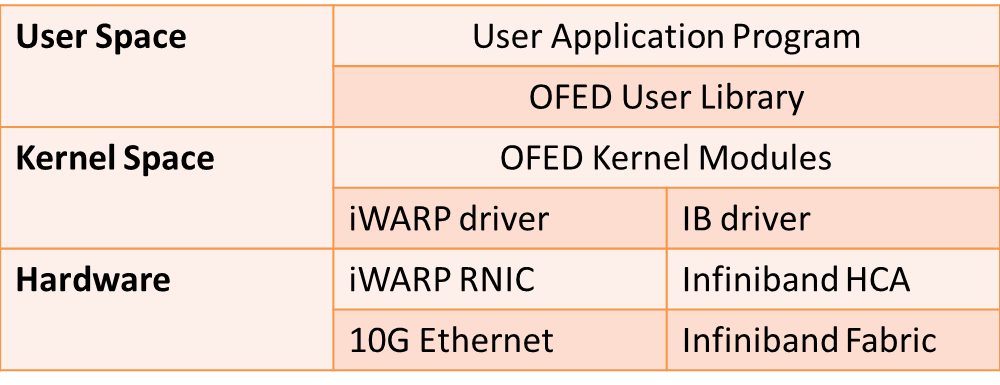
iWARP, RDMA and TOE

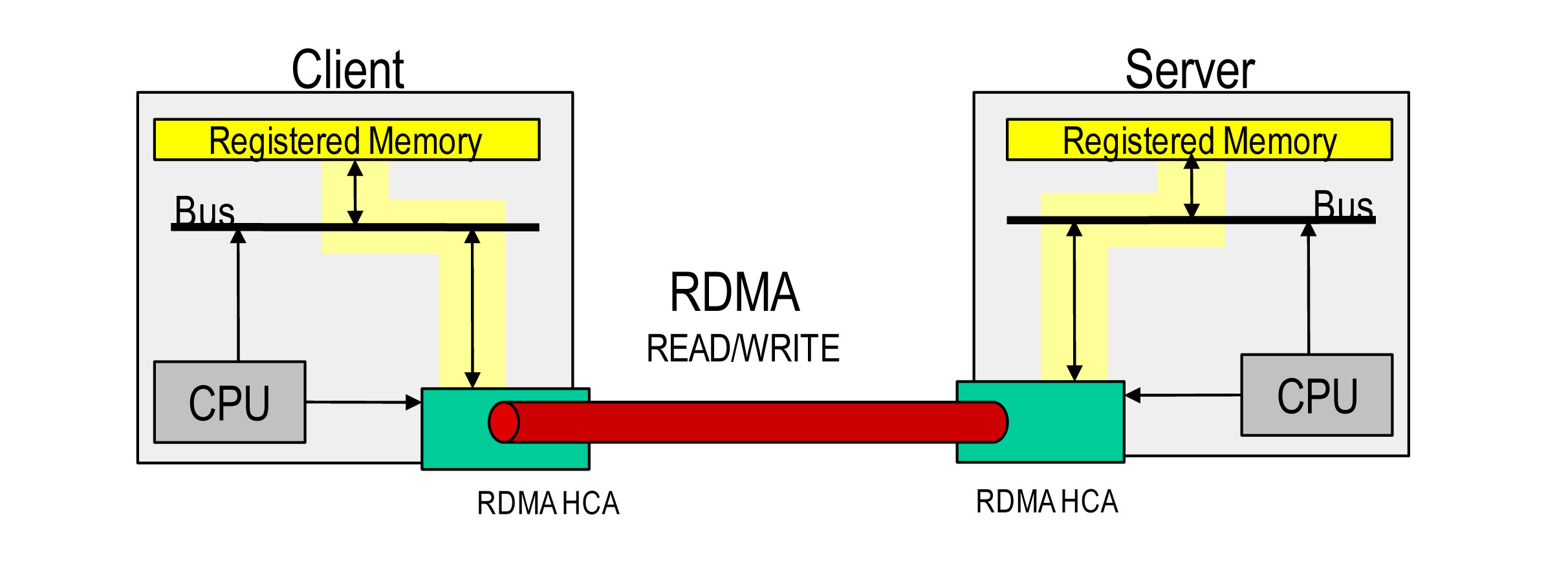
Remote Direct Access Memory Access (RDMA) allows data to be transferred over a network from the memory of one computer to the memory of another computer without CPU intervention. There are 2 types of RDMA hardware: Infiniband and  RDMA over IP (iWARP). OpenFabrics Enterprise Distribution (OFED) stack provides common interface to both types of RDMA hardware.

High Bandwidth Switches like 10G allows high transfer rates, but TCP/IP is not sufficient to make use of the entire 10G bandwidth due to data copying, packet processing and interrupt handling on the CPUs at each end of the TCP/IP connection. In a traditional TCP/IP network stack, an interrupt occurs for every packet sent or received, data is copied at least once in each host computer’s memory (between  user space and the kernel’s TCP/IP buffers). The CPU is responsible for processing multiple nested packet headers for all protocols levels in all incoming and outgoing packets.

Cards with iWARP and TCP Offloading (TOC) capbilities like Chelsio enables to the entire iWARP, TCP/IP and IP Protocol to offlload from the main CPU on to the iWARP/TOE Card to achieve throuput close to full capacity of 10G Ethernet.

RDMA based communication
(Taken from TCP Bypass Overview by Informix Solution (June 2011) Pg 11)

  1. Remove from CPU from being bottleneck by using User Space to User Space remote copy – after memory registration
  2. HCA is responsible for virtual-physcial -> physial-virtual address mapping
  3. Shared keys and exchanged for access rights and current ownership
  4. Memory has to be registered to lock into RAM and initalise HCA TLB
  5. RDMA read uses no CPU cycles after registratio on doner side.

TCP/IP Optimisation

There are several techniques to optimise TCP/IP. I will mentioned 3 types of TCP/IP Optimisation

  1. TCP Offload engines
  2. User Space TCP/IP implementations
  3. Bypass TCP via RDMA

Type 1: TCP Offload

TCP OffLoad Engine (TOE) is a technology that offloads TCP/IP stack processing to the NIC. Used primarily with high-speed interfaces such as 10GbE, the TOE technology frees up memory bandwidth and valuable CPU cycles on the server, delivering the high throughput and low latency needed for HPC applications, while leveraging Ethernet’s ubiquity, scalability, and cost-effectiveness. (Taken from Delivering HPC Applications with Juniper Networks and Chelsio Communications, Juniper Networks, 2010)

For Ethernet such as 10G where the TCP/IP processing overhead is high due to the larger bandwidth compared to 1GB

A good and yet digestible write-up can be found in TCP/IP offload Engine (TOE). In the article, TCP/IP processing can be spilt into different phrases.

  1. Connection establishment
  2. Data transmission/reception
  3. Disconnection
  4. Error handling

Full TCP/IP off-loading

Installing Chelsio driver CD on an ESX 4.x host

This article is taken and modified from Installing the VMware ESX/ESXi 4.x driver CD on an ESX 4.x host (VMware Knowledge Base)

Step 1: Download the Chelsio Drivers for ESX

Download from relevant drivers for your sepcific cards from  Chelsio Download Centre

Step 2: Follow the instruction from VMware

Note: This procedure requires you to place the host in Maintenance Mode, which requires downtime and a reboot to complete installation. Ensure that any virtual machines that need to stay live are migrated, or plan for proper down time if migration is not possible.
  1. Download the driver CD from the vSphere Download Center.
  2. Extract the ISO on your local workstation using an third-party ISO reader (such as WinISO). Alternatively, you can mount the ISO via SSH with the command:

    mkdir /mnt/iso mount -o loop filename.iso /mnt/iso

    Note: Microsoft operating systems after Windows Vista include a built-in ISO reader.

  3. Use the Data Browser in the vSphere Client to upload the ZIP file that was extracted from the ISO to your ESX host.

    Alternatively, you can use a program like WinSCP to upload the file directly to your ESX host. However, you require root privileges to the host to perform the upload.

  4. Log in to the ESX host as root directly from the Service Console or through an SSH client such as Putty.
  5. Place the ESX host in Maintenance Mode from the vSphere Client.
  6. Run this command from the Service Console or your SSH Client to install the bundled package:

    esxupdate –bundle=<name of bundled zip> update

  7. When the package has been installed, reboot the ESX host by typing reboot from the Service Console.

Note: VMware does not endorse or recommend any particular third party utility, nor are the above suggestions meant to be exhaustive.

Installing Chelsio Unified Wire from RPM for CentOS 5

This writeup is taken from the ChelsioT4 UnifiedWire Linux UserGuide (pdf) and trimmed for installation on RHEL5.4 or CentOS 5.4. But it should apply for other RHEL / CentOS versions

Installing Chelsio Software

1. Download the tarball specific to your operating system and architecture from our Software download site http://service.chelsio.com/

2. For RHEL 5.4, untar using the following command:

# tar -zxvf ChelsioUwire-1.1.0.10-RHEL-5.4-x86_64.tar.gz

3. Navigate to “ChelsioUwire-x.x.x.x” directory. Run the following command

# ./install.sh

4. Select „1‟ to install all Chelsio modules built against inbox OFED or select „2‟ to install OFED-1.5.3 and all Chelsio modules built against OFED-1.5.3.

5. Reboot system for changes to take effect.

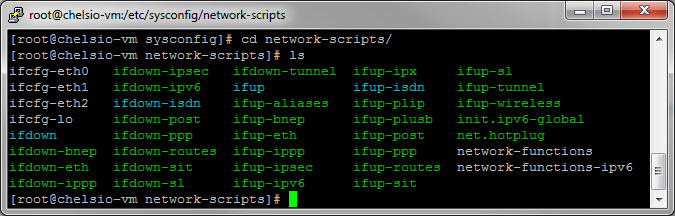
6. Configure the network interface at /etc/sysconfig/network-scripts/ifcfg-ethx

Compiling and Loading of iWARP (RDMA) driver

To use the iWARP functionality with Chelsio adapters, user needs to   install the iWARP drivers as well as the libcxgb4, libibverbs, and librdmacm   libraries. Chelsio provides the iWARP drivers and libcxgb4 library as part of the driver package. The other libraries are provided as part of the Open   Fabrics Enterprise Distribution (OFED) package.

# modprobe cxgb4
# modprobe iw_cxgb4
# modprobe rdma_ucm
# echo 1 >/sys/module/iw_cxgb4/parameters/peer2peer

Testing connectivity with ping and rping.

On the Server,

# rping -s -a server_ip_addr -p 9999

On the Client Server,

# rping -c –Vv -C10 -a server_ip_addr -p 9999

You should see ping data like this

ping data: rdma-ping-0: ABCDEFGHIJKLMNOPQRSTUVWXYZ[\]^_`abcdefghijklmnopqr
ping data: rdma-ping-1: BCDEFGHIJKLMNOPQRSTUVWXYZ[\]^_`abcdefghijklmnopqrs 
ping data: rdma-ping-2: CDEFGHIJKLMNOPQRSTUVWXYZ[\]^_`abcdefghijklmnopqrst 
ping data: rdma-ping-3: DEFGHIJKLMNOPQRSTUVWXYZ[\]^_`abcdefghijklmnopqrstu 
ping data: rdma-ping-4: EFGHIJKLMNOPQRSTUVWXYZ[\]^_`abcdefghijklmnopqrstuv 
ping data: rdma-ping-5: FGHIJKLMNOPQRSTUVWXYZ[\]^_`abcdefghijklmnopqrstuvw 
ping data: rdma-ping-6: GHIJKLMNOPQRSTUVWXYZ[\]^_`abcdefghijklmnopqrstuvwx 
ping data: rdma-ping-7: HIJKLMNOPQRSTUVWXYZ[\]^_`abcdefghijklmnopqrstuvwxy 
ping data: rdma-ping-8: IJKLMNOPQRSTUVWXYZ[\]^_`abcdefghijklmnopqrstuvwxyz 
ping data: rdma-ping-9: JKLMNOPQRSTUVWXYZ[\]^_`abcdefghijklmnopqrstuvwxyzA 
client DISCONNECT EVENT...

Configuring VMDirectPath I/O pass-through devices on an ESX host with Chelsio T4 Card (Part 2)

Note for Installation of the VM:

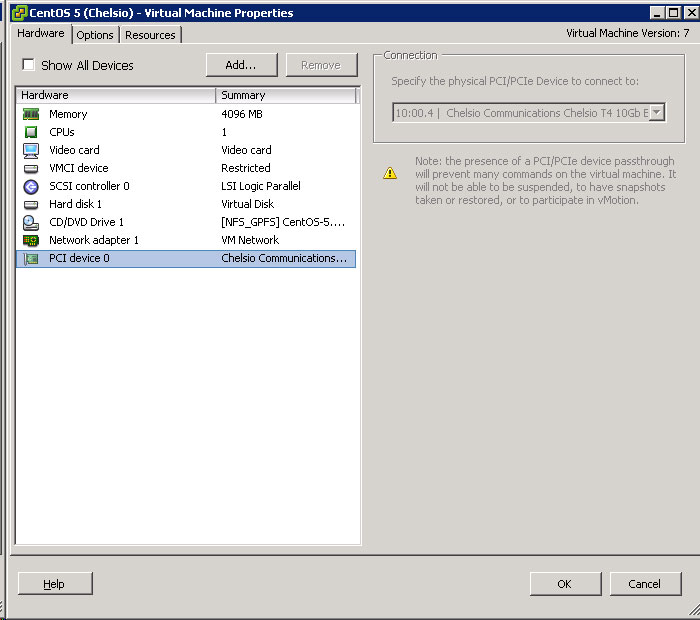
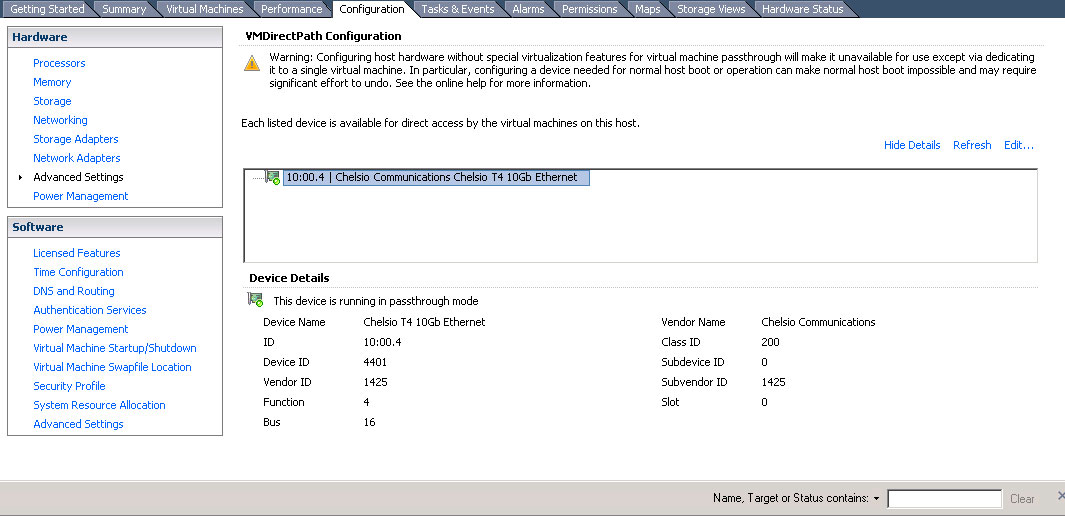
Remember to add the PCI/PCIe Device to the VM. Upon adding, you should be able to see the “10:00.4  | Chelsio Communications Chelsio T4 10GB Ethernet”. See above Pix

Proceed with installation of the VM, you should be able to see the Ethernet settings. Do proceed with the installation of OFED and Chelsio Drivers.

Information:

  1. Configuring VMDirectPath I/O pass-through devices on an ESX host with Chelsio T4 Card (Part 1)

Configuring VMDirectPath I/O pass-through devices on an ESX host with Chelsio T4 Card (Part 1)

For Part 1, the article is taken from Configuring VMDirectPath I/O pass-through devices on an ESX host. Part (2), we will deal with Chelsio T4 Card configuration after the Passthrough has been configured.

1. Configuring pass-through devices

To configure pass-through devices on an ESX host:
  1. Select an ESX host from the Inventory of VMware vSphere Client.
  2. On the Configuration tab, click Advanced Settings. The Pass-through Configurationpage lists all available pass-through devices.Note:A green icon indicates that a device is enabled and active.An orange icon indicates that the state of the device has changed and the host must be rebooted before the device can be used.
  3. Click Edit.
  4. Select the devices and click OK.Note: If you have a chipset with VT-d, when you click Advanced Settings in vSphere Client, you can select what devices are dedicated to the VMDirectPath I/O.
  5. When the devices are selected, they are marked with an orange icon. Reboot for the change to take effect. After rebooting, the devices are marked with a green icon and are enabled.Note:The configuration changes are saved in the /etc/vmware/esx.conf file. The parent PCI bridge, and if two devices are under the same PCI bridge, only one entry is recorded.The PCI slot number where the device was connected is 00:0b:0. It is recorded as:/device/000:11.0/owner = “passthru”Note: 11 is the decimal equivalent of the hexadecimal 0b.

2. To configure a PCI device on a virtual machine:

  1. From the Inventory in vSphere Client, right-click the virtual machine and choose Edit Settings.
  2. Click the Hardware tab.
  3. Click Add.
  4. Choose the PCI Device.
  5. Click Next.Note: When the device is assigned, the virtual machine must have a memory reservation for the full configured memory size.


3. Information

  1. Configuring VMDirectPath I/O pass-through devices on an ESX host with Chelsio T4 Card (Part 2)

Using iptables to allow compute nodes to access public network

Objectives:
Compute Nodes in an HPC environment are usually physically isolated from the public network and has to route through the gateway which are often found in Head Node in small or small-medium size cluster to access the internet or to access company LAN to access LDAP, you can use the iptables to route the traffic through the interconnect facing the internet

Scenario:
Traffic will be routed through the Head Node eth1 (internet facing) from the eth0 (private network)  of the same Head Node. The interconnect eth0 is attached to a switch where the compute nodes are similarly attached. Some

  1. 192.168.1.0/24 is the private network subnet
  2. 155.1.1.1 is the DNS forwarders for public-facing DNS
  3. 155.1.1.2 is the IP Address of the external-facing ethernet ie eth1

Ensure the machine allow ip forwarding

# cat /proc/sys/net/ipv4/ip_forward

If the output is 0, then IP forwarding is not enabled. If the output is 1, then IP forwarding is enabled.

If your output is 0, you can enabled it by running the command

# echo 1 > /proc/sys/net/ipv4/ip_forward

 Or if you wish to make it permanent,

# vim/etc/rc.local
echo 1 > /proc/sys/net/ipv4/ip_forward


Network Configuration of the Compute Node (Assuming that eth0 is connected to the private switch). It is very important that you input the gateway.

# Broadcom Corporation NetXtreme II BCM5708 Gigabit Ethernet
# Compute Node
DEVICE=eth0
BOOTPROTO=static
ONBOOT=yes
HWADDR=00:00:00:00:00:00
IPADDR=192.168.1.2
NETMASK=255.255.255.0
GATEWAY=192.168.1.1

DNS Settings of the Compute Nodes should not only have DNS of the internal private switch but also the DNS forwarders of the external network

search mydomain
# Private DNS
nameserver 192.168.1.1
# DNS forwarders
nameserver 155.1.1.1

Configure iptables in the Cluster Headnode if you are using the Headnode as a gateway.

# Using the Headnode as a gateway
iptables -t nat -A POSTROUTING -s 192.168.1.0/24 -o eth1 -j 
SNAT --to-source 155.1.1.1

# Accept all Traffic from a Private subnet
iptables -A INPUT -s 192.168.1.0/24 -d 192.168.1.0/24 -i 
eth0 -j ACCEPT

Restart iptables services

# service iptables save
# service iptables restart

Quick check that the Compute Nodes can have access to outside

# nslookup www.centos.org
Server: 155.1.1.1
Address: 155.69.1.1#53

Non-authoritative answer:
Name: www.centos.org
Address: 72.232.194.162

High Performance Data Transfers on TCP/IP

This writeup is a summary of the excellent article from Pittburgh Supercomputing Centre “Enabling High Performance Data Transfers

According to the article, there are five networking options that should be taken into consideration

  1. “Maximum TCP Buffer (Memory) space: All operating systems have some global mechanism to limit the amount of system memory that can be used by any one TCP connection. [more][less]”
  2. “Socket Buffer Sizes: Most operating systems also support separate per connection send and receive buffer limits that can be adjusted by the user, application or other mechanism as long as they stay within the maximum memory limits above. These buffer sizes correspond to the SO_SNDBUF and SO_RCVBUF options of the BSD setsockopt() call. [more][less]”
  3. “TCP Large Window Extensions (RFC1323): These enable optional TCP protocol features (window scale and time stamps) which are required to support large BDP paths. [more][less]
  4. TCP Selective Acknowledgments Option (SACK, RFC2018) allow a TCP receiver inform the sender exactly which data is missing and needs to be retransmitted. [more][less]
  5. Path MTU The host system must use the largest possible MTU for the path. This may require enabling Path MTU Discovery (RFC1191, RFC1981, RFC4821). [more][less]

Under Linux Section, the article mentioned that for Linux

Recent versions of Linux (version 2.6.17 and later) have full autotuning with 4 MB maximum buffer sizes. Except in some rare cases, manual tuning is unlikely to substantially improve the performance of these kernels over most network paths, and is not generally recommended