Deploying watchdog on ipfail-plugin for Heartbeat

The kernel uses watchdog to handle a hung system. Watchdog is simply a kernel module that checks a timer to determine whether the system is alive. Watchdog can reboot the system if it think it is hung. Watchdog is quite useful to to determine a server hang situation

To activate watchdog

respawn clusteruser /usr/lib/heartbeat/ipfail
ping 172.16.1.254     172.16.1.253
#ping_group pingtarget 172.16.1.254 172.16.1.253
watchdog /dev/watchdog
auto_failback off

when you enable the watchdog option in your /etc/ha.d/ha.cf file, Heartbeat will write to /dev/watchdog file at an interval equal to the deadtime timer  If heartbeat fail to update the watchdog device, watchdog will initiate a kernel panic once the watchdog timeout period has expired.

Configure kernel to reboot when there is kernel panics

To force the kernel to reboot instead ojust hanging when there is kernel panics, you have to modify the boot arguments passed to the kernel. This can be done on /etc/grub.conf

#aaaaaa; line-height: 1.5; padding: 15px;">default=0
timeout=0
splashimage=(hd0,0)/boot/grub/splash.xpm.gz
hiddenmenu
title Fedora (2.6.29.4-167.fc11.i686.PAE)
root (hd0,0)
kernel /boot/vmlinuz-2.6xxxxx.i686.PAE ro root=LABEL=/ panic=60
initrd /boot/initrd-2.6.xxxxx.i686.PAE.img

Alternatively, if you are using lilo.conf, you can add the following line

append="panic=60"

Remember to do a

# lilo -v

Deploying ipfail plug-in for HeartBeat

This is a continuation of the Blog Entry Deploying a Highly Available Cluster (Heartbeat) on CentOS. In this Blog Entry, we are looking ipfail plug-in that comes with Heartbeat package.

ipfail plug-in purpose is to allow me to specify one of more ping servers in the HeartBeat configuration file. If the master server fail to see one of the ping server and if the slave server can ping the ping server, it will take over the ownership of the reasource as it assumes, there is network comunication issues with the clients even though the master server or may not be down.

To use ipfail, you must first decide which device on the network both Heartbeat Servers must ping at all times. Enter the information in /etc/ha.d/ha.cf.

respawn clusteruser /usr/lib/heartbeat/ipfail
ping 172.16.1.254     172.16.1.253
#ping_group pingtarget 172.16.1.254 172.16.1.253
auto_failback off
  1. The first line above tells Heartbeat to start the ipfail program on both master and slave server and to respawn it it if it stops using clusteruser user created during the instllation
  2. The 2nd line specifices the 1 or more ping servers that the heartbeat servers must ping to ensure it has connection to the network. Make sure you use ping servers on both interface. In “ping”, the connectivity of each IP address listed are independent and equally important. Ping reply from any of the IP Address listed are considered important.
  3. A ping_group is considered by Heartbeat to be a single cluster node (group-name). The ability to communicate with any of the group members means that the group-name member is reachable.
  4. Deploying watchdog on ipfail-plugin for Heartbeat

Deploying a Highly Available Cluster (Heartbeat) on CentOS

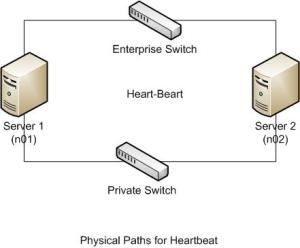
Here the Heatbeat Program is configured to work over a seperate physical connection between the 2 servers (over the private switch). The seperate connection between the 2 servers can be either a serial cable or another ethernet network connection via cross-over cable or a mini switch.

Do note that it is recommended to use at least 2 seperate physical connection to eliminate a single point of failure. As such both of your servers will need 2 phyiscal NIC to allow this 2 seperate physical connection design

Step 1: Configuring the IP addresses
Firstly, do note that RFC 1918 defines the following IP addresses for private network

10.0.0.0 to 10.255.255.255 (10/8 prefix)
172.16.0.0. to 172.31..255.255 (172.16/12 prefix)
192.168.0.0 to 192.168.255.255 (192.168/16 prefix)

For the master node, I will be configuring the IP Addresses as followed:

192.168.1.2 for eth0 (private LAN for the private physical path for the the heartbeat)
172.16.1.2 for eth1 (existing corporate LAN for the other physcial path for the heartbeat

For the slave node, I will be configuring the IP Addresses as followed:

192.168.1.3 for eth0 (private LAN for the private physical path for the heartbeat)
172.16.1.3 for eth1 (existing corporate LAN for the other physical path for the heartbeat)

For the Virtual IP Address, I will be configuring the IP Addresses as followed:

172.16.1.1 (for Virtual Address)

Verify the name of the master node and slave nodes

uname -n
(n01 for master node; n02 for slave node)

Step 2: Install and configure the Heartbeat

# yum install heartbeat

Now we have to configure 3 of the files for the 2 nodes. They are

authkeys
ha.cf
haresources

Copy the sample files to the /etc/ha.d directory

cp /usr/share/doc/heartbeat-2.1.2/authkeys /etc/ha.d/
cp /usr/share/doc/heartbeat-2.1.2/ha.cf /etc/ha.d/
cp /usr/share/doc/heartbeat-2.1.2/haresources /etc/ha.d/

Step 3: Configuring the /etc/ha.d/ha.cf

logfile /var/log/ha-log
logfacility local
warntime 5
keepalive 2
deadtime 15
initdead 60
bcast eth0 eth1
udpport 694
auto_failback off
node n01 n02
  1. keepalive – specifies how many seconds there should be there between heartbeats
  2. deadtime – specifies how many seconds how long the backup will wait without receiving a heartbeat from the primary server before taking over
  3. initdead – specifies that after the heartbeat daemon starts, it should wait 120 seconds before starting any resources on the primary server.
  4. warntime – issues a warning that a no longer available peer node may be dead
  5. nodes n01 n02 is generated by uname -n
  6. auth_failback off – If the master server fail, the slave server will hold up the resources and will not return the control to the master server when it is brought back live. If auth_failover on, once the master server is brought back online, the slave server will return the resource back to the master server

Step 4: Configure the /etc/ha.d/authkeys

Edit and uncomment the line so that the lines inside /etc/ha.d/authkeys so like this

auth 1
1 sha 1 password
  1. 1  – is a simple key index, starting with 1
  2. sha 1 – the signature algorithm being used. You may use either md5 or sha1
  3. password – refer to the password you create. Make sure it is the same on both systems

Change the permission of the authkeys file

chmod 600 /etc/ha.d/authkeys

Step 5: Configure /etc/ha.d/haresources

The /etc/ha.d/haresources file contain the name of the resources the master server should own. Name of resources are usually a scripts found in /etc/init.d/(script) or /etc/ha.d/resource.d directory. If you stop the heartbeat daemon, you will stop the resource daemon (For example httpd) will not run.

n01 httpd

(where n01 is the master server and the httpd is the resource daemon handled by heartbeat )

Step 6: Install the Heartbeat and configure the backup server 

Install the heart-beat according to Step 2. Next copy all the configuration file to the slave server

scp -r /etc/ha.d/ root@n02:/etc/

Copy the resource daemon heartbeat is running from the master server to the slave server. For this example, we will assume httpd

scp /etc/httpd/conf/httpd.conf root@n02:/etc/httpd/conf/

Step 7: Start and test the heartbeat on master (n01) and slave nodes (n02)

/etc/init.d/heartbeat start
http://172.16.1.1/ (Virtual IP Address)

Stop the master node heartbeat and type http://172.16.1.1/

/etc/init.d/heartbeat stop
http://172.16.1.1/ (Virtual IP Address)

(n02 should show hold the daemon)

Further reading:

  1. Deploying ipfail plug-in for HeartBeat (Linux Cluster)

For more information, do look at

  1. Heartbeat User’s Guide 3.0
  2. Configuring A High Availability Cluster (Heartbeat) On CentOS
  3. Linux-HA

Linux Bonding Modes

This Blog entry is the extension  of Linux Network Bonding or Trunking on CentOS 5.x. RHEL derivatives have 7 modes (0-6) of possible bonding modes. One of the best information can be found at Linux Channel Bonding Project . Much information are taken from there.

  1. Mode 0: Balance Round-Robin (balance-rr)
    Round-robin policy: Transmit packets in sequential order from the first available slave through the
    last.  This mode provides load balancing and fault tolerance.
  2. Mode 1: Active-Backup
    Active-backup policy: Only one slave in the bond is active.  A different slave becomes active if, and only if, the active slave fails.  The bond’s MAC address is externally visible on only one port (network adapter) to avoid confusing the switch.In bonding version 2.6.2 or later, when a failover occurs in active-backup mode, bonding will issue one or more gratuitous ARPs on the newly active slave. One gratuitous ARP is issued for the bonding master interface and each VLAN interfaces configured above
    it, provided that the interface has at least one IP address configured.  Gratuitous ARPs issued for VLAN interfaces are tagged with the appropriate VLAN id.This mode provides fault tolerance.  The primary option, documented below, affects the behavior of this mode.
  3. Mode 2: Balance-xor
    XOR policy: Transmit based on the selected transmit hash policy.  The default policy is a simple [(source MAC address XOR’d with destination MAC address) modulo
    slave count].  Alternate transmit policies may be selected via the xmit_hash_policy option, described below.This mode provides load balancing and fault tolerance.
  4. Mode 3: Broadcast
    Broadcast policy: transmits everything on all slave interfaces.  This mode provides fault tolerance.
  5. Mode 4: 802.3ad (Dynamic link aggregation)
    IEEE 802.3ad Dynamic link aggregation.  Creates aggregation groups that share the same speed and duplex settings.  Utilizes all slaves in the active aggregator according to the 802.3ad specification.Slave selection for outgoing traffic is done according to the transmit hash policy, which may be changed from the default simple XOR policy via the mit_hash_policy option, documented below.  Note that not all transmit policies may be 802.3ad compliant, particularly in regards to the packet mis-ordering requirements of section 43.2.4 of the 802.3ad standard.  Differing peer implementations will have varying tolerances for noncompliance.Prerequisites:
    1. Ethtool support in the base drivers for retrieving the speed and duplex of each slave.
    2. A switch that supports IEEE 802.3ad Dynamic link aggregation. Most switches will require some type of configuration to enable 802.3ad mode.
  6. Mode 5 – Adaptive transmit load balancing (balance-tlb)
    Adaptive transmit load balancing: channel bonding that does not require any special switch support.  The outgoing traffic is distributed according to the current load (computed relative to the speed) on each slave.  Incoming traffic is received by the current slave.  If the receiving slave fails, another slave takes over the MAC address of the failed receiving slave.Prerequisite:
    Ethtool support in the base drivers for retrieving the speed of each slave.
  7. Mode 6: Adaptive load balancing (balance-alb)
    Adaptive load balancing: includes balance-tlb plus receive load balancing (rlb) for IPV4 traffic, and does not require any special switch support.  The receive load balancing is achieved by ARP negotiation. The bonding driver intercepts the ARP Replies sent by the local system on their way out and overwrites the source ardware address with the unique hardware address of one of the slaves in the bond such that different peers use different hardware addresses for the server.Receive traffic from connections created by the server is also balanced.  When the local system sends an ARP Request the bonding driver copies and saves the peer’s
    IP information from the ARP packet.  When the ARP Reply arrives from the peer, its hardware address is retrieved and the bonding driver initiates an ARP reply to this peer assigning it to one of the slaves in the bond.  A problematic outcome of using ARP negotiation for balancing is that each time that an ARP request is broadcast it uses the hardware address of the bond.  Hence, peers learn the hardware address
    of the bond and the balancing of receive traffic collapses to the current slave.  This is handled by sending updates (ARP Replies) to all the peers with their individually assigned hardware address such that the traffic is redistributed.  Receive traffic is also redistributed when a new slave is added to the bond and when an inactive slave is re-activated.  The receive load is distributed sequentially (round robin) among the group of highest speed slaves in the bond.When a link is reconnected or a new slave joins the bond the receive traffic is redistributed among all active slaves in the bond by initiating ARP Replies with the selected MAC address to each of the clients. The updelay parameter (detailed below) must be set to a value equal or greater than the switch’s forwarding delay so that the ARP Replies sent to the peers will not be blocked by the switch.Prerequisites:

    1. Ethtool support in the base drivers for retrieving the speed of each slave.
    2. Base driver support for setting the hardware address of a device while it is open.  This is required so that there will always be one slave in the team using the bond hardware address (the curr_active_slave) while having a unique hardware address for each slave in the bond.  If the curr_active_slave fails its hardware address is swapped with the new curr_active_slave that was chosen.

Linux Network Bonding or Trunking on CentOS 5.x

Network Bonding or Trunking refers to the aggregation of multiple network ports into a single aggregated group, effectively aggregating the bandwidth of multiple interfaces into a single connection pipe. Bonding is used to provide network load balancing and fault tolerance

We are assuming that you are using CentOS 5.x

Step 1: Create a bond0 config file at /etc/sysconfig/network-scripts/ directory

# touch /etc/sysconfig/network-scripts/ifcfg-bond0
# vim  /etc/sysconfig/network-scripts/ifcfg-bond0
DEVICE=bond0
ONBOOT=yes
BOOTPROTO=none
IPADDR=192.168.10.1
NETWORK=192.168.10.0
NETMASK=255.255.255.0
USERCTL=no

(Where IP is the Actual Address of the Bonded IP Address shared by the 2 physical NIC)

Step 2: Edit the configuration files of the 2 physical Network Cards (eth0 & eth1) that you wish to bond

# vim /etc/sysconfig/network-scripts/ifcfg-eth0
DEVICE=eth0
ONBOOT=yes
BOOTPROTO=none
MASTER=bond0
SLAVE=yes
USERCTL=no
# vim /etc/sysconfig/network-scripts/ifcfg-eth1
DEVICE=eth1
ONBOOT=yes
BOOTPROTO=none
MASTER=bond0
SLAVE=yes
USERCTL=no

Step 3: Load the Bond Module

/etc/modprobe.conf
alias bond0 bonding
options bond0 mode=0 miimon=100

Note:

  1. RHEL bonding supports 7 possible “modes” for bonded interfaces. See  Linux Bonding Modes website for more details on the modes.
  2. miimonspecifies (in milliseconds) how often MII link monitoring occurs. This is useful if high availability is required because MII is used to verify that the NIC is active.


Step 4:
Load the bond driver module from the command prompt.

modprobe bonding

Step 5: Restart the network

Restart the network

Step 6: Verify the /proc setting.

less /proc/net/bonding/bond0
Ethernet Channel Bonding Driver: v3.2.4 (January 28, 2008)

Bonding Mode: load balancing (round-robin)
MII Status: up
MII Polling Interval (ms): 0
Up Delay (ms): 0
Down Delay (ms): 0

Slave Interface: eth0
MII Status: up
Link Failure Count: 0
Permanent HW addr: xx:xx:xx:xx:xx:xx

Slave Interface: eth1
MII Status: up
Link Failure Count: 0
Permanent HW addr: yy:yy:yy:yy:yy:yy

Step 7: Final Tests

  1. Do a ifconfig to check everything is alright.
  2. ping from remote station to bond0 ipaddress

MAUI Installation on Torque and xCAT

Maui Cluster Scheduler (a.k.a. Maui Scheduler) is the first generation cluster scheduler, precursor to the highly successful MOAB scheduler. Maui is an advanced policy engine used to improve the manageability and efficiency of machines ranging from clusters of a few processors to multi-teraflop supercomputers.

Taken and modified from http://sourceforge.net/apps/mediawiki/xcat/index.php?title=Maui
 

Step 1: Download MAUI tarball from Cluster Resources

Create an account and download at http://www.clusterresources.com/product/maui/index.php
Untar in /tmp

Step 2: Configure soft links for Torque

# cd /opt/torque
# ln -s x86_64/bin .
# ln -s x86_64/lib .
# ln -s x86_64/sbin .

# export PATH=$PATH:/opt/torque/x86_64/bin/

Step 3: Configure and Install MAUI

# cd maui-3.2.6p21
# ./configure --prefix=/opt/maui --with-pbs=/opt/torque/ --with-spooldir=/opt/maui
# make -j8
# make install
# cp /opt/xcat/share/xcat/netboot/add-on/torque/moab /etc/init.d/maui
(Edit /etc/init.d/maui so that all MOAB is MAUI and all moab becomes maui)
# service start maui
# chkconfig --level 345 maui on

Step 4: Configure MAUI and maui.cfg

# touch /etc/profile.d/maui.sh
# vim maui (Type: export PATH=$PATH:/opt/maui/bin)
# source /etc/profile.d/maui
# vim /usr/local/maui/maui.cfg
(Change: RMCFG[] TYPE=PBS@...@ to:
RMCFG[] TYPE=PBS)
# service maui restart

(If there is MAUI error regarding the Torque Server host name, ensure the host name sequence changes in /etc/hosts). Assuming pbs_server.com is the name of the Torque Server name used in its configuration file, it should come first before other aliases)

192.168.1.5       pbs_server.com    pbsserver

Step 5: Test the Configuration

# showq

(You should see all of the processors. Next try running a job to make sure that maui picks it up.)

Configuring NTP Server and Client on CentOS 5.x

The Network Time Protocol (NTP) is a protocol for synchronizing the clocks of computer systems over packet-switched, variable-latency data networks. NTP uses UDP on port 123 as its transport layer. The ntp package includes ntpdate package (for retrieving the date and time from remote machines via a network) and ntpd (a daemon which continuously adjusts system time).

For this blog entry, we are looking at a typical HPC Setup with Local Head Nodewith access to Internet and with Clients with no access to internet.

Step 1: Install the ntp package

# yum install ntp

Step 2: Configuration at /etc/ntp.conf
(The Basic Configuration is sufficient. A few things to note)

# vim /etc/ntp.conf
(Inside the /etc/ntp.conf)

restrict 192.168.1.0 mask 255.255.255.0 nomodify notrap
(This statement is to allow local network to access the Server)

restrict 127.0.0.1
(Ensure the localhost has full access without any restricting password)

server 0.centos.pool.ntp.org
server 1.centos.pool.ntp.org
server 2.centos.pool.ntp.org
(server xxxx.pool.ntp.org represent remote NTP servers that your local NTP Server want to sync to)

Step 3: Start the NTP Service
(Synchronise the local NTP Server with Remote NTP Server)

# chkconfig --levels 235 ntpd on
# ntpdate 0.centos.pool.ntp.org
# service ntpd start

Step 4: Check whether the NTP Server is working

# ntpq -p

Setting Up NTP Clients to sync with the local NTP Server and NTP Client

Step 1: Install NTP Client

# yum install ntp

Step 2: Configure the /etc/ntp.conf

# vim /etc/ntp.conf
(Inside the /etc/ntp.conf)

server 192.168.10.1
(where 192.168.10.1 is the local NTP Server)

Step 3: Configure /etc/ntp/ntpservers and /etc/ntp/step-tickers to point to the local NTP Servers

192.168.10.1
(where 192.168.10.1 is the local NTP Server where the NTP Clients will sync with)

Step 4: Start the Services

# chkconfig --levels 235 ntpd on
# ntpdate 192.168.10.1
# service ntpd start

Step 5: Check whether it is working

# ntpq -p

For more information, go to

  1. NTP.org
  2. ntpdate no server suitable for synchronization found (Linux Toolkit)
  3. Setting up NTP Server for Local Network (Linux Toolkit)

Installing and configuring Ganglia on CentOS 5.4

Ganglia is a scalable distributed monitoring system for high-performance computing systems such as clusters and Grids. Ganglia will help you to determine if there are any trends that might be causing a hardware under capacity, runaway process etc. Ganglia requires very little CPU, memory and network resources to run. According to Ganglia official website, it can scale easily to 2000 nodes.

For the Blog Entry, I’m assuming you are building a HPC Cluster with a Head Node and several Compute Nodes.

Ganglia has 2 daemond gmetad and gmond. It also require other prerequsites such as PHP, RRDtool, Apache. First-thing-first

  1. gmond – Ganglia monitoring daemon. Gmond job is to gather performance metrics and keep track of the status of othe gmond running in the cluster. If one gmond daemond fail due to failure of the nodes, all remaining gmond knows about it. It is required on every node.
  2. gmetad – gmetad is only needed to run on the cluster head node. Its job is to consolidate and poll the gmond daemonds for the performance metric information every 15 seconds and store the information in the RRDtool round-robin database (In a round-robin database, the database never fills up as the newest data will override the older data.). Finally, it displays the information on to the Apache Web server
  3. The Ganglia Web package require PHP on the cluster head node to display the information on Apache

Part I: To install ganglia on CentOS 5.4 on the Cluster Head Node, do the followings:

  1. Make sure you have the RPMForge Repository installed. For more information, get more information at LinuxToolkit (Red Hat Enterprise Linux / CentOS Linux Enable EPEL (Extra Packages for Enterprise Linux) Repository)
  2. # yum install rrdtool ganglia ganglia-gmetad ganglia-gmond ganglia-web httpd php
  3. However at this point in writing, you might got the followings “Error: Missing Dependency: rrdtool = 1.2.27-3.el5 is needed by package rrdtool-perl“. To resolve the issue, you may want to look at LinuxToolkit (Error: Missing Dependency: librrd.so.2()(64bit) is needed by package ganglia-gmetad (epel)).
  4. By default, Ganglia uses multi-cast or UDP to pass information. I refer to use UDP as I can have better control
  5. Assuming 192.168.1.5 is our head node and port number 8649. Edit /etc/gmond.conf and start the gmond service.
    cluster {
    name = "My Cluster"
    owner = "kittycool"
    latlong = "unspecified"
    url = "unspecified"
    }
    udp_send_channel {
    host = 192.168.1.5
    port = 8649
    ttl = 1
    }
    udp_recv_channel {
    port = 8649
    }
  6. Configure the service level startup-up  and start the service for gmond
    chkconfig --levels 235 gmond on
    service gmond start
  7. Configure the /etc/gmetad.conf to define the datasource
    data_source "my cluster" 192.168.1.5:8649
  8. Configure the service level startup-up  and start the service for gmetad
    chkconfig --levels 235 gmetad on
    service gmetad start
  9. Configure the service level startup-up  and start the service for httpd
    chkconfig --levels 235 httpd on
    service httpd start

Part II: To install on the Compute Nodes, I’m assuming the Compute Node are on private network and does not have access to the internet. Only the Head Node has access to internet. I’m also assuming there is no routing from the compute nodes via the head node for internet access

  1. Read the following blog  Using yum to download the rpm package that have already been installed.
  2. Copy the rpm to all the compute nodes
  3. Install the package on each compute nodes*
    yum install ganglia-gmond
  4. Configure the service startup for each compute nodes*
    chkconfig --levels 235 gmond on
  5. Copy the gmond /etc/gmond.conf configuration file from head node to the compute node.

Part III: If  you wish to create custom metrics that is not included in the standard Ganglia Distribution, you can write your own performance monitoring scripts to report on the gmond running on the compute nodes with gmetric. To find sample gmetric scripts, you can find from

  1. Gmetric Script Repository. For example, you can use gemetric for NFS script “Linux NFS client GETATTR, READ and WRITE calls“.

Part IV: Using Command line gstat

  1. You can use gstat to list information about the cluster nodes.  Some useful commands are:
  2. # gstat -h
    (To show help for all commands)
  3. # gstat -a
    (List all nodes)
  4. # gstat -l
    (Print ONLY the host list)

Network design consideration for NFS

Network Design are an important consideration for NFS. Note the followings:

  1. If possible, dedicate the network to isolate the NFS Traffic.
  2. Trunking of multiple network to imporive network connections (Will write a blog entry later)
  3. If you have budget, you can consider a high-quality NAS which uses NFS accelerator components such as nonvolative RAM to commit NFS write operation as soon as possible which equivalent up to equivalent of async with reliability.