Sample configuration of EtherChannel / Link aggregation with ESX

Taken and summarised from Vmware KB Article “Sample configuration of EtherChannel / Link aggregation with ESX and Cisco/HP switches“. This KB article applies to Vmware products version 3.0.x to version 4.1.x


I will not include in the blog how to configure the CISCO or HP switch, do read the KB article for more information.

Configuring load balancing within the VMware Infrastructure Client

To configure vSwitch properties for load balancing:

  1. Click the ESX host.
  2. Click the Configuration tab.
  3. Click the Networking link.
  4. Click Properties.
  5. Click the virtual switch in the Ports tab and click Edit.
  6. Click the NIC Teaming tab.
  7. From the Load Balancing dropdown, choose Route based on ip hash.
  8. Verify that there are two or more network adapters listed under Active Adapters.

Choose the Licensing Mode for Terminal Services 2008

This is a good documentation to advise on how Licensing Mode for Terminal Services 2008. Taken from Technet Article “Choosing the Licensing Mode“. These 2 paragraphs are very important. User CALs is still going by the honour system. That does not mean we blatantly violate MS Licensing requirement. But at least it gives us times to response in case we run out of licenses.

Which CAL you choose depends on how you plan to use the terminal server. When the Per Device licensing mode is used, and a client computer or device connects to a terminal server for the first time, the client computer or device is issued a temporary license by default. When a client computer or device connects to a terminal server for the second time, if the license server is activated and enough TS Per Device CALs are available, the license server issues the client computer or device a permanent TS Per Device CAL.

A Per User CAL gives one user the right to access a terminal server from an unlimited number of client computers or devices. TS Per User CALs are not enforced by TS Licensing. As a result, client connections can occur regardless of the number of TS Per User CALs that are installed on the license server. This does not release administrators from the requirements of the Microsoft Software License Terms to have a valid TS Per User CAL for each user. Failure to have a TS Per User CAL for each user, if the Per User licensing mode is being used, is a violation of the license terms.

Deploying Big-IP LTM with Microsoft Remote Desktop Services

If you are deploying  BIG-IP LTM with Microsoft Windows Server 2008 R2 Remote Desktop Services, you will find these articles useful for the deployment.

BIG-IP LTM Configuration

  1. Working with Trunks (From F5 Knowledge Base)
  2. Using Link Aggregation with Tagged VLANs  (F5 Knowledge Base)
  3.  Deploying the BIG-IP LTM with Microsoft Windows Server 2008 R2 Remote Desktop Services (pdf)

Microsoft Remote Desktop Services Connection Broker Essential Documentation relevant to Big-IP LTM

  1. Remote Desktop Connection Broker (Microsoft Technet)
  2. Overview of Remote Desktop Connection Broker (RD Connection Broker) (Microsoft Technet)
  3. Checklist: Create a Load-Balanced RD Session Host Server Farm by Using RD Connection Broker (Microsoft Technet)
  4. Install the RD Connection Broker Role Service (Microsoft Technet)
  5. Add Each RD Session Host Server in the Farm to the Session Broker Computers Local Group (Microsoft Technet)
  6. Configure an RD Session Host Server to Join a Farm in RD Connection Broker (Microsoft Technet)
  7. Configure DNS for RD Connection Broker Load Balancing (Microsoft Technet). Not Relevant as F5 will do the load balancing.
  8. About IP Address and Token Redirection (Microsoft Technet)
  9. About Dedicated Farm Redirection and Virtual Machine Redirection (Microsoft Technet).

Detecting Intel VT and AMD-V

Do read this information article “Hyper-V: Will My Computer Run Hyper-V? Detecting Intel VT and AMD-V

In a nutshell, you have to use the tools to check on the  Identification Utility of each

  1. For AMD, you may want to verify from the BIOS to be certain.
  2. For Intel, you can use the Intel® Processor Identification Utility to check. You should look for “Intel® Virtualization Technology = Yes” and “Execute Disable Bit = True”

Do note that you have to to disable and enable virtualiztion extensions. Most shipments will come with the extensions disabled, maybe to make the system more secure. So you have to fiddle around your BIOS to see how to use enable it.

Determining if Intel Virtualization Technology or AMD Virtualization is enabled in the BIOS without rebooting

Taken from Vmware KB “Determining if Intel Virtualization Technology or AMD Virtualization is enabled in the BIOS without rebooting” (29 Jul 2010)

Purpose
When troubleshooting VMotion, Enhanced VMotion Capability (EVC) or 64bit virtual machine performance, you may need to determine if the Intel Virtualization Technology (VT) or AMD Virtualization (AMD-V) are enabled in the BIOS.

Resolution

1. Login to the ESX host as the root user.

2. Run this command

# esxcfg-info|grep "HV Support"

These are the descriptions for the possible values:

0 - VT/AMD-V indicates that support is not available for this hardware.
1 - VT/AMD-V indicates that VT or AMD-V might be available but it is not supported for this hardware.
2 - VT/AMD-V indicates that VT or AMD-V is available but is currently not enabled in the BIOS.
3 - VT/AMD-V indicates that VT or AMD-V is enabled in the BIOS and can be used.

Using TurboVNC 0.6 and VirtualGL 2.1.4 to run OpenGL Application Remotely on CentOS

 
Acknowledgement:
Much of these materials come from VirtualGL documents with additional notes by me from the field.


1. What is VirtualGL?
According to VirtualGL Project Website:

“VirtualGL is an open source package which gives any Unix or Linux remote display software the ability to run OpenGL applications with full 3D hardware acceleration…..With VirtualGL, the OpenGL commands and 3D data are instead redirected to a 3D graphics accelerator on the application server, and only the rendered 3D images are sent to the client machine……” For more information see What is VirtualGL? from Project Website

2. System Requirements:
See VirtualGL System Requirements from Project Website.

Taken from Virtual GL

3. Download and Install TurboJPEG and VirtualGL on CentOS 5.x.

For more detailed information, see
User Guide for Virtual 2.1.4

a. Download and Install TurboJPEG….

Go to the VirtualGL Download page

# rpm -Uvh turbojpeg*.rpm

b. Download and Install VirtualGL….

Go to the VirtualGL Download page

# rpm -Uvh VirtualGL*.rpm
 
4. Accessing to the 3D Xserver
According to the Project Website, VirtualGL requires access to the application server’s 3D graphics card so that it can create off-screen pixel buffers (Pbuffers) and redirect the 3D rendering from applications into these Pbuffers.

a. Shutdown Display Manager

# init 3


5. Configure VirtualGL Server Configuration

a. Run

# /opt/VirtualGL/bin/vglserver_config

b. Only users in the vglusers group can use VirtualGL

Restrict local X server access to vglusers group (recommended)?
[Y/n] Y

c. Only users in the vglusers group can run OpenGL applications on the VirtualGL server

Restrict framebuffer device access to vglusers group (recommended)?
[Y/n] Y

d. Disabling XTEST will prevent them from inserting keystrokes or mouse events and thus hijacking local X sessions on that X server.

Disable XTEST extension (recommended)?
[Y/n] Y

e. If you choose to restrict X Server or framebuffer device access to the vglusers group, then add root and users to the vglusers group

# vim /etc/group
vglusers:x:1800:root,user1,user2

f. Restart the Display Manager.

# init 5
(To verify that the application server is ready to run VirtualGL, log out of the server, log back into the server using SSh, and execute the following commands in the SSh session)

g. If you restricted 3D X server access to vglusers

xauth merge /etc/opt/VirtualGL/vgl_xauth_key
xdpyinfo -display :0
/opt/VirtualGL/bin/glxinfo -display :0

h. If you did not restrict 3D X server access

xdpyinfo -display :0
/opt/VirtualGL/bin/glxinfo -display :0

6. SSH Server Configuration

# vim /etc/ssh/sshd_config
X11Forwarding yes
# UseLogin No

*7. Checking that the OpenGL are using hardware drivers and direct rendering enabled to maximise performance.

# glxinfo |grep render

For example,

direct rendering: Yes
OpenGL renderer string: Quadro FX 3450/4000 SDI/PCI/SSE2
GL_NVX_conditional_render, GL_SGIS_generate_mipmap, GL_SGIS_texture_lod,

*8. Install and configure TurboVNC Server at the VirtualGL Server

a. Firstly, I uninstall the CentOS default vncserver

# yum remove vnc-server

b. Go to the VirtualGL Download to obtain and install the TurboVNC.rpm

# rpm -Uvh turbovnc*.rpm

c. The default rpm install places TurboVNC at /opt. You can create softlink at /usr/bin to /opt/TurboVNC

# ln -s /opt/TurboVNC/bin/vncserver /usr/bin/vncserver
# ln -s /opt/TurboVNC/bin/vncviewer /usr/bin/vncviewer
# ln -s /opt/TurboVNC/bin/vncpasswd /usr/bin/vncpasswd
# ln -s /opt/TurboVNC/bin/Xvnc /usr/bin/Xvnc

*9. Using TurboVNC

Open a session of VNC by simply typing

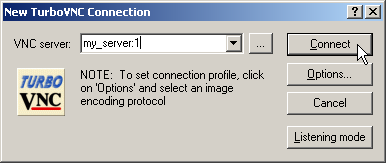
# vncserver
New 'kittycool:1 (root)' desktop is kittycool:1

Starting applications specified in /root/.vnc/xstartup
Log file is /root/.vnc/kittycool:1.log

(In the VNC Client, type)
kittycool:1

To Test whether the Virtual Server is working, type

# cd /opt/VirtualGL/bin
# ./vglrun glxgears


You will see a near smooth generation of the glxgears relative to hardware. Congrat!

Installing and checking /proc/mount using Nagios Plugins on CentOS 5

Most of this blog entry material is taken from “Checking /proc/mounts on remote server” from Nagioswiki . The Nagios version is 3.x and the OS Platform CentOS 5.x

We will basically require 2 Nagios Plugins “check_disk” and “check_nrpe” plugins to use this excellent nrpe plugins

On the Remote Server, install the

# yum install nagios-nrpe nagios-plugins-disk

On the Remote Server, go to nagios configuration file and the command inside nrpe.cfg

# vim /etc/nagios/nrpe.cfg
command[check_disks_proc_mounts]=/usr/lib/nagios/plugins/check_disk -w 15% -c 10% $(for x in $(cat /proc/mounts |awk '{print $2}')\; do echo -n " -p $x "\; done)

On the Nagios Server,

Ensure you have the check_nrpe plugins inside. and test the plugins

# yum install nagios-nrpe
# cd /usr/lib64/nagios/plugins
# ./check_nrpe -H monitored-server -c check_disks_proc_mounts

DISK OK - free space: / 28106 MB (53% inode=98%); /boot 81 MB (86% inode=99%);
/dev/shm 1887 MB (100% inode=99%);| /=24543MB;47188;49964;0;55516
/boot=12MB;83;88;0;98 /dev/shm=0MB;1603;1698;0;1887

Add the following definition in your commands.cfg file

define  command {
        command_name    check_nrpe_disk_procs
        command_line    $USER1$/check_nrpe -H $HOSTNAME$ -c check_disks_proc_mounts -t 20
        }

Add the following sort of host check (assuming, of course, that your host is already in your config)

define service{
        use                    local-service
        host_name              monitored_server
        service_description    check_disk on proc mounts
        check_command          check_nrpe_disk_procs
}

Horray it is done.

Incorporating PNP 0.4.x (PNP is not Perfparse) with Nagios 3 and CentOS 5

This blog entry is taken in part from the  Integrating PNP (PNP is not Perfparse) with CentOS 4.x / Nagios 2.x from NagiosWiki and the book Nagios 2nd Edition from No starch Press.

1. What is PNP4Nagios?
PNP4Nagios (English) is an addon to nagios which analyzes performance data provided by plugins and stores them automatically into RRD-databases

2. Which version will you be covering?
I’ll be using on the pnp4nagios 0.4.x which fit into CentOS 5.x quite well as it does not need to incorporate additional newer components which might break existing dependencies.
Download the pnp4nagios 0.4x from the download website

3. What prerequisites I need?
Install rrdtools
Make sure you have the RPMForge Repository installed. For more information, get more information at LinuxToolkit (Red Hat Enterprise Linux / CentOS Linux Enable EPEL (Extra Packages for Enterprise Linux) Repository).

# yum install rrdtool


4. Download and configure

# wget http://sourceforge.net/projects/pnp4nagios/files/PNP/pnp-0.4.14/pnp-0.4.14.tar.gz/download
# tar -zxvf pnp-0.4.14.tar.gz # cd pnp-0.4-14
# ./configure --sysconfdir=/etc/pnp --prefix=/usr/share/nagios

(For more configuration of ./configure, see ./configure –help)
Output is as followed:

*** Configuration summary for pnp 0.4.14 05-02-2009 ***
General Options:
------------------------- -------------------
Nagios user/group:  nagios nagios 
Install directory:  /usr/share/nagios 
HTML Dir:           /usr/share/nagios/share
Config Dir:          /etc/pnp 
Location of rrdtool binary: /usr/bin/rrdtool Version 1.4.4
RRDs Perl Modules:  FOUND (Version 1.4004)
RRD Files stored in:   /usr/share/nagios/share/perfdata 
process_perfdata.pl Logfile: /usr/share/nagios/var/perfdata.log
Perfdata files (NPCD) stored in: /usr/share/nagios/var/spool/perfdata/

Review the options above for accuracy. If they look okay,
type 'make all' to compile.
# make all
# make install

If there are failure for make or make install, you may not have installed gcc-c++ tool to compile.

# yum install gcc-c++

Create soft links

# ln -s /usr/share/nagios/share /usr/share/nagios/pnp


5. Passing Performance Data to the PNP data collector.
To switch on the performance data processing

# PROCESS PERFORMANCE DATA OPTION
# This determines whether or not Nagios will process performance
# data returned from service and host checks.  If this option is
# enabled, host performance data will be processed using the
# host_perfdata_command (defined below) and service performance
# data will be processed using the service_perfdata_command (also
# defined below).  Read the HTML docs for more information on
# performance data.
# Values: 1 = process performance data, 0 = do not process performance data

process_performance_data=1
# HOST AND SERVICE PERFORMANCE DATA PROCESSING COMMANDS
# These commands are run after every host and service check is
# performed.  These commands are executed only if the
# enable_performance_data option (above) is set to 1.  The command
# argument is the short name of a command definition that you
# define in your host configuration file.  Read the HTML docs for
# more information on performance data.

host_perfdata_command=process-host-perfdata
service_perfdata_command=process-service-perfdata

5a. Switching on the process-service-perfdata

(From inside Nagios configuration directory usually /etc/nagios/)

# cd objects
# vim commands.cfg
define command {
  command_name    process-service-perfdata
  command_line    /usr/bin/perl /usr/share/nagios/libexec/process_perfdata.pl
}

define command {
  command_name    process-host-perfdata
  command_line    /usr/bin/perl /usr/share/nagios/libexec/process_perfdata.pl -d HOSTPERFDATA
}

6. Final check

# cd /etc/nagios
# nagios -v nagios.cfg
(Check for any error. If there is no error, restart the service)
# service nagios restart
(Restart httpd)
# service httpd restart

7. Take a look at the graph!

http://YourServerIPAddres.org/nagios/share/

Installing Check Disk IO Plugins via NRPE on CentOS 5.x

This Blog entry is modified from Check Disk IO via NRPE from Nagios Wiki

1. What is check_diskio?
check_diskio is a simple Nagios plugin for monitoring disk I/O on Linux 2.4 and 2.6 systems.

2. Where do I get information and download check_diskio?
Got to http://freshmeat.net/projects/check_diskio/

3. Installation Guide
A. Ensure you install the perl package. You will need perl 5.8.x and required modules. You need to install RPMforge Repository (From Linux Toolkit Blog)

At the Client Machine.

# yum install perl
# tar -zxvf check_diskio-3.2.2.tar.gz
# cd check_diskio-3.2.2
# less INSTALL (Read the INSTALL Readme file)
# perl Makefile.PL INSTALLSCRIPT=/usr/lib64/nagios/plugins
(You will see a list of warnings of prerequisites)

B. Install the prerequisites Perl-Modules. Here may not be completed lists.

# yum install perl-Nagios*
# yum install perl-List*
# yum install perl-Readonly*
# yum install perl-Number-Format
# yum install perl-File-Slurp*
# yum install perl-Array-Unique

C. Finally compile

# perl Makefile.PL INSTALLSCRIPT=/usr/lib64/nagios/plugins
# make
# make install
(You will see the check_diskio at /usr/lib64/nagios/plugins)

D. Edit the nrpe.cfg file on the client machine. If you have not download nagios nrpe plugins, just do a

# yum install nagios-nrpe

D1. Edit /etc/nagios/nrpe.cfg on the client machine,

# vim /etc/nagios/nrpe.cfg
command[check_diskio]=/usr/lib64/nagios/plugins/check_diskio --device=/dev/sda -w 200 -c 300

At the Server, just make sure you install the nagios nrpe plugins like D. Finally to ensure that the remote server plugins are ok, do a test at Nagios Server

# cd /usr/lib64/nagios/plugins
# ./check_nrpe -H remote-server -c check_diskio
CHECK_DISKIO OK - sda 194 sectors/s | WRITE=194;200;300 READ=0;200;300 TOTAL=194;200;300

Horray It is done!

Basic xCAT installation

This Blog entry is modified from Basic Install xCAT from xCAT wiki with some minor modification at point 7*, 8* and 9*

1. Pre-install

  • Internal IP of headnode – referred to as (xcat_int_ip)
  • External IP (internet connected) of headnode – referred to as (xcat_ext_ip)
  • External DNS server IP – referred to as (dns_ext_ip)
  • Cluster domain – referred to as (cluster_dom)

2. Network Wiring

  • eth0 is attached into an existing corporate network
  • eth1 is attached to the switch that the compute nodes are attached to

3. Setup Networking
Configure the Ethernet interfaces

vi /etc/sysconfig/network-scripts/ifcfg-eth0

DEVICE=eth0
PEERDNS=no
BOOTPROTO=dhcp
HWADDR=00:14:5E:6B:18:21
ONBOOT=yes

ifdown eth0 && ifup eth0

vi /etc/sysconfig/network-scripts/ifcfg-eth1

DEVICE=eth1
BOOTPROTO=static
HWADDR=00:14:5E:6B:18:22
ONBOOT=yes
IPADDR=(xcat_int_ip)
NETMASK=255.255.255.0

ifdown eth1 && ifup eth1

4. Install xCAT
Add the xCAT package repositories

cd /etc/yum.repos.d
wget http://xcat.sourceforge.net/yum/xcat-core/xCAT-core.repo
wget http://xcat.sourceforge.net/yum/xcat-dep/rh5/x86_64/xCAT-dep.repo
yum clean metadata
yum install xCAT

Verify the install

source /etc/profile.d/xcat.sh
tabdump site

If the tabdump command works, xCAT is installed. If it doesn’t work, check to ensure all previous steps completed sucessfully

5. Configure the xCAT site table.

  1. Set the dns to forward requests for the (dns_ext_ip) network
  2. Set the domain to (cluster_dom),
  3. Set the master and nameserver to (dns_ext_ip),
  4. Set eth1 to be the dhcp server interface
tabedit site

#key,value,comments,disable
"xcatdport","3001",,
"xcatiport","3002",,
"tftpdir","/tftpboot",,
"master","(xcat_int_ip)",,
"domain","(cluster_dom)",,
"installdir","/install",,
"timezone","America/Denver",,
"nameservers","(xcat_int_ip)",,
"forwarders","(dns_ext_ip)"
"dhcpinterfaces","eth1"
"ntpservers","0.north-america.pool.ntp.org"

6. Setup the xCAT networks table

tabedit networks

#netname,net,mask,mgtifname,gateway,dhcpserver,tftpserver,nameservers,dynamicrange,nodehostname,comments,disable
internal,"10.10.10.0","255.255.255.0","eth1","10.10.10.1","10.10.10.1","10.10.10.1","10.10.10.1",,,"10.10.10.200-10.10.10.254",,,
external,"192.168.0.0","255.255.0.0","eth0",,,,"192.168.0.1",,,,

There should be an entry for each network the nodes need to access. In this case, DNS is forwarded to the 192.168.0.1 server:

* 7. Setup the xCAT noderes table
(variation from xCAT wiki)
The noderes table defines the resources of the nodes. This includes all of the servers it uses to boot to a usable state and all the types of boot ups it will do.
Note: Primary interface (primarynic) for ipmi machines is the one where the BMC is set to. 

tabedit noderes

#node,servicenode,netboot,tftpserver,nfsserver,monserver,nfsdir,installnic,primarynic,discoverynics,cmdinterface,xcatmaster,current_osimage,next_osimage,nimserver,comments,disable
"compute",,"pxe","10.10.10.1","10.10.10.1",,"/install","eth0","eth0",,,,,,,,

*8. Setup the xCAT passwd table
(variation from xCAT wiki)

tabedit passwd

#key,username,password,comments,disable
"omapi","xcat_key","xxxxxxxxxx=",,
"system","root","passw0rd",,

The “omapi” is generated by xCAT. Don’t touch it. But you will need to include the 2nd line “system”

*9. Setup the xCAT chain table
(variation from xCAT wiki)

tabedit chain

#node,currstate,currchain,chain,ondiscover,comments,disable
"n00",,,,,,
"n01",,,,,,
"n02",,,,,,

*10. Setup the xCAT nodetype table
(variation from xCAT wiki)

tabedit nodetype

#node,os,arch,profile,provmethod,supportedarchs,nodetype,comments,disable
"n00","centos5.4","x86_64","compute",,,,,
"n01","centos5.4","x86_64","compute",,,,,
"n02","centos5.4","x86_64","compute",,,,,

11. Setup the xCAT hosts table

tabedit hosts

xcat,(xcat_int_ip)
"n00",(n00_ip)
"n01",(n01_ip)
"n02",(n02_ip)

12. Setup the xCAT mac table

tabedit mac

"n00","eth0",(mac)
"n01","eth0",(mac)
"n02","eth0",(mac)

13. Setup the xCAT nodelist table

tabedit nodelist

"n00","compute,all",,,
"n01","compute,all",,,
"n02","compute,all",,,

14. Setup the xCAT nodehm table

tabedit nodehm

"n00","ipmi","ipmi",,,,,,,,,,
"n01","ipmi","ipmi",,,,,,,,,,
"n02","ipmi","ipmi",,,,,,,,,,

15. Create the hosts file

makehosts all

There should entries in the /etc/hosts that reflect all the nodes

16. Create the DHCP files

makedhcp -n
makedhcp all
service dhcpd restart
chkconfig --level 345 dhcpd on

assuming all the nodes and devices are in the “all” group, that command will work:
Note: dhcpd does NOT need to be restarted after adding a node via makedhcp, but does after running the “-n” option which creates a new file

17. Edit /etc/resolv.conf

vi /etc/resolv.conf
search (xcat_dom)
nameserver (xcat_int_ip)

18. Build the DNS server

makedns
makedns all
service named restart
chkconfig --level 345 named on

assuming all the nodes and devices are in the “all” group, this command will work:
Note: named DOES need to be restarted after running a makedns command

19. Routing to the Internet through the Head Node

echo "iptables -t nat -A POSTROUTING -o eth0 -j MASQUERADE" >> /etc/rc.local
echo "echo 1 > /proc/sys/net/ipv4/ip_forward" >> /etc/rc.local

* Do remember to configure the gateway for each of the compute node to eth1 (private nic) of the Head Node. Go to client private nic /etc/sysconfig/network-scripts/ifcfg-eth0 and add “GATEWAY=(int_ip_address)”

The xCAT server should now be completely configured.

20. Setup Images

copycds CentOS-5.2-i386-bin-DVD.iso

Note: Do this for the DVD ISO and ”’NOT”’ the cd!

21. Install the node!

rinstall n01

That’s not all. See Using xCAT contributed scripts