Installing Voltaire QDR Infiniband Drivers for CentOS 5.4

OS Prerequisites 

  1. RedHat EL4
  2. RedHat EL5
  3. SuSE SLES 10
  4. SuSE SLES 11
  5. Cent OS 5

Software Prerequisites 

  1. bash-3.x.x
  2. glibc-2.3.x.x
  3. libgcc-3.4.x-x
  4. libstdc++-3.4.x-x
  5. perl-5.8.x-x
  6. tcl 8.4
  7. tk 8.4.x-x
  8. rpm 4.1.x-x
  9. libgfortran 4.1.x-x

Step 1: Download the Voltaire Drivers that is fitting to your OS and version.

Do find the link for Voltaire QDR Drivers at Download Voltaire OFED Drivers for CentOS

Step 2: Unzip and Untar the Voltaire OFED Package

# bunzip2 VoltaireOFED-1.5_3-k2.6.18-164.el5-x86_64.tar.bz
# tar -xvf VoltaireOFED-1.5_3-k2.6.18-164.el5-x86_64.tar

Step 3: Install the Voltaire OFED Package

# cd VoltaireOFED-1.5_3-k2.6.18-164.el5-x86_64
# ./install

Step 3a: Reboot the Server

Step 4: Setup ip-over-ib

# vim /etc/sysconfig/network-scripts/ifcfg-ib0
# Voltaire Infiniband IPoIB
DEVICE=ib0
ONBOOT=yes
BOOTPROTO=static
IPADDR=10.10.10.1
NETWORK=10.10.10.0
NETMASK=255.255.255.0
BROADCAST=10.10.255.255
MTU=65520
# service openibd start

Step 5 (Optional): Disable yum repository.

If you plan to use yum to local install the opensmd from the Voltaire package directory, you can opt for disabling the yum.

# vim /etc/yum.conf

Type the following at /etc/yum.conf

enabled=0

Step 6: Install Subnet Manager (opensmd). This can be found under

# cd  $VoltaireRootDirectory/VoltaireOFED-1.5_3-k2.6.18-164.el5-x86_64/x86_64/2.6.18-164.15.1.el5

Yum install the opensmd packages

# yum localinstall opensm* --nogpgcheck

Restart the opensmd service

# service opensmd start

Step 7: Check that the Infiniband is working

# ibstat

 You should get “State: Active”

CA 'mlx4_0'
        CA type: MT26428
        Number of ports: 1
        Firmware version: 2.6.0
        Hardware version: a0
        Node GUID: 0x0008f1476328oaf0
        System image GUID: 0x0008fd6478a5af3
        Port 1:
                State: Active
                Physical state: LinkUp
                Rate: 40
                Base lid: 2
                LMC: 0
                SM lid: 14
                Capability mask: 0x0251086a
                Port GUID: 0x0008f103467a5af1

Step 8: Test Connectivity

At the Server side,

# ibping -S

Do Step 1 to 7 again for the Client. Once done,

# ibping -G 0x0008f103467a5af1 (PORT GUID)

You should see a response like this.

Pong from headnode.cluster.com.(none) (Lid 2): time 0.062 ms
Pong from headnode.cluster.com.(none) (Lid 2): time 0.084 ms
Pong from headnode.cluster.com.(none) (Lid 2): time 0.114 ms
Pong from headnode.cluster.com.(none) (Lid 2): time 0.082 ms
Pong from headnode.cluster.com.(none) (Lid 2): time 0.118 ms

Great! you are done.

Using xCAT contributed scripts

This is a continuation of blog entry User Contributed Script ported from xcat 1.x to xcat 2.x

Step 1: Placing addclusteruser in /opt/xcat/sbin

# cd /opt/xcat/sbin
# wget https://xcat.svn.sourceforge.net/svnroot/xcat/xcat-contrib/admin_patch/
xCAT-2-admin_patch-1.1/addclusteruser

Step 2: Placing gensshkeys in /opt/xcat/sbin

# cd /opt/xcat/sbin
# wget https://xcat.svn.sourceforge.net/svnroot/xcat/xcat-contrib/admin_patch/
xCAT-2-admin_patch-1.1/gensshkeys

Step 3: Placing shfunctions1 in /opt/xcat/lib

#  cd /opt/xcat/lib
# wget https://xcat.svn.sourceforge.net/svnroot/xcat/xcat-contrib/admin_patch/
xCAT-2-admin_patch-1.1/shfunctions1

To add users using addclusteruser

# addclusteruser
......

I’m assuming you have exported the home directory to other nodes

# pscp /etc/passwd compute:/etc/
# pscp /etc/shadow compute:/etc/
# pscp /etc/group compute:/etc/

Tuning NFSD Server Daemon for Performance

Do note that NFSD Daemon play an important component in performance tuning. Here are some tips

  1. Number of Instances of the NFSD Server Daemon. By default, the instances of NFSD = 8. From Optimizing NFS Performance, the author recommend  that system admin should use at the very least one daemon per processor, but four to eight per processor may be a better rule of thumb. To modify the number of nfsd, you can edit the RPCNFSDCOUNT at the NFS startup script (/etc/rc.d/init.d/nfs on RHEL, Fedora or CentOS)
  2. If you want to determine the nfsd yourself, you can look at the NFS statistics in details which are provided by the Linux kernel at /proc/net/rpc/nfsd
  3. A sample of /proc/net/rpc/nfsd

    rc 0 47750055 170015423
    fh 39 0 0 0 0
    io 376475178 3831903891
    th 8 18573687 48505.610 3718.131 2831.176 0.000 1813.483 1468.532 1399.593 1551.349 0.000 12224.473
    ra 16 122635704 971110 83992 77018 15770 11434 1655 550 882 407 518440
    net 217768755 0 217768891 1072
    rpc 217765688 0 0 0 0
    proc2 18 0 0 0 0 0 0 0 0 0 0 0 0 0 0 0 0 0 0
    proc3 22 3 24906977 238795 7255551 10595346 837 124313278 42671631 2419345 5043 5865 0 2399297 5130 2560 1593 48707 133600 34910 3 0 2650721
    proc4 2 0 0


  4. To analyse some of the output parameters, I’ll be drawing most of the information below from an excellent article “Understanding Linux nfsd statistics”. A brief summary is as followed:
    rc reports the stats for the NFS reach cache. The three numbers are cache hits, cache misses, and”nocache” which is presumably requests that bypassed the cache.
    io reports the overall I/O counter. The 2 numbers are bytes read, bytes written
    th reports the nfsd thread utilization. The first number is the numberof nsfd thread configured. The second number of times any thread is used. The remaining ten numbers are histogram representing a 10% range of thread utilisation in seconds
    ra reports the read-ahead cache. The first number is the  read-ahead cache size. The next 10 numbers are the number of times an entry was found in the read-ahead cache < 10%, < 20%, …, < 100% in to the cache. The last number on this line is the number of times an entry was not found in the cache.

Tuning NFS Server exports file for performance

Tuning NFS Server exports file (/etc/exports) for performance. As far as I know, these 2 options are the most important

  1. async: The default export behavior for both NFS Version 2 and Version 3 protocols, used by exportfs is “asynchronous”. According to Optimizing NFS Performance. This default permits the server to reply to client requests as soon as it has processed the request and handed it off to the local file system, without waiting for the data to be written to stable storage. This is indicated by the async option denoted in the server’s export list. It yields better performance at the cost of possible data corruption if the server reboots while still holding unwritten data and/or metadata in its caches. This possible data corruption is not detectable at the time of occurrence, since the async option instructs the server to lie to the client, telling the client that all data has indeed been written to the stable storage, regardless of the protocol used.
  2. no_subtree_check: For NFS version 1.0.x and above, To speed up transfer, disable subtree check especially if you are exporting large directory.
/tmp *(rw,async,no_subtree_check)

For other good materials on the /etc/exports, do check out
http://linux.die.net/man/5/exports

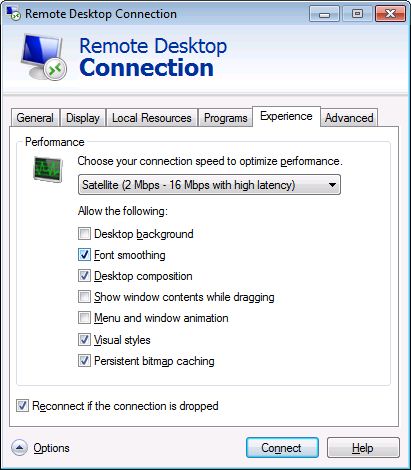
Taking into account Poor Bandwidth and Latency for Remote Desktop Services

This excellent article Dealing with Poor Bandwidth and Latency is an excellent article how Terminal Servers or Remote Desktop Servers should take into account poor bandwidth and latency for Remote Desktop Services. The factors highlighted in the articles include

  1. Changing packet acknowledgements timer
  2. Keepalives
  3. The use of QoS
  4. MTU and more…..

But that is just the Server side. You must also configure the Client portion to deal with High Latency Issue. You should try to update to RDP Client and make use of the new features. Among the many features is those that support High Latency Network


There are many ways to reduce the latency between the client and server. Will probably write on this soon.

Chelsio iWARP Installation and Setup Guide for CentOS 5.4

Most of this material for this blog entry is taken the documentation Guide named Chelsio iWARP installation and setup guide (pdf)  . This Blog Entry  “Chelsio iWARP Installation and Setup Guide for CentOS 5.4” is an modification from a user’s perpective of the original document.

1. Install RPMForge first
You will need some utilities from rpmforge to install iWARP successfully. For more information o install RPMForge, see Installing RPMForge (Linux Toolkits)  

2. Yum Install the following utilities which is required for the iWARP Installation  

# yum install libevent-devel nfs-utils-lib-devel tcl-devel

3.  Download the latest package that matched your Chelsio Network Adapters from Open Fabrics Alliance. Here is the  latest OFED Package Download Site  

4. Unpacked and install the OFED Drivers  

# wget http://69.55.239.13/downloads/OFED/ofed-1.5.1/OFED-1.5.1.tgz
# tar -zxvf OFED-1.5.1.tgz
# cd OFED-1.5.1
# ./install.pl

a. Inside the menu  

1. Choose option 2 to install OFED package.
2. Then choose option 3 to install all OFED libraries.
3. Then choose default options in which come while executing ./install.pl script
to build and install OFED OR 
4. If you are familiar with OFED installation you can choose option 2 then option 4 for
customized installation.

b. If you encounter error like  

file /lib/modules/2.6.18-164.el5/updates/kernel/drivers/net/cxgb3/cxgb3.ko from install of
kernel-ib-1.5.1-2.6.18_164.el5.x86_64 conflicts with file from package
cxgb3toe-1.4.1.2-custom.x86_64

*It is likely that you use the cxgb3toe-1.4.1.2-custom.x86_64.rpm to install the drivers. This immediately conflicts with kernel-ib-1.5.1-2.6.18_164.el5.x86_64.rpm. It is advisisable to install using make && make install. See Installing Chelsio 10GE Driver on CentOS 5.4  

c. Resolution for the error above problem  

# rpm -e  cxgb3toe-1.4.1.2-custom.x86_64.rpm

* Start from Step 4 and do the ./install.pl again.  

5. After installation reboot system for changes to take effect.  

6. Set Chelsio driver option for MPI connection changes.
Give the below command on all systems  

# echo 1 > /sys/module/iw_cxgb3/parameters/peer2peer

OR to make it permanent, add the following line to /etc/modprobe.conf to set the option at module load time:

options iw_cxgb3 peer2peer=1

*The option setting in file /etc/modprobe.conf shall take effect upon system reboot

7. Checking Chelsio iWARP Drivers compatibility with Chrlsio Linux Drivers. There is a whole list as shown in Chelsio iWARP Drivers compatibility with Chelsio Linux drivers. Do take a good look

OFED Package Cxgb3toe-W.X.YY.ZZZ driver Firmware Supported/Not Supported/Not Tested
OFED-1.5.1 Cxgb3toe-1.4.1.2 7.10.0 Not Supported
OFED-1.5.1 Cxgb3toe-1.4.1.2 7.8.0 Supported
OFED-1.5.1 Cxgb3toe-1.4.1.2 7.4.0 Not Supported


8. Installing Chelsio cxgb3toe-W.X.YY.ZZZ driver with OFED-X.Y.Z package. Do follow the blog entry for 

a.  Check Blog Entry on Chelsio iWARP Drivers compatibility with Chelsio Linux drivers. You may not need to do the Performance Tuning.

9. To load the Chelsio iWARP drivers on RHEL 5.4 or CentOS 5.4, add this additional lines to /etc/modprobe.conf

options iw_cxgb3 peer2peer=1
install cxgb3 /sbin/modprobe -i cxgb3; /sbin/modprobe -f iw_cxgb3; /sbin/modprobe rdma_ucm
alias eth1 cxgb3 # assuming eth1 is used by the Chelsio interface

10. Reboot the system to load the new modules

11. After rebooting, you should be have loaded iw_cxgb3 and rdma_ucm module, you should be able to see the ethernet interface(s) for the T3 device. Do configure them with the appropriate ip addresses, netmask etc.

a. Test I: Test Ping
After setting the ipaddress, netmask, gateway etc, you should be able to ping the ethernet interface.

b. Test IIa: Test RDMA (Server Preparation)
To test RDMA, use the rping command that is included in the librdmacm-utils rpm
On the server machine:

# rping -s -a server_ip_address -p 9999

* The server will be “waiting mode” for the client connection

c. Test IIb: Test RDMA (Client Preparation)
You have to setup the clients from Pt 1 to Pt 10 again. If you are using xcat, you may wish to use it to automate the setup of the client.

# rping -c –Vv -C10 -a server_ip_addr -p 9999

* You should see ping data like this on the client

ping data: rdma-ping-0: ABCDEFGHIJKLMNOPQRSTUVWXYZ[\]^_`abcdefghijklmnopqr
ping data: rdma-ping-1: BCDEFGHIJKLMNOPQRSTUVWXYZ[\]^_`abcdefghijklmnopqrs
ping data: rdma-ping-2: CDEFGHIJKLMNOPQRSTUVWXYZ[\]^_`abcdefghijklmnopqrst
ping data: rdma-ping-3: DEFGHIJKLMNOPQRSTUVWXYZ[\]^_`abcdefghijklmnopqrstu
ping data: rdma-ping-4: EFGHIJKLMNOPQRSTUVWXYZ[\]^_`abcdefghijklmnopqrstuv
ping data: rdma-ping-5: FGHIJKLMNOPQRSTUVWXYZ[\]^_`abcdefghijklmnopqrstuvw
ping data: rdma-ping-6: GHIJKLMNOPQRSTUVWXYZ[\]^_`abcdefghijklmnopqrstuvwx
ping data: rdma-ping-7: HIJKLMNOPQRSTUVWXYZ[\]^_`abcdefghijklmnopqrstuvwxy
ping data: rdma-ping-8: IJKLMNOPQRSTUVWXYZ[\]^_`abcdefghijklmnopqrstuvwxyz
ping data: rdma-ping-9: JKLMNOPQRSTUVWXYZ[\]^_`abcdefghijklmnopqrstuvwxyzA
client DISCONNECT EVENT...

12. Great you are done. Read more on how to enable and compile with MPI and iWARP

Chelsio iWARP Drivers compatibility with Chelsio Linux drivers

The material for this Blog Entry is taken from Chelsio iWARP Installation and Setup Guide.

OFED Package Cxgb3toe-W.X.YY.ZZZ driver Firmware Supported/Not Supported/Not Tested
OFED-1.5.1 Cxgb3toe-1.4.1.2 7.10.0 Not Supported
OFED-1.5.1 Cxgb3toe-1.4.1.2 7.8.0 Supported
OFED-1.5.1 Cxgb3toe-1.4.1.2 7.4.0 Not Supported
OFED-1.5.1 Cxgb3toe-1.4.0.8 7.10.0 Not Supported
OFED-1.5.1 Cxgb3toe-1.4.0.8 7.8.0 Supported
OFED-1.5.1 Cxgb3toe-1.4.0.8 7.4.0 Supported
OFED-1.5.1 Cxgb3toe-1.3.1.10 7.10.0 Not Supported
OFED-1.5.1 Cxgb3toe-1.3.1.10 7.8.0 Not Supported
OFED-1.5.1 Cxgb3toe-1.3.1.10 7.7.0 Not Tested
OFED-1.5.1 Cxgb3toe-1.3.1.10 7.4.0 Not Supported
OFED-1.5 Cxgb3toe-1.4.1.2 7.10.0 Not Supported
OFED-1.5 Cxgb3toe-1.4.1.2 7.8.0 Not Tested
OFED-1.5 Cxgb3toe-1.4.1.2 7.4.0 Not Supported
OFED-1.5 Cxgb3toe-1.4.0.8 7.10.0 Not Supported
OFED-1.5 Cxgb3toe-1.4.0.8 7.8.0 Supported
OFED-1.5 Cxgb3toe-1.4.0.8 7.4.0 Not Supported
OFED-1.5 Cxgb3toe-1.3.1.10 7.10.0 Not Tested
OFED-1.5 Cxgb3toe-1.3.1.10 7.8.0 Not Supported
OFED-1.5 Cxgb3toe-1.3.1.10 7.7.0 Supported
OFED-1.5 Cxgb3toe-1.3.1.10 7.4.0 Not Supported
OFED-1.4.2 Not Tested Not Tested Not Tested
OFED-1.4.1 Cxgb3toe-1.4.1.2 7.10.0 Not Supported
OFED-1.4.1 Cxgb3toe-1.4.1.2 7.8.0 Not Tested
OFED-1.4.1 Cxgb3toe-1.4.1.2 7.4.0 Not Supported
OFED-1.4.1 Cxgb3toe-1.4.0.8 7.10.0 Not Supported
OFED-1.4.1 Cxgb3toe-1.4.0.8 7.8.0 Not Tested
OFED-1.4.1 Cxgb3toe-1.4.0.8 7.4.0 Not Supported
OFED-1.4.1 Cxgb3toe-1.3.1.10 7.10.0 Not Supported
OFED-1.4.1 Cxgb3toe-1.3.1.10 7.8.0 Not Supported
OFED-1.4.1 Cxgb3toe-1.3.1.10 7.7.0 Not Tested
OFED-1.4.1 Cxgb3toe-1.3.1.10 7.4.0 Not Tested
OFED-1.4.1 Cxgb3toe-1.3.0 7.4.0 Supported

Installing Chelsio 10GE Driver on CentOS 5.4

Chelsio is one of the leaders for High Speed, Low Latency 10GE Adapters. On great interest to me is the TCP offloading and the iWARP capability of the Card. To complement this high-end quality cards, you have to use good quality high-end but very low latency from Blade Network Technologies (BNT) 

1. Documentation (Impt)

  1. The various documentation list for Chelsio OEM-IBM Information can be found at my Linux Toolkit Blog.
  2. The most critical page is to go to the Chelsio Drivers Downloads page  for a variety of OS can be found.


2. Installing the Drivers on CentOS 5.4

1. I have downgraded the OS from CentOS 5.5 to Centos 5.4 as the offloading bonding is not supported by latest latest CentOS 5.5 kernel

2. Download the Linux drivers under Terminator 3 (T3) family Ethernet Adapter drivers. At this point in writing, the latest Linux driver is cxgb3toe-1.4.1.2.tar.gz (TOE/NIC)

3. Untar the drivers and go into the directory

# tar -zxvf cxgb3toe-1.4.1.2.tar.gz
# cd cxgb3toe-1.4.1.2

4. Follow the instruction on the READ ME found at source directory ( $SOURCE_DIR/cxgb3toe-1.4.1.2)

5. The src directory contains the driver source files for building kernel modules. To build the TOE driver, change to the src/ directory and run:

make
make install

6. Go to the $SOURCE_DIR/cxgb3toe-1.4.1.2 directory/tools directory and copy the ifup-local and perftune.sh to the /sbin directory and perftune.sh will be run each time the interface is enabled.

# cd  /tmp/cxgb3toe-1.4.1.2 directory/tools
# cp ifup-tools /sbin
# cp perftune.sh /sbin

7. Run the performance Tuning

/sbin/perftune.sh

You should see output something like this.

/  > Extract internal utility to /var/tmp/mmapr64.           [ PASS ]
 > IRQ Balance daemon is not running.                      [ PASS ]
 > eth1: PCI-E x8 device using all lanes.                  [ PASS ]
 > eth1: Set IRQ  51 smp_affinity to CPU0.                 [ PASS ]
 > eth1: Set IRQ  59 smp_affinity to CPU1.                 [ PASS ]
 > eth1: Set IRQ  67 smp_affinity to CPU2.                 [ PASS ]
 > eth1: Set IRQ 202 smp_affinity to CPU3.                 [ PASS ]
 > eth1: Set IRQ 210 smp_affinity to CPU4.                 [ PASS ]
 > eth1: Set IRQ 218 smp_affinity to CPU5.                 [ PASS ]
 > eth1: Set IRQ 226 smp_affinity to CPU6.                 [ PASS ]
 > eth1: Set IRQ 234 smp_affinity to CPU7.                 [ PASS ]
 > TOM(toe0): Enable DDP.                                  [ PASS ]
 > TOM(toe0): Set 'delayed_ack=2'.                         [ PASS ]
 > TOM(toe0)[eth4]: Disable TCP timestamps.                [ PASS ]
 [ Set sysctls... ]
 > Set net.core.wmem_max="16777216"                        [ PASS ]
 > Set net.core.rmem_max="16777216"                        [ PASS ]
 > Set net.ipv4.tcp_timestamps="0"                         [ PASS ]
 > Set net.ipv4.tcp_rmem="4096 262144 16777216"            [ PASS ]
 > Set net.ipv4.tcp_wmem="4096 262144 16777216"            [ PASS ]
 > Set net.core.optmem_max="524288"                        [ PASS ]
 > Set net.core.netdev_max_backlog="200000"                [ PASS ]
 [ System tuning is complete. ]

8. Configuring iWARP….Coming your way