Automating the Linux Client Server for Centrify and 2FA on Rocky Linux 8

The whole manual setup including those on the Active Directory can be found at Preparing a Linux Client Server for Centrify and 2FA for CentOS-7

If you just want to automate the Linux portion, here is something you may wish to consider.

Update the sshd_config Templates (The most important portion is that the “PasswordAuthentication no” and “ChallengeResponseAuthentication yes” is present. The whole sshd_config template is too large for me to put into the blog.

.....
.....
# To disable tunneled clear text passwords, change to no here!
#PasswordAuthentication yes
#PermitEmptyPasswords no
PasswordAuthentication no

# Change to no to disable s/key passwords
#ChallengeResponseAuthentication yes
ChallengeResponseAuthentication yes
.....
.....
- name: Generate /etc/ssh/sshd_config from /etc/ssh/sshd_config.j2 template
  template:
      src: ../templates/sshd_config.j2
      dest: /etc/ssh/sshd_config
      owner: root
      group: root
      mode: 0600
  when:
    - ansible_os_family == "RedHat"
    - ansible_distribution_major_version == "8"

- name: Restart SSH Service
  systemd:
    name: sshd
    state: restarted
    enabled: yes
  when:
    - ansible_os_family == "RedHat"
    - ansible_distribution_major_version == "8"
  changed_when: false

Here is Centrify_2FA.yml to insert the IWaTrustRoot.pem certificate

- name: Copy IwaTrustRoot.pem to /etc/pki/ca-trust/source/anchors/
  template:
      src: /usr/local/software/certificate/IwaTrustRoot.pem
      dest: /etc/pki/ca-trust/source/anchors/
      owner: root
      group: root
      mode: 0600
  become: true
  when:
    - ansible_os_family == "RedHat"
    - ansible_distribution_major_version == "8"

- name: Copy IwaTrustRoot.pem to /var/centrify/net/certs
  template:
      src: /usr/local/software/certificate/IwaTrustRoot.pem
      dest: /var/centrify/net/certs
      owner: root
      group: root
      mode: 0600
  become: true
  when:
    - ansible_os_family == "RedHat"
    - ansible_distribution_major_version == "8"

Restart the CentrifyDC and do a Flush so that the AD is updated.

- name: CentrifyDC Restart
  ansible.builtin.shell: "/usr/share/centrifydc/bin/centrifydc restart"
  register: centrifydc_status
  changed_when: false

- name: Active Directory Flush
  ansible.builtin.shell: "adflush -f"
  register: flush_status
  changed_when: false

- name: Centrify Service Restarted
  debug:
    msg: "Load Average: {{ centrifydc_status.stdout }}"

Installing CUDA with Ansible for Rocky Linux 8

Installation Guide

You can take a look at Nvidia CUDA Installation Guide for more information

Step 1: Get the Nvidia CUDA Repo

You can find the Repo from the Nvidia Download Sites. It should be named cuda_rhel8.repo. Copy it and use it as a template with a j2 extension.

[cuda-rhel8-x86_64]
name=cuda-rhel8-x86_64
baseurl=https://developer.download.nvidia.com/compute/cuda/repos/rhel8/x86_64
enabled=1
gpgcheck=1
gpgkey=https://developer.download.nvidia.com/compute/cuda/repos/rhel8/x86_64/D42D0685.pub

Step 2: Use Ansible to Generate the repo from Templates.

The Ansible Script should look like this.

 - name: Generate /etc/yum.repos.d/cuda_rhel8.repo
   template:
    src: ../templates/cuda-rhel8-repo.j2
    dest: /etc/yum.repos.d/cuda_rhel8.repo
    owner: root
    group: root
    mode: 0644
   become: true
   when:
    - ansible_os_family == "RedHat"
    - ansible_distribution_major_version == "8"

Step 3: Install the Kernel-Headers and Kernel-Devel

The CUDA Driver requires that the kernel headers and development packages for the running version of the kernel be installed at the time of the driver installation, as well as whenever the driver is rebuilt.

- name: Install Kernel-Headers and  Kernel-Devel
  dnf:
    name:
        - kernel-devel
        - kernel-headers
    state: present
  when:
    - ansible_os_family == "RedHat"
    - ansible_distribution_major_version == "8"

Step 4: Disabling Nouveau

To install the Display Driver, the Nouveau drivers must first be disabled. I use a template to disable it. I created a template called blacklist-nouveau-conf.j2. Here is the content

blacklist nouveau
options nouveau modeset=0

The Ansible script for disabling Noveau using a template

- name: Generate blacklist nouveau
  template:
    src: ../templates/blacklist-nouveau-conf.j2
    dest: /etc/modprobe.d/blacklist-nouveau.conf
    owner: root
    group: root
    mode: 0644
  become: true
  when:
    - ansible_os_family == "RedHat"
    - ansible_distribution_major_version == "8"

Step 5: Install the Drivers and CUDA

- name: Install driver packages RHEL 8 and newer
  dnf:
    name: '@nvidia-driver:latest-dkms'
    state: present
    update_cache: yes
  when:
    - ansible_os_family == "RedHat"
    - ansible_distribution_major_version == "8"
  register: install_driver

- name: Install CUDA
  dnf:
    name: cuda
    state: present
  when:
    - ansible_os_family == "RedHat"
    - ansible_distribution_major_version == "8"
  register: install_cuda

Step 6: Reboot if there are changes to Drivers and CUDA

- name: Reboot if there are changes to Drivers or CUDA
  ansible.builtin.reboot:
  when:
    - install_driver.changed or install_cuda.changed
    - ansible_os_family == "RedHat"
    - ansible_distribution_major_version == "8"

Aftermath

After reboot, you should try to do “nvidia-smi” commands, hopefully, you should see

If you have an error “NVIDIA-SMI has failed because it couldn’t communicate with the NVIDIA driver for RHEL 8“, do follow the steps in NVIDIA-SMI has failed because it couldn’t communicate with the NVIDIA driver for RHEL 8 and run the ansible script in the blog.

You may also combine all these yml into one large yml file

Other better? Ansible Scripts

You may want to consider other better? options for https://github.com/NVIDIA/ansible-role-nvidia-docker

Guide to Creating Symbolic Links with Ansible

You can use the ansible.builtin.file module. In my example below, I wanted to link the Module Environment profile.csh and profile.sh to be placed on the /etc/profile.d so that it will load on startup. Do take a look at the Ansible Document ansible.builtin.file module – Manage files and file properties

- name: Check for CUDA Link
  stat: path=/usr/local/cuda
  register: link_available

- name: Create a symbolic link for CUDA
  ansible.builtin.file:
    src: /usr/local/cuda-12.2
    dest: /usr/local/cuda
    owner: root
    group: root
    state: link
  when:
    - ansible_os_family == "RedHat"
    - ansible_distribution_major_version == "8"
    - link_available.stat.isdir is not defined and link_available.stat.isdir == False

Using Ansible Expect Module to executes a command and responds to prompts

Ansible Documentation:

Ansible Expect Module is very useful to listen for certain strings in stdout and react accordingly. This is particularly useful if you have to respond to accept a license agreement or enter some important information. Here is my sample

- name: Install RPM package from local system
  yum:
    name: /tmp/my-software.rpm
    state: present
    disable_gpg_check: true
  when: ansible_os_family == "RedHat"

- name:
  ansible.builtin.stat:
    path: /usr/local/mysoftware
  register: directory_check

- name: Setup Licensing Server's Connection if directory does not exist
  ansible.builtin.expect:
    command: /usr/local/mysoftware/install.sh
    responses:
      (?i)Do you already have a license server on your network? [y/N] "y"
      (?i)Enter the name (or IP address) of your license server "xx.xx.xx.xx"
      (?i)Install/update the MySoftware web service? [Y/n] "n"
  when: not directory_check.stat.isdir

Installing Mellanox OFED (mlnx_ofed) packages using Ansible

If you are planning to use ansible to install mlnx_ofed Packages to the compute nodes which have IB or RoCE Ethernet Card. The comprehensive documentation can be found at Installing Mellanox OFED

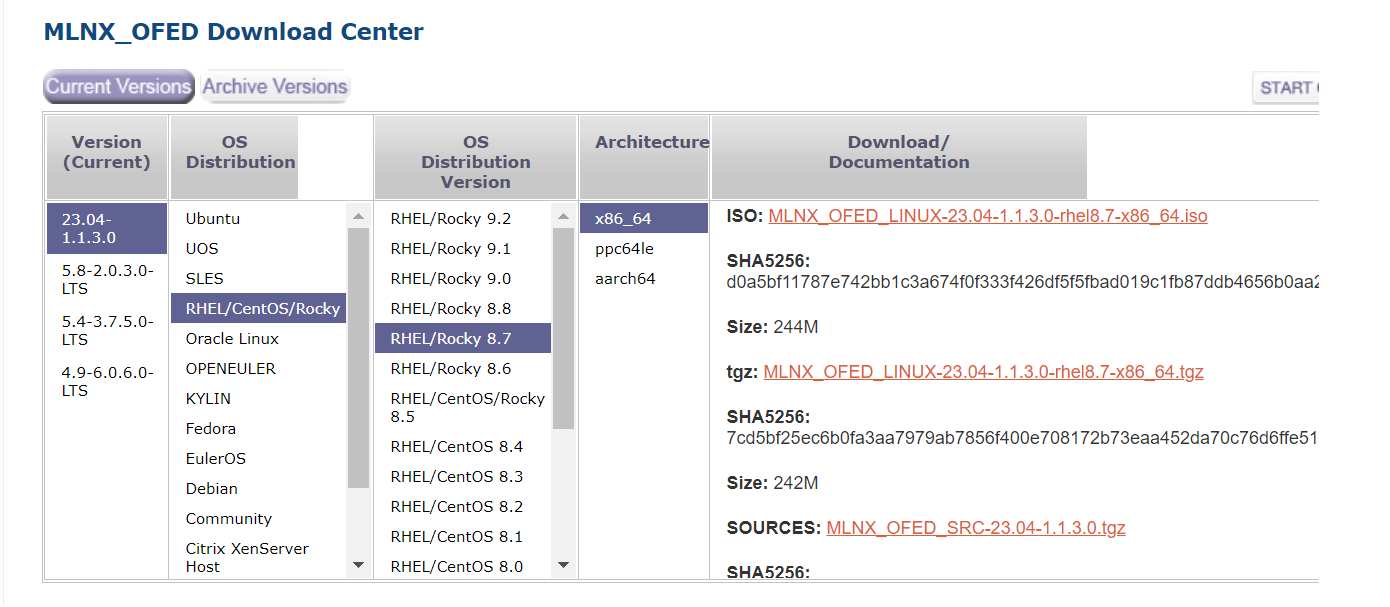
Step 1: Download Mellanox OFED Drivers

Download the .tar.gz file from Nvidia Networking Ethernet Download site

Step 2: Untar the mlnx_ofed packages on the Shared drive.

Supposedly, the Cluster is sharing the /usr/local/ within the cluster.

# mkdir /usr/local/mlnx_ofed
# cp MLNX_OFED_LINUX-23.04-1.1.3.0-rhel8.7-x86_64.tgz /usr/local/mlnx_ofed
# cd /usr/local/mlnx_ofed
# tar -zxvf MLNX_OFED_LINUX-23.04-1.1.3.0-rhel8.7-x86_64.tgz
# cd MLNX_OFED_LINUX-23.04-1.1.3.0-rhel8.7-x86_64

Step 3: Create a Template mlnx_ofed.repo.j2 and update the content

[mlnx_ofed]
name=MLNX_OFED Repository
baseurl=file:///usr/local/mlnx_ofed/MLNX_OFED_LINUX-23.04-1.1.3.0-rhel8.7-x86_64/RPMS
enabled=1
gpgkey=file:///usr/local/mlnx_ofed/MLNX_OFED_LINUX-23.04-1.1.3.0-rhel8.7-x86_64/RPM-GPG-KEY-Mellanox
gpgcheck=1

Step 4: Create a Playbook for updating the drivers

- name: Generate /etc/yum.repos.d/mlnx_ofed.repo
  template:
      src: ../templates/mlnx_ofed.repo.j2
      dest: /etc/yum.repos.d/mlnx_ofed.repo
      owner: root
      group: root
      mode: 0644
  become: true
  when: 
    - ansible_os_family == "RedHat"
    - ansible_distribution_major_version == "8"
    - ansible_distribution_version == "8.7"


- name: Install mlnx-ofed-all
  dnf:
      name:
        - mlnx-ofed-all
      state: latest
  when: 
    - ansible_os_family == "RedHat"
    - ansible_distribution_major_version == "8"
    - ansible_distribution_version == "8.7"
  register: install_mlnx

Step 5: Reboot if there are changes to MLNX-OFED

- name: Reboot if there are changes to MLNX-OFED
  ansible.builtin.reboot:
  when:
    - install_mlnx.changed
    - ansible_os_family == "RedHat"
    - ansible_distribution_major_version == "8"
    - ansible_distribution_version == "8.7"

- name: Modprobe rdma_cm ib_umad
  ansible.builtin.shell: "modprobe rdma_cm ib_umad"
  when: install_mlnx.changed

References:

  1. Installing Mellanox OFED

Displaying the Number of Cores and Current Load average for All Nodes

If you wish to use Ansible to display the number of cores and current Load average for all your nodes, you may want to consider the code below.

- name: Display number of cores
  debug:
    var: ansible_processor_cores

- name: Get Load Average
  ansible.builtin.shell: "cat /proc/loadavg"
  register: load_avg_output
  changed_when: false

- name: Print Load Average for all Nodes
  debug:
    msg: "Load Average: {{ load_avg_output.stdout }}"

Updating /etc/resolv.conf using Ansible for Rocky Linux 8

You may want to check the whether /etc/resolv.conf exists and if not exist, create the file file and update the DNS

- name: Check if resolv.conf file exists
  stat:
      path: /etc/resolv.conf
  register: file_info

- name: Create /etc/resolv.conf if it exists
  file:
     path: /etc/resolv.conf
     state: touch
  when: not file_info.stat.exists

- name: Set DNS nameservers in /etc/resolv.conf
  blockinfile:
      path: /etc/resolv.conf
      block: |
            search example.com
            nameserver x.x.x.x
            nameserver w.w.w.w
  when: ansible_distribution == "Rocky"

Enable PowerTools Repository Using Ansible

If you wish to use Ansible to fix Unable to Install hdf5, hdf5-devel and hdf5-static on Rocky Linux 8.7 by installing DNG-Plugin-Core, EPEL-Release for Rocky Linux, do take a look

 - name: Install DNF-Plugin-Core and EPEL-Release for Rocky
    dnf:
        name: 
           - dnf-plugins-core 
           - epel-release  
        state: latest      
    when: ansible_distribution == "Rocky"

  - name: Enable powertools repository
    command: dnf config-manager --set-enabled powertools
    when: ansible_distribution == "Rocky"
    changed_when: false