Running Arrays on PBS Professional

If you are intending to run the same program with the different input files, it is best you use Jobs Array instead of creating separate programs for the input files which is tedious. It is very easy

Amending the Submission Scripts (Part 1)

To create an arrays jobs, you have to use the -J option on the PBS Scripts. For 10 sub-jobs, you do the following

#PBS -J 1-10

Amending the Submission Scripts (Part 2)

If your input files are concatenated with a running number. For example, if your input file is data1.gjf, data2.gjf, data3.gjf, data4.gjf, data5.gjf ….. data10.gjf

inputfile=data$PBS_ARRAY_INDEX.gjf

Submitting the Jobs

a. To submit the jobs, just

% qsub yoursubmissionscript.pbs

Checking Jobs

b. You will notice that after you qstat, you will notice that your jobs bas a “B”

% qstat -u user1
544198[].node1 Gaussian-09e user1 0 B q32

You have to do a “-t” or “-Jt”

% qstat -t 544198[]

% qstat -t 544198[]
Job id Name User Time Use S Queue
---------------- ---------------- ---------------- -------- - -----
544198[].node1 Gaussian-09e user1 0 B q32
544198[54].node1 Gaussian-09e user1 00:40:21 R q32
544198[55].node1 Gaussian-09e user1 00:15:25 R q32

To delete the Sub Jobs

% qdel "544198[5]"

Basic Tracing of Jobs Issues in PBS Professional

Step 1: Proceed to the Head Node (Scheduler)

Once you have the Job ID you wish to investigate, go to the Head Node and do. The “-n” is the number of days to search logs at

% tracejob -n 10 jobID

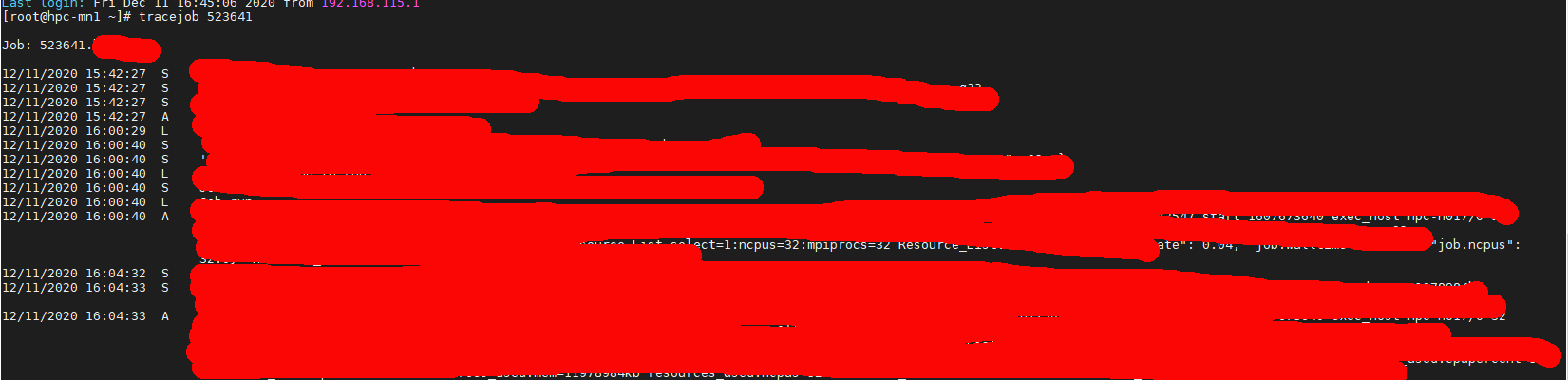
From the tracejob, you will be able to take a peek which node the job landed. Next you can go the node in question and find information from the mom_logs

% vim /var/spool/pbs/mom_logs/thedateyouarelookingat

For example,

% vim /var/spool/pbs/mom_logs/20201211

Using Vim, search for the Job ID

? yourjobID

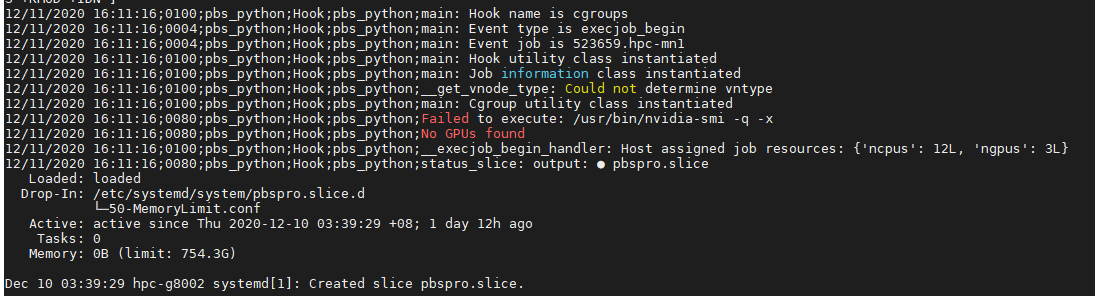
You should be able to get a good hint of what has happened. In my case is that my nvidia drivers are having issues.

Resolving Altair Access Incorrect UserName and Password

If you are facing issues like “Incorrect UserName or Password” Do the following on the main system supporting the Visualisation Server (May or may not be the Server hosting Altair Access Services).

/etc/init.d/altairlmxd stop
/etc/init.d/altairlmxd start
/etc/init.d/pbsworks-pa restart

On the Altair Access Server,

/etc/init.d/guacd restart


Restrict Number of Running Jobs with PBS Professional

Maximum Number of Running Jobs a user can submit to a particular queue (512 cores in this example)

qmgr -c "set queue your_queue_name max_run_res.ncpus = [u:PBS_GENERIC=512]"

Minimum Number of Running Jobs a user can submit to a particular queue ( 4 cores in this example)

qmgr -c "set queue your_queue_name resources_min.ncpus=4"


Restrict Number of Queued and Running Jobs with PBS Professional

Allow maximum queued jobs limit at Server level

% qmgr -c "set server max_queued = [u:PBS_GENRIC=128]"

Apply maximum queued jobs limit at Queue Level

% qmgr -c "set queue your-queue-name max_queued = [u:PBS_GENRIC=128]"

Apply maximum Running jobs limit at Server Level

% qmgr -c "set server max_run = [u:PBS_GENRIC=128]"

Apply maximum running jobs limit at Queue Level

% qmgr -c "set queue your-queue-name max_run = [u:PBS_GENRIC=128]"

Limiting Users on PBS Professional

Scenario 1: How do we restrict the users to a certain maximum job size within a maximum concurrent number of jobs?

For example, if you would like to restrict users using this queue to a maximum of 4 cores per jobs. But his or her concurrent jobs cannot exceed 16?

qmgr -c "set queue workq max_run_res.ncpus = [u:PBS_GENERIC=16]"
qmgr -c "set queue workq resources_max.ncpus = 4"

The first limit sets max of 16 cores per user for the workq queue (for all jobs)
The second limit sets max of 4 cores per job for workq queue

Scenario 2: How do we ensure that users only run a minimum number of cores in the queue?

For example, if you would like to restrict the users to a minimum 32 cores per job.

qmgr -c " s q workq resources_min.ncpus=32"

Test:

qsub -l select=1:ncpus=16 -q workq -- /bin/sleep 100
qsub: Job violates queue and/or server resource limits

Scenario 3: How do we ensure that users run a minimum number of GPGPU in the queues?

qmgr -c "set server max_run_res.ngpus = [p:my_project_code=2]"

Allocating more GPU chunks for a GPU Nodes in PBS Professional

Check for the Visualisation Node configuration

# qmgr -c " p n VizSvr1"

1. At the Node Configuration at PBS-Professional, the GPU Chunk (“ngpus”) is 10.

#
# Create nodes and set their properties.
#
#
# Create and define node VizSvr1
#
create node VizSvr1
set node VizSvr1 state = free
set node VizSvr1 resources_available.allows_container = False
set node VizSvr1 resources_available.arch = linux
set node VizSvr1 resources_available.host = VizSvr1
set node VizSvr1 resources_available.mem = 791887872kb
set node VizSvr1 resources_available.ncpus = 24
set node VizSvr1 resources_available.ngpus = 10
set node VizSvr1 resources_available.vnode = VizSvr1
set node VizSvr1 queue = iworkq
set node VizSvr1 resv_enable = True

2. At the Queue Level, notice that the gpu chunk (“ngpus”) is 10 and cpu-chunk is 2

[root@scheduler1 ~]# qmgr
Max open servers: 49
Qmgr: p q iworkq
#
# Create queues and set their attributes.
#
#
# Create and define queue iworkq
#
create queue iworkq
set queue iworkq queue_type = Execution
set queue iworkq Priority = 150
set queue iworkq resources_max.ngpus = 10
set queue iworkq resources_min.ngpus = 1
set queue iworkq resources_default.arch = linux
set queue iworkq resources_default.place = free
set queue iworkq default_chunk.mem = 512mb
set queue iworkq default_chunk.ncpus = 2
set queue iworkq enabled = True
set queue iworkq started = True

2a. Configure at the Queue Level: Increase More GPU Chunk so that more users can use. Similarly, lower the CPU Chunk to spread our among the con-current session

Qmgr: set queue iworkq resources_max.ngpus = 20
Qmgr: set queue iworkq default_chunk.ncpus = 1
Qmgr: p q iworkq

2b. Configure at the Node Level: Increase the GPU Chunk at the node level to the number you use at the Queue Level. Make sure the number is the same.

Qmgr: p n hpc-r001
#
# Create nodes and set their properties.
#
#
# Create and define node VizSvr1
#
create node VizSvr1
set node VizSvr1 state = free
set node VizSvr1 resources_available.allows_container = False
set node VizSvr1 resources_available.arch = linux
set node VizSvr1 resources_available.host = VizSvr1
set node VizSvr1 resources_available.mem = 791887872kb
set node VizSvr1 resources_available.ncpus = 24
set node VizSvr1 resources_available.ngpus = 10
set node VizSvr1 resources_available.vnode = VizSvr1
set node VizSvr1 queue = iworkq
set node VizSvr1 resv_enable = True
Qmgr: set node hpc-r001 resources_available.ngpus = 20
Qmgr: q

Can verify by logging more session and testing it

[root@VizSvr1 ~]# qstat -ans | grep iworkq
94544.VizSvr1 user1 iworkq xterm 268906 1 1 256mb 720:0 R 409:5
116984.VizSvr1 user1 iworkq Abaqus 101260 1 1 256mb 720:0 R 76:38
118478.VizSvr1 user2 iworkq Ansys 236421 1 1 256mb 720:0 R 51:37
118487.VizSvr1 user3 iworkq Ansys 255657 1 1 256mb 720:0 R 49:51
119676.VizSvr1 user4 iworkq Ansys 308767 1 1 256mb 720:0 R 41:40
119862.VizSvr1 user5 iworkq Matlab 429798 1 1 256mb 720:0 R 23:54
120949.VizSvr1 user6 iworkq Ansys 450449 1 1 256mb 720:0 R 21:12
121229.VizSvr1 user7 iworkq xterm 85917 1 1 256mb 720:0 R 03:54
121646.VizSvr1 user8 iworkq xterm 101901 1 1 256mb 720:0 R 01:57
121664.VizSvr1 user9 iworkq xterm 111567 1 1 256mb 720:0 R 00:01
121666.VizSvr1 user9 iworkq xterm 112374 1 1 256mb 720:0 R 00:00