Using /proc/$PID/fd to understand where the files are written to.

/proc/$PID/fd provide a symbolic link to the file that the process $PID has open on the file descriptor NUM. One useful gain from this, is that I can use /proc/$PID/fd to understand where the files are written to.

% top

Let’s use Process 66090 (1508.exe)

% cd /proc/66090/fd
% ls -l
lr-x------ 1 user1 user1 64 Feb 15 12:41 0 -> /localhome/user1/scratch/G16c-Mistral909223.hpc-mn1/G16c-Mistral.Input.909223.hpc-mn1
l-wx------ 1 user1 user1 64 Feb 15 12:41 1 -> /localhome/user1/AgMPYH-GSH_4.gjf.Output.909223.hpc-mn1.log
lrwx------ 1 user1 user1 64 Feb 15 12:42 10 -> /localhome/user1/scratch/G16c-Mistral909223.hpc-mn1/Gau-66090.d2e
l-wx------ 1 user1 user1 64 Feb 15 12:41 129 -> /myhome/user1/breezetraces/user1-909223.hpc-mn1-hpc-g8004/tmp/monitor-command-fifo
lr-x------ 1 user1 user1 64 Feb 15 12:41 130 -> /proc/66090/mounts
lrwx------ 1 user1 user1 64 Feb 15 12:41 2 -> /var/spool/pbs/spool/909223.hpc-mn1.ER
lrwx------ 1 user1 user1 64 Feb 15 12:41 3 -> /localhome/user1/scratch/G16c-Mistral909223.hpc-mn1/Gau-66081.inp
lrwx------ 1 user1 user1 64 Feb 15 12:41 4 -> socket:[75030280]
lrwx------ 1 user1 user1 64 Feb 15 12:41 5 -> socket:[75030281]
lrwx------ 1 user1 user1 64 Feb 15 12:42 6 -> /localhome/user1/scratch/G16c-Mistral909223.hpc-mn1/Gau-66090.rwf
lrwx------ 1 user1 user1 64 Feb 15 12:42 7 -> /localhome/user1/AgMPYH-GSH_4.chk
lrwx------ 1 user1 user1 64 Feb 15 12:42 8 -> /localhome/user1/scratch/G16c-Mistral909223.hpc-mn1/Gau-66090.skr
lrwx------ 1 user1 user1 64 Feb 15 12:42 9 -> /localhome/user1/scratch/G16c-Mistral909223.hpc-mn1/Gau-66090.int

You can see for most of the user processes, it is written to /localhome/user1.

Building a Deployment-Ready TensorFlow Model (Part 1)

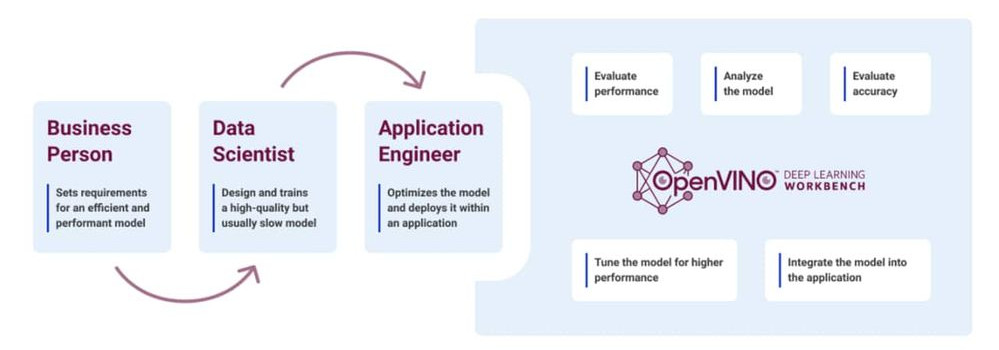
This is an interesting 3-part article on OpenVINO Deep Learning Workbench.

Pruning deep learning models, combining network layers, developing for multiple hardware targets—getting from a trained deep learning model to a ready-to-deploy inference model seems like a lot of work, which it can be if you hand code it.

With Intel® tools you can go from trained model to an optimized, packaged inference model entirely online without a single line of code. In this article, we’ll introduce you to the Intel® toolkits for deep learning deployments, including the Intel® Distribution of OpenVINO™ toolkit and Deep Learning Workbench. After that, we’ll get you signed up for a free Intel DevCloud for the Edge account so that you can start optimizing your own inference models.

The No-Code Approach to Deploying Deep Learning Models on Intel® Hardware

For more information, see The No-Code Approach to Deploying Deep Learning Models on Intel® Hardware

Compiling Clustal Omega 1.24 on CentOS 7

Overview

Clustal Omega is the latest addition to the Clustal family. It offers a significant increase in scalability over previous versions, allowing hundreds of thousands of sequences to be aligned in only a few hours. It will also make use of multiple processors, where present. In addition, the quality of alignments is superior to previous versions, as measured by a range of popular benchmarks.

Compilers and Libraries used

Compiling argtable-2.13

Compiling argtable-2.13 is very straightforward

% tar -zxvf argtable2-13.tar.gz
% cd argtable2-13
% ./configure --prefi=/usr/local/argtable2-13
% make
% make install 

Compiling Clustal Omega 1.24. You can download the source code from http://www.clustal.org/omega/

% tar -zxvf clustal-omega-1.2.4.tar.gz
% cd clustal-omega-1.2.4
% ./configure --prefix=/usr/local/clustal-omega-1.2.4 CFLAGS='-I/usr/local/argtable2-13/include' LDFLAGS='-L/usr/local/argtable2-13/lib'
% make
% make install

References:

  1. http://www.clustal.org/omega/INSTALL
  2. http://argtable.sourceforge.net/

ModuleNotFoundError: No module named ‘torch’ for OneAPI AI Toolkit

If you are using OneAPI Environment, and if you are having this issue

ModuleNotFoundError: No module named 'torch'

Here are some steps, you may wish to use to troubleshoot.

Make sure you activated the oneAPI environment using below command

% source /usr/local/intel/oneapi/2021.3/setvars.sh

:: initializing oneAPI environment ...
   -bash: BASH_VERSION = 4.2.46(2)-release
:: clck -- latest
:: compiler -- latest
:: dal -- latest
:: debugger -- latest
:: dev-utilities -- latest
:: inspector -- latest
:: intelpython -- latest
:: ipp -- latest
:: itac -- latest
:: LPOT -- latest
:: mkl -- latest
:: modelzoo -- latest
:: mpi -- latest
:: pytorch -- latest
:: tbb -- latest
:: tensorflow -- latest
:: oneAPI environment initialized ::

You might want to check the conda environment

% conda info --envs

# conda environments:
#
myenv                    /myhome/melvin/.conda/envs/myenv
myfsl                    /myhome/melvin/.conda/envs/myfsl
base                  *  /usr/local/intel/oneapi/2021.3/intelpython/latest
2021.3.0                 /usr/local/intel/oneapi/2021.3/intelpython/latest/envs/2021.3.0
myoneapi                 /usr/local/intel/oneapi/2021.3/intelpython/latest/envs/myoneapi
pytorch                  /usr/local/intel/oneapi/2021.3/intelpython/latest/envs/pytorch
pytorch-1.8.0            /usr/local/intel/oneapi/2021.3/intelpython/latest/envs/pytorch-1.8.0
tensorflow               /usr/local/intel/oneapi/2021.3/intelpython/latest/envs/tensorflow
tensorflow-2.5.0         /usr/local/intel/oneapi/2021.3/intelpython/latest/envs/tensorflow-2.5.0
                         /usr/local/intel/oneapi/2021.3/pytorch/1.8.0
                         /usr/local/intel/oneapi/2021.3/tensorflow/2.5.0

Activate Pytorch

% conda activate pytorch
% python
% (pytorch-1.8.0) [user1@node1 ~]$ python
Python 3.7.10 (default, Jun  4 2021, 06:52:02)
[GCC 9.3.0] :: Intel Corporation on linux
Type "help", "copyright", "credits" or "license" for more information.
Intel(R) Distribution for Python is brought to you by Intel Corporation.
Please check out: https://software.intel.com/en-us/python-distribution
>>> import torch

If you are still having the error “ModuleNotFoundError: No module named ‘torch’ “

You may want to install directly if you have root access

% conda install pytorch torchvision cpuonly -c pytorch

If not, you may want to create a private environment similar to Creating Virtual Environment with Python using venv

References:

A step closer to a quantum code-breaking machine?

The article is taken from Chinese scientists say they may be a step closer to a quantum code-breaking machine by ASiaOne

Chinese scientists say they could be a step closer to developing a code-breaking machine, thanks to a recent breakthrough in quantum memory technology.

A quantum computer can crack an encrypted message in hours, but it needs tens of millions of qubits — the quantum information carried by subatomic particles — to make the calculation.
…..
However, a team from the University of Science and Technology of China has unveiled a design for a new quantum computer that could break a code using considerably less qubits than it was previously thought were needed.

Chinese scientists say they may be a step closer to a quantum code-breaking machine by ASiaOne

What is Exascale Computing?

The Article is taken from “Science Made Simple: What is Exascale Computing

Exascale computing is the next milestone in the development of supercomputers. Able to process information much faster than today’s most powerful supercomputers, exascale computers will give scientists a new tool for addressing some of the biggest challenges facing our world, from climate change to understanding cancer to designing new kinds of materials.

Science Made Simple: What Is Exascale Computing?

Basic Usage of Singularity (Part 3)

Building a Basic Container

The information can be taken from https://github.com/NIH-HPC/Singularity-Tutorial. I’m just documenting what I understand step-by-step

In Order for you to build a Container, you have to use a build command. The build command does the following

  • Installs an OS
  • Setup the Container’s Environment
  • Install the apps required

Singularity Flow – Standard Development Cycle

  • Create a writable container (called a sandbox)
  • Shell into the container with the –writable option and tinker with it interactively
  • Record changes that we like in our definition file
  • Rebuild the container from the definition file if we break it
  • Rinse and Repeat
  • Rebuild the container from the final definition file as a read-only singularity image format (SIF) image for use in production

Let’s Build – Using the examples.

You can git clone Singularity Download Page and the examples is provided there.

% git clone https://github.com/sylabs/singularity.git
% mkdir ~lolcow
% cd singularity/examples/debian/Singularity ~/lolcow/lolcow.def
% cd ~/lolcow
% vim lolcow.def
BootStrap: debootstrap
OSVersion: stable
MirrorURL: http://ftp.us.debian.org/debian/

%runscript
    echo "This is what happens when you run the container..."

%post
    echo "Hello from inside the container"
    apt-get -y --allow-unauthenticated install vim

You can find more information on the Singularity Definition Files

Developing a new container

To build a container, you will need sudo privilege or root access

% sudo singularity build --sandbox lolcow lolcow.def
  • Container: lolcow
  • Definition File: lolcow.def
  • Build a Container for Development Purposes: –sandbox

After firing the command, you will have a basic Debian contained saved in a local directory called lolcow

Explore and modify the container

In order to obtain root privileges within the root container, you will need root at the Host System

% sudo singularity shell --writable lolcow

The –writable option allows us to modify the container. The corresponding changes will be saved into the container and persist across uses.

Installing Packages in Singularity

Once inside the shell, you can modify the container and it will be saved persistently.

Singularity > apt-get install -y fortune cowsay lolcat

you have to PATH it so that container can find the binary

Singularity > export PATH=$PATH:/usr/games
Singularity> fortune | cowsay | lolcat
 ________________________________________
/ Q: Why haven't you graduated yet? A:   \
| Well, Dad, I could have finished years |
| ago, but I wanted                      |
|                                        |
\ my dissertation to rhyme.              /
 ----------------------------------------
        \   ^__^
         \  (oo)\_______
            (__)\       )\/\
                ||----w |
                ||     ||

Building Production Grade

 If you ultimately want all of these changes to be reflected in your definition file. Let’s update our definition file

% nano lolcow.def
BootStrap: debootstrap
OSVersion: stable
MirrorURL: http://ftp.us.debian.org/debian/

%runscript
    echo "This is what happens when you run the container..."

%post
    echo "Hello from inside the container"
    apt-get update
    apt-get -y install fortune cowsay lolcat

%environment
    export PATH=$PATH:/usr/games

To rebuild the image from the definition, make sure you have the necessary yum package in your host.

# yum install debootstrap
# yum install squashfs-tools

If you are having further issues, make sure your hosts has the prerequistics packages installed. It can be found at https://github.com/NIH-HPC/Singularity-Tutorial/tree/master/01-installation

Building the Container

# singularity build lolcow.sif lolcow.def
.....
.....
INFO:    Adding environment to container
INFO:    Adding runscript
INFO:    Creating SIF file...
INFO:    Build complete: lolcow.sif

References:

nvidia-smi – failed to initialize nvml: insufficient permissions

The Error Encountered

If you are a non-root user and you issue a command, you might see the error

% nvidia-smi
NVML: Insufficient Permissions" error

The default module option NVreg_DeviceFileMode=0660 set via /etc/modprobe.d/nvidia-default.conf. This causes the nvidia device nodes to have 660 permission.

vim /etc/modprobe.d/nvidia-default.conf
options nvidia NVreg_DeviceFileUID=0 NVreg_DeviceFileGID=1001 NVreg_DeviceFileMode=0660

The Fix

[user1@node1 dev]$ ls -l nvidia*
crw-rw---- 1 root vglusers 195,   0 Jan  5 17:07 nvidia0
crw-rw---- 1 root vglusers 195, 255 Jan  5 17:07 nvidiactl
crw-rw---- 1 root vglusers 195, 254 Jan  5 17:07 nvidia-modeset

The reason for the error is due to the vglusers or video group. The fix is simply putting the users in the /etc/group

# usermod -a -G vglusers user1 

Logged off and Login again, you should be able to do nvidia-smi

References:

A fix for the “NVML: Insufficient Permissions”

Basic Usage of Singularity (Part 2)

The information can be taken from https://github.com/NIH-HPC/Singularity-Tutorial. I’m just documenting what I understand step-by-step

EXEC Command

Using the exec command, we can run commands within the container from the host system.

[user1@node ~]$ singularity exec lolcow_latest.sif cowsay 'How is today?'
 _______________
< How is today? >
 ---------------
        \   ^__^
         \  (oo)\_______
            (__)\       )\/\
                ||----w |
                ||     ||

RUN Command

Sometimes you can run a container

 [user1@node ~]$ singularity run lolcow_latest.sif
 _____________________________________
/ Fine day to work off excess energy. \
\ Steal something heavy.              /
 -------------------------------------
        \   ^__^
         \  (oo)\_______
            (__)\       )\/\
                ||----w |
                ||     ||

A special script “runscript” is activated when the “run” command is exercised. To have a closer look

[user1@node ~]$ singularity inspect --runscript lolcow_latest.sif
#!/bin/sh

    fortune | cowsay | lolcat

runscript consists of three simple commands with the output of each command piped to the subsequent command. Altenatively, you can do a

[user1@node ~]$ ./lolcow_latest.sif

Pipes and Redirection

Singularity allows piping services so that the host system can interact with the container. Here we are executing a command in the container and piping the output out into a file called output.txt

[user1@node ~]$ singularity exec lolcow_latest.sif cowsay moo > output.txt

You will notice that the output has been pushed to output.txt. Make sure you create output.txt prior

[user1@node ~]$ vim output.txt

Inside output.txt

 How are you >
 -------------
        \   ^__^
         \  (oo)\_______
            (__)\       )\/\
                ||----w |
                ||     ||

Let’s say we create a file called HelloThere and put in a text called “Shame On You”. The command is then fed into cowsay.

% cat HelloThere | singularity exec lolcow_latest.sif cowsay -n
______________
< Shame on You >
 --------------
        \   ^__^
         \  (oo)\_______
            (__)\       )\/\
                ||----w |
                ||     ||

References:

  1. https://github.com/NIH-HPC/Singularity-Tutorial