Installing R-Studio on CentOS-7

Prerequisites

  • R-Studio (rstudio-server-rhel-1.3.1093-x86_64.rpm)
  • R-3.6.3
  • GNU-6.5
  • m4-1.4.18
  • gmp-6.1.0
  • mpfr-3.1.4
  • mpc-1.0.3
  • isl-0.18
  • gsl-2.1

Step 1: Download R-Studio v1.3.1093

On your terminal, Download the free version RStudio Server v1.3.1093 from RStudio.com

Step 2: Install R-Studio v1.3.1093

Follow the Install Process as written in https://rstudio.com/products/rstudio/download-server/redhat-centos/

% wget https://download2.rstudio.org/server/centos6/x86_64/rstudio-server-rhel-1.3.1093-x86_64.rpm
% yum install rstudio-server-rhel-1.3.1093-x86_64.rpm

Step 3: Verify Installation

% /usr/sbin/rstudio-server verify-installation

Step 4: Make sure the R is compiled and placed correctly

  • Make sure the R –enable-R-shlib flags
  • RStudio will search for your installation of R in the traditional locations, such as RStudio will search for your installation of R in the traditional locations, such as
    /usr/bin/R
    /usr/local/bin/R

    If R is not installed in these locations, RStudio may not be able to find it.

Step 5: Fixing Login Issues

If you managed to launch the R-Studio,
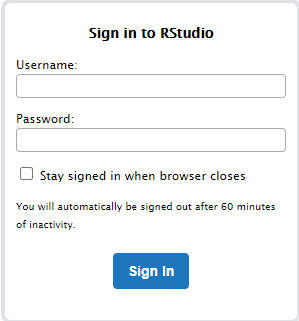
 

But not able to or having error. Do take a look at PAM authentication in RStudio Connect

Simply copy /etc/pam.d/login and replace the /etc/pam.d/rstudio

% cp /etc/pam.d/login /etc/pam.d/rstudio

 

Useful References:

  1. RStudio Server Will Not Start
  2. PAM authentication in RStudio Connect

Achieving Non-Stop IT, More Important Than Ever

About this webinar
Recent events have taught us that infrastructure stability is more important than ever as business applications and continuity is only as reliable as the underlying infrastructure. It keeps businesses running, people connected, and customers engaged. In uncertain times, you simply cannot afford to have your systems go down or lose access to your data. The costs of system downtime are not only measured financially, but also in terms of customer trust and brand loyalty.

SUSE offers a complete, proven open source solution for nonstop IT across core, edge, and cloud. From our high availability extension for SUSE Linux Enterprise Server to Live Patching and Premium Support Services, we have a total solution to keep your business running. So whether you need always-on access to SAP business applications or real-time access to data, SUSE solutions designed for high availability provide you with the stability you need.

Join Brent Schroeder (CTO, SUSE) and Stacey Miller (Product Marketing Manager, SUSE) as they discuss the SUSE total solution for nonstop IT and share stories of customers using these high availability solutions for uninterrupted services. Learn why SUSE is the right choice to help you achieve nonstop IT.

To Register: https://www.brighttalk.com/webcast/11477/405478

How to increase the number of threads created by the NFS daemon for CENTOS 7

Taken from How to increase the number of threads created by the NFS daemon in RHEL 4, 5, 6 and 7?

In case of a NFS server with a high load, it may be advisable to increase the number of the threads created during the nfsd server start up.

Edit the following line in /etc/nfs.conf

% vim /etc/nfs.conf
#[nfsd]
# debug=0
threads=64
# host=
# port=0
# grace-time=90
# lease-time=90
# udp=y
# tcp=y

Testing whether it works….

% cat /proc/net/rpc/nfsd

According to the RH, “The first number is the total number of NFS server threads started. The second number indicates whether at any time all of the threads were running at once. The remaining numbers are a thread count time histogram.”

th 64 0 2.610 0.000 0.000 0.000 0.000 0.000 0.000 0.000 0.000 0.000

mount.nfs: requested NFS version or transport protocol is not supported

If you have encountered issues like

mount.nfs: requested NFS version or transport protocol is not supported

OR

mount.nfs4: Protocol not supported

To resolve this

Mount with NFS version 3 (with 4 verbose flags)

% mount -vvvv -t nfs -o vers=3 nfs-server:/share /mnt/nfs

References:

  1. Error “mount.nfs: requested NFS version or transport protocol is not supported” when attempting to mount an NFS share on Red Hat Enterprise Linux 6

Yum History and Using Yum to Roll Back updates

Getting History of YUM actions

Point 1: List Yum actions list

(base) [root@hpc-node1 ~]# yum history list
Loaded plugins: fastestmirror, langpacks
ID | Login user | Date and time | Action(s) | Altered
-------------------------------------------------------------------------------
42 | root <root> | 2020-06-30 11:36 | I, U | 3
41 | 12345 | 2020-06-04 16:43 | Install | 2
40 | 12345 | 2020-06-04 16:26 | I, O, U | 878 E<
39 | 12345 | 2020-03-20 13:54 | Install | 1 >
38 | 12345 | 2020-03-20 13:46 | Install | 1
37 | 12345 | 2020-03-20 13:45 | Install | 2
36 | 12345 | 2020-03-20 13:44 | Install | 1
35 | 12345 | 2020-03-20 13:43 | Install | 28
34 | 12345 | 2020-03-20 12:52 | Update | 4
33 | 12345 | 2020-03-20 12:51 | Install | 1
32 | 12345 | 2020-03-20 12:43 | Update | 1
31 | 12345 | 2020-03-20 11:10 | Install | 1
30 | 12345 | 2020-03-20 10:53 | Install | 2
29 | 12345 | 2020-02-20 14:54 | Install | 1
28 | 12345 | 2020-01-23 16:10 | I, U | 2
27 | 12345 | 2020-01-15 15:03 | Update | 15
26 | 12345 | 2020-01-15 15:03 | I, U | 18
25 | 12345 | 2020-01-15 15:03 | Update | 3
24 | 12345 | 2019-11-07 11:00 | Install | 1 <
23 | 12345 | 2019-09-23 12:47 | Install | 1 >

Point 2: Undo the Yum action.

(base) [root@hpc-node1 boot]# yum history undo 42
Loaded plugins: fastestmirror, langpacks
Undoing transaction 42, from Tue Jun 30 11:36:18 2020
.....
.....
Running transaction
  Installing : ntpdate-4.2.6p5-29.el7.centos.x86_64                                                                                                                                             1/4
  Erasing    : ntp-4.2.6p5-29.el7.centos.2.x86_64                                                                                                                                                       2/4
  Erasing    : autogen-libopts-5.18-5.el7.x86_64                                                                                                                                                        3/4
  Cleanup    : ntpdate-4.2.6p5-29.el7.centos.2.x86_64                                                                                                                                                   4/4
  Verifying  : ntpdate-4.2.6p5-29.el7.centos.x86_64                                                                                                                                                     1/4
  Verifying  : ntp-4.2.6p5-29.el7.centos.2.x86_64                                                                                                                                                       2/4
  Verifying  : autogen-libopts-5.18-5.el7.x86_64                                                                                                                                                        3/4
  Verifying  : ntpdate-4.2.6p5-29.el7.centos.2.x86_64                                                                                                                                                   4/4

Removed:
  autogen-libopts.x86_64 0:5.18-5.el7                              ntp.x86_64 0:4.2.6p5-29.el7.centos.2                              ntpdate.x86_64 0:4.2.6p5-29.el7.centos.2

Installed:
  ntpdate.x86_64 0:4.2.6p5-29.el7.centos

Complete!

Point 3 – Check on the history of a particular package

yum history list ntpdate
Loaded plugins: fastestmirror, langpacks
ID     | Login user               | Date and time    | Action(s)      | Altered
-------------------------------------------------------------------------------
    43 | root               | 2020-07-06 11:31 | D, E           |    3
    42 | root               | 2020-06-30 11:36 | I, U           |    3
    40 | root               | 2020-06-04 16:26 | I, O, U        |  878 EE
     2 | root               | 2019-07-09 09:31 | I, U           | 1029 EE

SSH and X-Forwarding on CentOS 6

I encountered this error recently when trying to X forward to another remote site.

"Warning: No xauth data; using fake authentication data for X11 forwarding."


and there was no and doesn’t display picture.

These are the steps I took to trouble-shoot

  1. I checked my /etc/ssh/sshd_config and noted that the I have “X11Forwarding yes”
  2. On my .ssh/config, I have the “ForwardX11 yes”
  3. But one of my parameter /etc/ssh/sshd_config  “X11Uselocalhost yes”. Apparently,I was able to X11 Forward for hosts specify in my /etc/hosts file, but those outside my host file, I was not able to display the picture.
  4. But once I modified the  “X11Uselocalhost no”, the issue was resolved.

There was this post that a user explained quite well. (http://www.authsecu.com/nntp/comp-security-ssh/19540-comp-security-ssh-what-does-%22x11uselocalhost-no%22-do.htm)

When doing X forwarding, sshd listens on a TCP socket for connections from X clients. Normally, it will accept connections addressed to the loopback address only (127.0.0.1), restricting it to clients on the local host. X11UseLocalhost no means it will accept connections from anywhere. 

xrdp_mm_process_login_response: login failed on CentOS 6

This post is taken from my old blog xrdp_mm_process_login_response: login failed

If you encountered this error xrdp_mm_process_login_response: login failed when you use the remote desktop connection to connection to a vnc session.

Even if you restart xrdp, the error still remain, the issue could be due to locked  X11 session that was created by xrdp.

To solve the issue, go to the/tmp/.X11-unix/ and find your X session and delete the session.

# cd /tmp/.X11-unix

Do a listing

# ls -l

Look at the session owned by you which you wished to delete

.....
.....
srwxrwxrwx 1 root      root  0 Jul  9  2012 X0
srwxrwxrwx 1 user1  users 0 Jan 25 09:13 X1
srwxrwxrwx 1 user2      users 0 Jul 10  2012 X10
srwxrwxrwx 1 user3     users 0 Feb 19 13:31 X11
srwxrwxrwx 1 user4  users 0 Nov 20 15:10 X12
srwxrwxrwx 1 user5     users 0 Jul 10  2012 X13
.....
.....

Delete the session……

If xrdp still fails, it seems that it is due to orphaned X–. Once xrdp hits an orphaned X– which may or may not be from other users, the error will still remain.

To see the orphaned X11 session, you can do a vncserver, which you will see something like that

# vncserver


Warning: Head-Node:1 is taken because of /tmp/.X11-unix/X1
Remove this file if there is no X server Head-Node:1

Delete all the orphaned X–
Restart the xrdp service and try the remote connection.

# service xrdp restart

If you are still having the issue, do look at alternative solution

  1. X Server — no display in range is available. xrdp_mm_process_login_response: login failed