Diagnostic Tools to diagnose Infiniband Fabric Information

There are a few diagnostic tools to diagnose Infiniband Fabric Information. Use man for the parameters for the

  1. ibnodes – (Show Infiniband nodes in topology)
  2. ibhosts – (Show InfiniBand host nodes in topology)
  3. ibswitches- (Show InfiniBand switch nodes in topology)
  4. ibnetdiscover – (Discover InfiniBand topology)
  5. ibchecknet – (Validate IB subnet and report errors)
  6. ibdiag (Scans the fabric using directed route packets and extracts all the available information regarding its connectivity and devices)
  7. perfquery (find errors on a particular or number of HCA’s and switch ports)

ibnodes (Show Infiniband nodes in topology)

ibnodes is a script which either walks the IB subnet topology  or  uses an  already  saved  topology  file  and  extracts the IB nodes (CAs and switches)

# ibnodes
.....
Ca      : 0x0000000000009b02 ports 2 "c00 HCA-1"
Ca      : 0x0000000000005af0 ports 1 "h00 HCA-1"
Switch  : 0x00000000000000fa ports 36 "IBM HSSM" enhanced port 0 lid 19 lmc 0
.....

ibhosts  (Show InfiniBand host nodes in topology)

ibhosts is a script which either walks the IB subnet topology  or  uses an already saved topology file and extracts the CA nodes.

# ibhosts
Ca      : 0x0000000000009b02 ports 2 "c00 HCA-1"
Ca      : 0x0000000000005af0 ports 1 "h00 HCA-1"

ibswitches (Show InfiniBand switch nodes in topology)

ibswitches is a script which either walks the  IB  subnet  topology  or uses an already saved topology file and extracts the switch nodes.

# ibswitches
Switch  : 0x00000000000003fa ports 36 "IBM HSSM" enhanced port 0 lid 19 lmc 0
Switch  : 0x00000000000003cc ports 36 "IBM HSSM" enhanced port 0 lid 16 lmc 0

ibnetdiscover (Discover InfiniBand topology)

ibnetdiscover performs IB subnet discovery and outputs a human readable topology file. GUIDs, node types, and port numbers are displayed  as  well as port LIDs and NodeDescriptions.  All nodes (and links) are displayed (full topology).  Optionally, this utility can be used to list the current connected nodes by nodetype.  The output is printed to standard output unless a topology file is specified.

# ibnetdiscover
#
# Topology file: generated on Mon Jan 28 14:19:57 2013
#
# Initiated from node 0000000000000080 port 0000090300451281

vendid=0x2c9
devid=0xc738
sysimgguid=0x2c90000000000
switchguid=0x2c90000000080(0000000000080)
Switch  36 "S-0002c9030071ba80"         # "MF0;switch-6260a0:SX90Y3245/U1" enhanced port 0 lid 2 lmc 0
[2]     "H-00000000000011e0"[1](00000000000e1)          # "node-c01 HCA-1" lid 3 4xQDR
[3]     "H-00000000000012d0"[1](00000000000d1)          # "node-c02 HCA-1" lid 4 4xQDR
....
....

ibchecknet (Validate IB subnet and report errors)

# ibchecknet
......
......
## Summary: 31 nodes checked, 0 bad nodes found
##          88 ports checked, 59 bad ports found
##          12 ports have errors beyond threshold

perfquery command

The perfquery command is useful for find errors on a particular or number of HCA’s and switch ports. You can also use perfquery to reset HCA and switch port counters.

# Port counters: Lid 1 port 1
PortSelect:......................1
CounterSelect:...................0x1400
SymbolErrorCounter:..............0
LinkErrorRecoveryCounter:........0
LinkDownedCounter:...............0
PortRcvErrors:...................13
PortRcvRemotePhysicalErrors:.....0
PortRcvSwitchRelayErrors:........0
PortXmitDiscards:................0
PortXmitConstraintErrors:........0
PortRcvConstraintErrors:.........0
CounterSelect2:..................0x00
LocalLinkIntegrityErrors:........0
ExcessiveBufferOverrunErrors:....0
VL15Dropped:.....................0
PortXmitData:....................199578830
PortRcvData:.....................504398997
PortXmitPkts:....................15649860
PortRcvPkts:.....................15645526
PortXmitWait:....................0

References:
  1. Appendix B. InfiniBand Fabric Troubleshooting

Diagnostic Tools to diagnose Infiniband Device

There are a few Diagnostic Tools to diagnose Infiniband Devices.

  1. ibv_devinfo (Query RDMA devices)
  2. ibstat (Query basic status of InfiniBand device(s))
  3. ibstatus (Query basic status of InfiniBand device(s))

ibv_devinfo (Query RDMA devices)

Print  information about RDMA devices available for use from userspace.

# ibv_devinfo
hca_id: mlx4_0
        transport:                      InfiniBand (0)
        fw_ver:                         2.10.2322
        node_guid:                      0002:c903:0045:1280
        sys_image_guid:                 0002:c903:0045:1283
        vendor_id:                      0x02c9
        vendor_part_id:                 4099
        hw_ver:                         0x0
        board_id:                       IBM0FD0140019
        phys_port_cnt:                  2
                port:   1
                        state:                  PORT_ACTIVE (4)
                        max_mtu:                2048 (4)
                        active_mtu:             2048 (4)
                        sm_lid:                 1
                        port_lid:               1
                        port_lmc:               0x00
                        link_layer:             IB

                port:   2
                        state:                  PORT_DOWN (1)
                        max_mtu:                2048 (4)
                        active_mtu:             2048 (4)
                        sm_lid:                 0
                        port_lid:               0
                        port_lmc:               0x00
                        link_layer:             IB

ibstat (Query basic status of InfiniBand device(s))

ibstat is a binary which displays basic information obtained  from  the local  IB  driver.  Output  includes LID, SMLID, port state, link width active, and port physical state.

It is similar to the ibstatus  utility  but  implemented  as  a  binary rather  than a script. It has options to list CAs and/or ports and displays more information than ibstatus.

# ibstat
CA 'mlx4_0'
        CA type: MT4099
        Number of ports: 2
        Firmware version: 2.10.2322
        Hardware version: 0
        Node GUID: 0x0002c90300451280
        System image GUID: 0x0002c90300451283
        Port 1:
                State: Active
                Physical state: LinkUp
                Rate: 40
                Base lid: 1
                LMC: 0
                SM lid: 1
                Capability mask: 0x0251486a
                Port GUID: 0x0002c90300451281
                Link layer: InfiniBand
        Port 2:
                State: Down
                Physical state: Polling
                Rate: 40
                Base lid: 0
                LMC: 0
                SM lid: 0
                Capability mask: 0x02514868
                Port GUID: 0x0002c90300451282
                Link layer: InfiniBand

ibstatus – (Query basic status of InfiniBand device(s))

ibstatus is a script which displays basic information obtained from the local IB driver. Output includes LID, SMLID,  port  state,  link  width active, and port physical state.

# ibstatus
Infiniband device 'mlx4_0' port 1 status:
        default gid:     fe80:0000:0000:0000:0002:c903:0045:1281
        base lid:        0x1
        sm lid:          0x1
        state:           4: ACTIVE
        phys state:      5: LinkUp
        rate:            40 Gb/sec (4X QDR)
        link_layer:      InfiniBand

Infiniband device 'mlx4_0' port 2 status:
        default gid:     fe80:0000:0000:0000:0002:c903:0045:1282
        base lid:        0x0
        sm lid:          0x0
        state:           1: DOWN
        phys state:      2: Polling
        rate:            40 Gb/sec (4X QDR)
        link_layer:      InfiniBand

OFED Performance Micro-Benchmark Latency Test

Open Fabrics Enterprise Distribution (OFED) has provided simple performance micro-benchmark has provided a collection of tests written over uverbs. Some notes taken from OFED Performance Tests README

  1. The benchmark uses the CPU cycle counter to get time stamps without a context switch.
  2. The benchmark measures round-trip time but reports half of that as one-way latency. This means that it may not be sufficiently accurate for asymmetrical configurations.
  3. Min/Median/Max results are reported.
    The Median (vs average) is less sensitive to extreme scores.
    Typically, the Max value is the first value measured Some CPU architectures
  4. Larger samples only help marginally. The default (1000) is very satisfactory.   Note that an array of cycles_t (typically an unsigned long) is allocated once to collect samples and again to store the difference between them.   Really big sample sizes (e.g., 1 million) might expose other problems with the program.

On the Server Side

# ib_write_lat -a

On the Client Side

# ib_write_lat -a Server_IP_address
------------------------------------------------------------------
                    RDMA_Write Latency Test
 Number of qps   : 1
 Connection type : RC
 Mtu             : 2048B
 Link type       : IB
 Max inline data : 400B
 rdma_cm QPs     : OFF
 Data ex. method : Ethernet
------------------------------------------------------------------
 local address: LID 0x01 QPN 0x02ce PSN 0x1bd93e RKey 0x014a00 VAddr 0x002b7004651000
 remote address: LID 0x03 QPN 0x00f2 PSN 0x20aec7 RKey 0x010100 VAddr 0x002aeedfbde000
------------------------------------------------------------------

#bytes #iterations    t_min[usec]    t_max[usec]  t_typical[usec]
2       1000          0.92           5.19         1.24
4       1000          0.92           65.20        1.24
8       1000          0.90           72.28        1.23
16      1000          0.92           19.56        1.25
32      1000          0.94           17.74        1.26
64      1000          0.94           26.40        1.20
128     1000          1.05           53.24        1.36
256     1000          1.70           21.07        1.83
512     1000          2.13           11.61        2.22
1024    1000          2.44           8.72         2.52
2048    1000          2.79           48.23        3.09
4096    1000          3.49           52.59        3.63
8192    1000          4.58           64.90        4.69
16384   1000          6.63           42.26        6.76
32768   1000          10.80          31.11        10.91
65536   1000          19.14          35.82        19.23
131072  1000          35.56          62.17        35.84
262144  1000          68.95          80.15        69.10
524288  1000          135.34         195.46       135.62
1048576 1000          268.37         354.36       268.64
2097152 1000          534.34         632.83       534.67
4194304 1000          1066.41        1150.52      1066.71
8388608 1000          2130.80        2504.32      2131.39

Common Options you can use.

Common Options to all tests:
-p, --port=<port>            listen on/connect to port <port> (default: 18515)
-m, --mtu=<mtu>              mtu size (default: 1024)
-d, --ib-dev=<dev>           use IB device <dev> (default: first device found)
-i, --ib-port=<port>         use port <port> of IB device (default: 1)
-s, --size=<size>            size of message to exchange (default: 1)
-a, --all                    run sizes from 2 till 2^23
-t, --tx-depth=<dep>         size of tx queue (default: 50)
-n, --iters=<iters>          number of exchanges (at least 100, default: 1000)
-C, --report-cycles          report times in cpu cycle units (default: microseconds)
-H, --report-histogram       print out all results (default: print summary only)
-U, --report-unsorted        (implies -H) print out unsorted results (default: sorted)
-V, --version                display version number

Switching between Ethernet and Infiniband using Virtual Protocol Interconnect (VPI)

According to the Open Fabrics Alliance Documents, Open Fabrics Enterprise Distribution (OFED) ConnectX driver (mlx4) in OFED 1.4 Release Notes.

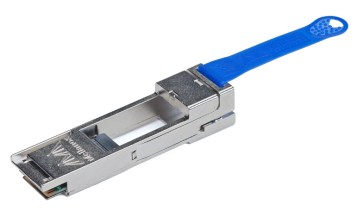
It is recommended to use the QSA Adapter (QSFP+ to SFP+ adapter) which is the world’s first solution for the QSFP to SFP+ conversion challenge for 40GB/Infiniband to 10G/1G. For more information, see Quad to Serial Small Form Factor Pluggable (QSA) Adapter to allow for the hardware

gfx_01604

Here is the summary of the excerpts from the document.

Overview
mlx4 is the low level driver implementation for the ConnectX adapters designed by Mellanox Technologies. The ConnectX can operate as an InfiniBand adapter, as an Ethernet NIC, or as a Fibre Channel HBA. The driver in OFED 1.4 supports Infiniband and Ethernet NIC configurations. To accommodate the supported configurations, the driver is split into three modules:

  1. mlx4_core
    Handles low-level functions like device initialization and firmware commands processing. Also controls resource allocation so that the InfiniBand and Ethernet functions can share the device without interfering with each other.
  2. mlx4_ib
    Handles InfiniBand-specific functions and plugs into the InfiniBand midlayer
  3. mlx4_en
    A new 10G driver named mlx4_en was added to drivers/net/mlx4. It handles Ethernet specific functions and plugs into the netdev mid-layer.

Using Virtual Protocol Interconnect (VPI) to switch between Ethernet and Infiniband

Loading Drivers

    1. The VPI driver is a combination of the Mellanox ConnectX HCA Ethernet and Infiniband drivers. It supplies the user with the ability to run Infiniband and Ethernet protocols on the same HCA.
    2. Check the MLX4 Driver is loaded, ensure that the
      # vim /etc/infiniband/openib.conf
      # Load MLX4_EN module
      MLX4_EN_LOAD=yes
    3. If the MLX4_EN_LOAD=no, the Ethernet Driver can be loaded by running
      # /sbin/modprobe mlx4_en

Port Management / Driver Switching

  1. Show Port Configuration
    # /sbin/connectx_port_config -s
    --------------------------------
    Port configuration for PCI device: 0000:16:00.0 is:
    eth
    eth
    --------------------------------
  2. Looking at saved configuration
    # vim /etc/infiniband/connectx.conf
  3. Switching between Ethernet and Infiniband
    # /sbin/connectx_port_config
  4. Configuration supported by VPI
    - The following configurations are supported by VPI:
    	Port1 = eth   Port2 = eth
    	Port1 = ib    Port2 = ib
    	Port1 = auto  Port2 = auto
    	Port1 = ib    Port2 = eth
    	Port1 = ib    Port2 = auto
    	Port1 = auto  Port2 = eth
    
      Note: the following options are not supported:
    	Port1 = eth   Port2 = ib
    	Port1 = eth   Port2 = auto
    	Port1 = auto  Port2 = ib

For more information, see

  1. ConnectX -3 VPI Single and Dual QSFP+ Port Adapter Card User Manual (pdf)
  2. Open Fabrics Enterprise Distribution (OFED) ConnectX driver (mlx4) in OFED 1.4 Release Notes

Infiniband versus Ethernet myths and misconceptions

This paper is a good writeup of the 8 myth and misconcption of Infiniband. This whitepaper Eight myths about InfiniBand WP 09-10 is from Chelsio. Here is a summary with my inputs on selected myths……

Opinion 1: Infiniband is lower latency than Ethernet

Infiniband vendors usually advertised latency in a specialized micro benchmarks with two servers in a back‐to‐back configuration. In a HPC production environment, application level latency is what matters. Infiniband lack congestion management and adaptive routing will result in interconnect hot spots unlike iWARP over Ethernet achieve reliability via TCP.

Opinion 2: QDR‐IB has higher bandwidth than 10GbE

This is interesting. A QDR is InfiniBand uses 8b/10b encoding, 40 Gbps InfiniBand is effectively 32 Gbps. However due to the limitation of PCIe “Gen 2”,  you will hit a maximum of 26 Gbps. If you are using the PCIe “Gen 1”, you will hit a maximum of 13 Gbps. Do read Another article from Margalia Communication High-speed Remote Direct Memory Access (RDMA) Networking for HPC. Remember Chelsio Adapter comes 2 x 10GE card, you can trunk them together to come nearer to the maximum 26Gbps of Infiniband. Wait till the 40GBe comes into the market, it will be very challenging for Infinband.

Opinion 3: IB Switch scale better than 10GbE

Due to the fact that Infiniband Switch is a point-to-point switch it does not have congestion management and susceptibility to hot spots for large scale clusters unlike iWARP over Ethernet. I think we should take into account coming very low latency ASIC Switch See my blog entry Watch out Infiniband! Low Latency Ethernet Switch Chips are closing the gap and larger cut-through switches like ARISTA ultra low-latency cut-through 72-port switch with Fulcrum chipsets are in the pipeline.  Purdue University 1300-nodes cluster uses Chelsio iWARP 10GE Cards.

Installing Voltaire QDR Infiniband Drivers for CentOS 5.4

OS Prerequisites 

  1. RedHat EL4
  2. RedHat EL5
  3. SuSE SLES 10
  4. SuSE SLES 11
  5. Cent OS 5

Software Prerequisites 

  1. bash-3.x.x
  2. glibc-2.3.x.x
  3. libgcc-3.4.x-x
  4. libstdc++-3.4.x-x
  5. perl-5.8.x-x
  6. tcl 8.4
  7. tk 8.4.x-x
  8. rpm 4.1.x-x
  9. libgfortran 4.1.x-x

Step 1: Download the Voltaire Drivers that is fitting to your OS and version.

Do find the link for Voltaire QDR Drivers at Download Voltaire OFED Drivers for CentOS

Step 2: Unzip and Untar the Voltaire OFED Package

# bunzip2 VoltaireOFED-1.5_3-k2.6.18-164.el5-x86_64.tar.bz
# tar -xvf VoltaireOFED-1.5_3-k2.6.18-164.el5-x86_64.tar

Step 3: Install the Voltaire OFED Package

# cd VoltaireOFED-1.5_3-k2.6.18-164.el5-x86_64
# ./install

Step 3a: Reboot the Server

Step 4: Setup ip-over-ib

# vim /etc/sysconfig/network-scripts/ifcfg-ib0
# Voltaire Infiniband IPoIB
DEVICE=ib0
ONBOOT=yes
BOOTPROTO=static
IPADDR=10.10.10.1
NETWORK=10.10.10.0
NETMASK=255.255.255.0
BROADCAST=10.10.255.255
MTU=65520
# service openibd start

Step 5 (Optional): Disable yum repository.

If you plan to use yum to local install the opensmd from the Voltaire package directory, you can opt for disabling the yum.

# vim /etc/yum.conf

Type the following at /etc/yum.conf

enabled=0

Step 6: Install Subnet Manager (opensmd). This can be found under

# cd  $VoltaireRootDirectory/VoltaireOFED-1.5_3-k2.6.18-164.el5-x86_64/x86_64/2.6.18-164.15.1.el5

Yum install the opensmd packages

# yum localinstall opensm* --nogpgcheck

Restart the opensmd service

# service opensmd start

Step 7: Check that the Infiniband is working

# ibstat

 You should get “State: Active”

CA 'mlx4_0'
        CA type: MT26428
        Number of ports: 1
        Firmware version: 2.6.0
        Hardware version: a0
        Node GUID: 0x0008f1476328oaf0
        System image GUID: 0x0008fd6478a5af3
        Port 1:
                State: Active
                Physical state: LinkUp
                Rate: 40
                Base lid: 2
                LMC: 0
                SM lid: 14
                Capability mask: 0x0251086a
                Port GUID: 0x0008f103467a5af1

Step 8: Test Connectivity

At the Server side,

# ibping -S

Do Step 1 to 7 again for the Client. Once done,

# ibping -G 0x0008f103467a5af1 (PORT GUID)

You should see a response like this.

Pong from headnode.cluster.com.(none) (Lid 2): time 0.062 ms
Pong from headnode.cluster.com.(none) (Lid 2): time 0.084 ms
Pong from headnode.cluster.com.(none) (Lid 2): time 0.114 ms
Pong from headnode.cluster.com.(none) (Lid 2): time 0.082 ms
Pong from headnode.cluster.com.(none) (Lid 2): time 0.118 ms

Great! you are done.