Installing and Configuring Environment Modules on CentOS 5

What is User Environment Modules?

Taken from Environment Modules Project

The Environment Modules package provides for the dynamic modification of a user’s environment via modulefiles.

Each modulefile contains the information needed to configure the shell for an application. Once the Modules package is initialized, the environment can be modified on a per-module basis using the module command which interprets modulefiles. Typically modulefiles instruct the module command to alter or set shell environment variables such as PATH, MANPATH, etc. modulefiles may be shared by many users on a system and users may have their own collection to supplement or replace the shared modulefiles.

Step 1: Download the modules packages

Download the latest modules packages from Modules  Sourceforge Project Site.

Step 2: Download the dependencies tcl and tcl-devel

# yum install tcl tcl-devel

Step 3: Unpacked, Configure and Install

# tar -zxvf modules-3.2.9c.tar.gz

Go to the Modules folder ($ModuleHome)

# cd modules-3.2.9

I wanted to keep all my individual modules files at /usr/local/Modules/contents. You can keep module files anywhere you wish to keep.

# ./configure --with-module-path=/usr/local/Modules/contents

Make and install the configuration

# make && make install

Step 4:  Amend .modulefiles

Edit . modules to let Modules know where all the customized module files will be kept

# vim /usr/local/Modules/3.2.9/init/.modulespath

Comment out all the lines except the directory where all the customised modules files will be kept.

.....
.....
/usr/local/Modules/contents                             # General module files
.....
.....

Step 5: Update /etc/profile.d of the Servers

Copy the profile.modules from the $ModuleHome Directory

# cp /$ModuleHome/modules-3.2.9/etc/global/profile.modules /etc/profile.d/modules.sh

The content of modules.sh are as followed

#----------------------------------------------------------------------#
# system-wide profile.modules                                          #
# Initialize modules for all sh-derivative shells                      #
#----------------------------------------------------------------------#
trap "" 1 2 3

case "$0" in
-bash|bash|*/bash) . /usr/local/Modules/default/init/bash ;;
-ksh|ksh|*/ksh) . /usr/local/Modules/default/init/ksh ;;
-zsh|zsh|*/zsh) . /usr/local/Modules/default/init/zsh ;;
*) . /usr/local/Modules/default/init/sh ;; # sh and default for scripts
esac

trap 1 2 3

Sample Installation of an application using Modules (Intel Compilers)

Step 1: Create a Module File.

Place the Module File for Intel in /usr/local/Modules/contents

a. Create an Intel Folder inside /usr/local/Modules/contents

# mkdir /usr/local/Modules/intel

b. Create a module file for the version of Intel (In my case, “12.0.2”). To save some time, you can copy a “sample” file and you can edit

# cp $ModuleHome/modules-3.2.9/modulefiles/modulefile /usr/local/Modules/contents/intel/12.0.2
# vim /usr/local/Modules/contents/intel/12.0.2
#%Module1.0
proc ModulesHelp { } {
global version prefix

puts stderr "\tIntel XE 12.0.2 (icc, icpc, ifort)"
}

module-whatis   "Intel XE 12.0.2 (icc, icpc, ifort)"

prepend-path    PATH            /opt/intel/composerxe/bin
prepend-path    LIBRARY_PATH    /opt/intel/composerxe/lib/intel64
prepend-path    LD_LIBRARY_PATH /opt/intel/composerxe/lib/intel64:/opt/intel/mkl/10.2.6.038/lib/em64t
prepend-path    MANPATH         /opt/intel/composerxe/man
prepend-path    MKL_HOME        /opt/intel/mkl/10.2.6.038

setenv CC       icc
setenv CXX      icpc
setenv FC       ifort
setenv F77      ifort
setenv F90      ifort

Step 2: Setting the Default versions of Intel.

If you have different version of software you wish to present to the users, do the following

# vim /usr/local/Modules/contents/intel/.version
#%Module1.0
set ModuleVersion "12.0.2"

More Information
  1. Part 2 – Usage of Environment Modules on CentOS and in Cluster

Installing NFS4 on CentOS 5 and 6

For more information on NFS4 and difference between NFS3 and NFS4, do look at A brief look at the difference between NFSv3 and NFSv4.

This tutorial is a guide on how to install NFSv4 on CentOS 5 and 6

Step1: Installing the packages

# yum install nfs-utils nfs4-acl-tools portmap

Some facts about the tools above as given from yum info.

nfs-utils –  The nfs-utils package provides a daemon for the kernel NFS server and related tools, which provides a much higher level of performance than the traditional Linux NFS server used by most users.

This package also contains the showmount program.  Showmount queries the mount daemon on a remote host for information about the NFS (Network File System) server on the remote host. For example, showmount can display the clients which are mounted on that host. This package also contains the mount.nfs and umount.nfs program.

nfs4-acl-toolsThis package contains commandline and GUI ACL utilities for the Linux NFSv4 client.

portmap – The portmapper program is a security tool which prevents theft of NIS (YP), NFS and other sensitive information via the portmapper. A portmapper manages RPC connections, which are used by protocols like NFS and NIS.

The portmap package should be installed on any machine which acts as a server for protocols using RPC.

Step 2: Exports the File System from the NFS Server (Similar to NFSv3 except with the inclusion of fsid=0)

/home           192.168.1.0/24(rw,no_root_squash,sync,no_subtree_check,fsid=0)
/install        192.168.1.0/24(rw,no_root_squash,sync,no_subtree_check,fsid=1)

The fsid=0 and fsid=1 option provides a number to use in identifying the filesystem. This number must be different for all the filesystems in /etc/exports that use the fsid option. This option is only necessary for exporting filesystems that reside on a block device with a minor number above 255.one directory can be exported with each fsid option.

Exports the file system

# exportfs -av

Restart the NFS service

# service nfs start

If you are supporting NFSv3,  you have to start portmap as NFSv3 requires them. As such, NFSv4 does not need to interact with rpcbind[1], rpc.lockd, and rpc.statd daemons. For more information see Fedora Chapter 9.  Network File System (NFS) – How it works for a more in-depth understanding.

# service portmap restart

Step 2: Client Mapping

# mount -t nfs4 192.168.1.1:/ /home

For other information,

  1. NFS4 Client unable to mount Server NFS4 file
  2. A brief look at the difference between NFSv3 and NFSv4

A brief look at the difference between NFSv3 and NFSv4

There are a few interesting differences between NFSv3 and NFSv4. Comparison of  NFSv3 and NFSv4 is quite hard to obtain and the information is referenced from NFS Version 4 Open Source Project.

From a File System perspective, there are

Export Management

  1. In NFSv3, client must rely on auxiliary protocol, the mount protocol to request a list of server’s exports and obtain root filehandle of a given export. It is fed into the NFS protocol proper once the root filehandle is obtained.
  2. In NFSv4 uses the virtual file system to present the server’s export and associated root filehandles to the client.
  3. NFSv4 defines a special operation to retrieve the Root filehandle and the NFS Server presents the appearance to the client that each export is just a directory in the pseudofs
  4. NFSv4 Pseudo File System is supposed to provide maximum flexibility. Exports Pathname on servers can be changed transparently to clients.

State

  1. NFSv3 is stateless. In other words if the server reboots, the clients can pick up where it left off. No state has been lost.
  2. NFSv3 is typically used with NLM, an auxiliary protocol for file locking. NLM is stateful that the server LOCKD keeps track of locks.
  3. In NFSv4, locking operations are part of the protocol
  4. NFSv4 servers keep track of open files and delegations

Blocking Locks

  1. NFSv3 rely on NLM. Basically, Client process is put to “sleep”. When a callback is received from the server, client process is granted the lock.
  2. For NFSv4, the client to put to sleep, but will poll the server periodically for the lock.
  3. The benefits of the mechanism is that there is one-way reachability from client to server. But it may be less efficient.

PBS (Portable Batch System) Commands on Torque

There are some PBS Commands that you can use for your customised PBS templates and scripts.

Note:

# Remarks:
#  A line beginning with # is a comments;
#  A line beginning with #PBS is a pbs command;
# Case sensitive.

Job Name (Default)

#PBS -N jobname

Specifies the number of nodes (nodes=N) and the number of processors per node (ppn=M) that the job should use

#PBS -l nodes=2:ppn=8

Specifies the maximum amount of physical memory used by any process in the job.

#PBS -l pmem=4gb

Specifies maximum walltime (real time, not CPU time)

#PBS -l walltime=24:00:00

Queue Name (If default is used, there is no need to specify)

#PBS -q fastqueue

Group account (for example, g12345) to be charged

#PBS -W group_list=g12345

Put both normal output and error output into the same output file.

#PBS -j oe

Send me an email when the job begins,end and abort

#PBS -m bea
#PBS -M mymail@mydomain.com

Export all my environment variables to the job

#PBS -V

Rerun this job if it fails

#PBS -r y

Predefined Environmental Variables for OpenPBS qsub

The following environment variable reflect the environment when the user run qsub

  1. PBS_O_HOSTThe host where you ran the qsub command.
  2. PBS_O_LOGNAMEYour user ID where you ran qsub
  3. PBS_O_HOMEYour home directory where you ran qsub
  4. PBS_O_WORKDIRThe working directory where you ran qsub

The following reflect the environment where the job is executing

  1. PBS_ENVIRONMENTSet to PBS_BATCH to indicate the job is a batch job, or # to PBS_INTERACTIVE to indicate the job is a PBS interactive job
  2. PBS_O_QUEUEThe original queue you submitted to
  3. PBS_QUEUEThe queue the job is executing from
  4. PBS_JOBNAMEThe job’s name
  5. PBS_NODEFILEThe name of the file containing the list of nodes assigned to the job

iWARP, RDMA and TOE

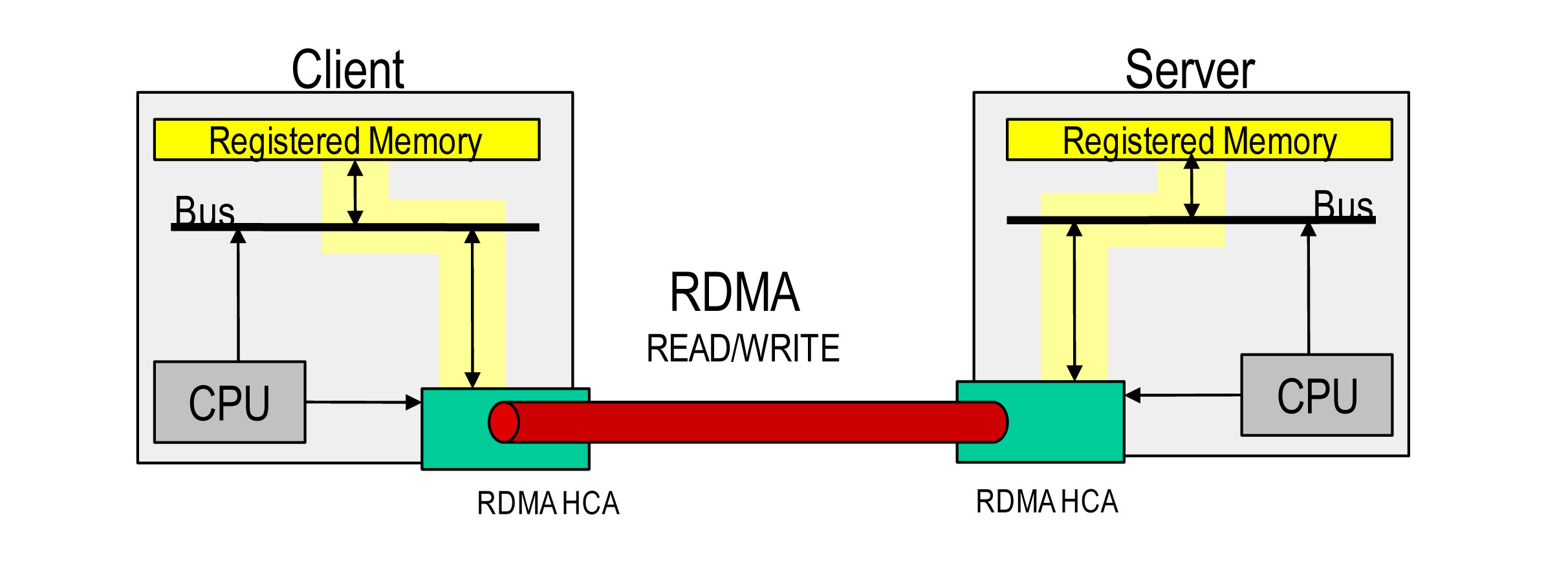
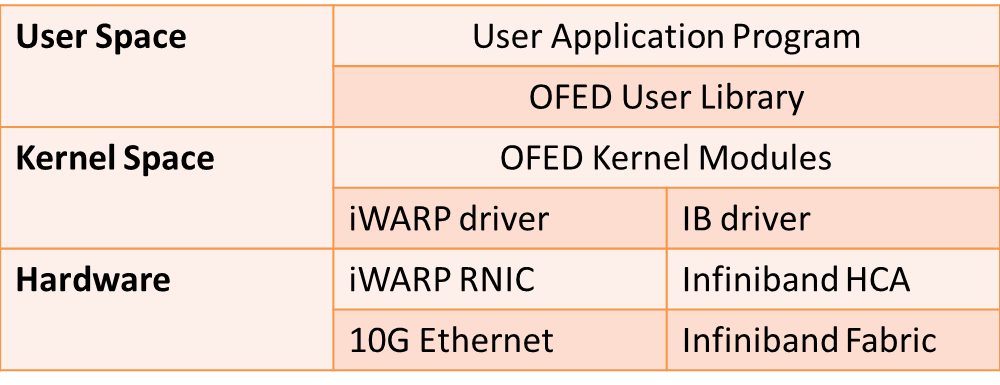
Remote Direct Access Memory Access (RDMA) allows data to be transferred over a network from the memory of one computer to the memory of another computer without CPU intervention. There are 2 types of RDMA hardware: Infiniband and  RDMA over IP (iWARP). OpenFabrics Enterprise Distribution (OFED) stack provides common interface to both types of RDMA hardware.

High Bandwidth Switches like 10G allows high transfer rates, but TCP/IP is not sufficient to make use of the entire 10G bandwidth due to data copying, packet processing and interrupt handling on the CPUs at each end of the TCP/IP connection. In a traditional TCP/IP network stack, an interrupt occurs for every packet sent or received, data is copied at least once in each host computer’s memory (between  user space and the kernel’s TCP/IP buffers). The CPU is responsible for processing multiple nested packet headers for all protocols levels in all incoming and outgoing packets.

Cards with iWARP and TCP Offloading (TOC) capbilities like Chelsio enables to the entire iWARP, TCP/IP and IP Protocol to offlload from the main CPU on to the iWARP/TOE Card to achieve throuput close to full capacity of 10G Ethernet.

RDMA based communication
(Taken from TCP Bypass Overview by Informix Solution (June 2011) Pg 11)

  1. Remove from CPU from being bottleneck by using User Space to User Space remote copy – after memory registration
  2. HCA is responsible for virtual-physcial -> physial-virtual address mapping
  3. Shared keys and exchanged for access rights and current ownership
  4. Memory has to be registered to lock into RAM and initalise HCA TLB
  5. RDMA read uses no CPU cycles after registratio on doner side.

GPFS Tuning Parameters

This section is taken from IBM GPFS Tuning Parameters

Option 1: To view GPFS Configuration Parameters

# mmlsconfig
Configuration data for cluster nsd-nas:
----------------------------------------
myNodeConfigNumber 1
clusterName nsd1-nas
clusterId 111111111111
autoload yes
minReleaseLevel 3.4.0.7
dmapiFileHandleSize 32
maxMBpS 2000
maxblocksize 4m
pagepool 1000m
adminMode allToAll

File systems in cluster nsd1-nas:
---------------------------------
/dev/gpfs1

Option 2: Detailed Dump of configuration

# mmfsadm dump config
afmAsyncDelay 15
afmAtimeXattr 0
afmDirLookupRefreshInterval 60
afmDirOpenRefreshInterval 60
afmDisconnectTimeout 60
afmExpirationTimeout disable
afmFileLookupRefreshInterval 30
afmFileOpenRefreshInterval 30
afmLastPSnapId 0
afmMode 1
afmNumReadGWs 0
afmNumReadThreads 1
afmParallelReadChunkSize 134217728
afmParallelReadThreshold disable
afmReadBufferSize 33554432
afmReadPrefetchThreshold 2
.....
.....

Option 3: Change Configuration Parameters

# mmchconfig pagepool=256M

Use -i to make the change permanent and affect the running GPFS daemon immediately.
Use -I to affect the GPFS daemon only (reverts to saved settings on restart)

Parameters
(For more information, see GPFS Tuning Parameters)

leaseRecoveryWait
logfile size
GPFSCmdPortRange
maxBufferDescs
maxFilesToCache
maxMBpS
maxMissedPingTimeout
maxReceiverThreads
maxStatCache
minMissedPingTimeout
nfsPrefetchStrategy
nsdMaxWorkerThreads
numaMemoryInterleave
pagepool
opensslLibName
prefetchPct
prefetchThreads
readReplicaPolicy
seqDiscardThreshold
sharedMemLimit
socketMaxListenConnections
socketRcvBufferSize
socketSndBufferSize
verbsLibName
verbsrdmasperconnection
verbsrdmaspernode
worker1Threads
worker3Threads
writebehindThreshold

Total Reconfiguration of GPFS from scratch again

If you have messed things up in the configuration and wish to redo the entire setup again, you have to do the following. From our training at GPFS, there are 2 advisable ways. The first one is the recommended way. The latter one is the “nuclear” option

Step 1: Unmount the GPFS file system

# mmumount /gpfs1 -a

Step 2: Delete GPFS file system. Deleting the file system and descriptors are important so that will not create issues during the subsequent file creation attempt

# mmdelfs /gpfs1

Step 3: Delete GPFS NSDs. Deleting the NSDs are important so that they will not create issues during the subsequent NSD creation.

# mmdelnsd nsd1-nas
# mmdelnsd nsd2-nas

Step 4: Shutdown GPFS daemons

# mmshutdown -a

Step 5: Delete the GPFS cluster

# mmdelnode -a

The “nuclear” option

Step 1: Unmount the GPFS file system
(Caution: GPFS cluster will be  erased and data will be lost)

# mmunmount /gpfs1 -a
# mmfsadm cleanup

Step 2: Delete selected configuration files on all nodes

# rm -f /var/mmfs/etc/mmfs.cfg
# rm -f /var/mmfs/gen/*
# rm -f /var/mmfs/tmp/*

Basic Installing and Configuring of GPFS Cluster (Part 4)

Step 10: Create a NSD Specification File at

At /gpfs_install, create a disk.lst

# vim disk.lst

Example of the file using primary and secondary NSD are as followed

/dev/sdb:nsd1-nas,nsd2-nas::::ds4200_b
/dev/sdc:nsd2-nas,nsd1-nas::::ds4200_c

The format is
s1:s2:s3:s4:s5:s6:s7

where
s1 = scsi device
s2 = NSD server list seperate by comma. Arrange in primary and secondary order
s3 = NULL (retained for legacy reasons)
s4 = usage
s5 = failure groups
s6 = NSD name
s7 = storage pool name

Step 11: Backup the disk.lst

Back up this specifications since its an input/output file for the mmcrnsd.

# cp disk.lst disk.lst.org

Step 12: Create the new NSD specification file

# mmcrnsd -F disk.lst -v no

-F = name of the NSD Specification File
-v = Check the disk is part of an eixsting GPFS file system or ever had a GPFS file system on it (if yes, mmcrnsd will not create it as a new NSD

mmcrnsd: Processing disk /dev/sdb
mmcrnsd: Processing disk /dev/sdc
mmcrnsd: Propagating the cluster configuration data to all
affected nodes. This is an asynchronous process.

Step 13: Verify that the NSD is properly created.

# mmlsnsd
File system   Disk name    NSD servers
---------------------------------------------------------------------------
gpfs1         ds4200_b     nsd1-nas,nsd2-nas
gpfs1         ds4200_c     nsd2-nas,nsd1-nas

Step 14: Creating different partitions

If you are just creating a single partitions, the above will suffice. If you are creating more than 1 partition, you should allocate the appropriate number of LUNs and repeat Step 11 – 13. But for each partition you can use different “disk.lst” name such as disk2.lst, disk3.lst etc.

Step 15: Create the GPFS  file system

# mmcrfs /gpfs1 gpfs1 -F disk.lst -A yes -B 1m -v no -n 50 -j scatter

/gpfs1 = a mount point
gpfs1 = device entry in /dev for the file system
-F = output file from the mmcrnsd command
-A = mount the file system automatically every time mmfsd is started
-B = actual block size for this file system; it can not be larger than the maxblocksize set by the mmchconfig command
-v = check if this disk is part of an existing GPFS file system or ever had a GPFS file system on it. If yes, mmcrfs will not include this disk in the file system
-n = estimated number of nodes that will mount this file system.

If you have more than 1 partitions, you have to create the file system

# mmcrfs /gpfs2 gpfs2 -F disk2.lst -A yes -B 1m -b no -n 50 -j scatter
The following disks of gpfs1 will be formatted on nsd1-nas
.....
.....
Formatting file system
Disk up to 2.7 TB  can be added to
storage pool 'dcs_4200'
Creating Inode File
Creating Allocation Maps
Clearing Inode Allocation Map
Clearing Block Allocation Map
Formatting Allocation Map for storage pool 'system'
.....
.....
mmcrfs: Propagating the cluster configuration data
to all affected nodes. This is an asynchronous process.

Step 16: Verify GPFS Disk Status

# mmlsdisk gpfs1
disk         driver   sector failure holds    holds                            storage
name         type       size   group metadata data  status        availability pool
------------ -------- ------ ------- -------- ----- ------------- ------------ ------------
ds4200_b     nsd         512    4001 yes      yes   ready         up           system
ds4200_c     nsd         512    4002 yes      yes   ready         up           system

Step 17: Mount the file systems and checking permissions

# mmmount /gpfs1 -a
Fri Sep 11 12:50:17 EST 2012: mmmount:  Mounting file systems ...

Change Permission for /gpfs1

# chmod 777 /gpfs1

Step 18: Checking and testing of file system

Adding time for dd to test and analyse read and write performance

Step 19: Update the /etc/fstab

LABEL=/                 /                       ext3    defaults        1 1
tmpfs                   /dev/shm                tmpfs   defaults        0 0
devpts                  /dev/pts                devpts  gid=5,mode=620  0 0
sysfs                   /sys                    sysfs   defaults        0 0
proc                    /proc                   proc    defaults        0 0
LABEL=SWAP-sda2         swap                    swap    defaults        0 0
......
/dev/gpfs1           /gpfs_data           gpfs       rw,mtime,atime,dev=gpfs1,noauto 0 0

More Information:

  1. Basic Installing and Configuring of GPFS Cluster (Part 1)
  2. Basic Installing and Configuring of GPFS Cluster (Part 2)
  3. Basic Installing and Configuring of GPFS Cluster (Part 3)
  4. Basic Installing and Configuring of GPFS Cluster (Part 4)

Basic Installing and Configuring of GPFS Cluster (Part 3)

Step 8: Starting up GPFS Daemon on all the nodes

# mmstartup -a
Fri Aug 31 21:58:56 EST 2010: mmstartup: Starting GPFS ...

Step 9: Ensure all the GPFS daemon (mmfsd) is active on all the node before proceeding

# mmgetstate -a

Node number  Node name   GPFS state
-----------------------------------
1            nsd1        active
2            nsd2        active
3            node1       active
4            node2       active
5            node3       active
6            node4       active
7            node5       active
8            node6       active

More Information:

  1. Basic Installing and Configuring of GPFS Cluster (Part 1)
  2. Basic Installing and Configuring of GPFS Cluster (Part 2)
  3. Basic Installing and Configuring of GPFS Cluster (Part 3)
  4. Basic Installing and Configuring of GPFS Cluster (Part 4)