Basic Installing and Configuring of GPFS Cluster (Part 2)

This is a continuation of Installing and configuring of GPFS Cluster (Part 1).

Step 4b: Verify License Settings (mmlslicense)

# mmlslicense
Summary information
---------------------
Number of nodes defined in the cluster:                         33
Number of nodes with server license designation:                 3
Number of nodes with client license designation:                30
Number of nodes still requiring server license designation:      0
Number of nodes still requiring client license designation:      0

Step 5a: Configure Cluster Settings

# mmchconfig maxMBps=2000,maxblocksize=4m,pagepool=2000m,autoload=yes,adminMode=allToAll
  • maxMBps specifies the limit of LAN bandwidth per node. To get peak rate, set it to approximately 2x the desired bandwidth. For InfiniBand QDR, maxMBps=6000 is recommended
  • maxblocksize specifies the maximum file-system blocksize. As the typical file-size and transaction-size are unknown, maxblocksize=4m is recommended
  • pagepool specifies the size of the GPFS cache. If you are using applications that display temporal locality, pagepool > 1G is recommended, otherwise, pagepool=1G is sufficient
  • autoload specifies whether the cluster should automatically load mmfsd when a node is rebooted
  • adminMode specifies whether all nodes allow passwordless root access (allToAll) or whether only a subset of the nodes allow passwordless root access (client).

Step 5b: Verify Cluster Settings

# mmlsconfig
Configuration data for cluster nsd1:
----------------------------------------
myNodeConfigNumber 1
clusterName nsd1-nas
clusterId 130000000000
autoload yes
minReleaseLevel 3.4.0.7
dmapiFileHandleSize 32
maxMBpS 2000
maxblocksize 4m
pagepool 1000m
adminMode allToAll

File systems in cluster nsd1:
---------------------------------
/dev/gpfs1

Step 6: Check the InfiniBand communication method and details using the ibstatus command

Infiniband device 'mlx4_0' port 1 status:

       default gid:     fe80:0000:0000:0000:0002:c903:0006:d403
        base lid:        0x2
        sm lid:          0x2
        state:           4: ACTIVE
        phys state:      5: LinkUp
        rate:            40 Gb/sec (4X QDR)        
        link_layer:      InfiniBand

Step 7 (if you are using RDMA): Change the GPFS configuration to ensure RDMA is used instead of IP over IB (double the performance)

# mmchconfig verbsRdma=enable,verbsPorts=mlx4_0/1
mmchconfig: Command successfully completed
mmchconfig: Propagating the cluster configuration data to all
affected nodes. This is an asynchronous process.

More Information
  1. Basic Installing and Configuring of GPFS Cluster (Part 1)
  2. Basic Installing and Configuring of GPFS Cluster (Part 2)
  3. Basic Installing and Configuring of GPFS Cluster (Part 3)
  4. Basic Installing and Configuring of GPFS Cluster (Part 4)

Basic Installing and Configuring of GPFS Cluster (Part 1)

This tutorial is a brief writeup of setting up the General Parallel Fils System (GPFS) Networked Shared Disk (NSD). For more detailed and comprehensive, do look at GPFS: Concepts, Planning, and Installation Guide. for a detailed understanding of the underlying principles of quorum manager. This tutorial only deals with the technical setup

Step 1: Preparation

All Nodes to be installed with GPFS should be installed with supported Operating System; For Linux, it should be  SLES and RHEL.

  1. The nodes should be able to communicate with each other and password-less ssh should be configured for all nodes in the cluster.
  2. Create an installation directory where you can put all the base and update rpm. For example, /gpfs_install. Copy all the
  3. Build the portability layer for each node with a different architecture or kernel level. For more information see,  Installing GPFS 3.4 Packages. For ease of installation, put all the rpm at /gpfs_install

Step 2: Export the path of GPFS commands

Remember to Export the PATH

# vim ~/.bashrc
export PATH=$PATH:/usr/lpp/mmfs/bin

Step 3: Setup of quorum manager and cluster

Just a nutshell explanation taken from GPFS: Concepts, Planning and installation Guide

Node quorum is the default quorum algorithm for GPFS™. With node quorum:

  • Quorum is defined as one plus half of the explicitly defined quorum nodes in the GPFS cluster.
  • There are no default quorum nodes; you must specify which nodes have this role.
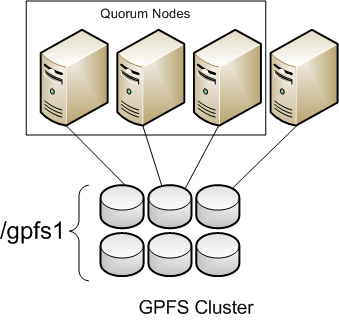
  • For example, in Figure 1, there are three quorum nodes. In this configuration, GPFS remains active as long as there are two quorum nodes available.

Create node_spec.lst at /gpfs_install containing a list of all the nodes in the cluster

# vim node_spec.lst
nsd1:quorum-manager
nsd2:quorum-manager
node1:quorum
node2
node3
node4
node5
node6

Create the gpfs cluster using the created file

# mmcrcluster -n node_spec.lst -p nsd1 -s nsd2 -R /usr/bin/scp -r /usr/bin/ssh
Fri Aug 10 14:40:53 SGT 2012: mmcrcluster: Processing node nsd1-nas
Fri Aug 10 14:40:54 SGT 2012: mmcrcluster: Processing node nsd2-nas
Fri Aug 10 14:40:54 SGT 2012: mmcrcluster: Processing node avocado-h00-nas
mmcrcluster: Command successfully completed
mmcrcluster: Warning: Not all nodes have proper GPFS license designations.
Use the mmchlicense command to designate licenses as needed.
mmcrcluster: Propagating the cluster configuration data to all
affected nodes.  This is an asynchronous process.

-n: list of nodes to be included in the cluster
-p: primary GPFS cluster configuration server node
-s: secondary GPFS cluster configuration server node
-R: remote copy command (e.g., rcp or scp)
-r: remote shell command (e.g., rsh or ssh)

To check whether all nodes were properly added, use the mmlscluster command

# mmcluster
GPFS cluster information
========================
GPFS cluster name:         nsd1
GPFS cluster id:           1300000000000000000
GPFS UID domain:           nsd1
Remote shell command:      /usr/bin/ssh
Remote file copy command:  /usr/bin/scp

GPFS cluster configuration servers:
-----------------------------------
Primary server:    nsd1
Secondary server:  nsd2

Node  Daemon node name     IP address       Admin node name     Designation
---------------------------------------------------------------------------
1     nsd1                 192.168.5.60     nsd1-nas            quorum-manager
2     nsd2                 192.168.5.61     nsd2-nas            quorum-manager
3     node1                192.168.5.24     node1               quorum-manager

Step 4a: Setup license files (mmchliense)

Configure GPFS Server Licensing. Create a license file at /gpfs_install

# vim license_server.lst
nsd1
nsd2
node1
# mmchlicense  server --accept -N license_server.lst

The output will be

The following nodes will be designated as possessing GPFS server licenses:
nsd1
nsd2
node1
mmchlicense: Command successfully completed
mmchlicense: Propagating the cluster configuration data to all
affected nodes.  This is an asynchronous process.

Configuring GPFS Client Licensing. Create a file at /gpfs_install

# vim license_client.lst
node2
node3
node4
node5
node6
# mmchlicense client --accept -N license_client.lst

The output will be

The following nodes will be designated as possessing GPFS client licenses:
node2
node3
node4
node5
node6

mmchlicense: Command successfully completed
mmchlicense: Propagating the cluster configuration data to all
affected nodes.  This is an asynchronous process.

More information

  1. Basic Installing and Configuring of GPFS Cluster (Part 1)
  2. Basic Installing and Configuring of GPFS Cluster (Part 2)
  3. Basic Installing and Configuring of GPFS Cluster (Part 3)
  4. Basic Installing and Configuring of GPFS Cluster (Part 4)

Installing GPFS 3.4 Packages

In this work-in-progress tutorial, I will write how to install the packages and compile portability layer (gpfs.gplbin) for each kernel or  architecture

First thing first, you may have to do a  yum install for ksh and rsh

# yum install ksh rsh compat-libstdc++-33 gcc-c++ imake kernel-devel kernel-headers libstdc++ redhat-lsb

Unpacked the GPFS rpms on the nodes. Remember to unpack the gpfs.base first before installing the gpfs.base update rpm

# rpm -ivh gpfs.base-3.4.0-0.x86_64.rpm
# rpm -ivh gpfs.base-3.4.0-12.x86_64.update.rpm
# rpm -ivh gpfs.docs-3.4.0-12.noarch.rpm
# rpm -ivh gpfs.gpl-3.4.0-12.noarch.rpm
# rpm -ivh gpfs.msg.en_US-3.4.0-12.noarch.rpm

Build the portability layer based on your architecture. I’m using CentOS

# cd /usr/lpp/mmfs/src
# make LINUX_DISTRIBUTION=REDHAT_AS_LINUX Autoconfig
# make World
# make InstallImages
# make rpm

The resulting customised package will be placed in  /usr/src/redhat/RPMS/x86_64/gpfs.gplbin-2.6.18-164.el5-3.4.0-12.x86_64.rpm

# cd /usr/src/redhat/RPMS/x86_64/gpfs.gplbin-2.6.18-164.el5-3.4.0-12.x86_64.rpm
# rpm -ivh gpfs.gplbin-2.6.18-164.el5-3.4.0-12.x86_64.rpm

Related information:

  1. Adding nodes to a GPFS cluster

Adding nodes to a GPFS cluster

Assumption:

  1. You have to exchange SSH keys between GPFS nodes and Servers. For more information on key exchange, you can take a look at Auto SSH Login without Password
  2. You have installed the gpfs packages. See Installing GPFS 3.4 Packages

You must follow these rules when adding nodes to a GPFS cluster:

  • You may issue the command only from a node that already belongs to the GPFS cluster.
  • A node may belong to only one GPFS cluster at a time.
  • The nodes must be available for the command to be successful. If any of the nodes listed are not available when the command is issued, a message listing those nodes is displayed. You must correct the problem on each node and reissue the command to add those nodes.
  • After the nodes are added to the cluster, you must use the mmchlicense command to designate appropriate GPFS licenses to the new nodes.

To add node2 to the GPFS cluster, enter:

# mmaddnode -N node2
The system displays information similar to:
Mon Aug 9 21:53:30 EDT 2004: 6027-1664 mmaddnode: Processing node2
mmaddnode: Command successfully completed
mmaddnode: 6027-1371 Propagating the changes to all affected nodes.
This is an asynchronous process.

To confirm the addition of the nodes, enter:

# mmlscluster

The system displays information similar to:

GPFS cluster information
========================
  GPFS cluster name:         gpfs_cluster
  GPFS cluster id:           680681562214606028
  GPFS UID domain:           gpfs_cluster.com
  Remote shell command:      /usr/bin/rsh
  Remote file copy command:  /usr/bin/rcp

GPFS cluster configuration servers:
-----------------------------------
  Primary server:    nsd1
  Secondary server:  nsd2

 Node  Daemon node name        IP address       Admin node name         Designation
--------------------------------------------------------------------------------------
   1   nsd1                    198.117.68.68      nsd1                  quorum
   2   nsd2                    198.117.68.69      nsd2                  quorum
   3   node2                   198.117.68.70      node2

At the GPFS Clients, remember to add the path in your .bashrc

export PATH=$PATH:/usr/lpp/mmfs/bin

Update the License file of GPFS. Do make sure you have purchased your licenses from IBM. My license file is located at /gpfs_install

# vim /gpfs_install/license_client.lst
node1
node2

Issue the mmchlicense command to set the license nodes in the cluster. Make sure you have purchased the licenses from IBM.

# mmchlicense client --accept -N license_client.lst
node1
node2
mmchlicense: Command successfully completed
mmchlicense: Propagating the cluster configuration data to all affected nodes.  This is an asynchronous process.

Use the mmstartup command to start the GPFS daemons on one or more nodes. If you wish to specify only a node to startup

# mmstartup -N node2

You should see the /dev/gpfs_data mounted on the client node.

TCP/IP Optimisation

There are several techniques to optimise TCP/IP. I will mentioned 3 types of TCP/IP Optimisation

  1. TCP Offload engines
  2. User Space TCP/IP implementations
  3. Bypass TCP via RDMA

Type 1: TCP Offload

TCP OffLoad Engine (TOE) is a technology that offloads TCP/IP stack processing to the NIC. Used primarily with high-speed interfaces such as 10GbE, the TOE technology frees up memory bandwidth and valuable CPU cycles on the server, delivering the high throughput and low latency needed for HPC applications, while leveraging Ethernet’s ubiquity, scalability, and cost-effectiveness. (Taken from Delivering HPC Applications with Juniper Networks and Chelsio Communications, Juniper Networks, 2010)

For Ethernet such as 10G where the TCP/IP processing overhead is high due to the larger bandwidth compared to 1GB

A good and yet digestible write-up can be found in TCP/IP offload Engine (TOE). In the article, TCP/IP processing can be spilt into different phrases.

  1. Connection establishment
  2. Data transmission/reception
  3. Disconnection
  4. Error handling

Full TCP/IP off-loading

Basic Active Directory Authentication with Centrify Express for CentOS 6

Centrify Express is a comprehensive suite of free Active Directory-based integration solutions for authentication, single sign-on, remote access, file-sharing, monitoring. In this tutorial, you will learn how to install Centrify Express  on CentOS

Step 1: Downloading

Go to Centrify Agent Download site.

Click the Centrify Agent for CentOS Linux 64-bits or any Distro you are interested in

Fill up the registration form and download the centrify-suite-2012.3-rhel3-x86_64.tgz which is about 26MB

After downloading, you may wish to create a directory to unpacked the content of centrify-suite-2012.3.rhel3-x86_64.tgz

The most important is centrifydc-5.0.2-rhel3-x86_64.rpm for the basic installation. but I install the centrifydc-openssh-5.9p1-4.5.4-rhel3-x86_64.rpm as well

Step 2: Installing the packages

# rpm -Uvh centrifydc-5.0.2-rhel3-x86_64.rpm
# rpm -Uvh centrifydc-openssh-5.9p1-4.5.4-rhel3-x86_64.rpm

Step 3: Join the Server to Active Directory

# adjoin -u ou_or_domain_admin -c ou=Servers,ou=Resources,ou=IT -w company_domain
  1. The ou_or_domain_admin account should be able to join the Linux Server to the Active Directory
  2. ou=Servers,ou=Resources,ou=IT is written with ou=Servers is written with the container nearest the name of the server is written first and all the backward to the main OU

You will be prompted to  enter the password and you should see console messages some like this

userid@company_domain's password:
Using writable domain controller: server1_company_domain
Join to domain:company_domain, zone:Auto Zone successful

Step 4: To restart the Centrify AD authentication daemon

# adflush
# adreload

Step 5: To deprovision the Server from Active Directory

# adleave -u ou_or_domain_admin -r
Using writable domain controller: xxxx.xxxx.xxxx.xxxx.xxx.xxx
Centrify DirectControl stopped.

Configuring Submission Node for Torque 2.5

If you are planning to have more nodes where the users can do submission apart from the Head Node of the Cluster, you may want to configure a Submission Node. By default, TORQUE only allow one submission node. There are 2 ways to configure this submission node. One way is by using the Using RCmd authentication, the other is by using the “submit_host paramter” in the Torque Server

Step 1a: Configuring the Submission

First and Foremost, one of the main prerequistics is that the submission nodes must be part of the resource pool identified by the Torque Server. If  you are not part of the Torque Server, you may want to follow the steps to make the to-be-submission node part of the resource pool or a pbs_mom client. You can check the setup by looking at the Installing Torque 2.5 on CentOS 6 with xCAT tool, especially B. Configuring the TORQUE Clients. You might want to follow up with this optional setup Adding and Specifying Compute Resources at Torque to make sure your cores count are correct

Step 1b: Ensure the exchange keys between submission node and Torque Server

For more information, see Auto SSH Login without Password

Step 1c: Configure the submission node as a non-default queue (Optional)

For more information, see Using Torque to set up a Queue to direct users to a subset of resources

Step 2: Registering the Submission Node in Torque

If you do not wish the compute node to be a compute resource, you can put a non-default queue or unique queue which users  will  not send to.

Once you have configured the to-be-submission node as one of the client, you have to now to configure the torque server by this commands

# qmgr -c 'set server submit_hosts = hostname1'
# qmgr -c 'set server allow_node_submit = True'

Step 3: Putting Submission Node inside Torque Server /etc/host.equiv

# vim /etc/hosts.equiv
submission_node.cluster.com

Step 4: Test the configuration

Do a

$ qsub -I nodes=1:ppn=8

You should see from the torque server that the job has been submitted via the submission node by doing a qstat -an

$ qstat -an

Step 5: Mount Maui Information from PBS/MAUI Server

From the MAUI Server, do a NFS, mount the configuration and binaries of MAUI

Edit /etc/exports

/opt/maui               Submission-Node1(rw,no_root_squash,async,no_subtree_check) 
/usr/local/maui         Submission-Node1(rw,no_root_squash,async,no_subtree_check)

At the MAUI Server, restart NFS Services

# service restart nfs

At the submission node, make sure you have the mount point /opt/maui and /usr/local/maui for the

At /etc/fstab, mount the file system and restart netfs

head-node1:/usr/local/maui    /usr/local/maui        nfs      defaults  0 0
head-node1:/opt/maui          /opt/maui              nfs      defaults  0 0
#service netfs restart

Resources:

  1. Torque Server document 1.3.2 Server configuration
  2. Unable to Submit via Torque Submission Node – Socket_Connect Error for Torque 4.2.7
  3. Bad UID for job execution MSG=ruserok failed validating user1 from ServerNode while configuring Submission Node in Torque

Adding and Specifying Compute Resources at Torque

This blog entry is the follow-up of Installing Torque 2.5 on CentOS 6 with xCAT tool. After installing of Torque on the Head Node and Compute Node, the next things to do is to configure the  Torque Server. In this blog entry, I will focus on the Configuring the Compute Resources at Torque Server

Step 1: Adding Nodes to the Torque Server

# qmgr -c "create node node01"

Step 2: Configure Auto-Detect Nodes CPU Detection. Setting auto_node_np to TRUE overwrites the value of np set in $TORQUEHOME/server_priv/nodes

# qmgr -c "set server auto_node_np = True"

Step 3: Start the pbs_mom of the compute nodes, the torque server will detect the nodes automatically

# service pbs_mom start

Installing Torque 2.5 on CentOS 6

A. Configuring for TORQUE Server

Step 1: Download the Torque Software from Adaptive Computing

# wget TORQUE Downloads

Step 2: Configure the Torque Server

./configure \
--prefix=/opt/torque \
--exec-prefix=/opt/torque/x86_64 \
--enable-docs \
--disable-gui \
--with-server-home=/var/spool/torque \
--enable-syslog \
--with-scp \
--disable-rpp \
--disable-spool \
--with-pam

Step 3: Compile Torque

# make
# make install

Step 4: Make packages for the clients

# make packages

You should have the following

torque-package-doc-linux-x86_64.sh
torque.setup
torque-package-clients-linux-x86_64.sh
torque-package-mom-linux-x86_64.sh
torque_setup.sh
torque-package-devel-linux-x86_64.sh
torque-package-server-linux-x86_64.sh
torque-package-pam-linux-x86_64.sh  
torque.spec

Step 5: Installing Torque as a service (pbs_mom)

I was unable to use the default “init.d” script found at $TORQUE/contrib/init.d to run as a service. But a workaround it to use the open-source XCAT which has a working pbs_mom /opt/xcat/share/xcat/netboot/add-on/torque/pbs_mom. To install the latest xcat, you may want to read the blog entry Dependency issues when installing xCAT 2.7 on CentOS 6

Assuming you have successful install xCAT, copy the pbs_mom script to /etc/init.d/pbs_mom

# cp /opt/xcat/share/xcat/netboot/add-on/torque/pbs_mom /etc/init.d/pbs_mom

Step 5a: Edit the /etc/init.d/pbs_mom and restart the service

# vim /etc/init.d/pbs_mom

Inside pbs_mom script

BASE_PBS_PREFIX=/opt/torque

#ulimit -n 20000
#ulimit -i 20000
ulimit -l unlimited

Save and exit.

At the console, do a start

# service pbs_mom start
Starting PBS Mom:                                          [  OK  ]

Step 5b: Installing Torque as a service (pbs_server)

# cp /opt/xcat/share/xcat/netboot/add-on/torque/pbs_server /etc/init.d/pbs_server

Inside the pbs_server script, just ensure that the BASE_PBS_PREFIX point to the right directory

BASE_PBS_PREFIX=/opt/torque

Save and Exit.

At the console, start the pbs_server service

# service pbs_server start
Starting PBS Server:                                       [ OK ]

Step 5c: Installing Torque as a service (pbs_sched)

# cp /opt/xcat/share/xcat/netboot/add-on/torque/pbs_sched /etc/init.d/pbs_sched

Inside the pbs_sched script, just ensure that the BASE_PBS_PREFIX point to the right directory

 BASE_PBS_PREFIX=/opt/torque

Save and Exit.

At the console, start the pbs_sched service

# service pbs_sched start
Starting PBS Scheduler:                                    [ OK ]

B. Configuring the TORQUE Clients

Step 1a: Copy the torque package to the nodes using xCAT

# pscp torque-package-mom-linux-x86_64.sh compute:/tmp
# pscp torque-package-clients-linux-x86_64 compute:/tmp

Step 1b: Run the scripts

# psh compute "/tmp/torque-package*.x86_64.sh --install"

Step 2a. Copy the /etc/init.d/pbs_mom to compute nodes

# pscp /etc/init.d/pbs_mom compute:/etc/init.d
# psh compute "/sbin/service pbs_mom start"

Further Information:

  1. Configuring the Torque Default Queue
  2. Adding and Specifying Compute Resources at Torque

Resources:

  1. TORQUE installation overview

Automate pushing of ssh-copy-id to multiple servers

This is a follow-up of the writeup of  Tools to automate ssh-copy-id to remote servers. The Server OS used is CentOS 6.2. If you are automating scripts, you may have to modify the default settings SSH first.

I think you probably would have encounter the yes/no question below when trying to ssh into a remote server.

The authenticity of host 'yourserver.com.sg (192.168.1.1)' can't be established.
RSA key fingerprint is 8d:e7:92:ef:86:1a:fb:4a:01:00:6a:fc:8c:23:ed:15.
Are you sure you want to continue connecting (yes/no)?

To rectify the issue, you can do at server levels /etc/ssh/ssh_config

# vim /etc/ssh/ssh_config
#  StrictHostKeyChecking ask
StrictHostKeyChecking no

Alternatively, you can Or at local account level at ~/.ssh/config

$ vim ~/.ssh/config

Add the following lines

StrictHostKeyChecking no
UserKnownHostsFile=/dev/null

You may want to revert back to the default settings of StrictHostKeyChecking after you have push your keys if you have configure of /etc/ssh/ssh_config or remove the 2 lines above if you are doing with the local account

Next you can use a simple bash scripts. I’m not comfortable in using the password in text. So make sure only you can view the file.

for i in 'cat my_hosts_list'    
    do
       sshpass -p 'server_password' ssh-copy-id admin@${i}
    done