Allocating more GPU chunks for a GPU Nodes in PBS Professional

Check for the Visualisation Node configuration

# qmgr -c " p n VizSvr1"

1. At the Node Configuration at PBS-Professional, the GPU Chunk (“ngpus”) is 10.

#
# Create nodes and set their properties.
#
#
# Create and define node VizSvr1
#
create node VizSvr1
set node VizSvr1 state = free
set node VizSvr1 resources_available.allows_container = False
set node VizSvr1 resources_available.arch = linux
set node VizSvr1 resources_available.host = VizSvr1
set node VizSvr1 resources_available.mem = 791887872kb
set node VizSvr1 resources_available.ncpus = 24
set node VizSvr1 resources_available.ngpus = 10
set node VizSvr1 resources_available.vnode = VizSvr1
set node VizSvr1 queue = iworkq
set node VizSvr1 resv_enable = True

2. At the Queue Level, notice that the gpu chunk (“ngpus”) is 10 and cpu-chunk is 2

[root@scheduler1 ~]# qmgr
Max open servers: 49
Qmgr: p q iworkq
#
# Create queues and set their attributes.
#
#
# Create and define queue iworkq
#
create queue iworkq
set queue iworkq queue_type = Execution
set queue iworkq Priority = 150
set queue iworkq resources_max.ngpus = 10
set queue iworkq resources_min.ngpus = 1
set queue iworkq resources_default.arch = linux
set queue iworkq resources_default.place = free
set queue iworkq default_chunk.mem = 512mb
set queue iworkq default_chunk.ncpus = 2
set queue iworkq enabled = True
set queue iworkq started = True

2a. Configure at the Queue Level: Increase More GPU Chunk so that more users can use. Similarly, lower the CPU Chunk to spread our among the con-current session

Qmgr: set queue iworkq resources_max.ngpus = 20
Qmgr: set queue iworkq default_chunk.ncpus = 1
Qmgr: p q iworkq

2b. Configure at the Node Level: Increase the GPU Chunk at the node level to the number you use at the Queue Level. Make sure the number is the same.

Qmgr: p n hpc-r001
#
# Create nodes and set their properties.
#
#
# Create and define node VizSvr1
#
create node VizSvr1
set node VizSvr1 state = free
set node VizSvr1 resources_available.allows_container = False
set node VizSvr1 resources_available.arch = linux
set node VizSvr1 resources_available.host = VizSvr1
set node VizSvr1 resources_available.mem = 791887872kb
set node VizSvr1 resources_available.ncpus = 24
set node VizSvr1 resources_available.ngpus = 10
set node VizSvr1 resources_available.vnode = VizSvr1
set node VizSvr1 queue = iworkq
set node VizSvr1 resv_enable = True
Qmgr: set node hpc-r001 resources_available.ngpus = 20
Qmgr: q

Can verify by logging more session and testing it

[root@VizSvr1 ~]# qstat -ans | grep iworkq
94544.VizSvr1 user1 iworkq xterm 268906 1 1 256mb 720:0 R 409:5
116984.VizSvr1 user1 iworkq Abaqus 101260 1 1 256mb 720:0 R 76:38
118478.VizSvr1 user2 iworkq Ansys 236421 1 1 256mb 720:0 R 51:37
118487.VizSvr1 user3 iworkq Ansys 255657 1 1 256mb 720:0 R 49:51
119676.VizSvr1 user4 iworkq Ansys 308767 1 1 256mb 720:0 R 41:40
119862.VizSvr1 user5 iworkq Matlab 429798 1 1 256mb 720:0 R 23:54
120949.VizSvr1 user6 iworkq Ansys 450449 1 1 256mb 720:0 R 21:12
121229.VizSvr1 user7 iworkq xterm 85917 1 1 256mb 720:0 R 03:54
121646.VizSvr1 user8 iworkq xterm 101901 1 1 256mb 720:0 R 01:57
121664.VizSvr1 user9 iworkq xterm 111567 1 1 256mb 720:0 R 00:01
121666.VizSvr1 user9 iworkq xterm 112374 1 1 256mb 720:0 R 00:00


Unable to use “-v” variable in PBS Professional 19.2.5

I was not able to use the “-v file=test.m” in the latest version of PBS Professional 19.2.5

I was using the following commands and the qsub command did not work. It used to work in earlier version of PBS Professional

$ qsub gpu.pbs -v file=test.m
usage: qsub [-a date_time] [-A account_string] [-c interval]
[-C directive_prefix] [-e path] [-f ] [-h ] [-I [-X]] [-j oe|eo] [-J X-Y[:Z]]
[-k keep] [-l resource_list] [-m mail_options] [-M user_list]
[-N jobname] [-o path] [-p priority] [-P project] [-q queue] [-r y|n]
[-R o|e|oe] [-S path] [-u user_list] [-W otherattributes=value...]
[-S path] [-u user_list] [-W otherattributes=value...]
[-v variable_list] [-V ] [-z] [script | -- command [arg1 ...]]
qsub --version

The solution is that by design the job script has to be the last argument. Please change the commands accordingly.

$ qsub -v file=test.m gpu.pbs

Configure PBS not to accept jobs that will run into Scheduled Down-Time

Step 1: Go to /pbs/pbs_home/sched_priv and edit the file dedicated_time

# vim /pbs/pbs_home/sched_priv/dedicated_time

Edit the Start and End Date Time in the given format

# FORMAT: FROM TO
# ---- --
# MM/DD/YYYY HH:MM MM/DD/YYYY HH:MM
For example

01/08/2020 08:00 01/08/2020 20:00

Step 2: Reload the pbs configuration by sending a SIGHUP

# ps -eaf | grep -i pbs_sched
# kill -HUP 438652

Step 3: Submit a job that cross over the scheduled date and time, you should see

$ qstat -asn1
55445.hpc-mn1 user1 q32 MPI2 -- 3 96 -- 120:0 Q -- --Not Running: Job would cross dedicated time boundary
55454.hpc-mn1 user2 q32 MPI -- 1 4 -- 120:0 Q -- --Not Running: Job would cross dedicated time boundary
55455.hpc-mn1 user1 q32 MPI -- 1 4 -- 120:0 Q -- --Not Running: Job would cross dedicated time boundary
.....
.....

Displaying node level source summary

P1: To view Node Level Source Summary like bhosts in Platform LSF

# pbsnodes -aSn
n003 job-busy 1 1 0 377gb/377gb 0/32 0/0 0/0 14654
n004 job-busy 1 1 0 377gb/377gb 0/32 0/0 0/0 14661
n005 free 9 9 0 346gb/346gb 21/32 0/0 0/0 14570,14571,14678,14443,14608,14609,14444,14678,14679
n006 job-busy 1 1 0 77gb/377gb 0/32 0/0 0/0 14681
n008 job-busy 1 1 0 77gb/377gb 0/32 0/0 0/0 14681
n009 job-busy 1 1 0 77gb/377gb 0/32 0/0 0/0 14681
n010 job-busy 1 1 0 377gb/377gb 0/32 0/0 0/0 14665
n012 job-busy 1 1 0 77gb/377gb 0/32 0/0 0/0 14681
n013 job-busy 1 1 0 77gb/377gb 0/32 0/0 0/0 14681
n014 job-busy 1 1 0 77gb/377gb 0/32 0/0 0/0 14681
n015 job-busy 1 1 0 77gb/377gb 0/32 0/0 0/0 14681
n007 free 0 0 0 377gb/377gb 32/32 0/0 0/0 --
n016 job-busy 1 1 0 77gb/377gb 0/32 0/0 0/0 14681
n017 job-busy 1 1 0 377gb/377gb 0/32 0/0 0/0 14676
n018 job-busy 1 1 0 377gb/377gb 0/32 0/0 0/0 14677

P2: To View Node Level Summary with explanation via qstat

# qstat -ans | less
Req'd Req'd Elap
Job ID Username Queue Jobname SessID NDS TSK Memory Time S Time
--------------- -------- -------- ---------- ------ --- --- ------ ----- - -----
40043.hpc-mn1 chunfei0 iworkq Ansys 144867 1 1 256mb 720:0 R 669:1
r001/11
Job run at Mon Oct 21 at 15:30 on (r001:ncpus=1:mem=262144kb:ngpus=1)
40092.hpc-mn1 e190013 iworkq Ansys 155351 1 1 256mb 720:0 R 667:0
r001/13
Job run at Mon Oct 21 at 17:41 on (r001:ncpus=1:mem=262144kb:ngpus=1)
42557.mn1 i180004 q32 LAMMPS -- 1 48 -- 72:00 Q --
--
Not Running: Insufficient amount of resource: ncpus (R: 48 A: 14 T: 2272)
42941.mn1 hpcsuppo iworkq Ansys 255754 1 1 256mb 720:0 R 290:2
hpc-r001/4
Job run at Wed Nov 06 at 10:18 on (r001:ncpus=1:mem=262144kb:ngpus=1)
Req'd Req'd Elap
Job ID Username Queue Jobname SessID NDS TSK Memory Time S Time
--------------- -------- -------- ---------- ------ --- --- ------ ----- - -----
40043.mn1 chunfei0 iworkq Ansys 144867 1 1 256mb 720:0 R 669:1
hpc-r001/11
Job run at Mon Oct 21 at 15:30 on (r001:ncpus=1:mem=262144kb:ngpus=1)
40092.hpc-mn1 e190013 iworkq Ansys 155351 1 1 256mb 720:0 R 667:0
hpc-r001/13
Job run at Mon Oct 21 at 17:41 on r001:ncpus=1:mem=262144kb:ngpus=1)
42557.hpc-mn1 i180004 q32 LAMMPS -- 1 48 -- 72:00 Q --
--
Not Running: Insufficient amount of resource: ncpus (R: 48 A: 14 T: 2272)
42941.mn1 hpcsuppo iworkq Ansys 255754 1 1 256mb 720:0 R 290:2
hpc-r001/4
Job run at Wed Nov 06 at 10:18 on (r001:ncpus=1:mem=262144kb:ngpus=1)
....
....
....

Clearing the password cache for Altair Display Manager

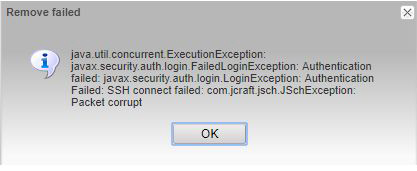
If you are using Altair Display Manager and you encounter this Error Message (java.util.concurrent.ExecutionException) below


Resolution Step 1: 

Click the Icon at the top left hand corner of the browser


Resolution Step 2:

Click the Compute Manager Icon


Resolution Step 3:

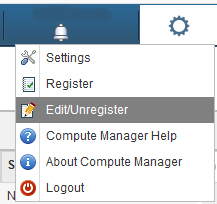
On the Top-Right Corner of the Browser, click the setting icon and “Edit/Unregister”


Resolution Step 4:

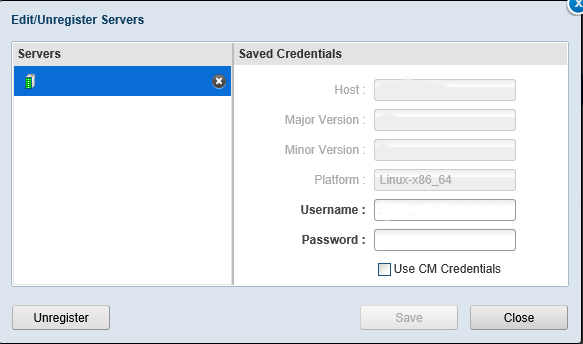
Click the bottom left hand corner and click “Unregister”

Click “Yes”


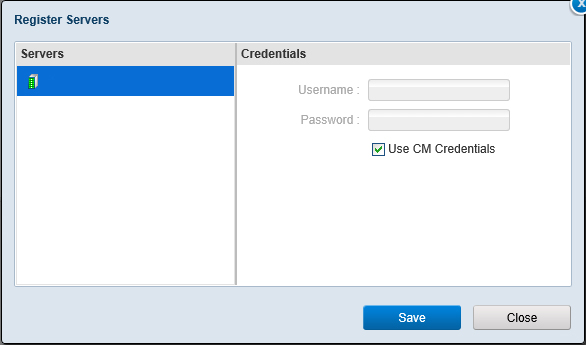
Resolution Step 5:

Click “Save”

Log out and Login again

Adding New Application to the Display Manager Portal for PBS-Pro

These are the steps to setup an application to be ready for PBS-Pro Display Manager COnsole

Step 1: Copy and Edit XML Files in the PBS PAS Repository

# cd /var/spool/pas/repository/applications/
# cp -Rv GlxSpheres Ansys

There are 3 important files which you must change the name to the application name

# mv app-inp-GlxSpheres.xml app-inp-Ansys.xml
# mv app-conv-GlxSpheres.xml app-conv-Ansys.xml
# mv app-actions-GlxSpheres.xml app-actions-Ansys.xml

Step 2: Change the inside content of the xml file from the original name (GlxSpheres) to (ANSYS)

# sed -i "s/GlxSpheres/Ansys/g" *.xml

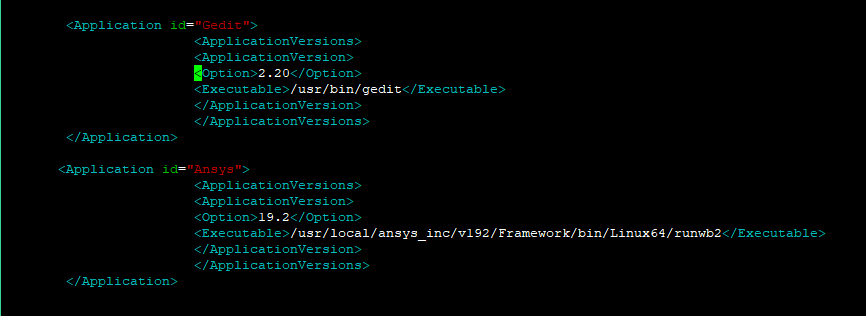
Step 3: Edit site-config.xml to include the new application executable pathing

# cd /var/spool/pas/repository
# vim site-config.xml

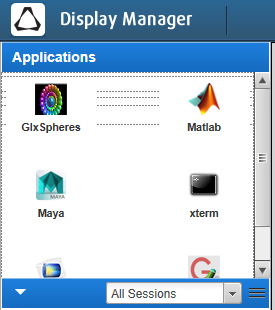
Step 4: Updating Icons for the PBS-Pro Display Manager

See Updating Icons for the PBS-Pro Display Manager

Updating Icons for the PBS-Pro Display Manager

Prerequisites: Do look at Adding New Application to the Display Manager Portal for PBS-Pro

Step 1: Make sure the icon size are 32×32 image file

Step 2: Upload the icon image file to PBSworks Appicons site

# cp matlab.jpg /usr/local/pbsworks/pbsworks_install/exec/applications/dm/resources/en_US/modules/appicons/images/32X32/

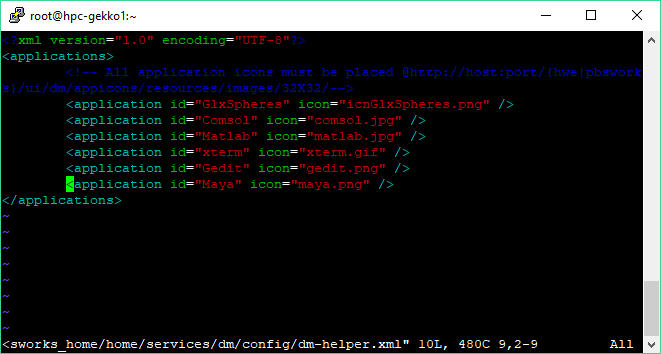
Step 3: Edit the XML

# vim /usr/local/pbsworks/pbsworks_home/home/services/dm/config/dm-helper.xml

Step 3: Restart PBS Services

# service pbsworks restart

Job Monitoring with qstat for PBS-Pro

Checking detailed information on jobs status

# qstat -sw
2156.hpc-mn1 user1 q32 MATLAB -- 1 32 -- 120:0 Q --
Not Running: would exceed project group1's limit on resource ncpus in complex
2157.hpc-mn1 user2 q32 MATLAB -- 1 32 -- 120:0 Q --
Not Running: would exceed project group1's limit on resource ncpus in complex
2159.hpc-mn1 user3 q32 MATLAB -- 1 32 -- 120:0 Q --
Not Running: would exceed project group1's limit on resource ncpus in complex

Job status with comments and vnode info

# qstat -ans
2162.hpc-mn1 user1 q32 MATLAB -- 1 32 -- 120:0 Q --
--
Not Running: would exceed project project1's limit on resource ncpus in complex
2164.hpc-mn1 user2 q32 STDIN 400923 1 1 -- 720:0 R 00:10:05
hpc-n014/31

Checking Queue Information

# qstat -Q
Queue Max Tot Ena Str Que Run Hld Wat Trn Ext Type
---------------- ----- ----- --- --- ----- ----- ----- ----- ----- ----- ----
gpu_p100 0 0 yes yes 0 0 0 0 0 0 Exec
iworkq 0 4 yes yes 4 0 0 0 0 0 Exec
q_idl 0 7 yes yes 0 7 0 0 0 0 Exec

Detail Information of a Job

# qstat -f jobID
Job Id: 2162.hpc-mn1
    Job_Name = MATLAB
    Job_Owner = user1@hpc-mn1
    job_state = Q
    queue = q32
    server = hpc-mn1
    Checkpoint = u
    ...
    ...
    ... 

Job History

# qstat -x
891.hpc-mn1 LSTC-LSDYNA shychan 00:00:00 F q32
1024.hpc-mn1 LSTC-LSDYNA user1 00:00:00 F q32
1473.hpc-mn1 STDIN user2 00:00:03 F q32
1525.hpc-mn1 IDL user3 00:00:01 F q_idl
1526.hpc-mn1 IDL user3 00:00:01 F q_idl

Job status with comments and vnode info from a specific queue

# qstat -ans | grep iworkq
94544.hpc-mn1 user1 iworkq xterm 268906 1 1 256mb 720:0 R 410:0
116984.hpc-mn1 user2 iworkq Abaqus 101260 1 1 256mb 720:0 R 76:48
118478.hpc-mn1 user3 iworkq Ansys 236421 1 1 256mb 720:0 R 51:47
118487.hpc-mn1 user4 iworkq Ansys 255657 1 1 256mb 720:0 R 50:01
119676.hpc-mn1 user5 iworkq Ansys 308767 1 1 256mb 720:0 R 41:49
119862.hpc-mn1 user6 iworkq Matlab 429798 1 1 256mb 720:0 R 24:04
120949.hpc-mn1 user7 iworkq Ansys 450449 1 1 256mb 720:0 R 21:21
121229.hpc-mn1 user8 iworkq xterm 85917 1 1 256mb 720:0 R 04:03
121646.hpc-mn1 user9 iworkq xterm 101901 1 1 256mb 720:0 R 02:07