Error “Too many files open” on CentOS 7

If you are encountering Error messages during login with “Too many open files” and the session gets terminated automatically, it is because the open file limit for a user or system exceeds the default setting and  you may wish to change it

@ System Levels

To see the settings for maximum open files,

# cat /proc/sys/fs/file-max
55494980

This value means that the maximum number of files all processes running on the system can open. By default this number will automatically vary according to the amount of RAM in the system. As a rough guideline it will be about 100,000 files per GB of RAM.

To override the system wide maximum open files, as edit the /etc/sysctl.conf

# vim /etc/sysctl.conf
 fs.file-max = 80000000

Activate this change to the live system

# sysctl -p

@ User Level

To see the setting for maximum open files for a user

# su - user1
$ ulimit -n
1024

To change the setting, edit the /etc/security/limits.conf

$ vim /etc/security/limits.conf
user - nofile 2048

To change for all users

* - nofile 2048

This set the maximum open files for ALL users to 2048 files. These settings will require the user to relogin

References:

  1. How to correct the error “Too many files open” on Red Hat Enterprise Linux

Tools to Show your System Configuration

Tool 1: Display Information about CPU Architecture

[user1@node1 ~]$ lscpu
Architecture: x86_64
CPU op-mode(s): 32-bit, 64-bit
Byte Order: Little Endian
CPU(s): 32
On-line CPU(s) list: 0-31
Thread(s) per core: 2
Core(s) per socket: 8
Socket(s): 2
NUMA node(s): 2
Vendor ID: GenuineIntel
CPU family: 6
Model: 85
Model name: Intel(R) Xeon(R) Gold 6134 CPU @ 3.20GHz
Stepping: 4
CPU MHz: 3200.000
BogoMIPS: 6400.00
Virtualization: VT-x
L1d cache: 32K
L1i cache: 32K
L2 cache: 1024K
L3 cache: 25344K
NUMA node0 CPU(s): 0-7,16-23
NUMA node1 CPU(s): 8-15,24-31
.....
.....

Tool 2: List all PCI devices

[user1@node1 ~]# lspci -t -vv
-+-[0000:d7]-+-00.0-[d8]--
| +-01.0-[d9]--
| +-02.0-[da]--
| +-03.0-[db]--
| +-05.0 Intel Corporation Device 2034
| +-05.2 Intel Corporation Sky Lake-E RAS Configuration Registers
| +-05.4 Intel Corporation Device 2036
| +-0e.0 Intel Corporation Device 2058
| +-0e.1 Intel Corporation Device 2059
| +-0f.0 Intel Corporation Device 2058
| +-0f.1 Intel Corporation Device 2059
| +-10.0 Intel Corporation Device 2058
| +-10.1 Intel Corporation Device 2059
| +-12.0 Intel Corporation Sky Lake-E M3KTI Registers
| +-12.1 Intel Corporation Sky Lake-E M3KTI Registers
| +-12.2 Intel Corporation Sky Lake-E M3KTI Registers
| +-12.4 Intel Corporation Sky Lake-E M3KTI Registers
| +-12.5 Intel Corporation Sky Lake-E M3KTI Registers
| +-15.0 Intel Corporation Sky Lake-E M2PCI Registers
| +-16.0 Intel Corporation Sky Lake-E M2PCI Registers
| +-16.4 Intel Corporation Sky Lake-E M2PCI Registers
| \-17.0 Intel Corporation Sky Lake-E M2PCI Registers
.....
.....

Tool 3: List all PCI devices

[user@node1 ~]# lsblk
sda 8:0 0 1.1T 0 disk
├─sda1 8:1 0 200M 0 part /boot/efi
├─sda2 8:2 0 1G 0 part /boot
└─sda3 8:3 0 1.1T 0 part
├─centos-root 253:0 0 50G 0 lvm /
├─centos-swap 253:1 0 4G 0 lvm [SWAP]
└─centos-home 253:2 0 1T 0 lvm

Tool 4: See flags kernel booted with

[user@node1 ~]
BOOT_IMAGE=/vmlinuz-3.10.0-693.el7.x86_64 root=/dev/mapper/centos-root ro crashkernel=auto rd.lvm.lv=centos/root rd.lvm.lv=centos/swap rhgb quiet LANG=en_US.UTF-8

Tool 5: Display available network interfaces

[root@hpc-gekko1 ~]# ifconfig -a
eno1: flags=4099<UP,BROADCAST,MULTICAST> mtu 1500
ether XX:XX:XX:XX:XX:XX txqueuelen 1000 (Ethernet)
RX packets 0 bytes 0 (0.0 B)
RX errors 0 dropped 0 overruns 0 frame 0
TX packets 0 bytes 0 (0.0 B)
TX errors 0 dropped 0 overruns 0 carrier 0 collisions 0
.....
.....
.....

Tool 6 Using dmidecode to find hardware information
See Using dmidecode to find hardware information

How to configure NFS on CentOS 7

Step 1: Do a Yum Install

# yum install nfs-utils rpcbind

Step 2: Enable the Service at Boot Time

# systemctl enable nfs-server
# systemctl enable rpcbind
# systemctl enable nfs-lock     (it does not need to be enabled since rpc-statd.service  is static.)
# systemctl enable nfs-idmap    (it does not need to be enabled since nfs-idmapd.service is static.)

Step 3: Start the Services

# systemctl start rpcbind
# systemctl start nfs-server
# systemctl start nfs-lock
# systemctl start nfs-idmap

Step 4: Confirm the status of NFS

# systemctl status nfs

Step 5: Create a mount point

# mkdir /shared-data

Step 6: Exports the Share

# vim /etc/exports
/shared-data 192.168.0.0/16(rw,no_root_squash)

Step 7: Export the Share

# exportfs -rv

Step 8: Restart the NFS Services

# systemctl restart nfs-server

Step 9: Configure the Firewall

# firewall-cmd --add-service=nfs --zone=internal --permanent
# firewall-cmd --add-service=mountd --zone=internal --permanent
# firewall-cmd --add-service=rpc-bind --zone=internal --permanent

References:

  1. How to configure NFS in RHEL 7
  2. What firewalld services should be active on an NFS server in RHEL 7?

Configuring External libraries for R-Studio for CentOS 7

RStudio can be configured by adding entries to 2 configuration files. It may not exist by default and you may need to create

/etc/rstudio/rserver.conf
/etc/rstudio/rsession.conf

If you need to add additional libraries to the default LD_LIBRARY_PATH for R sessions. You have to add the parameters to the /etc/rstudio/rserver.conf

Step 1: Enter External Libraries settings
For example, you may want to add GCC-6.5 libraries

# Server Configuration File
rsession-ld-library-path=/usr/local/gcc-6.5.0/lib64:/usr/local/gcc-6.5.0/lib

Step 2a: Stop the R Server Services

# /usr/sbin/rstudio-server stop

Step 2b: Verify the Installation

# rstudio-server verify-installation

Step 2c: Start the R Server Services

# /usr/sbin/rstudio-server start
# /usr/sbin/rstudio-server status

(Make sure there is no error)

References:

  1. RStudio Server: Configuring the Server


AlmaLinux Enterprise-Grade Server OS compatible with RHEL 8

What is AlmaLinux? According to the website https://almalinux.org/

AlmaLinux is an enterprise-grade server OS, a stable Linux distribution with regular releases that come with long support windows. You can rely on AlmaLinux to run you and your clients’ critical workloads.

  • Fedora-like distribution based on a precise RHEL clone
  • Production-ready and stable, matching RHEL features 1:1
  • Enjoy the predictability of a stable release issued in tandem with RHEL

No-Cost, Self-Supported RHEL up to 16 systems under Individual Developer Subscription for RHEL

From RHEL, “No-cost RHEL for small production workloads and customer development teams

We’re addressing this by expanding the terms of the Red Hat Developer program so that the Individual Developer subscription for RHEL can be
used in production for up to 16 systems. That’s exactly what it sounds like: for small production use cases, this is no-cost, self-supported RHEL.
You need only to sign in with a free Red Hat account (or via single sign-on through GitHub, Twitter, Facebook, and other accounts) to download
RHEL and receive updates. Nothing else is required. This isn’t a sales program and no sales representative will follow up. An option will exist within
the subscription to easily upgrade to full support, but that’s up to you.

……

The updated Individual Developer subscription for RHEL will be available no later than February 1, 2021.

CentOS Project is shifting to CentOS Stream

The CentOS project recently announced a shift in strategy for CentOS.

  • It will be shifting to an upstream build (testing patches and updates before inclusion in the upstream vendor).
  • Additionally, support for CentOS Linux 8 has been cut short, from May 31, 2029 to December 31, 2021.
  • CentOS 7 will continue to be supported as a downstream version of RHEL 7 till Jun 2024.


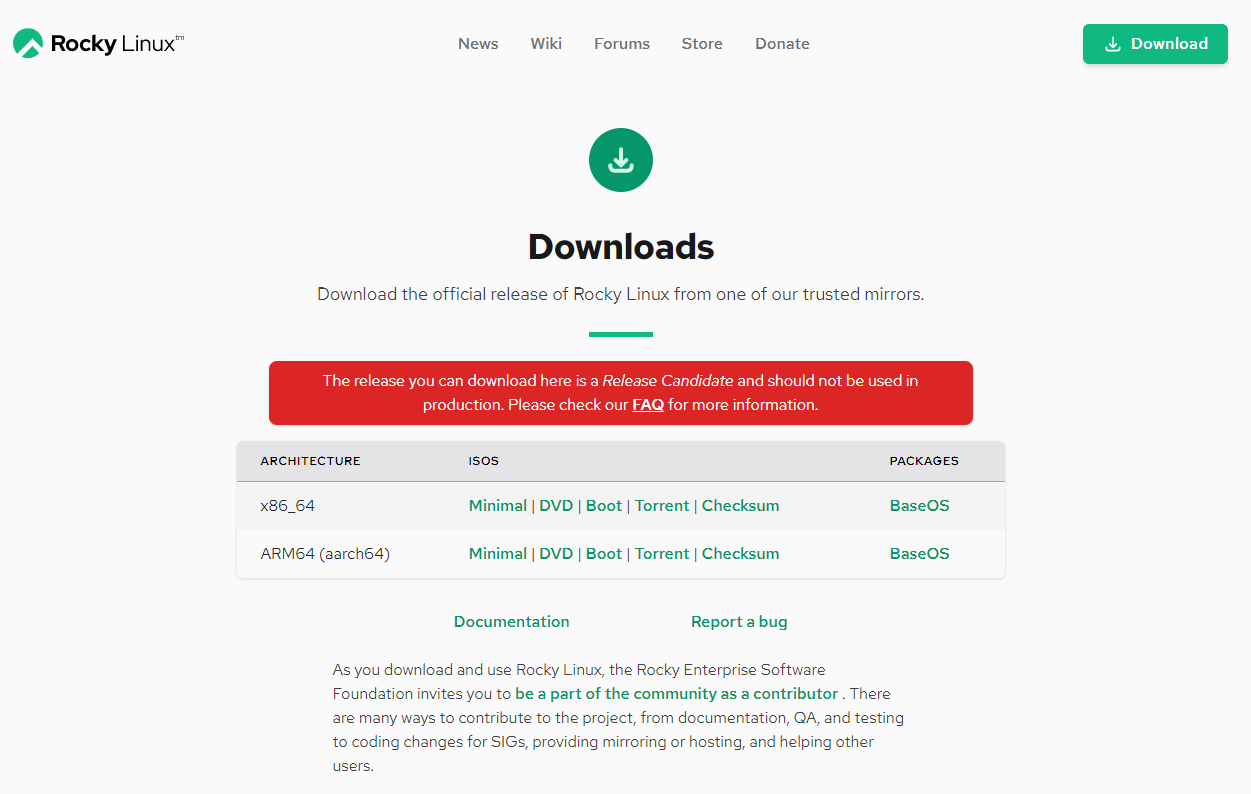
Where do we go from here? We can look at Rocky Linux. Rocky Linux aims to function as a downstream build as CentOS had done previously, building releases after they have been added by the upstream vendor, not before. Rocky Linux is led by Gregory Kurtzer, founder of the CentOS project.


Installing R-Studio on CentOS-7

Prerequisites

  • R-Studio (rstudio-server-rhel-1.3.1093-x86_64.rpm)
  • R-3.6.3
  • GNU-6.5
  • m4-1.4.18
  • gmp-6.1.0
  • mpfr-3.1.4
  • mpc-1.0.3
  • isl-0.18
  • gsl-2.1

Step 1: Download R-Studio v1.3.1093

On your terminal, Download the free version RStudio Server v1.3.1093 from RStudio.com

Step 2: Install R-Studio v1.3.1093

Follow the Install Process as written in https://rstudio.com/products/rstudio/download-server/redhat-centos/

% wget https://download2.rstudio.org/server/centos6/x86_64/rstudio-server-rhel-1.3.1093-x86_64.rpm
% yum install rstudio-server-rhel-1.3.1093-x86_64.rpm

Step 3: Verify Installation

% /usr/sbin/rstudio-server verify-installation

Step 4: Make sure the R is compiled and placed correctly

  • Make sure the R –enable-R-shlib flags
  • RStudio will search for your installation of R in the traditional locations, such as RStudio will search for your installation of R in the traditional locations, such as
    /usr/bin/R
    /usr/local/bin/R

    If R is not installed in these locations, RStudio may not be able to find it.

Step 5: Fixing Login Issues

If you managed to launch the R-Studio,


But not able to or having error. Do take a look at PAM authentication in RStudio Connect

Simply copy /etc/pam.d/login and replace the /etc/pam.d/rstudio

% cp /etc/pam.d/login /etc/pam.d/rstudio


Useful References:

  1. RStudio Server Will Not Start
  2. PAM authentication in RStudio Connect

Achieving Non-Stop IT, More Important Than Ever

About this webinar
Recent events have taught us that infrastructure stability is more important than ever as business applications and continuity is only as reliable as the underlying infrastructure. It keeps businesses running, people connected, and customers engaged. In uncertain times, you simply cannot afford to have your systems go down or lose access to your data. The costs of system downtime are not only measured financially, but also in terms of customer trust and brand loyalty.

SUSE offers a complete, proven open source solution for nonstop IT across core, edge, and cloud. From our high availability extension for SUSE Linux Enterprise Server to Live Patching and Premium Support Services, we have a total solution to keep your business running. So whether you need always-on access to SAP business applications or real-time access to data, SUSE solutions designed for high availability provide you with the stability you need.

Join Brent Schroeder (CTO, SUSE) and Stacey Miller (Product Marketing Manager, SUSE) as they discuss the SUSE total solution for nonstop IT and share stories of customers using these high availability solutions for uninterrupted services. Learn why SUSE is the right choice to help you achieve nonstop IT.

To Register: https://www.brighttalk.com/webcast/11477/405478