Using log collector in RHEV 3.3 and above to collect full log

The Log Collector Utility for RHEV 3 is located in /usr/bin/rhevm-log-collector and is provided by the rhevm-log-collector package installed on the RHEV manager system.

1. To collect all the information, use command

# engine-log-collector
INFO: Gathering oVirt Engine information...
INFO: Gathering PostgreSQL the oVirt Engine database and log files from localhost...
Please provide the REST API password for the admin@internal oVirt Engine user (CTRL+D to skip):
About to collect information from 1 hypervisors. Continue? (Y/n): y
INFO: Gathering information from selected hypervisors...
INFO: collecting information from 192.168.50.56
INFO: finished collecting information from 192.168.50.56
Creating compressed archive...

2. To collect information from selected hosts ending with ending in .11 and .15

# engine-log-collector --hosts=*.11,*.15

3. To collect information from the RHEV-M only

# engine-log-collector --no-hypervisors

References
  1. https://access.redhat.com/solutions/61546

RHEV 3.4 – Explanation of Settings in the New Data Center and Edit Data Center Windows

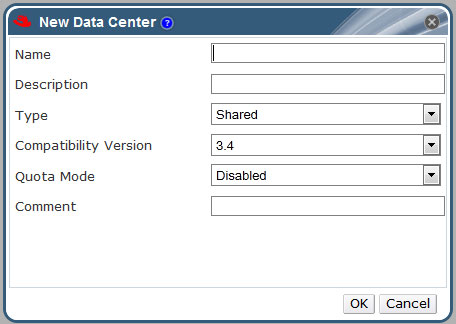
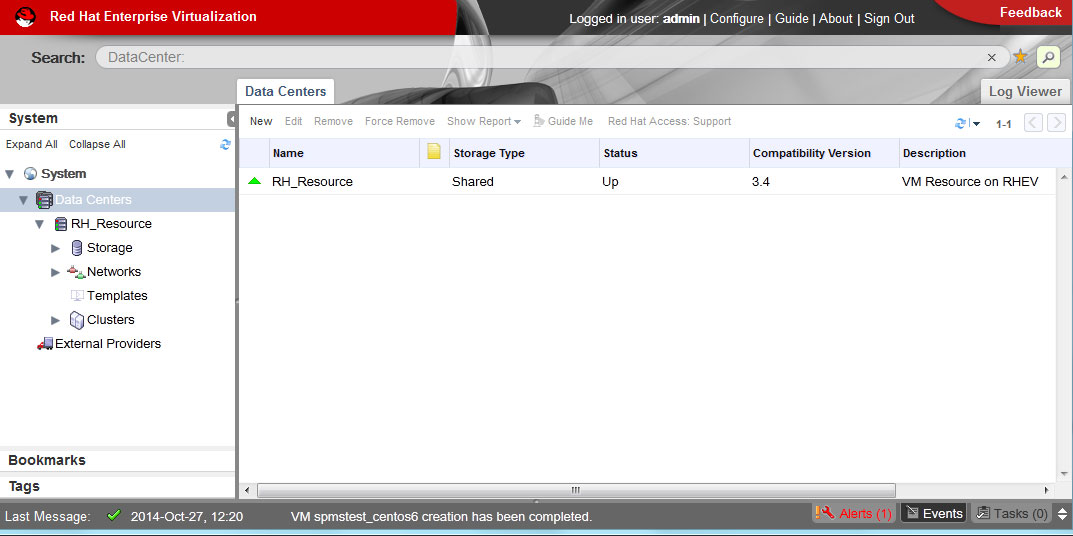
The table below describes the settings of a data center as displayed in the New Data Center and Edit Data Center windows. Invalid entries are outlined in orange when you click OK, prohibiting the changes being accepted. In addition, field prompts indicate the expected values or range of values.

Figure 1: RHEVM Portal –

RHEV_Data-Centres

Figure 2: RHEVM – Adding New Data Centre

RHEV_Data-Centres-AddNew

Details on each items

Field
Description/Action
Name
The name of the data center. This text field has a 40-character limit and must be a unique name with any combination of uppercase and lowercase letters, numbers, hyphens, and underscores.
Description
The description of the data center. This field is recommended but not mandatory.
Type
The storage type. Choose one of the following:
  • Shared
  • Local
The type of data domain dictates the type of the data center and cannot be changed after creation without significant disruption. Multiple types of storage domains (iSCSI, NFS, FC, POSIX, and Gluster) can be added to the same data center, though local and shared domains cannot be mixed.
Compatibility Version
The version of Red Hat Enterprise Virtualization. Choose one of the following:
  • 3.0
  • 3.1
  • 3.2
  • 3.3
  • 3.4

After upgrading the Red Hat Enterprise Virtualization Manager, the hosts, clusters and data centers may still be in the earlier version. Ensure that you have upgraded all the hosts, then the clusters, before you upgrade the Compatibility Level of the data center.

Quota Mode
Quota is a resource limitation tool provided with Red Hat Enterprise Virtualization. Choose one of:

  • Disabled: Select if you do not want to implement Quota
  • Audit: Select if you want to edit the Quota settings
  • Enforced: Select to implement Quota


Create and Populate a New ISO NFS Storage Domain for RHEV

For the NFS ISO Domain or NFS Data Domain, do ensure the followings

  1. Ensure the NFS File System is properly exported
  2. Ensure the user and group ownership is correct

Step 1: If you are exporting ISO on your NFS File Server. At your /etc/exports

/exports/ISO  192.168.1.0/255.255.255.0 (rw, async)

Export NFS and check mounting

# exportfs -av
# showmount -e


Step 2: Change Permission
The permission on the exported file system must be owned and writable by user vdsm and group kvm

# chown vdsm.kvm /exports/iso
# chmod g+s /exports/iso


Step 3: Check list of available ISO Domains. At RHEM

# rhevm-iso-uploder list
ISO Storage Domain Name   | Datacenter                | ISO Domain Status
dmn_ixora_iso_vol         | RH_Resource               | active


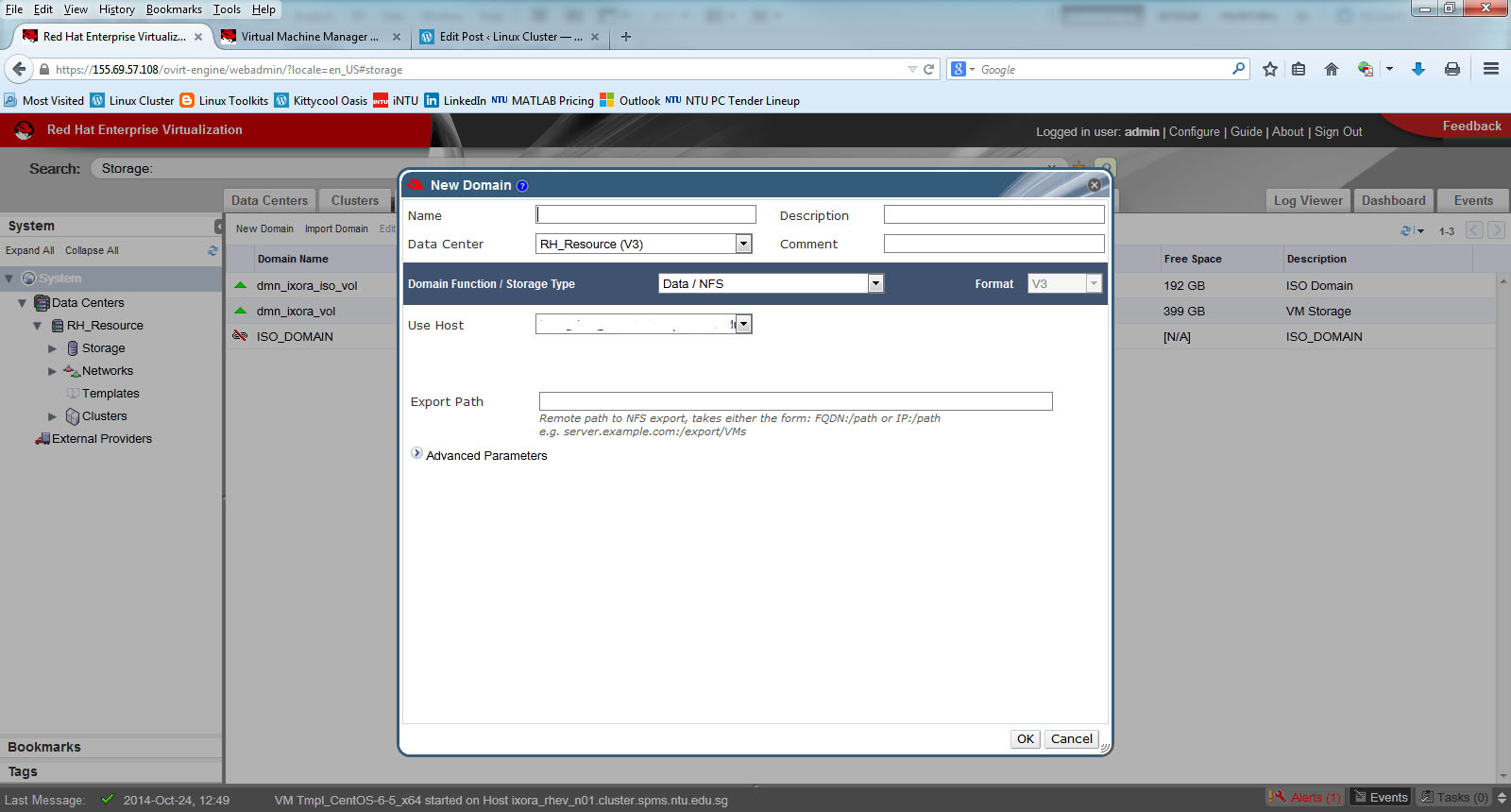
Step 4: Mount the ISO Domain using Red Hat Enterprise Manager (RHEM)

RHEM_Storage_Domain


Step 5: Uploading ISO using command line. Upload the ISO files to the directory /…/uique-UUID/images/11111111-1111-1111-1111-111111111111

# cd /iso/f21673a0-376e-4381-8760-b681c824dd1a/images/11111111-1111-1111-1111-111111111111

Copy the linux or windows iso file into the above directory

# scp remote_server:/something-directory/rhel-6.5.iso .

Change Ownership back to vdsm.kvm

# chown vdsm.kvm rhel-6.5.iso


References:

  1. Create export domain or ISO Domain on RHEV 3

Speeding up kernel crash hang analysis with the kernel log

This is a summaries article taken from RHEL6: Speeding up kernel crash / hang analysis with the kernel log.

When there is a kernel crash or hang, there is often a very large file is produced containing a memory dump of the entire system called a vmcore. Analysis of the kernel crash or hang often requires this large file be uploaded to Red Hat for analysis (if you have subscription)


For RHEL 6.4 and above

Starting with RHEL 6.4, Starting with Red Hat Enterprise Linux 6.4 and kexec-tools-2.0.0-258.el6, the kdump process will dump the kernel log to a file called vmcore-dmesg.txt before creating the vmcore file.

# ls /var/crash/127.0.0.1-2012-11-21-09\:49\:25/
vmcore  vmcore-dmesg.txt
# cp /var/crash/127.0.0.1-2012-11-21-09\:49\:25/vmcore-dmesg.txt /tmp/00123456-vmcore-dmesg.txt

For RHEL 6.0 to RHEL 6.3, 

For other versions of Red Hat Enterprise Linux 6, or for cases where vmcore-dmesg.txt is not generated, you can use the following makedumpfile command to obtain the kernel log from an existing vmcore. NOTE: The makedumpfile command is part of the kexec-tools package)

# makedumpfile --dump-dmesg [path-to-vmcore] [kernel-log-file]
# makedumpfile --dump-dmesg /var/crash/127.0.0.1-2013-06-14-16\:26\:07/vmcore /tmp/00123456-vmcore-dmesg.txt
The dmesg log is saved to /tmp/00123456-vmcore-dmesg.txt.
makedumpfile Completed.

NOTE: If the above command fails, it may indicate the vmcore is corrupt to the point of not containing any useful information.

Create export domain or ISO Domain on RHEV 3

This is taken from Red Hat Portal How to create an export domain or iso domain? (Need customer access)

On the NFS, you need to do the following

# mkdir /export/data
# chown -R 36:36 /export/data
# chmod 755 /export/data
# vim /export_data
/export/data *(rw)
# /etc/init.d/nfs restart
# chkconfig nfs on

The key setup is that the ownership must be given vdsm kvm (36:36). Or you will have errors like
“Error while executing action Add Storage Connection: Problem while trying to mount target”

# mkdir /export/ISO 
# chown -R 36:36 /export/ISO 
# chmod 755 /export/ISO 
# vim /export/ISO /export/ISO *(rw) 
# /etc/init.d/nfs restart 
# chkconfig nfs on

References:

  1. Red Hat Enterprise Virtualisation and NFS (NetApp Community)
  2. How to create an export domain or iso domain? (Red Hat Portal – Restricted Access)

Subscribing to Red Hat Virtualisation Manager Channels

Taken from Red Hat Red Hat Enterprise Visualization Documentation

Step 1: Register the system with Subscription Manager
Run the following command and enter your Red Hat Network user name and password to register the system with the Red Hat Network

subscription-manager register

Step 2: Identify Available Entitlement Pools
Entitlement pools containing the channels required to install the Red Hat Enterprise Virtualization Manager

# subscription-manager list --available | grep -A8 "Red Hat Enterprise Linux Server"
# subscription-manager list --available | grep -A8 "Red Hat Enterprise Virtualization"

Step 3: Attach Entitlement Pools to the System
Use the pool identifiers located in the previous step to attach both the Red Hat Enterprise Linux Server and Red Hat Enterprise Virtualization entitlements to the system. Run the following command to attach the entitlements:

# subscription-manager attach --pool=[POOLID]

Step 4: Enable the Required Channels
Run the following commands to enable the channels required to install Red Hat Enterprise Virtualization:

# yum-config-manager --enable rhel-6-server-rpms
# yum-config-manager --enable rhel-6-server-supplementary-rpms
# yum-config-manager --enable rhel-6-server-rhevm-3.4-rpms
# yum-config-manager --enable jb-eap-6-for-rhel-6-server-rpms