Copper Twisted-Pair versus Optical Fibre at 10Gb/s

This write up entry is taken from this wonderful article from Corning titled “The Real Facts About Copper Twisted-Pair at 10 Gb/s and Beyond” (pdf)

    1. The IEEE 802.3an 10GBASE-T Standard was  approved in July 2006. This standard provides guidance for data transmission of 10 Gb/s in which multi-gigabit rates are sent over 4-pair copper cable within a 500 MHz bandwidth.
    2. CAT 6A is intended to support 10G Operation up to 100m.
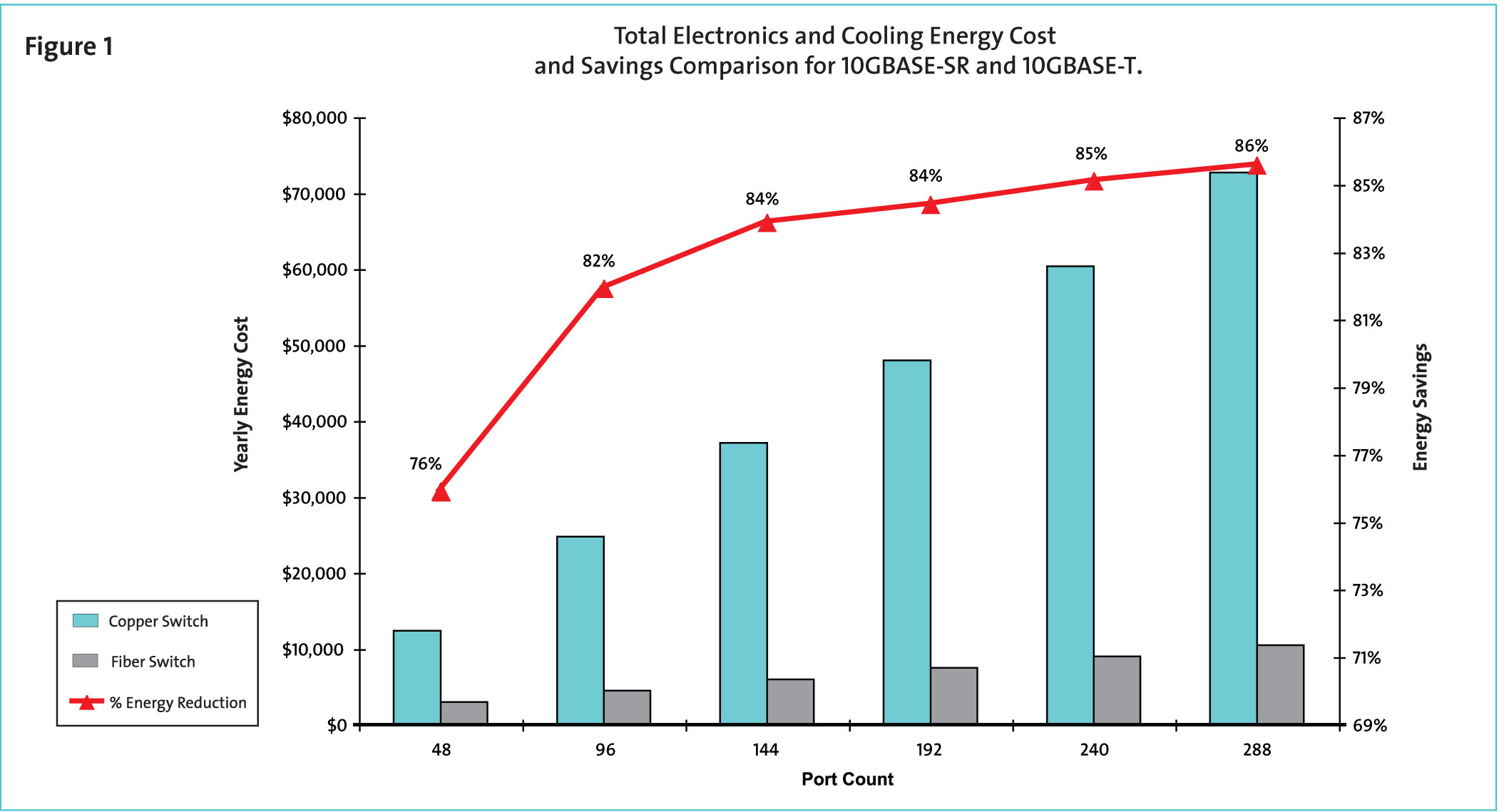
    3. For 10GB require 500 Mhz frequency range requires power consumption (10-15KW) of the 10G interfaces due to increased insertion loss, as well as needing to overcome internal and external cross talk issues.
    4. 10G optical PHY latency has 1000 times better latency performance than 10G copper. 10G optical has typical PHY latency measurable in the nanosecond range, whereas 10G copper has PHY latency in microseconds.
      • What is Latency?  Extensive data encoding and signal processing is required to achieve an aceptable bit error rate (BER). Electronic digital signal processing (DSP) technique are required to corrct internal noise impairments, which contributes significantly to an inherent time delay while recovering the transmitted data packets.
    5. According to Sun Microsystems IEEE 302.3an Task Force, states that “PHY latency should not exceed one microsecond … it may start affecting Ethernet over TCP/IP application performance in the foreseeable future.”
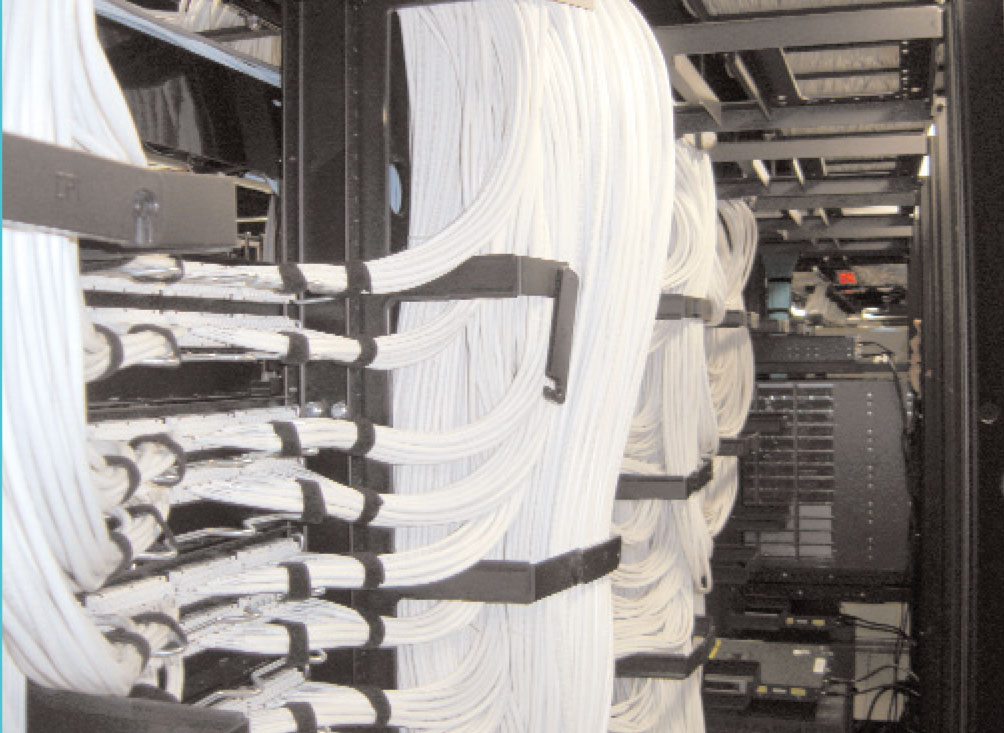
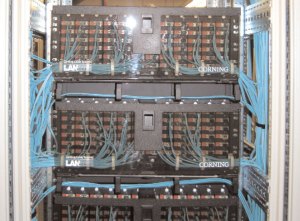
    6. CAT 6A cable has a larger diameter, designed to alleviate internal and external cross talk noise issues. The 0.35 in maximum cable diameter is 40 percent larger than CAT 6 (0.25 in).This contributes to significant pathway and space problems when routing in wire baskets, trays, conduits, patch panels and racks. A typical plenum CAT 6A UTP cable weighs 46 lbs per 1000 ft of cable.
    7. 10G optical electronics provide clear advantages over copper twisted-pair.
      • 10G X2 transceivers support up to 16 ports per line card. Maximum power dissipation is 4 W per port.
      • 10G XFP optical transceivers support up to 24-36 ports per line card. Maximum power dissipation is 2.5 W per port.
      • Emerging 10G SFP+ optical transceivers will support up to 48 ports per line card. Maximum power dissipation will be 1 watt per port. The SFP+ transceiver will offer significantly lower cost compared to the X2 and XFP transceivers.
    8. High Port Density for Fibre provides a higher 10G port density per electornic line card and patch panel as compared to copper. One 48-port line card equals 6 9-port copper line cards
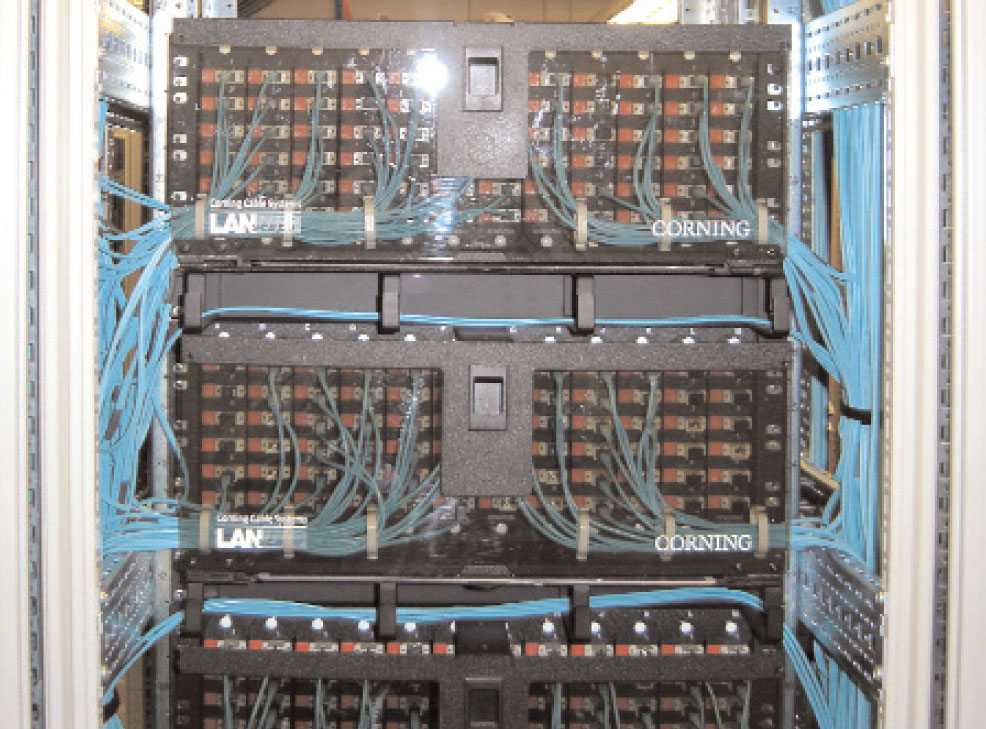
    9. Fibre provide less congestion in pathways and spaces. The high-fiber density, combined with the small diameter of optical cable, maximizes the raised floor pathway and space utilization for routing and cooling

         

Infiniband versus Ethernet myths and misconceptions

This paper is a good writeup of the 8 myth and misconcption of Infiniband. This whitepaper Eight myths about InfiniBand WP 09-10 is from Chelsio. Here is a summary with my inputs on selected myths……

Opinion 1: Infiniband is lower latency than Ethernet

Infiniband vendors usually advertised latency in a specialized micro benchmarks with two servers in a back‐to‐back configuration. In a HPC production environment, application level latency is what matters. Infiniband lack congestion management and adaptive routing will result in interconnect hot spots unlike iWARP over Ethernet achieve reliability via TCP.

Opinion 2: QDR‐IB has higher bandwidth than 10GbE

This is interesting. A QDR is InfiniBand uses 8b/10b encoding, 40 Gbps InfiniBand is effectively 32 Gbps. However due to the limitation of PCIe “Gen 2”,  you will hit a maximum of 26 Gbps. If you are using the PCIe “Gen 1”, you will hit a maximum of 13 Gbps. Do read Another article from Margalia Communication High-speed Remote Direct Memory Access (RDMA) Networking for HPC. Remember Chelsio Adapter comes 2 x 10GE card, you can trunk them together to come nearer to the maximum 26Gbps of Infiniband. Wait till the 40GBe comes into the market, it will be very challenging for Infinband.

Opinion 3: IB Switch scale better than 10GbE

Due to the fact that Infiniband Switch is a point-to-point switch it does not have congestion management and susceptibility to hot spots for large scale clusters unlike iWARP over Ethernet. I think we should take into account coming very low latency ASIC Switch See my blog entry Watch out Infiniband! Low Latency Ethernet Switch Chips are closing the gap and larger cut-through switches like ARISTA ultra low-latency cut-through 72-port switch with Fulcrum chipsets are in the pipeline.  Purdue University 1300-nodes cluster uses Chelsio iWARP 10GE Cards.

Installing Voltaire QDR Infiniband Drivers for CentOS 5.4

OS Prerequisites 

  1. RedHat EL4
  2. RedHat EL5
  3. SuSE SLES 10
  4. SuSE SLES 11
  5. Cent OS 5

Software Prerequisites 

  1. bash-3.x.x
  2. glibc-2.3.x.x
  3. libgcc-3.4.x-x
  4. libstdc++-3.4.x-x
  5. perl-5.8.x-x
  6. tcl 8.4
  7. tk 8.4.x-x
  8. rpm 4.1.x-x
  9. libgfortran 4.1.x-x

Step 1: Download the Voltaire Drivers that is fitting to your OS and version.

Do find the link for Voltaire QDR Drivers at Download Voltaire OFED Drivers for CentOS

Step 2: Unzip and Untar the Voltaire OFED Package

# bunzip2 VoltaireOFED-1.5_3-k2.6.18-164.el5-x86_64.tar.bz
# tar -xvf VoltaireOFED-1.5_3-k2.6.18-164.el5-x86_64.tar

Step 3: Install the Voltaire OFED Package

# cd VoltaireOFED-1.5_3-k2.6.18-164.el5-x86_64
# ./install

Step 3a: Reboot the Server

Step 4: Setup ip-over-ib

# vim /etc/sysconfig/network-scripts/ifcfg-ib0
# Voltaire Infiniband IPoIB
DEVICE=ib0
ONBOOT=yes
BOOTPROTO=static
IPADDR=10.10.10.1
NETWORK=10.10.10.0
NETMASK=255.255.255.0
BROADCAST=10.10.255.255
MTU=65520
# service openibd start

Step 5 (Optional): Disable yum repository.

If you plan to use yum to local install the opensmd from the Voltaire package directory, you can opt for disabling the yum.

# vim /etc/yum.conf

Type the following at /etc/yum.conf

enabled=0

Step 6: Install Subnet Manager (opensmd). This can be found under

# cd  $VoltaireRootDirectory/VoltaireOFED-1.5_3-k2.6.18-164.el5-x86_64/x86_64/2.6.18-164.15.1.el5

Yum install the opensmd packages

# yum localinstall opensm* --nogpgcheck

Restart the opensmd service

# service opensmd start

Step 7: Check that the Infiniband is working

# ibstat

 You should get “State: Active”

CA 'mlx4_0'
        CA type: MT26428
        Number of ports: 1
        Firmware version: 2.6.0
        Hardware version: a0
        Node GUID: 0x0008f1476328oaf0
        System image GUID: 0x0008fd6478a5af3
        Port 1:
                State: Active
                Physical state: LinkUp
                Rate: 40
                Base lid: 2
                LMC: 0
                SM lid: 14
                Capability mask: 0x0251086a
                Port GUID: 0x0008f103467a5af1

Step 8: Test Connectivity

At the Server side,

# ibping -S

Do Step 1 to 7 again for the Client. Once done,

# ibping -G 0x0008f103467a5af1 (PORT GUID)

You should see a response like this.

Pong from headnode.cluster.com.(none) (Lid 2): time 0.062 ms
Pong from headnode.cluster.com.(none) (Lid 2): time 0.084 ms
Pong from headnode.cluster.com.(none) (Lid 2): time 0.114 ms
Pong from headnode.cluster.com.(none) (Lid 2): time 0.082 ms
Pong from headnode.cluster.com.(none) (Lid 2): time 0.118 ms

Great! you are done.

Linux Bonding Modes

This Blog entry is the extension  of Linux Network Bonding or Trunking on CentOS 5.x. RHEL derivatives have 7 modes (0-6) of possible bonding modes. One of the best information can be found at Linux Channel Bonding Project . Much information are taken from there.

  1. Mode 0: Balance Round-Robin (balance-rr)
    Round-robin policy: Transmit packets in sequential order from the first available slave through the
    last.  This mode provides load balancing and fault tolerance.
  2. Mode 1: Active-Backup
    Active-backup policy: Only one slave in the bond is active.  A different slave becomes active if, and only if, the active slave fails.  The bond’s MAC address is externally visible on only one port (network adapter) to avoid confusing the switch.In bonding version 2.6.2 or later, when a failover occurs in active-backup mode, bonding will issue one or more gratuitous ARPs on the newly active slave. One gratuitous ARP is issued for the bonding master interface and each VLAN interfaces configured above
    it, provided that the interface has at least one IP address configured.  Gratuitous ARPs issued for VLAN interfaces are tagged with the appropriate VLAN id.This mode provides fault tolerance.  The primary option, documented below, affects the behavior of this mode.
  3. Mode 2: Balance-xor
    XOR policy: Transmit based on the selected transmit hash policy.  The default policy is a simple [(source MAC address XOR’d with destination MAC address) modulo
    slave count].  Alternate transmit policies may be selected via the xmit_hash_policy option, described below.This mode provides load balancing and fault tolerance.
  4. Mode 3: Broadcast
    Broadcast policy: transmits everything on all slave interfaces.  This mode provides fault tolerance.
  5. Mode 4: 802.3ad (Dynamic link aggregation)
    IEEE 802.3ad Dynamic link aggregation.  Creates aggregation groups that share the same speed and duplex settings.  Utilizes all slaves in the active aggregator according to the 802.3ad specification.Slave selection for outgoing traffic is done according to the transmit hash policy, which may be changed from the default simple XOR policy via the mit_hash_policy option, documented below.  Note that not all transmit policies may be 802.3ad compliant, particularly in regards to the packet mis-ordering requirements of section 43.2.4 of the 802.3ad standard.  Differing peer implementations will have varying tolerances for noncompliance.Prerequisites:
    1. Ethtool support in the base drivers for retrieving the speed and duplex of each slave.
    2. A switch that supports IEEE 802.3ad Dynamic link aggregation. Most switches will require some type of configuration to enable 802.3ad mode.
  6. Mode 5 – Adaptive transmit load balancing (balance-tlb)
    Adaptive transmit load balancing: channel bonding that does not require any special switch support.  The outgoing traffic is distributed according to the current load (computed relative to the speed) on each slave.  Incoming traffic is received by the current slave.  If the receiving slave fails, another slave takes over the MAC address of the failed receiving slave.Prerequisite:
    Ethtool support in the base drivers for retrieving the speed of each slave.
  7. Mode 6: Adaptive load balancing (balance-alb)
    Adaptive load balancing: includes balance-tlb plus receive load balancing (rlb) for IPV4 traffic, and does not require any special switch support.  The receive load balancing is achieved by ARP negotiation. The bonding driver intercepts the ARP Replies sent by the local system on their way out and overwrites the source ardware address with the unique hardware address of one of the slaves in the bond such that different peers use different hardware addresses for the server.Receive traffic from connections created by the server is also balanced.  When the local system sends an ARP Request the bonding driver copies and saves the peer’s
    IP information from the ARP packet.  When the ARP Reply arrives from the peer, its hardware address is retrieved and the bonding driver initiates an ARP reply to this peer assigning it to one of the slaves in the bond.  A problematic outcome of using ARP negotiation for balancing is that each time that an ARP request is broadcast it uses the hardware address of the bond.  Hence, peers learn the hardware address
    of the bond and the balancing of receive traffic collapses to the current slave.  This is handled by sending updates (ARP Replies) to all the peers with their individually assigned hardware address such that the traffic is redistributed.  Receive traffic is also redistributed when a new slave is added to the bond and when an inactive slave is re-activated.  The receive load is distributed sequentially (round robin) among the group of highest speed slaves in the bond.When a link is reconnected or a new slave joins the bond the receive traffic is redistributed among all active slaves in the bond by initiating ARP Replies with the selected MAC address to each of the clients. The updelay parameter (detailed below) must be set to a value equal or greater than the switch’s forwarding delay so that the ARP Replies sent to the peers will not be blocked by the switch.Prerequisites:

    1. Ethtool support in the base drivers for retrieving the speed of each slave.
    2. Base driver support for setting the hardware address of a device while it is open.  This is required so that there will always be one slave in the team using the bond hardware address (the curr_active_slave) while having a unique hardware address for each slave in the bond.  If the curr_active_slave fails its hardware address is swapped with the new curr_active_slave that was chosen.

Linux Network Bonding or Trunking on CentOS 5.x

Network Bonding or Trunking refers to the aggregation of multiple network ports into a single aggregated group, effectively aggregating the bandwidth of multiple interfaces into a single connection pipe. Bonding is used to provide network load balancing and fault tolerance

We are assuming that you are using CentOS 5.x

Step 1: Create a bond0 config file at /etc/sysconfig/network-scripts/ directory

# touch /etc/sysconfig/network-scripts/ifcfg-bond0
# vim  /etc/sysconfig/network-scripts/ifcfg-bond0
DEVICE=bond0
ONBOOT=yes
BOOTPROTO=none
IPADDR=192.168.10.1
NETWORK=192.168.10.0
NETMASK=255.255.255.0
USERCTL=no

(Where IP is the Actual Address of the Bonded IP Address shared by the 2 physical NIC)

Step 2: Edit the configuration files of the 2 physical Network Cards (eth0 & eth1) that you wish to bond

# vim /etc/sysconfig/network-scripts/ifcfg-eth0
DEVICE=eth0
ONBOOT=yes
BOOTPROTO=none
MASTER=bond0
SLAVE=yes
USERCTL=no
# vim /etc/sysconfig/network-scripts/ifcfg-eth1
DEVICE=eth1
ONBOOT=yes
BOOTPROTO=none
MASTER=bond0
SLAVE=yes
USERCTL=no

Step 3: Load the Bond Module

/etc/modprobe.conf
alias bond0 bonding
options bond0 mode=0 miimon=100

Note:

  1. RHEL bonding supports 7 possible “modes” for bonded interfaces. See  Linux Bonding Modes website for more details on the modes.
  2. miimonspecifies (in milliseconds) how often MII link monitoring occurs. This is useful if high availability is required because MII is used to verify that the NIC is active.


Step 4:
Load the bond driver module from the command prompt.

modprobe bonding

Step 5: Restart the network

Restart the network

Step 6: Verify the /proc setting.

less /proc/net/bonding/bond0
Ethernet Channel Bonding Driver: v3.2.4 (January 28, 2008)

Bonding Mode: load balancing (round-robin)
MII Status: up
MII Polling Interval (ms): 0
Up Delay (ms): 0
Down Delay (ms): 0

Slave Interface: eth0
MII Status: up
Link Failure Count: 0
Permanent HW addr: xx:xx:xx:xx:xx:xx

Slave Interface: eth1
MII Status: up
Link Failure Count: 0
Permanent HW addr: yy:yy:yy:yy:yy:yy

Step 7: Final Tests

  1. Do a ifconfig to check everything is alright.
  2. ping from remote station to bond0 ipaddress

Network design consideration for NFS

Network Design are an important consideration for NFS. Note the followings:

  1. If possible, dedicate the network to isolate the NFS Traffic.
  2. Trunking of multiple network to imporive network connections (Will write a blog entry later)
  3. If you have budget, you can consider a high-quality NAS which uses NFS accelerator components such as nonvolative RAM to commit NFS write operation as soon as possible which equivalent up to equivalent of async with reliability.

Forcing NIC to operate at Full Duplex and 100Mb using Ethtool

ethtool is used for querying settings of an ethernet device and changing them. For more information on ethtool, you go to Using ethtool to check and change Ethernet Card Settings and Forcing NIC to operate at Full Duplex using Ethtool

To use ethtool to set NIC to operate at Full Duplex and 100Mb and autonegotiate off, you can use the following commands

# ethtool -s eth0 speed 100 duplex full autoneg off

To force the NIC to use full duplex, 100Mbps, and autonegotiate off and make it permanent, you can put this in /etc/sysconfig/network-scripts/ifcfg-eth0

ETHTOOL_OPTS="speed 100 duplex full autoneg off"

To verify that the settings is correct,do

# ethtool eth0 (or eth1 depending the NIC you are using)

Configure TCP for faster connections and transfers

On a default Linux Box, the TCP settings may not be optimise for “bigger” available network bandwidth connections and transfer available for 100MB+. Currently, most TCP settings are optimise for 10MB settings. I’m relying on the article from Linux Tweaking from SpeedGuide.net to configure the TCP

The TCP Parameters to be configured are

/proc/sys/net/core/rmem_max – Maximum TCP Receive Window
/proc/sys/net/core/wmem_max – Maximum TCP Send Window
/proc/sys/net/ipv4/tcp_timestamps – timestamps (RFC 1323) add 12 bytes to the TCP header
/proc/sys/net/ipv4/tcp_sack – tcp selective acknowledgements.
/proc/sys/net/ipv4/tcp_window_scaling – support for large TCP Windows (RFC 1323). Needs to be set to 1 if the Max TCP Window is over 65535.

There are 2 methods to apply the changes.

Methods 1: Editing the /proc/sys/net/core/. However, do note that the settings will be lost on reboot.

echo 256960 > /proc/sys/net/core/rmem_default
echo 256960 > /proc/sys/net/core/rmem_max
echo 256960 > /proc/sys/net/core/wmem_default
echo 256960 > /proc/sys/net/core/wmem_max
echo 0 > /proc/sys/net/ipv4/tcp_timestamps
echo 1 > /proc/sys/net/ipv4/tcp_sack
echo 1 > /proc/sys/net/ipv4/tcp_window_scaling

Method 2: For a more permanent settings, you have to configure /etc/sysctl.conf.

net.core.rmem_default = 256960
net.core.rmem_max = 256960
net.core.wmem_default = 256960
net.core.wmem_max = 256960
net.ipv4.tcp_timestamps = 0
net.ipv4.tcp_sack = 1
net.ipv4.tcp_window_scaling = 1

Execute sysctl -p to make these new settings take effect.