Quick and Dirty way to ensure only one instance of a shell script is running at a time

This script is taken from Quick and Dirty way to ensure only one instance of a shell script is running at a time

For example, this can be used to ensure SAGE Mirroring rsync run once.

# rsyncs from sage.math.washington.edu using its rsync daemon
# for automated use, remove the "vv" and "progress" switches

# locking mechanism from
# http://stackoverflow.com/questions/185451/quick-and-dirty-way-to-ensure-only-one-instance-of-a-shell-script-is-running-at-a

LOCKFILE=./rsync_sagemath.lock

if [ -e ${LOCKFILE} ] && kill -0 `cat ${LOCKFILE}`; then
echo "rsync_sagemath already running ... exit"
exit
fi

# make sure the lockfile is removed when we exit and then claim it
trap "rm -f ${LOCKFILE}; exit" INT TERM EXIT
echo $ > ${LOCKFILE}

rsync -av --delete-after rsync.sagemath.org::sage /var/www/html/sage

rm -f ${LOCKFILE}

Resolving unreach or unavail nodes in OpenLava-3.0

After configuring OpenLava-3.0 using the tar ball and following the instruction according to the OpenLava – Getting Started Guide

After fixing OpenLava with LM is Down Error Messages for OpenLava-3.0, you may errors

HOST_NAME          STATUS       JL/U    MAX  NJOBS    RUN  SSUSP  USUSP    RSV
spms-limeb-c00     unreach              -     16      0      0      0      0      0
spms-limeb-h00     ok              -     16      0      0      0      0      0

Suggestions:

  1. Check your permission where openlava-3.0 reside. Make sure the HeadNode and ComputeNode has the user and group openlava and openlava have permission on the folder
    drwxr-xr-x. 10 openlava openlava 4096 Jun 26 00:32 openlava-3.0
  2. Install pdsh. See Installing pdsh to issue commands to a group of nodes in parallel in CentOS on all the compute nodes and use pdcp to copy /etc/passwd /etc/shadow /etc/group to all the nodes
    # pdcp -a /etc/passwd /etc
    # pdcp -a /etc/shadow /etc
    # pdcp -a /etc/group /etc
  3. Make sure your /etc/hosts reflect the short hostname of the cluster both in the HeadNode and ComputeNode. Refrain from putting 2 hostnames per line.
  4. Check your firewalls settings. Make sure the ports 6322:6325 are opened.
  5. Ensure your NTP are synchronized across the clients and HeadNode with the designated NTP Server. If the NTP

LM is Down Error Messages for OpenLava-3.0

After configuring OpenLava-3.0 using the tar ball and following the instruction according to the OpenLava – Getting Started Guide

I was encountering errors like

# lsid
openlava project 3.0, June 25 2015
ls_getclustername(): LIM is down; try later

Debugging:

# service openlava stop
# vim /usr/local/openlave-3.0/etc/lsf.conf
# LSF_LOG_MASK=LOG_DEBUG3
# /usr/local/openlava-3.0/sbin/lim -2

Solution (Check first):

Check that the

# hostname -s
# hostname -f

In your /etc/hosts, you may want to change to something like this. It solved my issues

127.0.0.1   headnode-h00
192.168.50.1 headnode-h00


Resolving downed Interface Group on NetApp Cluster-Mode

netapp-cluster1::*>netapp-cluster1::> network int show
            Logical    Status     Network            Current       Current Is
Vserver     Interface  Admin/Oper Address/Mask       Node          Port    Home
----------- ---------- ---------- ------------------ ------------- ------- ----
acai-cluster1
            cluster_mgmt up/up    192.168.2.77/24    acai-cluster1-02
                                                                   a0a     true
acai-cluster1-01
            SM_lif       up/up    192.168.2.141/19   acai-cluster1-01
                                                                   a0a     true
            clus1        up/up    169.254.10.11/16   acai-cluster1-01
                                                                   e1a     true
            clus2        up/up    169.254.10.12/16   acai-cluster1-01
                                                                   e1b     true
netapp-cluster1::*> network port show
Auto-Negot  Duplex     Speed (Mbps)
Node   Port   Role         Link   MTU Admin/Oper  Admin/Oper Admin/Oper
------ ------ ------------ ---- ----- ----------- ---------- ------------
netapp-cluster1-01
a0a    data         down  1500  true/-     auto/-      auto/-
e0a    data         up    1500  true/true  full/full   auto/1000
e0b    data         up    1500  true/true  full/full   auto/1000
e0c    data         up    1500  true/true  full/full   auto/100
e0d    data         up    1500  true/true  full/full   auto/1000

2. If you have a LIF that should be on that node; do the following:
The purpose is to let another node within the cluster to be the home-node for the data and mgmt while you up and down the interface group

netapp-cluster1::*> net int modify -vserver vs_StorageVNode11  -lif vs_StorageVNode11_data1 -home-node netapp-cluster1-02 -home-port a0a
netapp-cluster1::*> net int modify -vserver vs_StorageVNode11  -lif vs_StorageVNode11_mgmt1 -home-node netapp-cluster1-02 -home-port a0a
net int revert *

3. Remove the Interface Group from the -port e0c and down and up the e0c port

netapp-cluster1::*> ifgrp remove-port -node netapp-cluster1-01 -ifgrp a0a -port e0c
netapp-cluster1::*> net port modify -node netapp-cluster1-01 -port e0c -up-admin false
netapp-cluster1::*> net port modify -node netapp-cluster1-01 -port e0c -up-admin true
netapp-cluster1::*> net port show -node netapp-cluster1-01 -port a0a,e0c

Once If e0c shows up and at auto/1000, add the interface and return the interface group back to netap-cluster-01

netapp-cluster1::*> ifgrp add-port -node netapp-cluster1-01 -ifgrp a0a -port e0c
netapp-cluster1::*> net port show -node netapp-cluster1-01 -port a0a
netapp-cluster1::*> net int modify -vserver vs_StorageVNode11 -lif vs_StorageVNode11_data1 -home-node netapp-cluster1-01 -home-port a0a
netapp-cluster1::*> net int modify -vserver vs_StorageVNode11 -lif vs_StorageVNode11_mgmt1 -home-node netapp-cluster1-01 -home-port a0a
netapp-cluster1::*> net int revert *

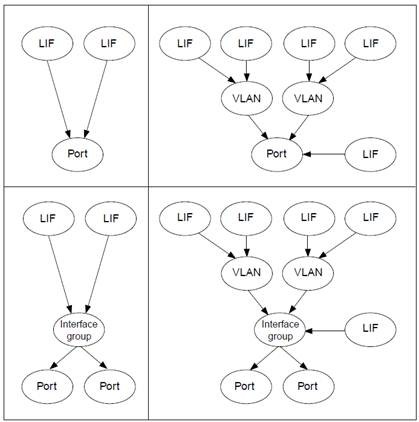
Node, port and Lif Information for NetApp

Useful References

  1. How to determine the node, port, or lif to which a client should be connected
    https://kb.netapp.com/support/index?page=content&id=1013873&locale=en_US&access=s
  2. How to determine why a lif is on a certain port or node
    https://kb.netapp.com/support/index?page=content&id=1013874&locale=en_US&access=s
  3. Enabling and reverting LIFs to home ports
    https://library.netapp.com/ecmdocs/ECMP1636041/html/GUID-7865FB3E-F57B-4976-803D-A87F2F760342.html

Restricting SSH Access when using Centrify-Free

To restrict users from accessing the system using Centrify free can be easily managed by using the following files

/etc/centrifydc/users.allow
/etc/centrifydc/groups.allow
/etc/centrifydc/users.deny
/etc/centrifydc/groups.deny

1. You have to manually create the the files accordingly and place it at /etc/centifydc. Next you have to  line 273 and uncomment the line

.....
pam.allow.users: file:/etc/centrifydc/users.allow
.....

If you are blocking by groups, you can likewise uncomment the

.....
pam.allow.groups: file:/etc/centrifydc/groups.allow
.....

2. Flush and Reload Centrify-Free

# adflush
# adreload

3. Add users you wish to have access into the system into /etc/centrifydc/users.allow

Simple BASH script to setup shared SSH keys on Cluster

Here is my simple script to setup shared SSH keys on Cluster. You can put this script called ssh-shared-keys.sh into /etc/skel/.bash_profile so that the new users have their keys shared between all the compute nodes.

#!/bin/bash

# Exit script on Error
set -e

# Check for SSH Directory
if [ ! -d ~/.ssh ]; then
   mkdir -p ~/.ssh/
fi


# Check for existence of passphrase
if [ ! -f ~/.ssh/id_rsa.pub ]; then
        ssh-keygen -t rsa -N "" -f ~/.ssh/id_rsa
        echo "Execute ssh-keygen --[done]"
fi

# Check for existence of authorized_keys and append the shared ssh keys
if [ ! -f ~/.ssh/authorized_keys ]; then
        touch ~/.ssh/authorized_keys
        echo "Create ~/.ssh/authorized_keys --[done]"
        chmod 700 ~/.ssh/authorized_keys
        cat ~/.ssh/id_rsa.pub >> ~/.ssh/authorized_keys
        echo "Append the public keys id_rsa into authorized keys --[done]"
        chmod 400 ~/.ssh/authorized_keys
        chmod 700 ~/.ssh/
fi

# Create user's ssh config it not exist
if [ ! -f ~/.ssh/config ]; then
        touch ~/.ssh/config
        echo "StrictHostKeyChecking no" > ~/.ssh/config
        echo "StrictHostKeyChecking no --[done]"
        chmod 644 ~/.ssh/config
fi
# Unset error on exit or it will affect after bash command :)
set +e

References:

  1. Helping users to SSH without password into the Compute Nodes manually

Installing scipy and other scientific packages using pip3 for Python 3.4.1

I wanted to install the packages using pip3. Before you can successfully install the python packages, do note that you have to make sure the following packages are found in your CentOS 6.

# yum install blas blas-devel lapack lapack-devel numpy

After you install according to Compiling and Configuring Python 3.4.1 on CentOS

The packages that I want to install are numpy scipy matplotlib ipython ipython[notebook] pandas sympy nose

# /usr/local/python-3.4.1/bin/pip install numpy
# /usr/local/python-3.4.1/bin/pip install scipy
# /usr/local/python-3.4.1/bin/pip install matplotlib
# /usr/local/python-3.4.1/bin/pip install ipython
# /usr/local/python-3.4.1/bin/pip install ipython[notebook]
# /usr/local/python-3.4.1/bin/pip install pandas
# /usr/local/python-3.4.1/bin/pip install sympy
# /usr/local/python-3.4.1/bin/pip install nose