How to check Disk Usage

Checking whether the root partition has run out of inodes. Use the command. If it shows 100%, there are many small files. Perhaps, do look for some of these files at /tmp

df -i
Filesystem                                      Inodes        IUsed        IFree IUse% Mounted on
/dev/mapper/centos-root                        9788840       320849      9467991    4% /
devtmpfs                                      70101496          560     70100936    1% /dev
tmpfs                                         70105725            8     70105717    1% /dev/shm
tmpfs                                         70105725         1581     70104144    1% /run
.....
.....

You may want to check which directories is using the most space with the commands below

% du -hx -d 1 |sort -h
1.3M    ./Espresso-BEEF
4.9M    ./NB07
8.3M    ./Gaussian2
31M     ./Gaussian
65M     ./MATLAB
478M    ./Abaqus
647M    ./pytorch-GAN
10G     ./COMSOL
12G     .

-h argument produces the human-readable output
-x restricts the search to the current directory
-d 1 is the summary for each directory
sort -h produces human-readable output and the directories with the largest usage will appear at the bottom of the list.
Using SMART to predict the likelihood for disk failure

Modern Hard Disk implements a System called SMART (Self-Monitoring, Analysis and Reporting) that uses the electronics on the drive to store diagnostic and perform various tests which will help in the prediction of imminent failure of the Hard Disk.

Enable SMART in BIOS

Check and Enabled in the Computer’s BIOS/firmware menu if it not defaulted

Install smartmontools

# dnf install smartmontools

Check SMART data can be accessed

# smartctl --info /dev/sdb

SMART health check

# smartctl --health /dev/sdb

Depending on the amount of information. You need to either run a short test or a long run

# smartctl --test=short /dev/sdb
# smartctl --test=long /dev/sdb

When the smartctl test has completed, do take a look at

# smartctl --log=selftest /dev/sdb

Quick Understanding on swap

Swap Space is virtual memory, using your HDD when you run out of memory. The system swaps some of the contents out of the RAM to the HDD (swap), then bring it back when required.

In the past, when RAM was very small in the single digit of GB or less, we take the rule of 2 times the memory. But with large memory available in your Server, it may not be necessary to configure as much, as we only need as much as we can suspend to disk. I like to use between 16GB to 32GB swap

To control the tendency for the system to use the swap. Configure the vm.swappiness at /etc/sysctl.conf. It is the percentage of memory free before using swap. If you have lots of memory, you can use it as low as 10 from the default 60.

Do take a look at Quick Understanding on Swap

Running process in the background

I have just started another blog to deal with more specific topics on Linux. Finally wrote one…… It is Running process in the background. The blog mentions 3 tools

Solution 1: Nohup and ampersand

$ myscript.sh &

The ampersand “&” tells the shell to run the script in the background. You will get the prompt back. But as the script is still a child of the shell. In other words, if you terminate the shell, the script will terminate as well.

To overcome this you may want to use the command “nohup” which ignore the HUP Termination signals. The output will be sent to the “nohup.out” in the current directory

$ nohup myscript.sh &

Alternatively, you may want to redirect to the standard output to standard error to /dev/null

$ nohub myscript.sh  > /dev/null 2>&1 &

Solution 2: Screen

There is a post written by me on Basic GNU Screen Usage on CentOS which you might want to read for more information.

You may want to use screen to run a shell. You may want to name a screen session

$ screen -S my_preferred_screen_name -m

You can also list running Screen Session

$ screen -ls
There is a screen on:
2109.myScreenA (Detached)
1 Socket in /var/run/screen/S-user1

To reattach the Screen Session

screen -r 2109

To detach from a screen session. [Press ctrl with “a” and “d” together]

Ctrl-a + d

Solution 3: tmux

If you prefer to use tmux. You may want to take a look at A beginner’s guide to tmux for more information. If you are starting a session

$ tmux new ./myscript.sh

If you are detaching a session

$ tmux new -d ./myscript.sh

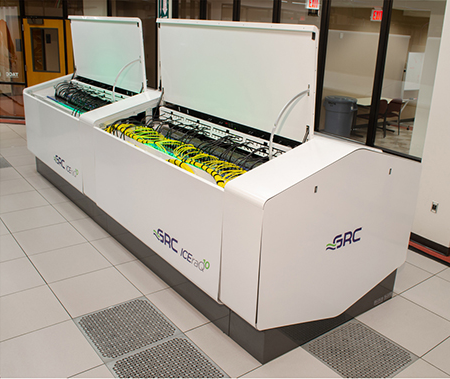
Immersion Cooling Showcase – TACC Lonestar6 Supercomputing

As one of the world’s most successful and sustainable immersion-cooled data centers, it’s critical for TACC to overcome the pressures every data center face nowadays — increasing performance, trimming CapEx/OpEx, and developing a more sustainable operation. They turned to immersion cooling to overcome these pressures.

Watch the video Immersion Cooling Showcase – TACC Lonestar6 Supercomputing

Gaussian Error – $’\r’: command not found

If you see errors like

/var/spool/pbs/mom_priv/jobs/729107.hpc-mn1.SC: line 2: $'\r': command not found
/var/spool/pbs/mom_priv/jobs/729107.hpc-mn1.SC: line 5: $'\r': command not found
/var/spool/pbs/mom_priv/jobs/729107.hpc-mn1.SC: line 8: $'\r': command not found
/var/spool/pbs/mom_priv/jobs/729107.hpc-mn1.SC: line 11: $'\r': command not found
/var/spool/pbs/mom_priv/jobs/729107.hpc-mn1.SC: line 16: $'\r': command not found
/var/spool/pbs/mom_priv/jobs/729107.hpc-mn1.SC: line 19: $'\r': command not found
/var/spool/pbs/mom_priv/jobs/729107.hpc-mn1.SC: line 22: $'\r': command not found

These errors are usually due to Windows-style newline characters that can cause issues. Please use the commands

$ dos2unix yourfile

This will remove the Windows-style newline characters

Protecting Centrify Zones from accidental deletion on Active Directory

If you have been using Centrify for some time, Centrify store Zones and other objects within the Active Directory (AD) or OU. One question always surface, how to protect the objects from accidental deletion. There are 2 ways. The first way is the easiest way.

Method 1: (via Manual Way to disable ‘accidental deletion’ for specific AD object only):

  1. Ask your System Administrator or OU Administrator to open up the “Active Directory Users and Computers” application.
  2. 2Navigate to your intended AD object (or any AD object like your ‘Zone’).
  3. 3) Right-click on your intended AD object, and select ‘Properties’.
  4. 4) Click on the ‘Object’ tab.
  5. 5) Ensure to check the checkbox of ‘Protect object from accidental deletion’.
  6. 6) Click the ‘Apply’ and then the ‘Ok’ button to confirm the changes.

Method 2: (via Powershell to disable ‘accidental deletion for all objects under specified OU ):

1) Ask your System Administrator to open up the ‘Power Shell’ application.

2) For the command below modify the ‘distingushedName’ (DN name) so that it points to the OU relevant to your domain. The below command will set this for all objects in the specified OU:

    Powershell: Get-ADobject -Filter * -SearchBase “{DN_Name}” | Set-adobject -ProtectedFromAccidentalDeletion $true

   
Example Command (for centrify  ‘Zone’ OU):: Get-ADobject -Filter * -SearchBase “CN=Zones,CN=Centrify,CN=Program Data,DC=win16org22,DC=pmm” | Set-adobject -ProtectedFromAccidentalDeletion $true

(Take Note; In order to attain the DN name, Right-click on your intended AD object, > select ‘Properties > and Click on the ‘Attribute Editor’ tab > Click on the ‘distinguishedName’ column > Copy the DN name and paste it in the PowerShell command specified above)

(Take Note: This creates a “deny” for deletion of all the objects under the specified OU. Now whoever tries to delete this will generate an event. Hence, the user will have to remove this permission before the object can be deleted.)

Preparing a Linux Client Server for Centrify and 2FA for CentOS-7

Preliminary Notes:

You have to setup a Cloud Tenant from Centrify by registering an email with Centrify or Centrify Authorised Reseller.

Once the Tenant has been setup, the login link should have been sent to the email you have provided.

You will need to setup the 2FA Connector VM on premise. The recommended specification of the connectors. Port 443 should be opened for the VM.

  • 4 Core; 8GB RAM; 100 GB HDD; Windows 2016 or later

At the Active Directory

  1. Create UNIX computer group in AD if not already created
  2. Add the UNIX computers that will require 2FA to the UNIX group
  3. Create a UNIX Users group if not already created
  4. Add Users that will require 2FA to the UNIX user group
  5. Add the IWA root CA Certificate to the Centrify GPO. The IWA Certificate can be downloaded from the Centrify cloud but the connector needs to be setup first before we can download the IWA Certificate.

At the CentOS Server

Copying the IwaTRustRoot.pem Certificate to CentOS Linux Server

  1. Change the extension of the IWA certificate that was downloaded from .cer to .pem
  2. For CentOS, please copy the certificate to this location /etc/pki/ca-trust/source/anchors/ in the test server.
  3. Copy the cert to /var/centrify/net/certs as well

Configure the SSH settings

# vim /etc/ssh/sshd_config
# To disable tunneled clear text passwords, change to no here!
#PasswordAuthentication yes
#PermitEmptyPasswords no
PasswordAuthentication no


# Change to no to disable s/key passwords
#ChallengeResponseAuthentication yes
ChallengeResponseAuthentication yes

Restart the SSHD Services

# systemctl restart sshd.service

Restart the Centrifydc services


# /usr/share/centrifydc/bin/centrifydc restart

Active Directory Flush

# adflush -f

Centrify Access Manager

At Centrify Access Manager, do add the MFA Users to require MFS for Login and UNIX Login in the required Computer. See Pix

Further notes:

  1. Automating the Linux Client Server for Centrify and 2FA on Rocky Linux 8