Adding cgroups control to GPGPU Servers for PSB-Professional

After adding GPGPU node to PBS Professional, you have to make sure, it is in the right queue first

qmgr -c "set node gpu-node resources_available.Qlist = gpu_v100"

Locate the cgroups.json2 script in the directory you have placed in. Check by doing the following

ll cgroups.json2

If there, edit the file.

vim cgroups.json2

Find the place where the “run_only_on_hosts” and add the node

"run_only_on_hosts" : [ "gpu-node1", "gpu-node2", "gpu-node3", "gpu-node4],
        "cgroup":
......
......
......

Use the qmgr to import the file

qmgr -c "import hook cgroups application/x-config default cgroups.json2"

Check that the PBS has detected the node correctly

pbsnodes -aSj |grep gpu-node1
Troubleshooting the PBS Control System and PBS Server

I was having this issue after I submitted a job. This was due to some configuration I had to do to improve security which is similar to Using the Host’s FirewallD as the Main Firewall to Secure Docker

qsub: Budget Manager: License is unverified. AM is not handling requests

To resolve the issue, I took the following Steps. On the PBS-Control Server,

Step 1: Export the Path of the AM Database.

export PATH=/opt/am/postgres/bin:$PATH

Step 2: Check that the Docker Container Services are started in the System. You may want to start the dockers to capture any errors. If the docker is not able to start up, it is likely due to the firewall settings.

# systemctl status firewalld.service.

Step 3: I restarted the PBS Altair Service

# systemctl restart altaircontrol.service

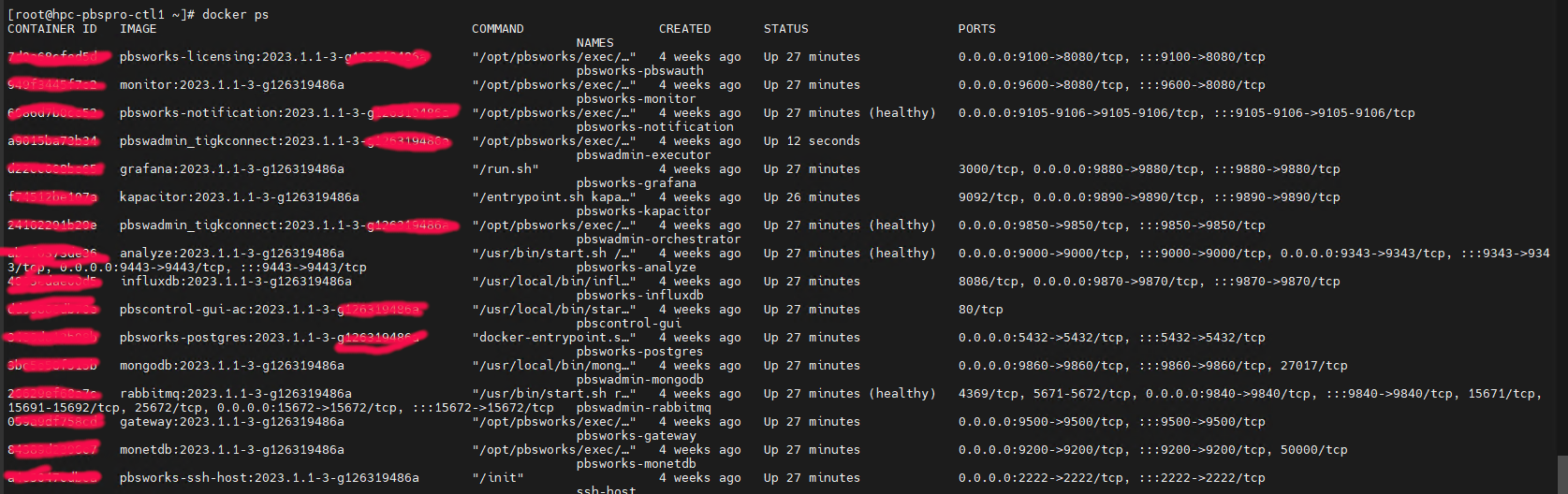
Step 4: I use the Docker Command to return an overview of all running containers

# docker ps 

At the PBS-Server, Restart the AM Control Register is working

# /opt/am/libexec/am_control_register

To Test, Submit an Interactive Job with the correct Project Code, it should work.

Allowing users to bypass PBS-Professional Scheduler to SSH directly into the Compute Node

For some special users like Adminsitrators, who needs to SSH directly into the compute instead of submitting to the scheduler with using root, you may want to do the following:

At the Compute Node

# vim /var/spool/pbs/mom_priv/config

Find the $restrict_user_exceptions

$clienthost 192.168.x.x
$clienthost 192.168.y.y
$restrict_user_maxsysid 999
$restrict_user True
$restrict_user_exceptions user1
$usecp *:/home/ /home/

Restart the PBS Service

# /etc/init.d/pbs restart

Tuning Compute Performance – Nanyang Technological University Targets I/O Bottlenecks to Speed Up Research

A customer case study writeup on how the HPC Team at Nanyang Technological University used Altair Mistral to tune Compute Performance.

The High Performance Computing Centre (HPCC) at Nanyang Technological University Singapore supports the university’s large-scale and data-intensive computing needs, and resource requirements continue to grow. HPCC churned out nearly 19 million core CPU-hours and nearly 300,000 GPU-hours in 2021 to enable more than 160 NTU researchers. HPCC’s small, four-engineer team turned to Altair for cutting-edge tools to help support their growing user community and evaluate scaling up to a hybrid cloud environment. They needed job-level insights to understand runtime issues; metrics on I/O, CPU, and memory to identify bottlenecks; and the ability to detect problematic applications and rogue jobs with bad I/O patterns that could overload shared storage. The HPCC team deployed Altair Mistral™ to profile application I/O and determine the most efficient options to optimize HPC at NTU.

Tuning Compute Performance – Nanyang Technological University Targets I/O Bottlenecks to Speed Up Research

Application I/O Profiling on HPC Clusters with Altair Mistral and Altair PBS Professional

A Paper has been published by Altair and myself on the “Application I/O Profiling on HPC Clusters with Altair Mistral and Altair PBS Professional”. For more information, do take a look at

The High Performance Computing Centre (HPCC) at Nanyang Technological University (NTU) Singapore employs the latest techniques to ensure good system utilization and a high-performance user experience. The university has a large HPC cluster with the Altair® PBS Professional® workload manager, and the HPCC team installed Altair Mistral™ to monitor application I/O and storage performance. In this paper, we describe how they used Mistral to analyze an HPC application. After getting some insights into the application, they profiled it against HPCC’s three storage tiers and gained detailed insights into application I/O patterns and storage performance.

Application I/O Profiling on HPC Clusters with Altair Mistral and Altair PBS Professional

PBS Professional MoM Access Configuration Parameters

Taken from PBS Professional Admin Guide

The Configuration Parameters can be found at /var/spool/pbs/mom_priv/config

$restrict_user <value>
  • Controls whether users not submitting jobs have access to this machine. When True, only those users running jobs are allowed access.
  • Format: Boolean
  • Default: off
$restrict_user_exceptions <user_list>
  • List of users who are exempt from access restrictions applied by $restrict_user. Maximum number of names in list is 10.
  • Format: Comma-separated list of usernames; space allowed after comma
$restrict_user_maxsysid <value>
  • Allows system processes to run when $restrict_user is enabled. Any user with a numeric user ID less than or equal to value is exempt from restrictions applied by $restrict_user.
  • Format: Integer
  • Default: 999

Example


To restrict user access to those running jobs, add:

$restrict_user True

To specify the users who are allowed access whether or not they are running jobs, add:

$restrict_user_exceptions User1, User2

To allow system processes to run, specify the maximum numeric user ID by adding:

$restrict_user_maxsysid 999

Quick Fix to add Queue for PBS Pro

One of the quickest way to install the PBS Professional Queue is take 1 queue and modify the example

At your node holding the PBS Scheduler

# qmgr -c "print queue @default"
.....
.....
# Create and define queue q64
#
create queue q64
set queue q64 queue_type = Execution
set queue q64 Priority = 100
set queue q64 resources_max.ncpus = 256
set queue q64 resources_max.walltime = 500:00:00
set queue q64 resources_default.charge_rate = 0.04
set queue q64 default_chunk.Qlist = q64
set queue q64 max_run_res.ncpus = [u:PBS_GENERIC=256]
set queue q64 enabled = True
set queue q64 started = True
#
.....
.....

Copy out the information and pipe it into a file

# qmgr -c "print queue q64" > q64_new_queue

Edit the File and save it

# Create and define queue q64_new_queue
#
create queue q64_new_queue
#
set queue q64_new_queue queue_type = Execution
set queue q64_new_queue Priority = 100
set queue q64_new_queue resources_max.ncpus = 256
set queue q64_new_queue resources_max.walltime = 500:00:00
set queue q64_new_queue resources_default.charge_rate = 0.04
set queue q64_new_queue default_chunk.Qlist = q64
set queue q64_new_queue max_run_res.ncpus = [u:PBS_GENERIC=256]
set queue q64_new_queue enabled = True
set queue q64_new_queue started = True
#

Pipe it back to qmgr

# qmgr < q64_new_queue

You should be able to see the new queue

...
...

# Create and define queue q64_new_queue
#
create queue q64_new_queue
#
set queue q64_new_queue queue_type = Execution
set queue q64_new_queue Priority = 100
set queue q64_new_queue resources_max.ncpus = 256
set queue q64_new_queue resources_max.walltime = 500:00:00
set queue q64_new_queue resources_default.charge_rate = 0.04
set queue q64_new_queue default_chunk.Qlist = q64
set queue q64_new_queue max_run_res.ncpus = [u:PBS_GENERIC=256]
set queue q64_new_queue enabled = True
set queue q64_new_queue started = True
#
...
...