Using dmidecode to find hardware information

Taken from the Manual Page

dmidecode is a tool for dumping a computer’s DMI (some say SMBIOS) table contents in a human-readable format. This table contains a description of the system’s hardware components, as well as other useful pieces of information such as serial numbers and BIOS revision.


Option 1: Getting DMI Type

[root@my-node1 ~]# dmidecode -t
dmidecode: option requires an argument -- 't'
Type number or keyword expected
Valid type keywords are:
bios
system
baseboard
chassis
processor
memory
cache
connector
slot


Option 2: DMI TYPES (From MAN Page)

DMI TYPES
The SMBIOS specification defines the following DMI types:

Type Information
────────────────────────────────────────────
0 BIOS
1 System
2 Baseboard
3 Chassis
4 Processor
5 Memory Controller
6 Memory Module
7 Cache
8 Port Connector
9 System Slots
10 On Board Devices
11 OEM Strings
12 System Configuration Options
13 BIOS Language
14 Group Associations
15 System Event Log
16 Physical Memory Array
17 Memory Device
18 32-bit Memory Error
19 Memory Array Mapped Address
20 Memory Device Mapped Address
21 Built-in Pointing Device
22 Portable Battery
23 System Reset
24 Hardware Security
25 System Power Controls
26 Voltage Probe
27 Cooling Device
28 Temperature Probe
29 Electrical Current Probe
30 Out-of-band Remote Access
31 Boot Integrity Services
32 System Boot
33 64-bit Memory Error
34 Management Device
35 Management Device Component
36 Management Device Threshold Data
37 Memory Channel
38 IPMI Device
39 Power Supply
40 Additional Information
41 Onboard Devices Extended Information
42 Management Controller Host Interface


Option 3 – Using Keyword types

Keywords can be used instead of type numbers with --type. Each keyword is equivalent to a list of type numbers:

Keyword Types
──────────────────────────────
bios 0, 13
system 1, 12, 15, 23, 32
baseboard 2, 10, 41
chassis 3
processor 4
memory 5, 6, 16, 17
cache 7
connector 8
slot 9

Keywords are matched case-insensitively. The following command lines are equivalent:

· dmidecode --type 0 --type 13
· dmidecode --type 0,13
· dmidecode --type bios
· dmidecode --type BIOS
 

Mellanox SN2100 Ethernet Bundle Configurator

Mellanox has a Ethernet Configurator which you can even use for other model.

Here’s how it works:
Choose the following:
1. Choose the setup

  • 1 switch
  • 2 switches connected with mLAG
  • 5 switches: testing both mLAG as well as leaf spine (BGP/ECMP) – simple L3/VTEP/VXLAN Routing (VXLAN on Cumulus only for now)

2. Choose the speed of the host/NIC

  • 10/25/100GbE

3. Choose the operating system

  • ONYX
  • Cumulus Linux

What you get is:
1. Topology: how to connect, which specific ports should be used

2. Solution brief for the selected scenario

3. One Click Configuration files:

  • For the CLI guys: running config
  • For the Ansible guys: Ansible playbooks (ONYX Ansible for mLAG and L3 will be added soon)

Checking and Modifying Timestamp of whole Directory recursively

Step 1: Show the complete date, time and year for a specific file

$ ls -l --full-time
-rwxrwxr-x  1 root root  1109 2018-07-20 12:52:52.587945000 +0800 Allwmake
drwxrwxr-x  5 root root  4096 2018-07-20 12:52:52.602945000 +0800 applications
drwxrwxr-x  3 root root  8192 2018-07-20 12:53:19.536973000 +0800 bin
-rw-rw-r--  1 root root 35646 2018-07-20 12:52:52.592945000 +0800 COPYING
drwxrwxr-x  5 root root  4096 2018-07-20 12:53:19.936974000 +0800 doc
drwxrwxr-x  8 root root  4096 2018-07-20 12:53:20.039974000 +0800 etc
drwxr-xr-x  4 root root  4096 2018-07-20 12:55:17.230101000 +0800 platforms
-rw-rw-r--  1 root root  1620 2018-07-20 12:52:52.597945000 +0800 README.org
drwxrwxr-x 38 root root  4096 2018-07-20 12:53:22.032976000 +0800 src
drwxrwxr-x 17 root root  4096 2018-07-20 12:54:45.114064000 +0800 tutorials
drwxrwxr-x  7 root root  4096 2018-07-20 12:55:15.939099000 +0800 wmake

Step 2: If you wish to modify the time-stamp for the entire directory, you can use the command,

% for file in `find .`; do touch $file; done

References:

  1. touch – change file timestamps(Unix Tutorial)

Resolving Orphaned Objects in Centrify Access Manager

On the Centrify Access Manager, when we search for the userid, the Centrify Access Manager is not found.
But when we add the userid in the system, it mentioned that the userid is duplicated. It seems that the userid has been cached and orphaned somewhere in Centrify.

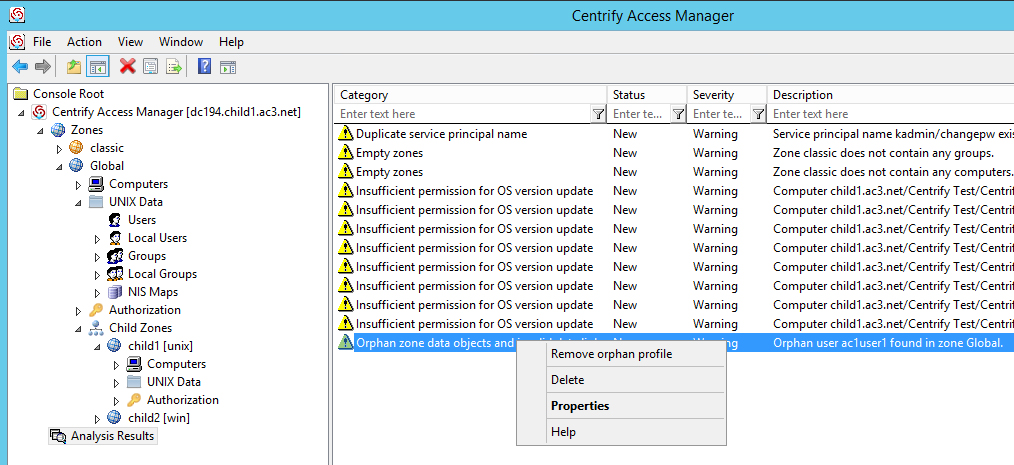
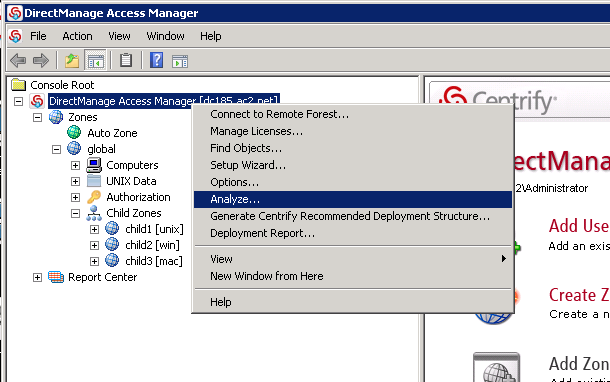
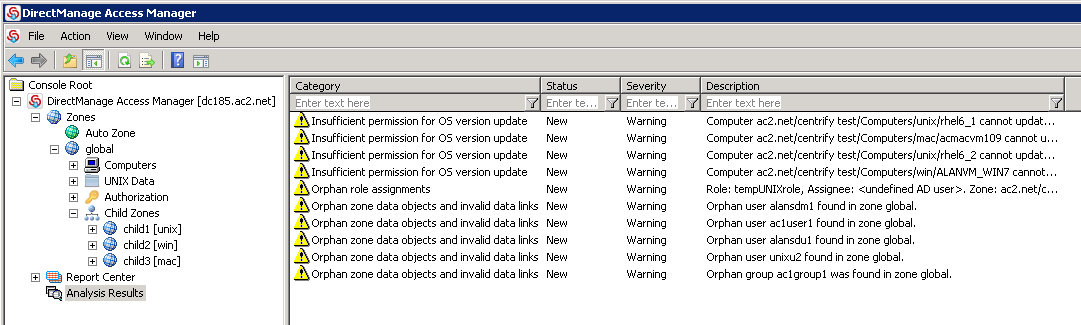
Step 1: To find out duplicated users / objects, you may use Analyze feature in Access Manager. See Pix 1

Step 2: Analyse Results

You will notice

– Duplicate users in zones
– Orphan zone data objects and invalid data links

Step 3: Right-Clicked to fix the isses

You should be able to add the user.


Formatting NVME Partition on CentOS 7

Step 1: Create a partition:

# sudo fdisk /dev/nvme0n1
Choose “n” to create a new partition
Then "p" and "1" for new partition
Using default paratmeter, "w" to write data to disk

Step 2: Create a file system on it:

# sudo mkfs -t ext4 /dev/nvme0n1p1

Step 3: Create a mount point somewhere convenient:

# sudo mkdir /media/nvme

Step 4: Mount the new partition on that mount point:

# sudo mount /dev/nvme0n1p1 /media/nvme

Step 5: Permanently Mount the Device
Step 5a. To find the UUID first

# sudo blkid

Step 5b: To get it to mount every time, add a line to /etc/fstab:

UUID=nvme_UUID /media/nvme ext4 defaults 0 0

(where nvme_UUID is the value taken from “sudo blkid”)

Step 6 (Optional): At this point, the whole thing belongs to ‘root’

To change the ownership to a specific user (with the partition mounted):

# sudo chown -R user:usergroup /media/nvme

Nvidia Tesla versus Nvidia GTX Cards

References

  1. Performance Comparison between NVIDIA’s GeForce GTX 1080 and Tesla P100 for Deep Learning
  2. Comparison of NVIDIA Tesla/Quadro and NVIDIA GeForce GPUs


Nvidia EULA

Key clauses are: 2.1.3 that states no DC deployment, commercial hosting and broadcast services
http://www.nvidia.com/content/DriverDownload-March2009/licence.php?lang=us&type=GeForce


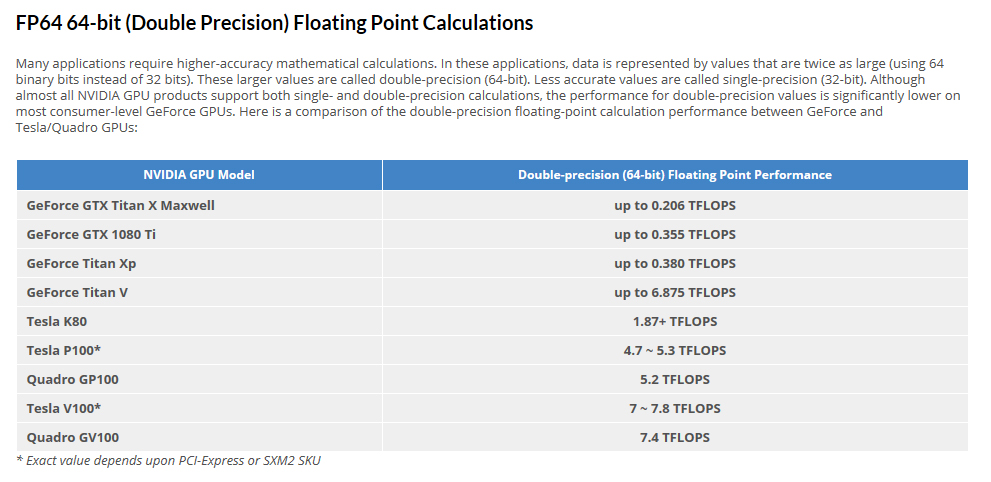
FP64 64-bits (Double Precision) Floating Point Calculation


Pix taken from Comparison of NVIDIA Tesla/Quadro and NVIDIA GeForce GPUs

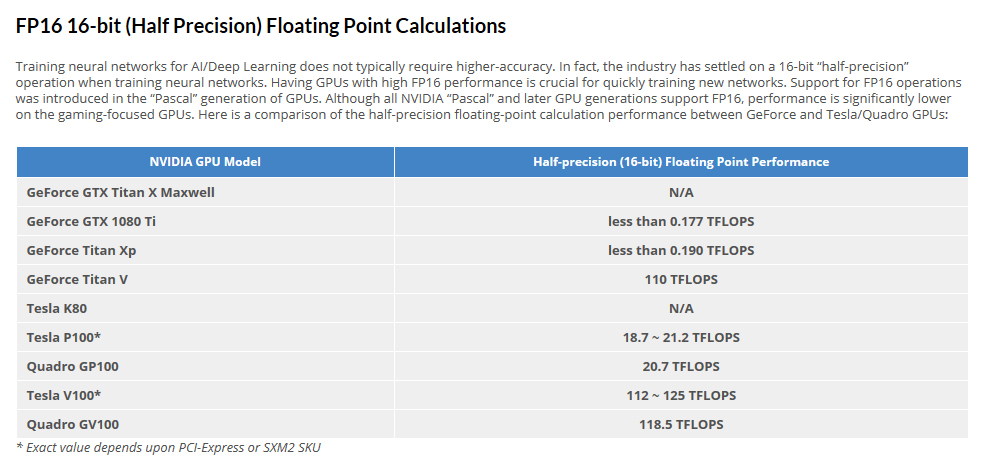
FP16-16bits (Half Precision) Floating Point Calculation


Pix taken from Comparison of NVIDIA Tesla/Quadro and NVIDIA GeForce GPUs