Configuring VMDirectPath I/O pass-through devices on an ESX host with Chelsio T4 Card (Part 1)

For Part 1, the article is taken from Configuring VMDirectPath I/O pass-through devices on an ESX host. Part (2), we will deal with Chelsio T4 Card configuration after the Passthrough has been configured.
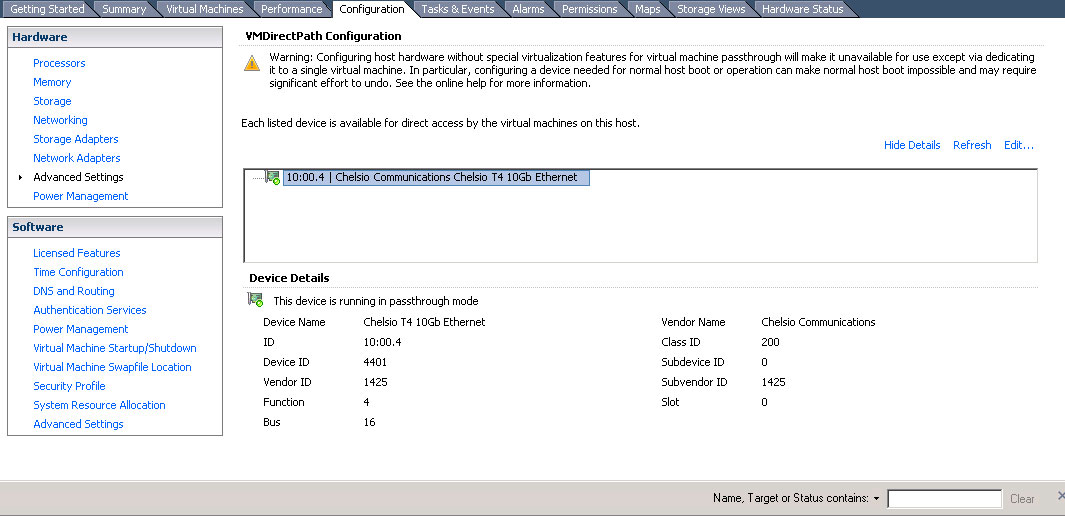
1. Configuring pass-through devices

To configure pass-through devices on an ESX host:
  1. Select an ESX host from the Inventory of VMware vSphere Client.
  2. On the Configuration tab, click Advanced Settings. The Pass-through Configurationpage lists all available pass-through devices.Note:A green icon indicates that a device is enabled and active.An orange icon indicates that the state of the device has changed and the host must be rebooted before the device can be used.
  3. Click Edit.
  4. Select the devices and click OK.Note: If you have a chipset with VT-d, when you click Advanced Settings in vSphere Client, you can select what devices are dedicated to the VMDirectPath I/O.
  5. When the devices are selected, they are marked with an orange icon. Reboot for the change to take effect. After rebooting, the devices are marked with a green icon and are enabled.Note:The configuration changes are saved in the /etc/vmware/esx.conf file. The parent PCI bridge, and if two devices are under the same PCI bridge, only one entry is recorded.The PCI slot number where the device was connected is 00:0b:0. It is recorded as:/device/000:11.0/owner = “passthru”Note: 11 is the decimal equivalent of the hexadecimal 0b.

2. To configure a PCI device on a virtual machine:

  1. From the Inventory in vSphere Client, right-click the virtual machine and choose Edit Settings.
  2. Click the Hardware tab.
  3. Click Add.
  4. Choose the PCI Device.
  5. Click Next.Note: When the device is assigned, the virtual machine must have a memory reservation for the full configured memory size.


3. Information

  1. Configuring VMDirectPath I/O pass-through devices on an ESX host with Chelsio T4 Card (Part 2)

Installing packages for ALPS on CentOS 6

This tutorial is an extension of Installing ALPS 2.0 from source on CentOS 5 The installation can apply on CentOS 6 as well. For this tutorial, we will be installing.

  1. python 2.6 and python 2.6-devel (Assumed installed already)
  2. python-setuptools and python-setuptools-devel (Assumed installed already)
  3. blas and lapack
  4. numpy and numpy-f2py and python-matplotlib
  5. h5py,
  6. scipy

I’m trying to refrain for installing as much by source compiling and rely on repository for this tutorial. As such the packages will be behind

Step 1: Install blas and lapack packages from CentOS Base Repositories

# yum install lapack* blas*
================================================================================
 Package               Arch            Version              Repository     Size
================================================================================
Installing:
 blas                  x86_64          3.2.1-4.el6          base          321 k
 blas-devel            x86_64          3.2.1-4.el6          base          133 k
 lapack                x86_64          3.2.1-4.el6          base          4.3 M
 lapack-devel          x86_64          3.2.1-4.el6          base          4.5 M
Transaction Summary
================================================================================
Install       4 Package(s)

Total download size: 9.2 M
Installed size: 26 M
Is this ok [y/N]: y

Step 2: Install numpy numpy-f2py python-matplotlib

# yum install numpy numpy-f2py python-matplotlib
================================================================================
 Package                  Arch          Version               Repository   Size
================================================================================
Installing:
 numpy                    x86_64        1.3.0-6.2.el6         base        1.6 M
 numpy-f2py               x86_64        1.3.0-6.2.el6         base        430 k
 python-matplotlib        x86_64        0.99.1.2-1.el6        base        3.2 M

Transaction Summary
================================================================================
Install       3 Package(s)

Total download size: 5.3 M
Installed size: 22 M
Is this ok [y/N]: y

Step 3: Install h5py

# yum install h5py
================================================================================
 Package            Arch          Version                     Repository   Size
================================================================================
Installing:
 h5py               x86_64        1.3.1-6.el6                 epel        650 k
Installing for dependencies:
 hdf5-mpich2        x86_64        1.8.5.patch1-7.el6          epel        1.4 M
 liblzf             x86_64        3.6-2.el6                   epel         20 k
 mpich2             x86_64        1.2.1-2.3.el6               base        3.7 M

Transaction Summary
================================================================================
Install       4 Package(s)

Total download size: 5.7 M
Installed size: 17 M
Is this ok [y/N]: y

Step 4: Install scipy

# yum install scipy
================================================================================
Package Arch Version Repository Size
================================================================================
Installing:
scipy x86_64 0.7.2-5.el6 epel 5.8 M
Installing for dependencies:
suitesparse x86_64 3.4.0-2.el6 epel 782 k

Transaction Summary
================================================================================
Install 2 Package(s)

Total download size: 6.5 M
Installed size: 29 M
Is this ok [y/N]: y

Using iptables to allow compute nodes to access public network

Objectives:
Compute Nodes in an HPC environment are usually physically isolated from the public network and has to route through the gateway which are often found in Head Node in small or small-medium size cluster to access the internet or to access company LAN to access LDAP, you can use the iptables to route the traffic through the interconnect facing the internet

Scenario:
Traffic will be routed through the Head Node eth1 (internet facing) from the eth0 (private network)  of the same Head Node. The interconnect eth0 is attached to a switch where the compute nodes are similarly attached. Some

  1. 192.168.1.0/24 is the private network subnet
  2. 155.1.1.1 is the DNS forwarders for public-facing DNS
  3. 155.1.1.2 is the IP Address of the external-facing ethernet ie eth1

Ensure the machine allow ip forwarding

# cat /proc/sys/net/ipv4/ip_forward

If the output is 0, then IP forwarding is not enabled. If the output is 1, then IP forwarding is enabled.

If your output is 0, you can enabled it by running the command

# echo 1 > /proc/sys/net/ipv4/ip_forward

 Or if you wish to make it permanent,

# vim/etc/rc.local
echo 1 > /proc/sys/net/ipv4/ip_forward


Network Configuration of the Compute Node (Assuming that eth0 is connected to the private switch). It is very important that you input the gateway.

# Broadcom Corporation NetXtreme II BCM5708 Gigabit Ethernet
# Compute Node
DEVICE=eth0
BOOTPROTO=static
ONBOOT=yes
HWADDR=00:00:00:00:00:00
IPADDR=192.168.1.2
NETMASK=255.255.255.0
GATEWAY=192.168.1.1

DNS Settings of the Compute Nodes should not only have DNS of the internal private switch but also the DNS forwarders of the external network

search mydomain
# Private DNS
nameserver 192.168.1.1
# DNS forwarders
nameserver 155.1.1.1

Configure iptables in the Cluster Headnode if you are using the Headnode as a gateway.

# Using the Headnode as a gateway
iptables -t nat -A POSTROUTING -s 192.168.1.0/24 -o eth1 -j 
SNAT --to-source 155.1.1.1

# Accept all Traffic from a Private subnet
iptables -A INPUT -s 192.168.1.0/24 -d 192.168.1.0/24 -i 
eth0 -j ACCEPT

Restart iptables services

# service iptables save
# service iptables restart

Quick check that the Compute Nodes can have access to outside

# nslookup www.centos.org
Server: 155.1.1.1
Address: 155.69.1.1#53

Non-authoritative answer:
Name: www.centos.org
Address: 72.232.194.162

Using Kernel Samepage Merging with KVM

For the original and writeup of the article, do look at Using KSM (Kernel Samepage Merging) with KVM. There is a correponding pdf article Increasing Virtual Machine Density with KSM (pdf) by QUMRANET

In short, from the article

Kernel SamePage Merging is a recent linux kernel feature which combines identical memory pages from multiple processes into one copy on write memory region. Because kvm guest virtual machines run as processes
under linux, this feature provides the memory overcommit feature to kvm so important to hypervisors for more efficient use of memory……

Pointer 1. Verifying Kernel KSM Support

# grep KSM /boot/config -'uname -r'

You should see something like this if KSM is enabled

CONFIG_KSM=y

You should also see a directory for KSM in

Pix taken from Linux-KVM
 
Pointer 2: By default, KSM is limited to 2000 kernel pages.

To verify, type the following command

# cat /sys/kernel/mm/ksm/max_kernel_pages
You should see
2000


Pointer 3: Verifying KVM Support for Samepage Merging

 
From the article…..
In order for your KVM guests to take advantage of KSM, your version of qemu-kvm must explicitly request from the kernel that identical pages be merged using the new madvise interface. The patch for this feature was added to the kvm development tree just recently following the kvm-88 release. If you’re compiling kvm yourself you can verify whether your version of kvm will support KSM by inspecting exec.c source file for the following lines of code

If you don’t see these lines in your exec.c file then your kvm process will still run fine but but it won’t take advantage of KSM.

#ifdef MADV_MERGEABLE
        madvise(new_block->host, size, MADV_MERGEABLE);
#endif

Pointer 4 – Run multiple simiar guests

…….With multiple virtual machines running, you can verify that KSM is working by inspecting the following file to see how many pages are being shared between your kvm guests.

If the value is greateer than zero, KSM is used

# cat /sys/kernel/mm/KSM/pages_sharing

Installing NWChem 6 with OpenMPI, Intel Compilers and Intel MKL on CentOS 5

Here is a write-up of my computing platform and applications:

  1. NWChem 6.1 (Feb 2012)
  2. OpenMPI (version 1.4.3)
  3. Intel Compilers 2011 XE (version 12.0.2)
  4. Intel MKL (10.2.4.032)
  5. Infiniband Inteconnect (OFED 1.5.3)
  6. CentOS 5.4 (x86_64)

First thing first, just make sure your cluster has the necessary components. Here are some of the preliminary you may want to take a look

  1. If you are eligible for the Intel Compiler Free Download. Download the Free Non-Commercial Intel Compiler Download
  2. Build OpenMPI with Intel Compiler
  3. Installing Voltaire QDR Infiniband Drivers for CentOS 5.4

Assuming you are done, you may want to download the NWChem 6.1 from NWChem Website. You may also want to take a look at instruction set for Compiling NWChem

# tar -zxvf Nwchem-6.1-2012-Feb-10.tar.gz
# cd nwchem-6.1

Create a script so that all these “export” parameter can be typed once only and kept. The script I called it nwchem_script_Feb2012.sh. Make sure that the ssh key are exchanged between the nodes. To have idea an of SSH key exchange, see blog entry Auto SSH Login without Password

Here is my nwchem_script_Feb2012.sh. For more details information, see Compiling NWChem for details on some of the parameters

export TCGRSH=/usr/bin/ssh
export NWCHEM_TOP=/root/nwchem-6.1
export NWCHEM_TARGET=LINUX64
export ARMCI_NETWORK=OPENIB
export IB_INCLUDE=/usr/include
export IB_LIB=/usr/lib64
export IB_LIB_NAME="-libumad -libverbs -lpthread"
export MSG_COMMS=MPI
export USE_MPI=y
export USE_MPIF=y
export USE_MPIF4=y
export MPI_LOC=/usr/local/mpi/intel
export MPI_LIB=$MPI_LOC/lib
export MPI_INCLUDE=$MPI_LOC/include
export LIBMPI="-L/usr/local/mpi/intel/lib -lmpi_f90 -lmpi_f77 -lmpi -lpthread"
export NWCHEM_MODULES=all
export LARGE_FILES=TRUE
export FC=ifort
export CC=icc
cd $NWCHEM_TOP/src
make clean
make 64_to_32
make USE_64TO32=y HAS_BLAS=yes BLASOPT="-L/opt/intel/mkl/10.2.4.032/lib/em64t -lmkl_intel_ilp64 -lmkl_sequential -lmkl_core -lpthread"
make FC=ifort CC=icc nwchem_config >& make.log

Do note that if you are compiling with proprietary BLAS libraries like MKL, note the instruction from Compiling NWChem

WARNING: In the case of 64-bit platforms, most vendors optimized BLAS libraries cannot be used. This is due to the fact that while NWChem uses 64-bit integers (i.e. integer*8) on 64-bit platforms, most of the vendors optimized BLAS libraries used 32-bit integers. BLAS libraries not supporting 64-bit integers (at least in their default options/installations) include CXML (DECOSF), ESSL (LAPI64), MKL (LINUX64/ia64 and x86_64), ACML(LINUX64/x86_64), and GotoBLAS2(LINUX64). The same holds for the ScaLAPACK libraries, which internally use 32-bit integers.

cd $NWCHEM_TOP/src
make clean
make 64_to_32
make USE_64TO32=y HAS_BLAS=yes BLASOPT="-L/opt/intel/mkl/10.2.4.032/lib/em64t -lmkl_intel_ilp64 -lmkl_sequential -lmkl_core -lpthread"

General Site Installation

Determine the local storage path for the install files. (e.g., /usr/local/NWChem).
Make directories

# mkdir /usr/local/nwchem-6.1
# mkdir /usr/local/nwchem-6.1/bin
# mkdir /usr/local/nwchem-6.1/data

Copy binary

# cp $NWCHEM_TOP/bin/${NWCHEM_TARGET}/nwchem /usr/local/nwchem-6.1/bin
# cd /usr/local/nwchem-6.1/bin
# chmod 755 nwchem

Copy libraries

# cd $NWCHEM_TOP/src/basis
# cp -r libraries /usr/local/nwchem-6.1/data

# cd $NWCHEM_TOP/src/
# cp -r data /usr/local/nwchem-6.1

# cd $NWCHEM_TOP/src/nwpw
# cp -r libraryps /usr/local/nwchem-6.1/data

The Final Lap (From Compiling NWChem)

Each user will need a .nwchemrc file to point to these default data files. A global one could be put in /usr/local/nwchem-6.1/data and a symbolic link made in each users $HOME directory is probably the best plan for new installs. Users would have to issue the following command prior to using NWChem: ln -s /usr/local/nwchem-6.1/data/default.nwchemrc $HOME/.nwchemrc

Contents of the default.nwchemrc file based on the above information should be:

nwchem_basis_library /usr/local/nwchem-6.1/data/libraries/
nwchem_nwpw_library /usr/local/nwchem-6.1/data/libraryps/
ffield amber
amber_1 /usr/local/nwchem-6.1/data/amber_s/
amber_2 /usr/local/nwchem-6.1/data/amber_q/
amber_3 /usr/local/nwchem-6.1/data/amber_x/
amber_4 /usr/local/nwchem-6.1/data/amber_u/
spce    /usr/local/nwchem-6.1/data/solvents/spce.rst
charmm_s /usr/local/nwchem-6.1/data/charmm_s/
charmm_x /usr/local/nwchem-6.1/data/charmm_x/

Commonly used qstat options

Commonly used Qstat Options

 Options Description
qstat -i Display jobs that are non-running in alternative format
qstat -r Display jobs that are running
qstat -n In addition to basic information, it also provide information of nodes allocated to the job listed.
qstat -u users(s) Display jobs of a user or users
qstat -Q Status of queues
qstat -Q -f Full status of queues in the alternative format
qstat -q Status of queues in the alternative format
qstat -B Batch server status
qstat -B -f Full batch server status including configuration

High Performance Data Transfers on TCP/IP

This writeup is a summary of the excellent article from Pittburgh Supercomputing Centre “Enabling High Performance Data Transfers

According to the article, there are five networking options that should be taken into consideration

  1. “Maximum TCP Buffer (Memory) space: All operating systems have some global mechanism to limit the amount of system memory that can be used by any one TCP connection. [more][less]”
  2. “Socket Buffer Sizes: Most operating systems also support separate per connection send and receive buffer limits that can be adjusted by the user, application or other mechanism as long as they stay within the maximum memory limits above. These buffer sizes correspond to the SO_SNDBUF and SO_RCVBUF options of the BSD setsockopt() call. [more][less]”
  3. “TCP Large Window Extensions (RFC1323): These enable optional TCP protocol features (window scale and time stamps) which are required to support large BDP paths. [more][less]
  4. TCP Selective Acknowledgments Option (SACK, RFC2018) allow a TCP receiver inform the sender exactly which data is missing and needs to be retransmitted. [more][less]
  5. Path MTU The host system must use the largest possible MTU for the path. This may require enabling Path MTU Discovery (RFC1191, RFC1981, RFC4821). [more][less]

Under Linux Section, the article mentioned that for Linux

Recent versions of Linux (version 2.6.17 and later) have full autotuning with 4 MB maximum buffer sizes. Except in some rare cases, manual tuning is unlikely to substantially improve the performance of these kernels over most network paths, and is not generally recommended

Speeding up SSH connections

Suggestion 1: Resolving SLOW Login by turning off reverse DNS Lookup for OpenSSH

If you are facing slow login times, it might be due to reverse DNS is not responding quick enough. This system can show up on your log file

# tail -50 /var/log/secure

You will notice that there is a time lag from accepting the key to opening a session

Sep  6 10:15:42 santol-h00 sshd[4268]:
Accepted password for root from 192.168.1.191 port 51109 ssh2

Sep  6 10:15:52 santol-h00 sshd[4268]: pam_unix(sshd:session):
session opened for user root by (uid=0)

To fix the issue, you should modify the /etc/ssh/sshd_config file

# vim /etc/ssh/sshd_config

At /etc/ssh/sshd_config, change UseDNS  no

#ShowPatchLevel no
UseDNS no
#PidFile /var/run/sshd.pid

Restart the ssh service

# service sshd restart

Feel the login speed 🙂


Suggestion 2: Speeding up multiple ssh connections with ControlMaster

I’m assuming you are using OpenSSH 4.

If you are make multiple connections to the same server, you can enables the sharing of multiple sessions over a single network connections. In other words, the additional sessions will try to reuse the master instance’s connection rather than initiating new ones.

Step 1: Create a config file in your ~/.ssh directory. Make sure the permission is readable and writable by the owner only ie permission of 600

Step 2: Add the following lines

Host *
   ControlMaster auto
   ControlPath ~/.ssh/master-%r@%h:%p

ControlMaster auto Tries to start a master if there is no existing connection
or it will use an existing master connection.

ControlPath is the location socket for the ssh processes to communicate among
themselves. The %r, %h and %p are replaced with your user name, the host to which
you’re connecting and the port number—only ssh sessions from the same user to
the same host on the same port can or should share a TCP connection,
so each group of multiplexed ssh processes needs a separate socket.

Step 3a: To test the configuration, start an ssh session and keep it connected, you should see something like

...........
debug1: setting up multiplex master socket
debug1: channel 0: new [client-session]
...........

Step 3b: Launch another ssh connection to a the same server with the same userid

....................
debug1: auto-mux: Trying existing master
...................

Much of the materials come from  Speed Up Multiple SSH Connections to the Same Server (Linux Journal).


Suggestion 3: Speeding and Compressing X forwarding Traffic

To run the an X application over SSH connection, you can use the

$ ssh -X user@computername.com

Do note that for the remote Server shich you are connecting to must have X forwarding enabled. To configure, go to /etc/ssh/ssh_config/

X11Forwarding yes

If the SSH is setup with trusted X11 Forwarding ie in the /etc/ssh/ssh_config file,

ForwardX11Trusted yes

You can compress and speed up the X forwarded connection

$ ssh -Y -C user@computername.com
  • -Y to enable trusted X11 forwarding. Trusted X11 forwardings are not subjected to the X11 SECURITY extension controls. So it will boost speed.
  • -C to compress the data

Suggestion 4: Tuning TCP/IP and Patching SSH with HPN-SSH

Good read-up to tune your SSH connections.

  1. High Performance Data Transfers on TCP/IP
  1. High Performance SSH/SCP – HPN-SSH

Installing Grace (xmgrace) on CentOS 5 and 6

For further information on what is Grace ( xmgrace ) and some notes during installation. Do read the blog entry

  1. Grace plotting tool for X Window System 
  2. Compiling Grace: checking for a Motif >= 1002 compatible API… no

For installing in a nutshell on CentOS 5 and CentOS 6.

./configure --enable-grace-home=/opt/grace \
--with-extra-incpath=/usr/local/include:/opt/include \
--with-extra-ldpath=/usr/local/lib:/opt/lib \
--prefix=/usr/local

–enable-grace-home=DIR      define Grace home dir [PREFIX/grace]
–with-extra-incpath=PATH    define extra include path (dir1:dir2:…) [none]
–with-extra-ldpath=PATH     define extra ld path (dir1:dir2:…) [none]


Compiling,

make

Testing

make tests

Installation

make install

Making links

make links

References:

  1. Encountering the pars.yacc:5426 error when installing Grace 5.1.23 on CentOS 5