Dependency issues when installing xCAT 2.7 on CentOS 6

If you are using the yum install for xCAT 2.7 on CentOS 6, you will need the .repo and putting in /etc/yum.repos.d/

# wget http://sourceforge.net/projects/xcat/files/yum/stable/xcat-core/xCAT-core.repo
# wget http://sourceforge.net/projects/xcat/files/yum/xcat-dep/rh6/x86_64/xCAT-dep.repo

Do a yum check-update

# yum check-update

Do a yum install of xCAT ie

# yum install xCAT

You might get the error

Error: Package: xCAT-2.7.2-snap201205230215.x86_64 (xcat-2-core)
           Requires: elilo-xcat
Error: Package: xCAT-2.7.2-snap201205230215.x86_64 (xcat-2-core)
           Requires: xCAT-genesis-x86_64

You will notice you will have these error. To rectify, you have to download the from http://sourceforge.net/projects/xcat/files/yum/xcat-dep/rh6/x86_64/ and do a rpm install

# rpm -Uvh xCAT-genesis-x86_64-2.7.......
# rpm -Uvh elilo-xcat-3.14-4.noarch.rpm

Finally do a yum install xCAT and you should be able to install without issue.

Compiling AMBER 10 with Intel XE Compiler and Intel MKL 10

If you wish to compile AMBER 10 with the latest version of Intel XE and Intel and MKL 10, you will need to do a bit of tweaking of the

Standard installation of AMBER10

A. Setup of AmberTools environment.

1. Include AMBERHOME in your .bashrc

# vim .bashrc
export AMBERHOME=/usr/local/amber10

2. Configure the system for AmberTools. Assuming you are configuring for mpi, intel compiler, you will probably use the command

# cd $AMBERHOME/src
# ./configure_at mpi icc

3. Make the file Makefile_at

# make -f Makefile_at

You will have something like for the output.

Completed installation of AmberTools, version 1.1

B. Setting up the basic AMBER distribution for OpenMPI, Intel

Here is where if you are using the more up-to-date MKL (version 10), things will fail to compile. It took me a while to solve the problem. But basically you have to replace the  old dynamic linking flags with the new ones. According to the versions 10.x of Intel® MKL, Intel has re-architected Intel MKL and physically separated the interface, threading and computational components of the product.

1. Retrieve the latest bug fixes for AMBER 10 from (http://ambermd.org/bugfixes.html)

# cd $AMBERHOME
# chmod 700 apply_bugfix_all.x
# ./apply_bugfix_all.x bugfix.all

2. Edit the configure_amber file to match Intel MKL 10.x linking libraries. Fore information, do look at Linking Applications with Intel MKL version 10

# vim $AMBERHOME/src/configure_amber

Go to line 464, replace the EM64T dynamic linking parameters

# EM64T dynamic linking of double-precision-LAPACK and kernels
# loadlib="$loadlib -L$mkll -lvml -lmkl_lapack -lmkl -lguide -lpthread"
loadlib="$loadlib -L$mkll  -lguide -lpthread -lguide -lpthread -lmkl_intel_lp64 
-lmkl_intel_thread -lmkl_core"

Go to line 617, replace the EM64T dynamic linking parameters, do the same

#loadlib="$loadlib -L$mkll -lvml -lmkl_lapack -lmkl -lguide -lpthread"
loadlib="$loadlib -L$mkll  -lguide -lpthread -lmkl_intel_lp64 
-lmkl_intel_thread -lmkl_core"

3. Ensure the environmental varaiables are correct. You should have at least have the following. I’m also assuming you have compiled OpenMPI and has but it in the PATH

export AMBERHOME=/usr/local/amber10
export MPI_HOME=/usr/local/mpi/intel
export MKL_HOME=/opt/intel/mkl/10.2.6.038

4. Compile the  AMBER for parallel

# ./configure_amber -openmpi ifort
------   Configuring the netCDF libraries:   --------

Configuring netcdf; (may be time-consuming) NETCDF configure succeeded. 
MPI_HOME is set to /usr/local/mpi/intel
The configuration file, config_amber.h, was successfully created.

Building SCALAPACK 2.0.1 with Intel Compiler

SCALAPACK requires BLAS and LAPACK, please read the tutorial

  1. Building BLAS Library using Intel and GNU Compiler and
  2. Building LAPACK 3.4 with Intel and GNU Compiler

To compile the SCALAPACK,

# mkdir -p ~/src
# wget http://www.netlib.org/scalapack/scalapack-2.0.1.tgz
# tar -zxvf scalapack-2.0.1.tgz
# cd scalapack-2.0.1
# cp  SLmake.inc.example SLmake.inc

Edit the scalapack SLmake.inc file. At line 58 and line 59

BLASLIB       = -lblas -L/usr/local/blas
LAPACKLIB     = -llapack -L/usr/local/lapack/lib

At the Linux Console again

# make
# mv scalapack-2.0.1 /usr/local/

Update ane export your LD_LIBRARY_PATH

Building LAPACK 3.4 with Intel and GNU Compiler

The reference resource can be found from Building LAPACK library from Netlib. The current latest version of LAPACK is dated 11th November 2011. The current latest version is lapack-3.4.0.tgz.

LAPACK relied on BLAS. See Building BLAS Library using Intel and GNU Compiler

# mkdir -p ~/src
# wget http://www.netlib.org/lapack/lapack-3.4.0.tgz
# tar -zxvf lapack-3.4.0.tgz
# cd lapack-3.4.0.tgz
# cp INSTALL/make.inc.ifort make.inc
# make lapacklib
# make clean
# mkdir -p /usr/local/lapack
# mv liblapack.a /usr/local/lapack/
# export LAPACK=/usr/local/lapack/liblapack.a

For gfortran 64-bits compiler

# cp INSTALL/make.inc.gfortran make.inc

Edit the make.inc

PLAT = _LINUX
OPTS = -O2 -m64 -fPIC
NOOPT = -m64 -fPIC
# make lapacklib
# make clean
# mkdir -p /usr/local/lapack
# mv liblapack.a /usr/local/lapack/
# export LAPACK=/usr/local/lapack/liblapack.a

For more information on LAPACK, see LAPACK — Linear Algebra PACKage

Building BLAS Library using Intel and GNU Compiler

The reference resource can be found from Building BLAS library from Netlib. The current latest version of BLAS is dated 14th April 2011.

1. For Intel XE Compiler

# mkdir -p ~/src/
# cd ~/src/
# wget http://www.netlib.org/blas/blas.tgz
# tar -zxvf blas.tgz
# cd BLAS
# ifort -FI -w90 -w95 -cm -O3 -unroll -c *.f
# ar r libfblas.a *.o
# ranlib libfblas.a
# rm -rf *.o
# export BLAS=~/src/BLAS/libfblas.a
# ln -s libfblas.a libblas.a
# mv ~/src/BLAS /usr/local/

2. For 64-bits gfortran Compiler. Replace ” ifort -FI -w90 -w95 -cm -O3 -unroll -c *.f ” with

.........
# gfortran -O3 -std=legacy -m64 -fno-second-underscore -fPIC -c *.f
.........

The rest remains the same.

3. For 64-bits g77 Compiler. Replace ” ifort -FI -w90 -w95 -cm -O3 -unroll -c *.f ” with

............
# g77 -O3 -m64 -fno-second-underscore -fPIC -c *.f
............

The rest remains the same.

Installing Chelsio driver CD on an ESX 4.x host

This article is taken and modified from Installing the VMware ESX/ESXi 4.x driver CD on an ESX 4.x host (VMware Knowledge Base)

Step 1: Download the Chelsio Drivers for ESX

Download from relevant drivers for your sepcific cards from  Chelsio Download Centre

Step 2: Follow the instruction from VMware

Note: This procedure requires you to place the host in Maintenance Mode, which requires downtime and a reboot to complete installation. Ensure that any virtual machines that need to stay live are migrated, or plan for proper down time if migration is not possible.
  1. Download the driver CD from the vSphere Download Center.
  2. Extract the ISO on your local workstation using an third-party ISO reader (such as WinISO). Alternatively, you can mount the ISO via SSH with the command:

    mkdir /mnt/iso mount -o loop filename.iso /mnt/iso

    Note: Microsoft operating systems after Windows Vista include a built-in ISO reader.

  3. Use the Data Browser in the vSphere Client to upload the ZIP file that was extracted from the ISO to your ESX host.

    Alternatively, you can use a program like WinSCP to upload the file directly to your ESX host. However, you require root privileges to the host to perform the upload.

  4. Log in to the ESX host as root directly from the Service Console or through an SSH client such as Putty.
  5. Place the ESX host in Maintenance Mode from the vSphere Client.
  6. Run this command from the Service Console or your SSH Client to install the bundled package:

    esxupdate –bundle=<name of bundled zip> update

  7. When the package has been installed, reboot the ESX host by typing reboot from the Service Console.

Note: VMware does not endorse or recommend any particular third party utility, nor are the above suggestions meant to be exhaustive.

Enabling Torque for email notification

Step 1:

  1. Do look at the article Configuring CentOS 5 as an SMTP Mail Client with sendmail for configuring your Torque Server to become a SMTP Mail Client.

Step 2:

Ensure the Torque Server has this line

  1. “set server mail_from = adm”(You can replace adm with another useird of your choice). You may want to take a look at Setting up Torque Server on xCAT 2.x from Linux Toolkit

Step 3:

Finally, to ensure that the batch system can send an email to the user when the job start, end or abort, you have to set 2 options

  1. -m switch which define wh information send
  2. -M switch on where the information will be send

For example,

# Send notification when job starts.
#PBS -m b
# Send notification when job finishes and aborts.
#PBS -m ea
# Send notification when job starts, finishes and aborts.
#PBS -m bea

A typical submission script will be

#!/bin/bash
#PBS -N jobname
#PBS -j oe
#PBS -V
#PBS -m bea
#PBS -M kittycool@linucluster.wordpress.com
#PBS -l nodes=2:ppn=8

## pre-processing script
cd $PBS_O_WORKDIR
NCPUS=`cat $PBS_NODEFILE | wc -l`
echo $NCPUS

Configuring CentOS 5 as an SMTP Mail Client with sendmail

The article is modified from Linux Configure Sendmail as SMTP Mail Client ( submission MTA )

In order to configure CentOS sendmail as a submission-only mail client, do follow the steps below. Sendmail can accept and send SMTP email requests from the local server. Outgoing MT always in a queue-only mode.

Configuring Sendmail in Queue-Only Mode

# vim /etc/sysconfig/sendmail

Modify the “DAEMON” line. Set DAEMON=no. This will make sendmail to be executed in a queue-only mode on the machine. The SMTP Server will sent but not receive mail requests.

DAEMON=no

Configure Mail Submission

Configure local server to use central MTA  to be the sender of your mail for your domain

vim /etc/mail/submit.cf
D{MTAHost}mailproxy.myLAN.com
# service sendmail restart

Test Mail

$ mail -s 'Test Message' mymail@mydomain.com < /dev/null

Installing Chelsio Unified Wire from RPM for CentOS 5

This writeup is taken from the ChelsioT4 UnifiedWire Linux UserGuide (pdf) and trimmed for installation on RHEL5.4 or CentOS 5.4. But it should apply for other RHEL / CentOS versions

Installing Chelsio Software

1. Download the tarball specific to your operating system and architecture from our Software download site http://service.chelsio.com/

2. For RHEL 5.4, untar using the following command:

# tar -zxvf ChelsioUwire-1.1.0.10-RHEL-5.4-x86_64.tar.gz

3. Navigate to “ChelsioUwire-x.x.x.x” directory. Run the following command

# ./install.sh

4. Select „1‟ to install all Chelsio modules built against inbox OFED or select „2‟ to install OFED-1.5.3 and all Chelsio modules built against OFED-1.5.3.

5. Reboot system for changes to take effect.

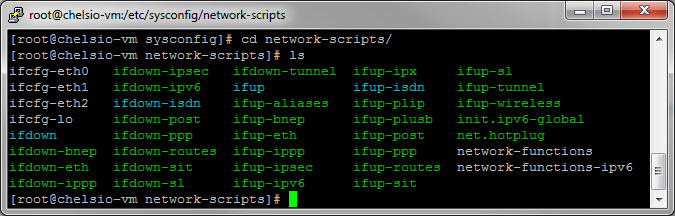
6. Configure the network interface at /etc/sysconfig/network-scripts/ifcfg-ethx

Compiling and Loading of iWARP (RDMA) driver

To use the iWARP functionality with Chelsio adapters, user needs to   install the iWARP drivers as well as the libcxgb4, libibverbs, and librdmacm   libraries. Chelsio provides the iWARP drivers and libcxgb4 library as part of the driver package. The other libraries are provided as part of the Open   Fabrics Enterprise Distribution (OFED) package.

# modprobe cxgb4
# modprobe iw_cxgb4
# modprobe rdma_ucm
# echo 1 >/sys/module/iw_cxgb4/parameters/peer2peer

Testing connectivity with ping and rping.

On the Server,

# rping -s -a server_ip_addr -p 9999

On the Client Server,

# rping -c –Vv -C10 -a server_ip_addr -p 9999

You should see ping data like this

ping data: rdma-ping-0: ABCDEFGHIJKLMNOPQRSTUVWXYZ[\]^_`abcdefghijklmnopqr
ping data: rdma-ping-1: BCDEFGHIJKLMNOPQRSTUVWXYZ[\]^_`abcdefghijklmnopqrs 
ping data: rdma-ping-2: CDEFGHIJKLMNOPQRSTUVWXYZ[\]^_`abcdefghijklmnopqrst 
ping data: rdma-ping-3: DEFGHIJKLMNOPQRSTUVWXYZ[\]^_`abcdefghijklmnopqrstu 
ping data: rdma-ping-4: EFGHIJKLMNOPQRSTUVWXYZ[\]^_`abcdefghijklmnopqrstuv 
ping data: rdma-ping-5: FGHIJKLMNOPQRSTUVWXYZ[\]^_`abcdefghijklmnopqrstuvw 
ping data: rdma-ping-6: GHIJKLMNOPQRSTUVWXYZ[\]^_`abcdefghijklmnopqrstuvwx 
ping data: rdma-ping-7: HIJKLMNOPQRSTUVWXYZ[\]^_`abcdefghijklmnopqrstuvwxy 
ping data: rdma-ping-8: IJKLMNOPQRSTUVWXYZ[\]^_`abcdefghijklmnopqrstuvwxyz 
ping data: rdma-ping-9: JKLMNOPQRSTUVWXYZ[\]^_`abcdefghijklmnopqrstuvwxyzA 
client DISCONNECT EVENT...

Configuring VMDirectPath I/O pass-through devices on an ESX host with Chelsio T4 Card (Part 2)

Note for Installation of the VM:

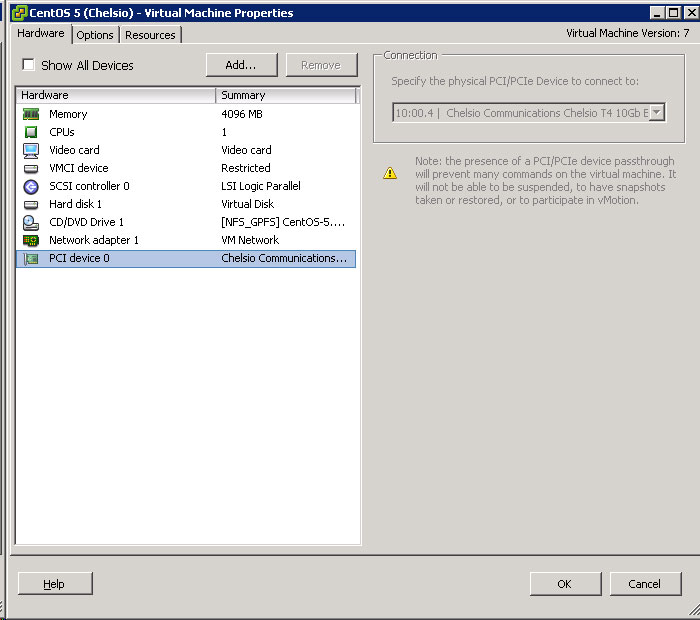
Remember to add the PCI/PCIe Device to the VM. Upon adding, you should be able to see the “10:00.4  | Chelsio Communications Chelsio T4 10GB Ethernet”. See above Pix

Proceed with installation of the VM, you should be able to see the Ethernet settings. Do proceed with the installation of OFED and Chelsio Drivers.

Information:

  1. Configuring VMDirectPath I/O pass-through devices on an ESX host with Chelsio T4 Card (Part 1)