G16NBO is currently configured with only 100000000 words Errors

If you encounter errors when you use NBO7 with Gaussian G16a

This calculation is attempting to allocate 299857248 words of scratch memory,
but G16NBO is currently configured with only 100000000 words. If you have the
NBO6 source distribution, you can reconfigure G16NBO by editing maxmem.fh in
nbo6/src/g16nbo/include and rebuilding the executables.

Dynamic memory allocation in the GenNBO, G09NBO, and G16NBO interfaces to NBO7 has been implemented. The issue has been fixed with the latest download from NBO7 site.

Remember to update  gennbo.sh at your NBO directory

# Examples:

# setenv NBOMEM 50mw
# setenv NBOMEM 512mb
# setenv NBOMEM 1gb

setenv NBOMEM 1gb

References:

Webinar – Best of Healthcare with ANSYS

Introduction to Healthcare Series

26 May 2011:00 – 11:30 am (SGT)

Register >>


Bridging the Gap between Engineering and Healthcare

26 May 2002:00 – 02:30 pm (SGT)

Register >>


Bridging the Gap: How to Translate the Reality into The Computer Language

27 May 2011:00 – 11:30 am (SGT)

Register >>


Computational Modeling of Thoracic Aortic Aneurysm and Its Treatment

27 May 2002:00 – 02:30 pm (SGT)

Register >>


Biomaterials Selection for Biomedical Applications

27 May 2004:00 – 05:00 pm (SGT)

Register >>

Solving environment: failed with initial frozen solve. Retrying with flexible solve

When I was loading my anaconda-2020, I’ve received this error.

conda install -c conda-forge opencv

And I got this error

Solving environment: failed with initial frozen solve. Retrying with flexible solve....

There was this thread from github which was useful and it help a lot! https://github.com/conda/conda/issues/9367

Step 1: To resolve, Create an environment called opencv using

conda create -n opencv

Step 2: Activate it

conda activate opencv

Step 3: Install it again

conda install -c anaconda opencv

(which install opencv 3, but not the most recent 4. In order to create a second environment called opencv4. Use above code to create and activate and do a standard download:

conda install -c conda-forge opencv

Webinar – Powering Your optical Design and Simulation with ANSYS SPEOS

CADIT_ANSYS_22May2020

ANSYS SPEOS
ANSYS SPEOS enable you to design and optimize your optical system quickly and easily, speed your time to market, reduce your physical prototyping and your development time. SPEOS combines lighting performance modeling with extensive, dedicated libraries and optimization capabilities. With SPEOS, you can study the interactions of photons with mechanical geometries to quickly create a functional illumination system for your product. It is a perfect tools for designing, validate and optimize performance of automotive lighting systems, aerospace and deference optic systems, optical sensor test for AV/ADAS and general lightings.

To Register

“Command not found” Errors encountered in Gaussian G16

If you encountered errors when running Gaussian

bash: gview.sh: command not found

OR

bash: g16: command not found

OR

$g16/bsd/g16.profile: Permission denied

Usually it is due to the fact that the user is not in the Gaussian permission group.

Your GV and G16 folders should be in a unique Gaussian group. I have created a Gaussian Group called hpc_g16_group and put all the Gaussian users inside this group. Make sure the entire folder and sub folder of g16 and gv is using the same g16 group

drwxr-x--- 6 admin hpc_g16_group 4492 Aug 27 2019 g16
drwxr-x--- 10 admin hpc_g16_group 391 Feb 18 2019 gv


Compiling ScaLAPACK-2.0.2 on CentOS 7

Prerequisites for SCALAPACK:

  1. Building BLAS Library using Intel and GNU Compiler
  2. Building LAPACK 3.4 with Intel and GNU Compiler
  3. OpenMPI-3.1.4
  4. GNU-6.5

To compile the SCALAPACK

mkdir -p ~/src
wget http://www.netlib.org/scalapack/scalapack-2.0.2.tgz
tar -zxvf scalapack-2.0.2.tgz
cd scalapack-2.0.2
cp SLmake.inc.example SLmake.inc

Edit the scalapack SLmake.inc file. At line 58 and line 59

BLASLIB       = -lblas -L/usr/local/blas
LAPACKLIB     = -llapack -L/usr/local/lapack/lib

At the Linux Console again

make
mv scalapack-2.0.2 /usr/local/

Update and export your LD_LIBRARY_PATH

Installing DiffBind for R-3.6.2

To Install DiffBind, you can follow the instruction found at DiffBind

First thing first, you would need to install BiocManager and then install DiffBand

if (!requireNamespace("BiocManager", quietly = TRUE))
    install.packages("BiocManager")

BiocManager::install("DiffBind")

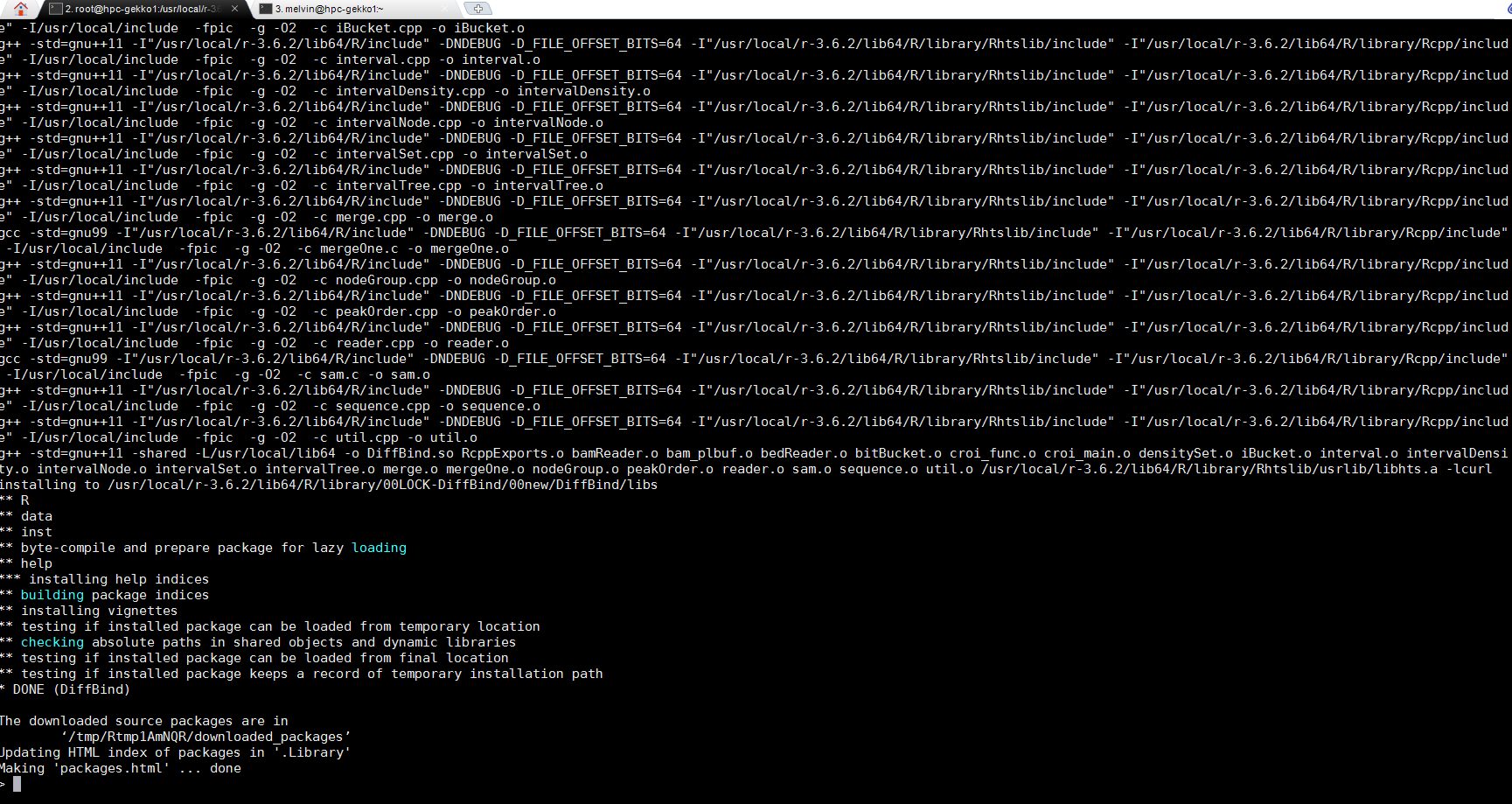
At the end, you should get

To view Documentation,

browseVignettes("DiffBind")


Compiling OpenFOAM-7 with Third-Party-7 with Intel MPI on CentOS 7

Step 1: Create a Directory git clone OpenFOAM-7 and Third-Party-7

# mkdir -p /usr/local/OpenFOAM
# cd OpenFOAM
# git clone https://github.com/OpenFOAM/OpenFOAM-7.git
# git clone https://github.com/OpenFOAM/ThirdParty-7.git

Step 2a: Load Intel Compilers. I loaded the Intel Parallel Cluster Suite 2018

# source /usr/local/intel/2018u3/bin/compilervars.sh intel64
# source /usr/local/intel/2018u3/mkl/bin/mklvars.sh intel64
# source /usr/local/intel/2018u3/impi/2018.3.222/bin64/mpivars.sh intel64
# source /usr/local/intel/2018u3/parallel_studio_xe_2018/bin/psxevars.sh intel64
# export MPI_ROOT=/usr/local/intel/2018u3/impi/2018.3.222/intel64

Step 2b: Create softlink for include64 and lib64 for Intel MPI (if requried only). You can check first. If it is there, it should be something like this.

# ls -l /usr/local/intel/2018u3/impi/2018.3.222/intel64/include64
# lrwxrwxrwx 1 root hpccentrifyusers 7 Aug  9  2019 /usr/local/intel/2018u3/impi/2018.3.222/intel64/include64 -> include

If not there, you may want to do this.

# cd /usr/local/intel/2018u3/impi/2018.3.222/intel64
# ln -s include include64
# ln -s lib lib64

Step 3: Edit the OpenFOAM bashrc

# vim /usr/local/OpenFOAM/OpenFOAM-7/etc/bashrc
......
export FOAM_INST_DIR=/usr/local/$WM_PROJECT
.....
#- Compiler:
# WM_COMPILER = Gcc | Gcc48 ... Gcc62 | Clang | Icc
export WM_COMPILER=Icc
.....
#- MPI implementation:
# WM_MPLIB = SYSTEMOPENMPI | OPENMPI | SYSTEMMPI | MPICH | MPICH-GM | HPMPI
# | MPI | FJMPI | QSMPI | SGIMPI | INTELMPI
export WM_MPLIB=INTELMPI
.....

Step 4: Edit the ThirdParty-7 scotch_6.0.6 Packages

$ cd /usr/local/OpenFOAM/ThirdParty-7/scotch_6.0.9/src
$ vim /usr/local/OpenFOAM/ThirdParty-7/scotch_6.0.9/src/Makefile.inc
AR = icc
...
CCS = icc
CCP = mpicc
...
CFLAGS = $(WM_CFLAGS) -O3 -DCOMMON_FILE_COMPRESS_GZ -DCOMMON_RANDOM_FIXED_SEED -
DSCOTCH_RENAME -Drestrict=__restrict -I$(MPI_ROOT)/include64 -L$(MPI_ROOT)/lib64

Step 5: Go back to OpenFOAM source directory

# source /usr/local/OpenFOAM/OpenFOAM-7/etc/bashrc
# cd /usr/local/OpenFOAM/OpenFOAM-7
# ./Allwmake -j 16 | tee Allwmake.log

Step 6: Testing the OpenFOAM

# ./usr/local/OpenFOAM/OpenFOAM-7/bin/foamInstallationTest