Limiting Users on PBS Professional

Scenario 1: How do we restrict the users to a certain maximum job size within a maximum concurrent number of jobs?

For example, if you would like to restrict users using this queue to a maximum of 4 cores per jobs. But his or her concurrent jobs cannot exceed 16?

qmgr -c "set queue workq max_run_res.ncpus = [u:PBS_GENERIC=16]"
qmgr -c "set queue workq resources_max.ncpus = 4"

The first limit sets max of 16 cores per user for the workq queue (for all jobs)
The second limit sets max of 4 cores per job for workq queue

Scenario 2: How do we ensure that users only run a minimum number of cores in the queue?

For example, if you would like to restrict the users to a minimum 32 cores per job.

qmgr -c " s q workq resources_min.ncpus=32"

Test:

qsub -l select=1:ncpus=16 -q workq -- /bin/sleep 100
qsub: Job violates queue and/or server resource limits

Scenario 3: How do we ensure that users run a minimum number of GPGPU in the queues?

qmgr -c "set server max_run_res.ngpus = [p:my_project_code=2]"

Opening the Door to Big Memory

Join MemVerge, IDC, Intel, NetApp, and Penguin Computing in a webcast introducing a new category of IT that turns scarcity into abundance.

Tuesday, May 19th at 9:00 AM PST

This Webcast Introduces a New Wave of Computing: Big Memory Computing

Memory has been a wonderfully fast but scarce computing resource. This scarcity has resulted in major constraints that prevent applications from processing large amount of real-time data effectively.

These constraints are being removed by a new way of computing: Big Memory Computing. Today, the confluence of persistent memory and Big Memory software makes memory abundant, persistent and highly available. Together, they promise to make the IT world stop, think, and change the way applications are developed and deployed………

For more information, see https://www.memverge.com/opening-the-door-to-big-memory/

To register see https://us02web.zoom.us/webinar/register/WN_gDXc3wD7QtaLhMNc8PCQPg

How is the nproc hard limit calculated and how do we change the value on CentOS 7

Sometimes, you may encountered errors like this during an intensive run.

How do you know the value of the hard limit set? There is a good article by RedHat that explained “How is the nproc hard limit is calculated

According to the article,

The limit depends on the total memory available on the server, which is calculated at boot time by the kernel as explained below:

/*
* Resource limit IDs
*
* ( Compatibility detail: there are architectures that have
* a different rlimit ID order in the 5-9 range and want
* to keep that order for binary compatibility. The reasons
* are historic and all new rlimits are identical across all
* arches. If an arch has such special order for some rlimits
* then it defines them prior including asm-generic/resource.h. )
*/

#define RLIMIT_CPU 0 /* CPU time in sec */
#define RLIMIT_FSIZE 1 /* Maximum filesize */
#define RLIMIT_DATA 2 /* max data size */
#define RLIMIT_STACK 3 /* max stack size */
#define RLIMIT_CORE 4 /* max core file size */

#ifndef RLIMIT_RSS
# define RLIMIT_RSS 5 /* max resident set size */
#endif

#ifndef RLIMIT_NPROC
# define RLIMIT_NPROC 6 /* max number of processes */
#endif

#ifndef RLIMIT_NOFILE
# define RLIMIT_NOFILE 7 /* max number of open files */
#endif

#ifndef RLIMIT_MEMLOCK
# define RLIMIT_MEMLOCK 8 /* max locked-in-memory address space */
#endif

#ifndef RLIMIT_AS
# define RLIMIT_AS 9 /* address space limit */
#endif

#define RLIMIT_LOCKS 10 /* maximum file locks held */
#define RLIMIT_SIGPENDING 11 /* max number of pending signals */
#define RLIMIT_MSGQUEUE 12 /* maximum bytes in POSIX mqueues */
#define RLIMIT_NICE 13 /* max nice prio allowed to raise to
0-39 for nice level 19 .. -20 */
#define RLIMIT_RTPRIO 14 /* maximum realtime priority */
#define RLIMIT_RTTIME 15 /* timeout for RT tasks in us */
#define RLIM_NLIMITS 16
8<---------- 8< ---------------- 8< ---------------- 8< --------

According to the article, For nproc, the limit is calculated in the kernel before the first process is forked in kernel/fork.c called by start_kernel:

>> init_task.signal->rlim[RLIMIT_NPROC].rlim_cur = max_threads/2;
>> init_task.signal->rlim[RLIMIT_NPROC].rlim_max = max_threads/2;

Below is the path to the function :

>> start_kernel
> fork_init(totalram_pages)
> if (max_threads < 20) max_threads = 20;
> init_task.signal->rlim[RLIMIT_NPROC].rlim_cur = max_threads/2;
> init_task.signal->rlim[RLIMIT_NPROC].rlim_max = max_threads/2;

>>>> RLIMIT_NPROC = max_threads/2

- The value of these variables are:

-> max_threads = mempages / (8 * THREAD_SIZE / PAGE_SIZE);
mempages comes from the function argument : fork_init(totalram_pages);
-> #define THREAD_ORDER 2
-> #define THREAD_SIZE (PAGE_SIZE << THREAD_ORDER)
-> PAGE_SIZE = 4096 (but useless)

- mempages is assigned in dmesg during the boot process, for example:

>> Memory: 36 989 916k/38797312k available (5516k kernel code, 1049156k absent, 758240k reserved, 6912k data, 1332k init)
mempages = 36989916k / PAGE_SIZE = 36989916k / 4096 = 9 247 479

- As an example:

RLIMIT_NPROC = (mempages / (8 * THREAD_SIZE / PAGE_SIZE)) / 2
= (mempages / (8 * (PAGE_SIZE << THREAD_ORDER) / PAGE_SIZE )) /2
= ( 9247479 / (8 * (4096 * 4) / 4096 )) / 2
= ( 9247479 / (8 * 4 )) /2
RLIMIT_NPROC = 14 4491.859375

To look at the values of the hard limits using BASH, you can use the command

ulimit -hn
4096

To modify the limits, do proceed to /etc/security/limits.d/20-nproc.conf to change the number

# Default limit for number of user's processes to prevent
# accidental fork bombs.
# See rhbz #432903 for reasoning.

* soft nproc 4096
root soft nproc unlimited


References:

  1. How is the nproc hard limit calculated?
  2. How to set nproc (Hard and Soft) Values in CentOS / RHEL 5,6,7

Compiling ScaLAPACK-2.0.2 on CentOS 7

Prerequisites for SCALAPACK:

  1. Building BLAS Library using Intel and GNU Compiler
  2. Building LAPACK 3.4 with Intel and GNU Compiler
  3. OpenMPI-3.1.4
  4. GNU-6.5

To compile the SCALAPACK

mkdir -p ~/src
wget http://www.netlib.org/scalapack/scalapack-2.0.2.tgz
tar -zxvf scalapack-2.0.2.tgz
cd scalapack-2.0.2
cp SLmake.inc.example SLmake.inc

Edit the scalapack SLmake.inc file. At line 58 and line 59

BLASLIB       = -lblas -L/usr/local/blas
LAPACKLIB     = -llapack -L/usr/local/lapack/lib

At the Linux Console again

make
mv scalapack-2.0.2 /usr/local/

Update and export your LD_LIBRARY_PATH

Setup of Linux OneDrive on CentOS 7

Introduction:
Sometime, you have a huge data sets to transfer and you may not want to hold an active connection all the time. One solution is to use OneDrive especially if you or your organisation has subscribed to Office 365. You should have 1TB of online space.

Step 1: Install Dependencies

yum install libcurl-devel
yum install sqlite-devel
curl -fsS https://dlang.org/install.sh | bash -s dmd
yum install libnotify-devel

Step 2: Git Clone the OneDrive Code

git clone https://github.com/abraunegg/onedrive.git
cd onedrive
./configure
make clean
make
sudo make install

Step 3a: Authorize Microsoft to access your account

You need to authorize onedrive with Microsoft so it can access your account. First start by typing on the console

onedrive

Step 3b: You will be prompted to visit the URL to get permission

Step 4: Log in to your OneDrive account, and grant the app permission to access your account

Step 5: You will see a blank white page. Copy the URL and paste it into the Xterm

Step 6: Copy the URL and paste it into the Xterm  “Enter the response uri”


 Configuration

By default, all files are downloaded in ~/OneDrive and hidden files are skipped.  If you want to change the defaults, you can copy and edit the included config file into your ~/.config/onedrive directory:

mkdir -p ~/.config/onedrive
cp /usr/local/onedrive/config ~/.config/onedrive/config
vim ~/.config/onedrive/config

Available options:

  • sync_dir: directory where the files will be synced
  • skip_file: any files or directories that match this pattern will be skipped during sync.

For example,

If I want to sync everything except Confidential and Personal Folders

# Directory where the files will be synced
sync_dir = "~/OneDrive/"
# Skip files and directories that match this pattern
skip_file = ".*|Confidential|Personal"

Note: after changing the sync list, you must perform a full synchronization by executing

onedrive --resync --synchronize

Step 7: Sync List

If you wish to do selective sync instead of the whole OneDrive Folder, you can create a file called sync list and put it in the “~/.config/onedrive” folder and add the relative path from the OneDrive to the folder you want to sync

% touch ~/.config/onedrive/sync_list

For example, when you place a g2o folder into ~/OneDrive and only one to sync this particular folder. Your sync_list should only contain

g2o

One Drive Service

If you want to sync your files automatically, enable and start the systemd service:

systemctl --user enable onedrive
systemctl --user start onedrive

References:

  1. How to Sync Microsoft OneDrive with Linux
  2. https://github.com/abraunegg/onedrive

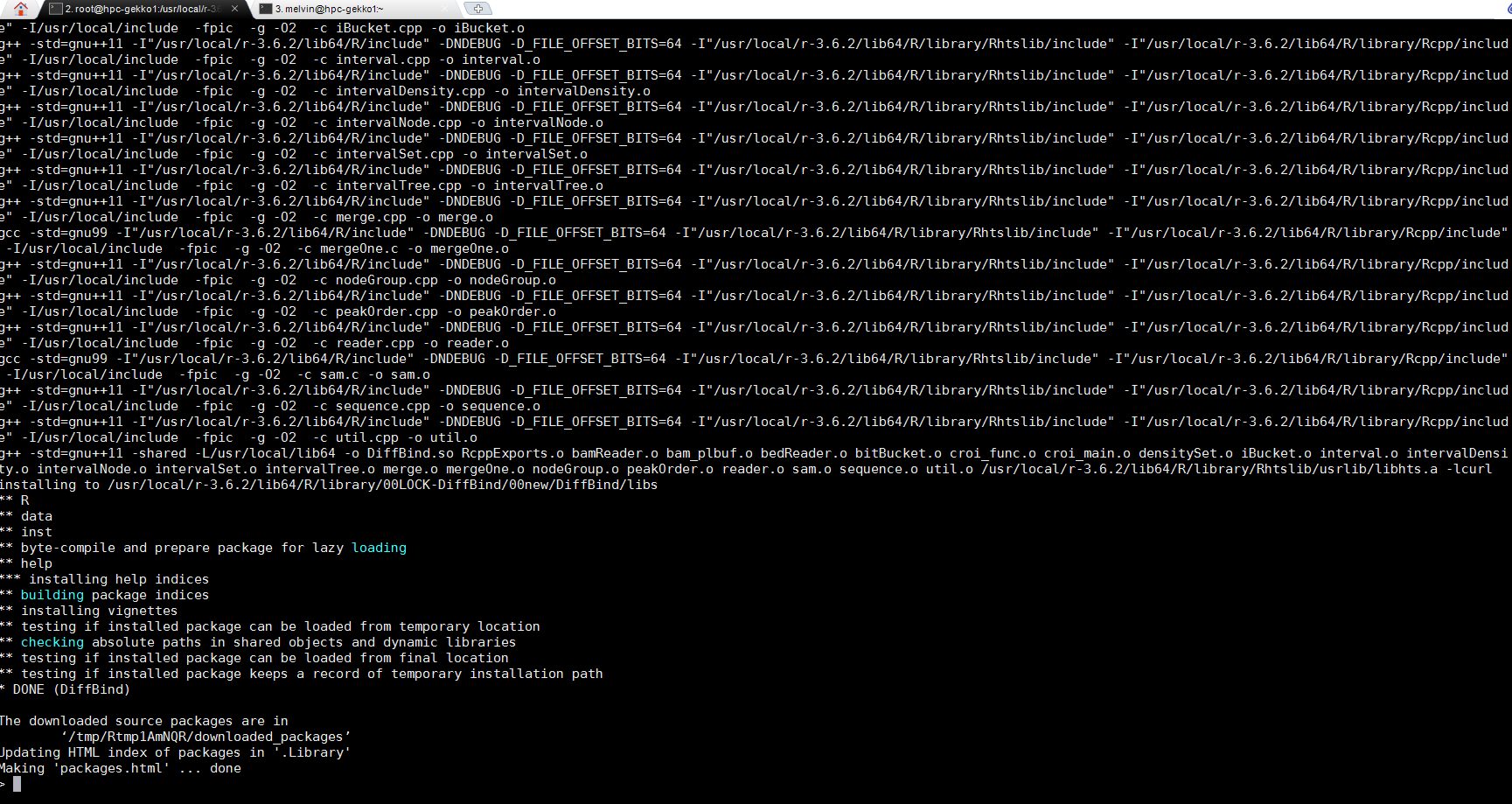
Installing DiffBind for R-3.6.2

To Install DiffBind, you can follow the instruction found at DiffBind

First thing first, you would need to install BiocManager and then install DiffBand

if (!requireNamespace("BiocManager", quietly = TRUE))
    install.packages("BiocManager")

BiocManager::install("DiffBind")

At the end, you should get

To view Documentation,

browseVignettes("DiffBind")


The discovery machines – how supercomputers will shape the future of data-driven science

Research infrastructures play a key role in delivering high quality scientific data to many scientific communities. In the future, we will face a tremendous increase in data volume and rate at these facilities. This will fundamentally change the role of computing at these facilities. With this change new possibilities of using supercomputers for science arise. We will discuss how that future might look like, what is necessary to bring it to reality and – most importantly – how this will allow to foster interdisciplinary science in a complex world.

Upgrading firmware for Super-Dome Flex

Step 1: Log into the HPE Superdome Flex Server operating system as the root user, and enter the following command to stop the operating system:

# shutdown


Step 2: Login to the RMC as administrator user, provide the password when prompted.

Use of DNS is recommended. If using DNS, verify that the RMC is configured to use DNS access by running:

RMC cli> show dns

If not, you may use the command “add dns” to configure DNS access (or you can’t use DNS).


Step 3: Enter the following command to power off the system:

If there is only 1 partition, partition 0 is the default:

RMC cli> power off npar pnum=0

In case of multiple partitions, enter show npar to find the partition number, then enter:

RMC cli> power off npar pnum=x

(where x is the partition number)


Step 4: Update the firmware by running the command:

RMC cli> update firmware url=<path_to_firmware>

Where <path_to_firmware>  specifies the location to the firmware file that you previously downloaded. You can use https, sftp or scp with an optional port. For instance:

RMC cli> update firmware url=scp://username@myhost.com/sd-flex-<version>-fw.tars
RMC cli> update firmware url=sftp://username@myhost.com/sd-flex-<version>-fw.tars
RMC cli> update firmware url=https://myhost.com/sd-flex-<version>-fw.tars
RMC cli> update firmware url=https://myhost.com:123/sd-flex-<version>-fw.tars

Note: The CLI does not accept clear text password, the password has to be manually typed in.

Note: To use a hostname like ‘myhost.com’, RMC must be configured for DNS for name resolution, otherwise you need to specify the IP address of ‘myhost.com’ instead. See the command ‘add dns’ for more information.


Step 5: Wait for RMC to reboot after a successful FW update, then check the new firmware version installed by running:

RMC cli> show firmware verbose

Note: The nPar firmware version will not be updated until the next nPar reboot. See output under “DETERMINING CURRENT VERSION” below.


Step 6: Power on the system or partition:

– To power up a system configured with all chassis in one large nPartition numbered 0, enter:

RMC cli>  power on pnum=0

.- If you have multiple npars, each npar can be powered on separately using:

RMC cli>  power on npar pnum=x

, where x is the partition number.


Step 7: Determining Current Version:

To check or verify the current firmware levels on the system, from the CLI, enter the RMC command:

RMC cli>  show firmware