
CentOS Project is shifting to CentOS Stream
The CentOS project recently announced a shift in strategy for CentOS.
- It will be shifting to an upstream build (testing patches and updates before inclusion in the upstream vendor).
- Additionally, support for CentOS Linux 8 has been cut short, from May 31, 2029 to December 31, 2021.
- CentOS 7 will continue to be supported as a downstream version of RHEL 7 till Jun 2024.

- Pictures Taken from https://rheb.hatenablog.com/
Where do we go from here? We can look at Rocky Linux. Rocky Linux aims to function as a downstream build as CentOS had done previously, building releases after they have been added by the upstream vendor, not before. Rocky Linux is led by Gregory Kurtzer, founder of the CentOS project.
Power On and Booting the Server
Step 1: Logged in to your RMC
Step 2: Check the state of the system. To view the partition configuration, enter show npar.
RMC cli> show npar pnum=0
RMC cli> show complex
If no errors are indicated, then proceed to power up the system.
If there are errors, run
RMC cli>show logs error
and resolve the errors before powering up the system.
Step 3: To power up the system, assuming it is configured with all chassis in one large nPartition numbered 0
RMC cli> power on npar pnum=0
References:
Powering Off SuperDome Flex System
Step 1: Power down the SuperDome Flex Server via OS
% shutdown -h now
Step 2: Log into the RMC as the administrator user, and enter the following command to power OFF the system:
RMC cli> power off npar pnum=0
To power RMC OFF a single partition, enter the following command:
RMC cli> power off npar pnum=x
Where x=nPar number.
If the above command is not workable, you may have to force power off
RMC cli> power off npar pnum=0 force
Step 3: Enter the following command, and verify that the Run State is OFF:
RMC cli> show npar
 Partitions: 1
 Par      Run      Status    Chassis HT  RAS  CPUs      Memory (GB)    IO Cards  Boot      Boot Boot
 Num      State               OK/In           OK/In     In/OK          OK/In     Chassis   Slots
 ===== ========== ========== ======= === === ========= ============== ========= ======== ============
 p0       Off       OK         1/1   off on    4/4     256/256          0/0      r001i01b  3,5
  * OK/In = OK/Installed
References:
Basic Tracing of Jobs Issues in PBS Professional
Step 1: Proceed to the Head Node (Scheduler)
Once you have the Job ID you wish to investigate, go to the Head Node and do. The “-n” is the number of days to search logs at
% tracejob -n 10 jobID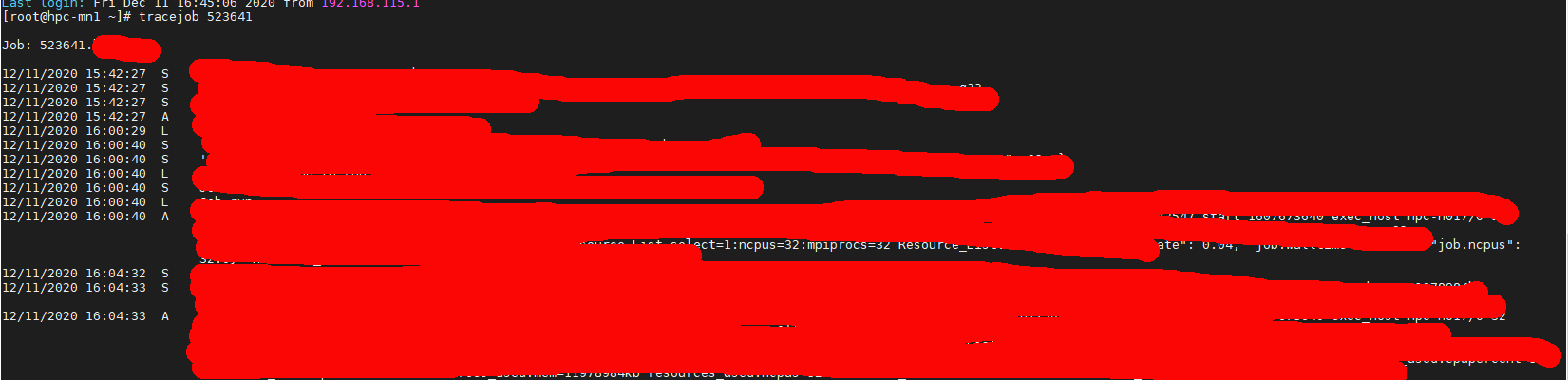
From the tracejob, you will be able to take a peek which node the job landed. Next you can go the node in question and find information from the mom_logs
% vim /var/spool/pbs/mom_logs/thedateyouarelookingatFor example,
% vim /var/spool/pbs/mom_logs/20201211Using Vim, search for the Job ID
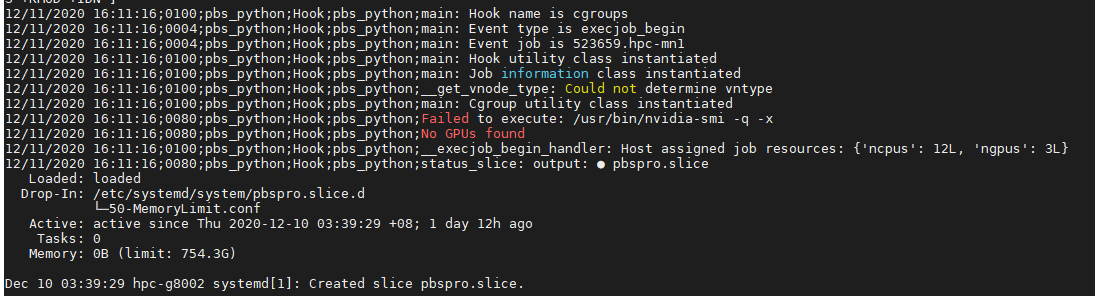
? yourjobIDYou should be able to get a good hint of what has happened. In my case is that my nvidia drivers are having issues.
Licensing error while opening ANSYS Fluent Meshing
The usage of Fluent was smooth. But when I launched the Fluent (Fluent with Meshing)

I’ve got this error. “No license is available at this time”

Taking a look at ANSYS Learning Forum, According to the forum (Licensing error while opening ANSYS Mechanical) “That error message would appear when there is another operation going on that won’t allow the license to be shared , such as meshing or solving, etc.”
To resolve the issue:
- Execute the command “/usr/local/ansys_inc/v195/commonfiles/tools/linx64/ansyslm_relutil -userprefs
You should see the dialog box.

You have to go to the bottom of the dialog box “When using Workbench, would you like to”, Use a separate license for each application
Finally, close the application and restart. The issue should go away.
References:
SC20 Keynote – Climate Science in the Age of Exascale with Professor Bjorn Stevens
Stevens discusses how exascale computing is impacting two opportunities that are changing the face of climate science. One arises from what exascale will enable; the other from what it will not.
timeout in locking authority file /home/user1/.Xauthority
If you are encountering delays in entering your linux account and instead notice
/usr/bin/xauth: timeout in locking authority file /home/user1/.Xauthority
The Issue is that xauth is trying to open a lock files.
To resolve the issues, first list the file to check whether it exists
% ls -l .Xauthority*
% rm -fr .Xauthority-*
Log off and Log on again.
Build Your Own Conversational AI Application with NVIDIA Jarvis
Using FIO to measure IO Performance
FIO is a tool for measuring IO performance. You can use FIO to run a user-defined workload and collect the associated performance data.
A good writeup can be found at Fio Basics. For more information, do MAN on fio
Step 1: To Install fio, make sure you activated the epel repository.
# yum install fioParameters to be used.
% fio --filename=myfio --size=5GB --direct=1 --rw=randrw --bs=4k --ioengine=libaio --iodepth=256 --runtime=120 --numjobs=4 --time_based --group_reporting --name=iops-test-job --eta-newline=1- –filename
An entire block size or filename can be specified. For example if you are testing block size filename=/dev/sda:/dev/sdb - –size
Indicate the size of the test file generated. If you are testing the block size and did not specify the size, the entire block will be used. - –direct=1
This means that the page cache is bypassed. No memory is used. - –rw
Check whether IO is access sequentially or randonly. There are a few options.
read – Sequential reading
write – Sequential Write
randread – random reading
randwrite – random writing
readwrite , rw – Mixed, sequential workload
randrw – Mixed Random Workload - –bs
Block Size. By default 4kB is used. - –ioengine=libiao
libaio enables asynchronous access from the application level. The option would requires –direct=1 - –iodepth
Refers to how many requests. - –numjobs
Specifies the number of processes that start the jobs in parallel - –runtime
Terminate processing after the specified period of time - –name
Name of the job - –time-based
fio will run for the duration of the runtime specified - –group_reporting
Display statistics for groups of jobs as a whole instead of for each individual job. This is especially true if
numjobs is used;
 The Linux Cluster