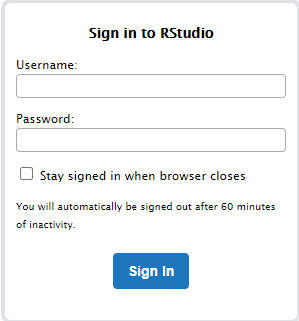
Configuring External libraries for R-Studio for CentOS 7

RStudio can be configured by adding entries to 2 configuration files. It may not exist by default and you may need to create

/etc/rstudio/rserver.conf
/etc/rstudio/rsession.conf

If you need to add additional libraries to the default LD_LIBRARY_PATH for R sessions. You have to add the parameters to the /etc/rstudio/rserver.conf

Step 1: Enter External Libraries settings
For example, you may want to add GCC-6.5 libraries

# Server Configuration File
rsession-ld-library-path=/usr/local/gcc-6.5.0/lib64:/usr/local/gcc-6.5.0/lib

Step 2a: Stop the R Server Services

# /usr/sbin/rstudio-server stop

Step 2b: Verify the Installation

# rstudio-server verify-installation

Step 2c: Start the R Server Services

# /usr/sbin/rstudio-server start
# /usr/sbin/rstudio-server status

(Make sure there is no error)

References:
  1. RStudio Server: Configuring the Server


Regression Test Errors during Gromacs Compilation

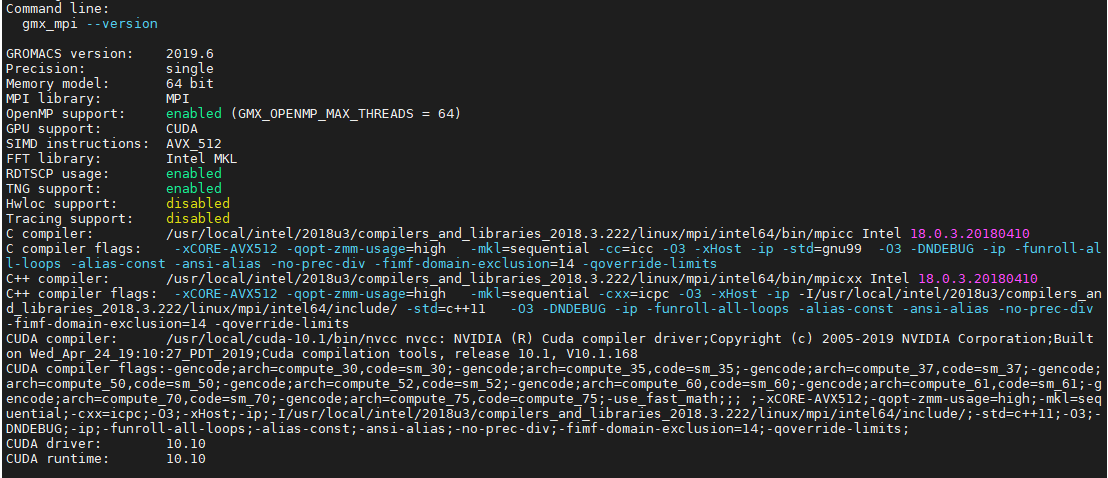
If you are compiling Gromacs like Compiling Gromacs-2019.3 with Intel MKL and CUDA and encounter errors similar to the ones below:

Downloading: http://gerrit.gromacs.org/download/regressiontests-2020.3.tar.gz -- [download 100% complete] CMake Error at tests/CMakeLists.txt:57 (message): error: downloading 'http://gerrit.gromacs.org/download/regressiontests-2020.3.tar.gz' failed status_code: 7 status_string: 

"Couldn't connect to server" log: Trying 130.237.25.133... TCP_NODELAY set Connected to gerrit.gromacs.org (130.237.25.133) port 80 (#0) GET /download/regressiontests-2020.3.tar.gz HTTP/1.1 Host: gerrit.gromacs.org User-Agent: curl/7.54.1 Accept: */* HTTP/1.1 302 Found Date: Mon, 28 Dec 2020 02:26:13 GMT Server: Apache/2.4.18 (Ubuntu) Location: ftp://ftp.gromacs.org/regressiontests/regressiontests-2020.3.tar.gz Content-Length: 335 Content-

Type: text/html; charset=iso-8859-1 Ignoring the response-body [335 bytes data] Connection #0 to host gerrit.gromacs.org left intact Issue another request to this URL: 'ftp://ftp.gromacs.org/regressiontests/regressiontests-2020.3.tar.gz' Trying 130.237.11.165... TCP_NODELAY set 

Connected to ftp.gromacs.org (130.237.11.165) port 21 (#1) 220 Welcome to the GROMACS FTP service. USER anonymous 331 Please specify the password. PASS ftp@example.com 230 Login successful. PWD 257 "/" is the current directory Entry path is '/' CWD regressiontests ftp_perform ends with SECONDARY: 0 250 Directory successfully changed. ..... ..... Connecting to 130.237.11.165 (130.237.11.165) port 10087 connect to 130.237.11.165 port 21 failed: Connection timed out Failed to connect to ftp.gromacs.org port 21: Connection timed out Closing connection 1

To workaround,

Step 1: Download the Relevant Test from https://ftp.gromacs.org/regressiontests/

Step 2: Untar the regression test to the Gromacs Source Directory

% tar -zxvf  egressiontests-2019.6.tar.gz

Step 3: Create a script file

% touch gromacs_gpgpu.sh

Include -DREGRESSIONTEST_DOWNLOAD=OFF -DREGRESSIONTEST_PATH=../regressiontests-2019.6

To see the whole makefile, see

CC=mpicc CXX=mpicxx cmake .. -DCMAKE_C_COMPILER=mpicc -DCMAKE_CXX_COMPILER=mpicxx -DGMX_MPI=on -DGMX_FFT_LIBRARY=mkl \
-DCMAKE_INSTALL_PREFIX=/usr/local/gromacs-2019.3_intel18_mkl_cuda11.1 -DREGRESSIONTEST_DOWNLOAD=OFF -DREGRESSIONTEST_PATH=../regressiontests-2019.6 \
-DCMAKE_C_FLAGS:STRING="-cc=icc -O3 -xHost -ip" \
-DCMAKE_CXX_FLAGS:STRING="-cxx=icpc -O3 -xHost -ip -I/usr/local/intel/2018u3/compilers_and_libraries_2018.3.222/linux/mpi/intel64/include/" \
-DGMX_GPU=on \
-DCUDA_TOOLKIT_ROOT_DIR=/usr/local/cuda-10.1 \
-DCMAKE_BUILD_TYPE=Release \
-DCUDA_HOST_COMPILER:FILEPATH=/usr/local/intel/2018u3/compilers_and_libraries_2018.3.222/linux/bin/intel64/icpc


Licensing error while opening ANSYS Fluent Meshing

The usage of Fluent was smooth. But when I launched the Fluent (Fluent with Meshing)

I’ve got this error. “No license is available at this time”

Taking a look at ANSYS Learning Forum, According to the forum (Licensing error while opening ANSYS Mechanical) “That error message would appear when there is another operation going on that won’t allow the license to be shared , such as meshing or solving, etc.

To resolve the issue:

  1. Execute the command “/usr/local/ansys_inc/v195/commonfiles/tools/linx64/ansyslm_relutil -userprefs

You should see the dialog box.

You have to go to the bottom of the dialog box “When using Workbench, would you like to”, Use a separate license for each application

Finally, close the application and restart. The issue should go away.

References:

  1. Licensing error while opening ANSYS Mechanical

MPI related Errors for ANSYS-20.1

One of my users was facing the issues when running ANSYS-20.1 Fluent

Error: eval: unbound variable
Error Object: c-flush
...
...
...
libibverbs: Warning: no userspace device-specific driver found for /sys/class/infiniband_verbs/uverbs1
libibverbs: Warning: no userspace device-specific driver found for /sys/class/infiniband_verbs/uverbs2
libibverbs: Warning: no userspace device-specific driver found for /sys/class/infiniband_verbs/uverbs1
libibverbs: Warning: no userspace device-specific driver found for /sys/class/infiniband_verbs/uverbs2
libibverbs: Warning: no userspace device-specific driver found for /sys/class/infiniband_verbs/uverbs1
fluent_mpi.20.1.0: Rank 0:110: MPI_Init: ibv_create_qp(left ring) failed
fluent_mpi.20.1.0: Rank 0:110: MPI_Init: probably you need to increase pinnable memory in /etc/security/limits.conf
fluent_mpi.20.1.0: Rank 0:110: MPI_Init: ibv_ring_createqp() failed
fluent_mpi.20.1.0: Rank 0:110: MPI_Init: Can't initialize RDMA device
fluent_mpi.20.1.0: Rank 0:110: MPI_Init: Internal Error: Cannot initialize RDMA protocol
...
...
...

There were a few steps that we took to resolve the issues. Do look at the generated logs which will give lots of information. If you are using the PBS-Professional. your fluent script may look like this.

fluent 3ddp -g -t$nprocs -mpi=ibmmpi -cflush -ssh -lsf -cnf=$PBS_NODEFILE -pinfiniband -nmon -i $inputfile >& $PBS_JOBID.log 2>&1
  • Do note that “-cflush” and that it should be placed after the -mpi flag. From our observation, if the -cflush is placed before -mpi, it seems to initiate the flush, but another error would be generated.
  • Make sure you choose the right mpi parameter.


Installing R-Studio on CentOS-7

Prerequisites

  • R-Studio (rstudio-server-rhel-1.3.1093-x86_64.rpm)
  • R-3.6.3
  • GNU-6.5
  • m4-1.4.18
  • gmp-6.1.0
  • mpfr-3.1.4
  • mpc-1.0.3
  • isl-0.18
  • gsl-2.1

Step 1: Download R-Studio v1.3.1093

On your terminal, Download the free version RStudio Server v1.3.1093 from RStudio.com

Step 2: Install R-Studio v1.3.1093

Follow the Install Process as written in https://rstudio.com/products/rstudio/download-server/redhat-centos/

% wget https://download2.rstudio.org/server/centos6/x86_64/rstudio-server-rhel-1.3.1093-x86_64.rpm
% yum install rstudio-server-rhel-1.3.1093-x86_64.rpm

Step 3: Verify Installation

% /usr/sbin/rstudio-server verify-installation

Step 4: Make sure the R is compiled and placed correctly

  • Make sure the R –enable-R-shlib flags
  • RStudio will search for your installation of R in the traditional locations, such as RStudio will search for your installation of R in the traditional locations, such as
    /usr/bin/R
    /usr/local/bin/R

    If R is not installed in these locations, RStudio may not be able to find it.

Step 5: Fixing Login Issues

If you managed to launch the R-Studio,


But not able to or having error. Do take a look at PAM authentication in RStudio Connect

Simply copy /etc/pam.d/login and replace the /etc/pam.d/rstudio

% cp /etc/pam.d/login /etc/pam.d/rstudio


Useful References:

  1. RStudio Server Will Not Start
  2. PAM authentication in RStudio Connect