The following command can be used to
RMC> show npar
RMC> modify npar pnum=PARTITION_ID hthread={on,off}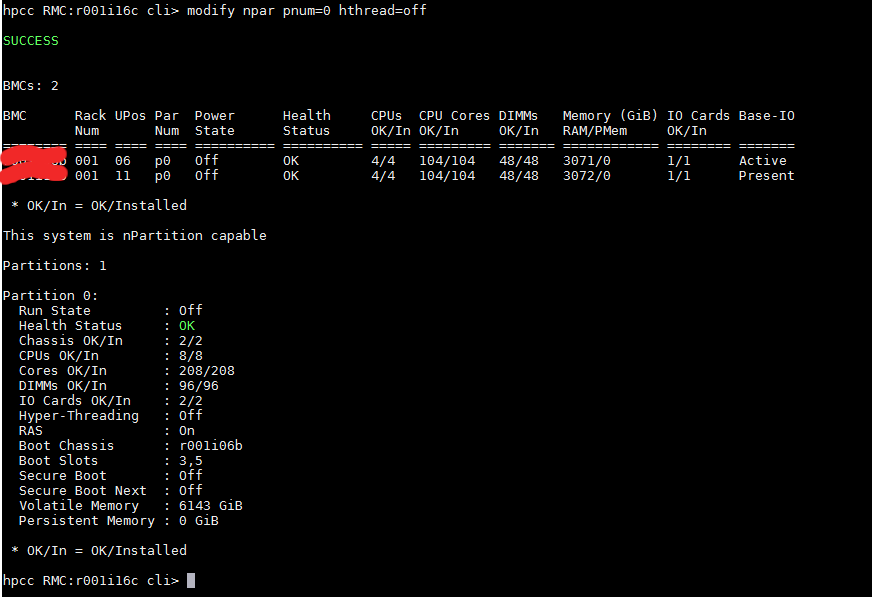
References:

The following command can be used to
RMC> show npar
RMC> modify npar pnum=PARTITION_ID hthread={on,off}References:
Step 1: Logged in to your RMC
Step 2: Check the state of the system. To view the partition configuration, enter show npar.
RMC cli> show npar pnum=0
RMC cli> show complex
If no errors are indicated, then proceed to power up the system.
If there are errors, run
RMC cli>show logs error
and resolve the errors before powering up the system.
Step 3: To power up the system, assuming it is configured with all chassis in one large nPartition numbered 0
RMC cli> power on npar pnum=0
References:
Step 1: Power down the SuperDome Flex Server via OS
% shutdown -h now
Step 2: Log into the RMC as the administrator user, and enter the following command to power OFF the system:
RMC cli> power off npar pnum=0
To power RMC OFF a single partition, enter the following command:
RMC cli> power off npar pnum=x
Where x=nPar number.
If the above command is not workable, you may have to force power off
RMC cli> power off npar pnum=0 force
Step 3: Enter the following command, and verify that the Run State is OFF:
RMC cli> show npar
 Partitions: 1
 Par      Run      Status    Chassis HT  RAS  CPUs      Memory (GB)    IO Cards  Boot      Boot Boot
 Num      State               OK/In           OK/In     In/OK          OK/In     Chassis   Slots
 ===== ========== ========== ======= === === ========= ============== ========= ======== ============
 p0       Off       OK         1/1   off on    4/4     256/256          0/0      r001i01b  3,5
  * OK/In = OK/Installed
References:
Step 1: Log into the HPE Superdome Flex Server operating system as the root user, and enter the following command to stop the operating system:
# shutdown
Step 2: Login to the RMC as administrator user, provide the password when prompted.
Use of DNS is recommended. If using DNS, verify that the RMC is configured to use DNS access by running:
RMC cli> show dns
If not, you may use the command “add dns” to configure DNS access (or you can’t use DNS).
Step 3: Enter the following command to power off the system:
If there is only 1 partition, partition 0 is the default:
RMC cli> power off npar pnum=0
In case of multiple partitions, enter show npar to find the partition number, then enter:
RMC cli> power off npar pnum=x
(where x is the partition number)
Step 4: Update the firmware by running the command:
RMC cli> update firmware url=<path_to_firmware>
Where <path_to_firmware> specifies the location to the firmware file that you previously downloaded. You can use https, sftp or scp with an optional port. For instance:
RMC cli> update firmware url=scp://username@myhost.com/sd-flex-<version>-fw.tars
RMC cli> update firmware url=sftp://username@myhost.com/sd-flex-<version>-fw.tars
RMC cli> update firmware url=https://myhost.com/sd-flex-<version>-fw.tars
RMC cli> update firmware url=https://myhost.com:123/sd-flex-<version>-fw.tars
Note: The CLI does not accept clear text password, the password has to be manually typed in.
Note: To use a hostname like ‘myhost.com’, RMC must be configured for DNS for name resolution, otherwise you need to specify the IP address of ‘myhost.com’ instead. See the command ‘add dns’ for more information.
Step 5: Wait for RMC to reboot after a successful FW update, then check the new firmware version installed by running:
RMC cli> show firmware verbose
Note: The nPar firmware version will not be updated until the next nPar reboot. See output under “DETERMINING CURRENT VERSION” below.
Step 6: Power on the system or partition:
– To power up a system configured with all chassis in one large nPartition numbered 0, enter:
RMC cli> power on pnum=0
.- If you have multiple npars, each npar can be powered on separately using:
RMC cli> power on npar pnum=x
, where x is the partition number.
Step 7: Determining Current Version:
To check or verify the current firmware levels on the system, from the CLI, enter the RMC command:
RMC cli> show firmware
1. Display current complex information
RMC cli> show complex
2. Display current attached chassis
RMC cli> show chassis list
3. Display current health status
RMC cli> show health
4. Display current partition inside the server
RMC cli> show npar
5. Display components that have been indicted
RMC cli> show indict
6. View event in Core Analysis Engine
RMC cli> show cae
7. Acquit indicted hardware
RMC cli> acquit all
8. To Power On partition
RMC cli> power on
9. To Power Off partition
RMC cli> power off
 The Linux Cluster