Acknowledgement:
Much of these materials come from VirtualGL documents with additional notes by me from the field.
1. What is VirtualGL?
“VirtualGL is an open source package which gives any Unix or Linux remote display software the ability to run OpenGL applications with full 3D hardware acceleration…..With VirtualGL, the OpenGL commands and 3D data are instead redirected to a 3D graphics accelerator on the application server, and only the rendered 3D images are sent to the client machine……” For more information see What is VirtualGL? from Project Website
2. System Requirements:
See VirtualGL System Requirements from Project Website.
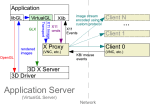 Taken from Virtual GL
3. Download and Install TurboJPEG and VirtualGL on CentOS 5.x.
For more detailed information, see
User Guide for Virtual 2.1.4
a. Download and Install TurboJPEG….
Go to the VirtualGL Download page
# rpm -Uvh turbojpeg*.rpm
b. Download and Install VirtualGL….
Go to the VirtualGL Download page
# rpm -Uvh VirtualGL*.rpm
4. Accessing to the 3D Xserver
According to the Project Website, VirtualGL requires access to the application server’s 3D graphics card so that it can create off-screen pixel buffers (Pbuffers) and redirect the 3D rendering from applications into these Pbuffers.
a. Shutdown Display Manager
# init 3
5. Configure VirtualGL Server Configuration
a. Run
# /opt/VirtualGL/bin/vglserver_config
b. Only users in the vglusers group can use VirtualGL
Restrict local X server access to vglusers group (recommended)?
[Y/n] Y
c. Only users in the vglusers group can run OpenGL applications on the VirtualGL server
Restrict framebuffer device access to vglusers group (recommended)?
[Y/n] Y
d. Disabling XTEST will prevent them from inserting keystrokes or mouse events and thus hijacking local X sessions on that X server.
Disable XTEST extension (recommended)?
[Y/n] Y
e. If you choose to restrict X Server or framebuffer device access to the vglusers group, then add root and users to the vglusers group
# vim /etc/group
vglusers:x:1800:root,user1,user2
f. Restart the Display Manager.
# init 5
(To verify that the application server is ready to run VirtualGL, log out of the server, log back into the server using SSh, and execute the following commands in the SSh session)
g. If you restricted 3D X server access to vglusers
xauth merge /etc/opt/VirtualGL/vgl_xauth_key
xdpyinfo -display :0
/opt/VirtualGL/bin/glxinfo -display :0
h. If you did not restrict 3D X server access
xdpyinfo -display :0
/opt/VirtualGL/bin/glxinfo -display :0
6. SSH Server Configuration
# vim /etc/ssh/sshd_config
X11Forwarding yes
# UseLogin No
*7. Checking that the OpenGL are using hardware drivers and direct rendering enabled to maximise performance.
# glxinfo |grep render
For example,
direct rendering: Yes
OpenGL renderer string: Quadro FX 3450/4000 SDI/PCI/SSE2
GL_NVX_conditional_render, GL_SGIS_generate_mipmap, GL_SGIS_texture_lod,
*8. Install and configure TurboVNC Server at the VirtualGL Server
a. Firstly, I uninstall the CentOS default vncserver
# yum remove vnc-server
b. Go to the VirtualGL Download to obtain and install the TurboVNC.rpm
# rpm -Uvh turbovnc*.rpm
c. The default rpm install places TurboVNC at /opt. You can create softlink at /usr/bin to /opt/TurboVNC
# ln -s /opt/TurboVNC/bin/vncserver /usr/bin/vncserver
# ln -s /opt/TurboVNC/bin/vncviewer /usr/bin/vncviewer
# ln -s /opt/TurboVNC/bin/vncpasswd /usr/bin/vncpasswd
# ln -s /opt/TurboVNC/bin/Xvnc /usr/bin/Xvnc
*9. Using TurboVNC
Open a session of VNC by simply typing
# vncserver
New 'kittycool:1 (root)' desktop is kittycool:1

Starting applications specified in /root/.vnc/xstartup
Log file is /root/.vnc/kittycool:1.log
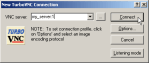
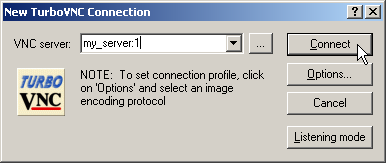
(In the VNC Client, type)
kittycool:1
To Test whether the Virtual Server is working, type
# cd /opt/VirtualGL/bin
# ./vglrun glxgears

You will see a near smooth generation of the glxgears relative to hardware. Congrat!





 The Linux Cluster