Understand parameters in /etc/fstab

Exemplar for fixed media file system

Read an interesting article from Dr. Brown’s Administration (January 2012 Edition). I have used the material inside to

If you look at your /etc/fstab file,  you may be wondering what are those parameter settings in the

LABEL=/home             /data                   ext3    defaults        1 2

Column 1 (“LABEL=/home“) – Label assigned to the filesystem when it was created

Column 2 (“/data“) – Mount point within the directory

Column 3 (“ext3“) – Type of filesystem. Supported types includes ext2, ext3, ext4, reiserfs, isi9660,nfs etc

Column 4 (“defaults”) – Mount Options. Valid options depend on the filesystem type

Column 5 (“1”) – Interpreted by the dump command if you use it to make backup (1 = Make backups, 0 = Do not)

Column 6 (“2”) –  The order in which fsck will check the filesystem at boot time. ( 1 = the root partition, >1 = non-root partition), 0 = no check which is appliable for removable media or NFS)


Exemplar for movable media

/dev/sdd    /media/dvdrom    auto   ro, noauto, user 0 0

Column 1 (“/dev/sdd”) – The name of the dvd-rom device

Column 2 (“/media/dvdrom”) – The mount point

Column 3 (“auto”) – Tell the kernel to determine the filesystem type automatically

Column 4 (“ro, auto, user”) –

  • ro -> read only
  • noauto -> don’t mount boot time
  • user non-root users can mount it (for security, the following option are implied
    • nosuid (do not honour the set-user-id bit on files)
    • nodev  (do not honour device file entries)
    • noexec (do not treat files as executable)

Column 5 and Column 6 as above.

Using stunnel to generate to create a self-signed certificate for SL 6 and CentOS 6

Much of this material comes from the CentOS 5 guide but applied on SL 6 and CentOS 6

The stunnel Program allows administrator to create self-signed certification using external OpenSSL Libraries included with RHEL and its clone to provide strong cryptography and protect connection.

First ensure you have your repositories enabled. For more information on SL 6 and CentOS 6, see Repository of CentOS 6 and Scientific Linux 6

# yum install stunnel

To create a self-signed SSL certificate, first go to /etc/pki/tls/certs/ directory

# cd /etc/pki/tls/certs/
# make stunnel.pem

Answer all the questions.

Once the certificate is generated, it is possible to use the stunnel command to start the Pop3d mail daemon using the following command:

# /usr/sbin/stunnel -d 995 -l /usr/sbin/pop3d pop3d

Once this command is issued, it is possible to open an POP3 email client and connect to the email server using SSL encryption.

Using strace as a troubleshooting tool

Strace, when runs in conjunction with a program do output all the calls made to the kernel by the program.

One of quick way to found out what is going on in your program is to do

$ strace -c ./my_hello_world_program
% time     seconds  usecs/call     calls    errors syscall
------ ----------- ----------- --------- --------- ----------------
74.80    0.002998        1499         2           wait4
21.91    0.000878           4       221           read
0.95    0.000038           0       237         2 mmap
0.77    0.000031          10         3         1 mkdir
0.67    0.000027           0       566       361 open
0.35    0.000014           0        81           mprotect
0.30    0.000012           0        62        37 stat
0.25    0.000010           0       225           close
0.00    0.000000           0        37         1 write
0.00    0.000000           0       132           fstat
0.00    0.000000           0         8           poll
0.00    0.000000           0         2           lseek
0.00    0.000000           0       120           munmap
0.00    0.000000           0        15           brk
0.00    0.000000           0        16           rt_sigaction
................

................

------ ----------- ----------- --------- --------- ----------------
100.00    0.004008                  1990       411 total

If you wish to do a tracing, just do a, you can easily find out the error if there was….

$ strace ./my_hello_world_program
............

............

open("/tmp/openmpi-sessions-root@starfruit-h00.cluster.spms.ntu.edu.sg_0/25979/1/0",
O_RDONLY|O_NONBLOCK|O_DIRECTORY) = -1 ENOENT (No such file or directory)
munmap(0x2b46e05ef000, 2111200)         = 0
munmap(0x2b46dffe5000, 2102312)         = 0
munmap(0x2b46dfdde000, 2123264)         = 0
munmap(0x2b46e103f000, 2106960)         = 0
munmap(0x2b46e1242000, 2104560)         = 0
munmap(0x2b46e269d000, 2114912)         = 0
munmap(0x2b46e41c9000, 2145008)         = 0
munmap(0x2b46e43d5000, 2162608)         = 0

If you wish the output of strace to a file instead, do use the argument -o

$ strace -o strace_output_file ./my_hello_world_program

If you wish to trace system call, process,network, you can use the “-e trace=file”, “-e trace=process”, “-e trace=network”,

$ strace -e trace=open,close,read,write ./my_hello_w0rld_program
$ strace -e trace=stat,chmod,unlink ./my_hello_world_program

Further Information:

  1. Solutions for tracing UNIX applications (IBM DeveloperWorks)
  2. strace – A very powerful troubleshooting tool for all Linux users (linuxhelp.blogspot.com)
  3. Ten commands every linux developer should know (Linux Journal)

Basic Overview and use of NMON on CentOS 5

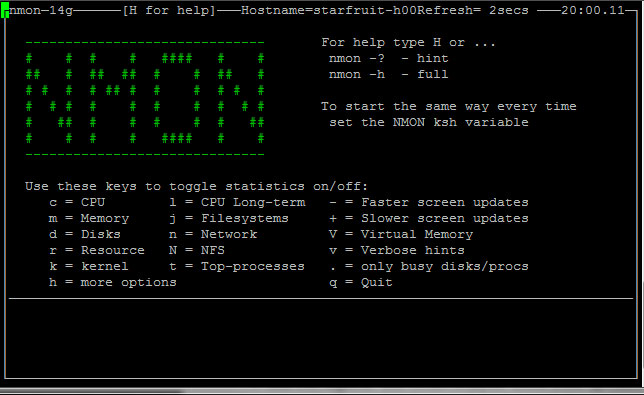
nmon for Linux – Nigel’s performance Monitor for Linux is a wonderful Swiss Army Knife for Performance Information.You can display multiple screen on the same windows and get information on CPU, Memory, NFS, Network, Disks, Resource, kernel etc

nmon has single binaries for each operating system including Red Hat, SUSE, Ubuntu, OpenSUSE, Fedora etc. Using the binary is as simple as starting the executable like

$ ./nmon_x86_64_rhel54

Using nmon in basic mode. For more information, do read the nmon for Linux Getting Started for more details

  1. To quit, just hit “q”
  2. Most of the rest are toggled commands i.e. hit c to see the CPU stats and hit c again to remove CPU stats.
  3. For disk graphs hit d and you will see a 50 column graph of the read and write busy percentages
  4. For disk numbers hit D and if you hit D again you see different information eventually hitting D will close this section

Using nmon for Linux in data capture mode

  1. Capturing a small sample file: nmon -f -s 2 -c 30
  2. -f means the data will be saved and not displayed on the screen
  3. -s 2 means data capture every 2 seconds
  4. -c 30 means 30 data points or snap shots
  5. Do note that the nmon runs like a daemon process in the background. nmon will continue to run till completion whether you connect or log-off.
  6. You can check whether the nmon is running by “ps -ef | grep nmon”
  7. Resulting file is xxx.nmon

Basic Kickstart on CentOS 6 with DHCP-Less environment (Part 2)

cent-1

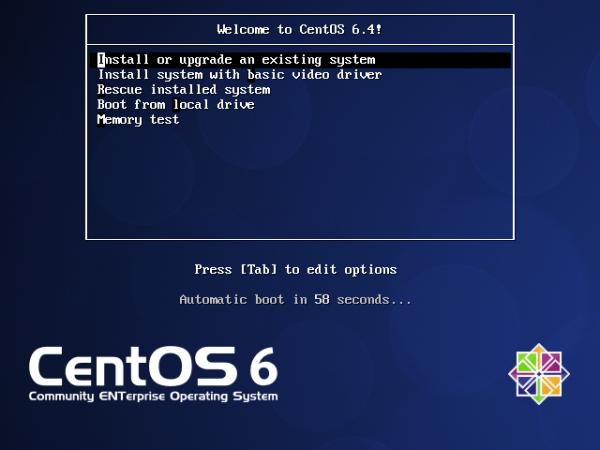
9. Put the CentOS CD into the Client and reboot. When you get to the initial CentOS 6 menu selection screen, you press “esc” so you will go to a boot prompt.

boot: linux ks=http://192.168.1.1/kickstart/base.cfg ksdevice=eth0 text asknetwork

(where 192.168.1.1 is the webserver which contains the anaconda file)

10. The System should install automatically and create an exact  copy with the same configuration and password

11. To ease modification of the anaconda file, add and remove packages you may want to install kickstart config files

# yum install system-config-kickstart

For more information, you can also read

Basic Kickstart on CentOS 6 with DHCP-Less environment (Part 1)

For this tutorial, we assume we wish to automate the installation of a CentOS Server using the Kickstart

Step 1: Setup of CentOS Server and looking at Anaconda Config File

  1. Just follow the typical setup of a Clean CentOS Server. Just insert the DVD in, follow the easy to  follow steps to install.
  2. Once you have completed, you will notice that the Anaconda, the Red Hat Installation system saves a copy of the installation setup config  file  that was created by your installation choices to /root/ks-anaconda.cfg
  3. You can use this file /root/ks-anaconda.cfg to create another identical machine
  4. You can also use it to restore a machine to the original OS and then port the backup on top back.

Step 2: Setting up a On Demand Kickstart Server

    1. Create a folder “kickstart” on the root of the web server (/var/www/html/kickstarts)
    2. Copy /root/ks-anaconda.cfg to /var/www/html/kickstarts
    3. Rename the ks-anaconda.cfg to base.cfg (or any name you wish)
    4. Change the permission so that it can be read by the web server
      # chmod 744 base.cfg
    5. Tweak the base.cfg
    6. Edit base.cfg….. Uncomment out the lines
      clearpart --linux --drives=sda
      part /boot --fstype ext3 --size=100 --ondisk=sda
      part pv.3 --size=0 --grow --ondisk=sda
      volgroup VolGroup00 --pesize=32768 pv.3
      logvol / --fstype ext3 --name=LogVol00 --vgname=VolGroup00 --size=1024 --grow
      logvol swap --fstype swap --name=LogVol01 --vgname=VolGroup00 --size=1000 --grow --maxsize=5952
    7. Edit base.cfg . If you are using Static IP Addresses
      network --device eth0 --bootproto static
      --ip 192.168.1.2 --netmask 255.255.255.0
      --gateway 192.168.1.1
      --nameserver 192.168.1.100,192.168.101
      --hostname mylinux.homelinux.org
    8. Change the Installation Method.
      On the 2nd line of base.cfg, change the original “cdrom” to the web install

      url --url=http://url-to-web-install-server/CentOS-6.8
      ....
      ....
      ....
      repo --name="CentOS" --baseurl="http://url-to-web-install-server/CentOS-6.8"
    9. If you wish to disable selinux especially if you are setting up a cluster
      selinux --disabled
    10. See Basic Kickstart on CentOS 5 (Part 2) for the the rest of the tutorial….