Listing processes for a specific user

Using htop to list users. Which is one of my favourite.

% top -U user1

pstree which displays a tree of processes and can include parents and child processes which make it easier to understand.

% pstree -l -a -p -s user1
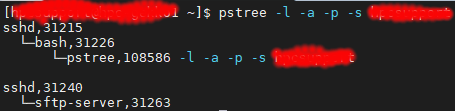

where
-l : Long format
-a : Show command line args
-p : Display Linux PIDs
-s : See parents of the selected process

pgrep look up or signal processes based on name and other attributes

% pgrep -l -u user1

References:

  1. Linux list processes by user names

Checking the Limits an application is imposed during run

If you wish to look at a specific application limits during run, you can do the following

pgrep fortcom
12345

* I used for fortcom, but it could be any application you wish to take a look.

cat /proc/12345/limits
Limit Soft Limit Hard Limit Units
Max cpu time unlimited unlimited seconds
Max file size unlimited unlimited bytes
Max data size unlimited unlimited bytes
Max stack size 8388608 unlimited bytes
Max core file size 0 unlimited bytes
Max resident set unlimited unlimited bytes
Max processes 4096 2190327 processes
Max open files 1024 4096 files
Max locked memory unlimited unlimited bytes
Max address space unlimited unlimited bytes
Max file locks unlimited unlimited locks
Max pending signals 2190327 2190327 signals
Max msgqueue size 819200 819200 bytes
Max nice priority 0 0
Max realtime priority 0 0
Max realtime timeout unlimited unlimited us

* You can take a look that there is no limits to Max locked Memory and Max file locks are unlimited.

Using strace to detect df hanging issues on NFS

strace is a wonderful tool to trace system calls and signals

I was hanging issues whenever I do a “df” and I was curious which file system is calling issues

% strace df
.....
.....
stat("/run/user/1304561586", {st_mode=S_IFDIR|0700, st_size=40, ...}) = 0
stat("/run/user/17132623", {st_mode=S_IFDIR|0700, st_size=40, ...}) = 0
stat("/run/user/17149581", {st_mode=S_IFDIR|0700, st_size=40, ...}) = 0
stat("/run/user/1304565184", {st_mode=S_IFDIR|0700, st_size=60, ...}) = 0
stat("/scratch",

It is obvious that /scratch file hang immediately after being launched.

Using Find and Tar Together to Backup and Archive

Point 1: If you wish to find files in a single folder and tar them into gzip-compressed archive. You can use a one-liner to do it.

% find -maxdepth 1 -name '*.sh' | tar czf script.tgz -T -

“-maxdepth” refers to the current depth of 1 or current directory

“-T -” causes tar to read its list from a file rather than the command line. The “-” means standard input and output.

You should have a file is script.tgz

Point 2: If you wish to find files in a single folder and tar them into bzip2-compressed archive.

% find -maxdepth 1 -name '*.sh' | tar cjf script.tgz -T -

Checking Disk Usage within the subfolders

I like this command which I often use to look into the dish usages at the sub folder level to check for large usages

% du -h -d 1
1.3M    ./Espresso-BEEF
65M     ./MATLAB
478M    ./Abaqus
10G     ./COMSOL
8.3M    ./Gaussian2
316K    ./scripts
4.9M    ./NB07
647M    ./pytorch-GAN
31M     ./Gaussian
12G     .

where

  • -h refers to human-readable
  • -d refers to depth level. By default, it is 0 which is the same as summarize

Checking and Modifying Timestamp of whole Directory recursively

Step 1: Show the complete date, time and year for a specific file

$ ls -l --full-time
-rwxrwxr-x  1 root root  1109 2018-07-20 12:52:52.587945000 +0800 Allwmake
drwxrwxr-x  5 root root  4096 2018-07-20 12:52:52.602945000 +0800 applications
drwxrwxr-x  3 root root  8192 2018-07-20 12:53:19.536973000 +0800 bin
-rw-rw-r--  1 root root 35646 2018-07-20 12:52:52.592945000 +0800 COPYING
drwxrwxr-x  5 root root  4096 2018-07-20 12:53:19.936974000 +0800 doc
drwxrwxr-x  8 root root  4096 2018-07-20 12:53:20.039974000 +0800 etc
drwxr-xr-x  4 root root  4096 2018-07-20 12:55:17.230101000 +0800 platforms
-rw-rw-r--  1 root root  1620 2018-07-20 12:52:52.597945000 +0800 README.org
drwxrwxr-x 38 root root  4096 2018-07-20 12:53:22.032976000 +0800 src
drwxrwxr-x 17 root root  4096 2018-07-20 12:54:45.114064000 +0800 tutorials
drwxrwxr-x  7 root root  4096 2018-07-20 12:55:15.939099000 +0800 wmake

Step 2: If you wish to modify the time-stamp for the entire directory, you can use the command,

% for file in `find .`; do touch $file; done

References:

  1. touch – change file timestamps(Unix Tutorial)

Quick and Dirty way to ensure only one instance of a shell script is running at a time

This script is taken from Quick and Dirty way to ensure only one instance of a shell script is running at a time

For example, this can be used to ensure SAGE Mirroring rsync run once.

# rsyncs from sage.math.washington.edu using its rsync daemon
# for automated use, remove the "vv" and "progress" switches

# locking mechanism from
# http://stackoverflow.com/questions/185451/quick-and-dirty-way-to-ensure-only-one-instance-of-a-shell-script-is-running-at-a

LOCKFILE=./rsync_sagemath.lock

if [ -e ${LOCKFILE} ] && kill -0 `cat ${LOCKFILE}`; then
echo "rsync_sagemath already running ... exit"
exit
fi

# make sure the lockfile is removed when we exit and then claim it
trap "rm -f ${LOCKFILE}; exit" INT TERM EXIT
echo $ > ${LOCKFILE}

rsync -av --delete-after rsync.sagemath.org::sage /var/www/html/sage

rm -f ${LOCKFILE}