Troubleshooting the PBS Control System and PBS Server

I was having this issue after I submitted a job. This was due to some configuration I had to do to improve security which is similar to Using the Host’s FirewallD as the Main Firewall to Secure Docker

qsub: Budget Manager: License is unverified. AM is not handling requests

To resolve the issue, I took the following Steps. On the PBS-Control Server,

Step 1: Export the Path of the AM Database.

export PATH=/opt/am/postgres/bin:$PATH

Step 2: Check that the Docker Container Services are started in the System. You may want to start the dockers to capture any errors. If the docker is not able to start up, it is likely due to the firewall settings.

# systemctl status firewalld.service.

Step 3: I restarted the PBS Altair Service

# systemctl restart altaircontrol.service

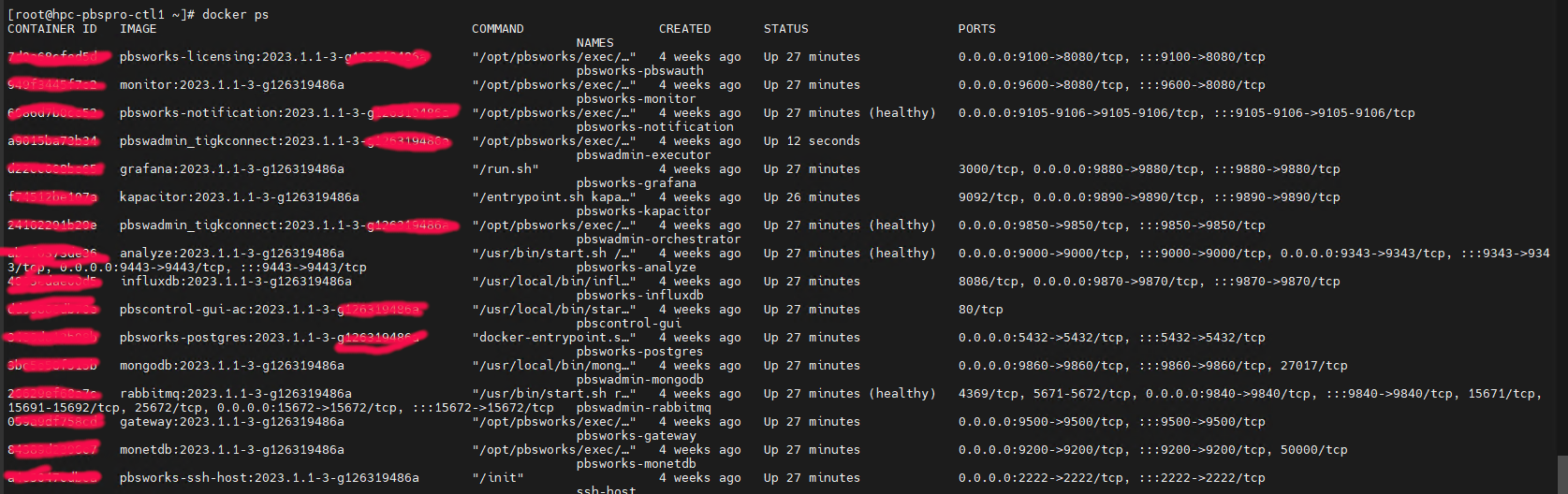
Step 4: I use the Docker Command to return an overview of all running containers

# docker ps 

At the PBS-Server, Restart the AM Control Register is working

# /opt/am/libexec/am_control_register

To Test, Submit an Interactive Job with the correct Project Code, it should work.

Using the Host’s FirewallD as the Main Firewall to Secure Docker

Found a rare article How to Secure a Docker Host Using Firewalld that teaches how to address the issue when that docker bypasses the FirewallD rules.

According to the Article, the goal of the Configuration is to

  • The firewall rules should count for whole host system – so including Docker containers with port mappings
  • A Docker container should be accessible from the internet if and only if the host port used in Docker container port mapping is allowed in the firewall
  • The approach should not break container networking

Do read up and you will be glad that this article was written for Administrators like us. Another Reference you may want to consider reading is Why Docker and Firewall don’t get along with each other!

Automating Security Patch Logs and MS-Team Notifications with Ansible on Rocky Linux 8

If you have read the blog entry Using Ansible to automate Security Patch on Rocky Linux 8, you may want to consider capturing the logs and send notification to MS-Team if you are using that as a Communication Channel. This is a follow-up to that blog.

Please look at Part 1: Using Ansible to automate Security Patch on Rocky Linux 8

Writing logs (Option 1: Ansible Command used if just checking)

Recall that in Option 1: Ansible Command used if just checking, Part 1a & Part 1b, you can consider writing to logs in /var/log/ansible_logs

- name: Create a directory if it does not exist
file:
path: /var/log/ansible_logs
state: directory
mode: '0755'
owner: root
when:
- ansible_os_family == "RedHat"
- ansible_distribution_major_version == "8"


- name: Copy Results to file
ansible.builtin.copy:
content: "{{ register_output_security.results | map(attribute='name') | list }}"
dest: /var/log/ansible_logs/patch-list_{{ansible_date_time.date}}.log
changed_when: false
when:
- ansible_os_family == "RedHat"
- ansible_distribution_major_version == "8"

Notification (Option 1: Ansible Command used if just checking)

You can write to MS Team to provide a short notification to let the Engineers knows that the logs has been written to /var/log/ansible_logs

- name: Send a notification to MS-Teams that Test Run (No Patching) is completed
run_once: true
uri:
url: "https://xxxxxxx.webhook.office.com/webhookb2/xxxxxxxxxxxxxxxxxxxxxxxxx"
method: POST
body_format: json
body:
title: "Test Patch Run on {{ansible_date_time.date}}"
text: "Test Run only. System has not been Patched Yet. Logs saved at: /var/log/ansible_logs/patch-list_{{ansible_date_time.date}}.log"
when:
- register_update_success is defined
- ext_permit_flag == "no"

Writing to MS-Team to capture the success Or failure of the Update (Option 2: Ansible Command used when ready for Patching)

- name: Send a notification to MS-Teams Channel if Upgrade failed
run_once: true
uri:
url: "https://xxxxx.webhook.office.com/webhookb2/xxxxxx"
method: POST
body_format: json
body:
title: "Patch Run on {{ansible_date_time.date}}"
text: "Patch Update has Failed"
when:
- register_update_success is not defined
- ext_permit_flag == "yes"


- name: Send a notification to MS-Teams Channel if Upgrade failed
run_once: true
uri:
url: "https://entuedu.webhook.office.com/webhookb2/xxxxxx"
method: POST
body_format: json
body:
title: "Patch Run on {{ansible_date_time.date}}"
text: "Patch Update is Successful. Logs saved at: /var/log/ansible_logs/patch-list_{{ansible_date_time.date}}.log"
when:
- register_update_success is defined
- ext_permit_flag == "yes"

Automating Linux Patching with Ansible: A Simple Guide

If you intend to use Ansible to patch the Server, you may need to use an external variable to decide whether you wish to take a look at the list or actually patch the OS. It consists of 3 parts.

Option 1: Ansible Command used if just checking

$ ansible-playbook security.yml --extra-vars "ext_permit_flag=no"

Part 1a: Get the List of Packages from DNF to be upgraded ONLY using the External Permit Flag = “no”

- name: Get the list of Packages from DNF to be upgraded (ext_permit_flag == "no")
dnf:
security: yes
bugfix: false
state: latest
update_cache: yes
list: updates
exclude: 'kernel*'
register: register_output_security
when:
- ansible_os_family == "RedHat"
- ansible_distribution_major_version == "8"
- ext_permit_flag == "no"

Part 1b: Report the List of Packages from DNF to be upgraded ONLY using the External Permit Flag = “no”

- name: Report the List of Packages from DNF to be upgraded ( ext_permit_flag == no")
debug:
msg: "{{ register_output_security.results | map(attribute='name') | list }}"
when:
- ansible_os_family == "RedHat"
- ansible_distribution_major_version == "8"
- ext_permit_flag == "no"

Option 2: Ansible Command used when ready for Patching

$ ansible-playbook security.yml --extra-vars "ext_permit_flag=yes"

Part 2: Patch all the packages except Kernel

- name: Patch all the packages except Kernel

dnf:
name: '*'
security: yes
bugfix: false
state: latest
update_cache: yes
update_only: no
exclude: 'kernel*'
register: register_update_success
when:
- ansible_os_family == "RedHat"
- ansible_distribution_major_version == "8"
- ext_permit_flag == "yes"

- name: Print Errors if upgrade failed
debug:
msg: "Patch Update Failed"
when: register_update_success is not defined

Reference:

  1. ansible.builtin.dnf module – Manages packages with the dnf package manager
  2. Automating Linux patching with Ansible

Change Runlevel of Rocky Linux 8 without rebooting

You may use the command “telinit” to change the SysV system runlevel without the need to reboot. You will need root access to run the command

Use 1: Single User Mode

# telinit S

Use 2: To go to Graphical.Target

# telinit 5

Use 3: To go to Multi-User.Target

# telinit 3

Use 4: To Reload daemon configuration. This is equivalent to systemctl daemon-reload.

# telinit q

To verify, you can use the command systemctl get-default

# systemctl get-default
graphical.target

Optimizing Firewalld Configuration with Ansible’s with_items Parameter

Ansible is great for configuring host-based firewall like Firewalld. One thing you will note is that we are using with_items parameter a lot and it is very useful in this case since we have a number of parameters within items.

- name: FirewallD Rules (Ports)
  firewalld:
    permanent: yes
    immediate: yes
    port: "{{item.port}}/{{item.proto}}"
    state: "{{item.state}}"
    zone: "{{item.zone}}"
  with_items:
    - {port: "80", proto: "tcp", state: "enabled", zone: "public" }
    - {port: "80", proto: "udp", state: "enabled", zone: "public" }
    - {port: "443", proto: "tcp", state: "disabled", zone: "public" }
    - {port: "443", proto: "udp", state: "disabled", zone: "public" }


- name: FirewallD Rules (Services)
  firewalld:
    permanent: yes
    immediate: yes
    service: "{{item.service}}"
    state: "{{item.state}}"
    zone: "{{item.zone}}"
  with_items:
    - {service: "cockpit", state: "disabled", zone: "public" }

- name: Turn on Firewalld.service on Compute Nodes
  systemd:
    name: firewalld
    state: started
    enabled: yes
  when:
    - ansible_os_family == "RedHat"
    - ansible_distribution_major_version == "8"

References:

Updating ANSYS 2023R2 License Server Information for Linux Client using the command line

If you are updating ANSYS License Server Information for ANSYS Client using only the command line, do the following

# vim usr/local/ansys_inc/shared_files/licensing/ansyslmd.ini
SERVER=1055@IP_Address_Of_ANSYS_LIC_SVR
ANSYSLI_SERVERS=2325@IP_Address_Of_ANSYS_LIC_SVR

Make sure the 1055, 1056, 2325 Ports of the License Server are opened.

Enterprise Container Management Solutions – SuSE Rancher

What is SuSE Rancher?

Website: https://www.rancher.com/ (by SuSE)

Rancher Labs builds innovative, open source container management solutions for enterprises leveraging containers to accelerate software development and improve IT operations. The flagship product, Rancher, is a complete container management platform that makes it easy to manage all aspects of running containers in development and production environments, on any infrastructure. RancherOS is a minimalist Linux distribution which is perfect for running Docker containers at scale.

View on-demand recordings of past Rancher demos, online meetups, and Kubernetes tutorials at Rancher Youtube Channel. ( Rancher Labs )

This guide walks you through the process of adopting an enterprise container management platform (Dummies e-copy).

This guide will help security teams understand the attack surface for Kubernetes deployments and how attackers can exploit vulnerabilities. Get the e-copy of the Ultimate Guide to Kubernetes Security

Could not load the Qt platform plugin “xcb” in “” even though it was found in Rocky Linux 8

I was installing ANSYS 2023 R2 on Rocky Linux 8 and I encoutnered the error

qt.qpa.plugin: Could not load the Qt platform plugin "xcb" in "" even though it was found.
This application failed to start because no Qt platform plugin could be initialized. Reinstalling the application may fix this problem.

Available platform plugins are: xcb.

Solution

# dnf install python3-qt5

Mounting NTFS on Rocky Linux 8

If you are planning to mount like a portable drive using Windows NTFS File System on the Rocky Linux 8, what you will see immediately when you issue the command after you plug the portable drive in

# mount /dev/sdd1 /data1
mount: /data1: unknown filesystem type 'ntfs'.

Step 1: Enable EPEL Repo

# dnf install epel-release

Step 2: Install NTFS-3g

# dnf install ntfs-3g

In some blogs written elsewhere, these 2 packages are more than enough, but I was still having issues. In my situation, I need to put in 5 packages

Step 3: Install all NTFS-3g packages

# dnf install *ntfs*

This time it works for me.

Step 4: Simply mount (Hooray!)

 # mount /dev/sdd1 /data1