This is an interesting article on How to create an infiniband network with ESX – ESXI 4.x servers. For more information see
Vmware
Articles on Troubleshooting Performance Related Problems for VSphere 4.1
The hugely popular Performance Troubleshooting for VMware vSphere 4 guide is now updated for vSphere 4.1 . This document provides step-by-step approach for troubleshooting most common performance problems in vSphere-based virtual environments. The steps discussed in the document use performance data and charts readily available in the vSphere Client and esxtop to aid the troubleshooting flows. Each performance troubleshooting flow has two
parts:
- How to identify the problem using specific performance counters.
- Possible causes of the problem and solutions to solve it.
……………………
For more information, see
- Troubleshooting Performance Related Problems in vSphere 4.1 Environments (pdf)
- Performance & VMmark (Vmware Community)
Vmware Cloud Foundry – The industry’s first open platform as a Service
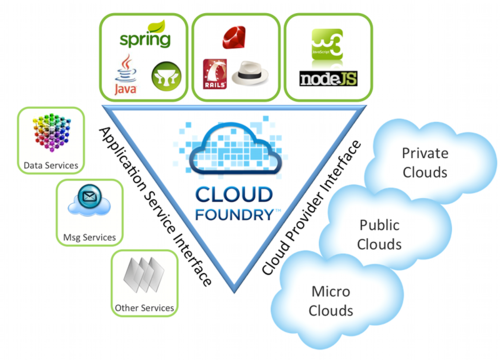
The goal of Cloud Foundry is to hide complexity from developers and make it easy to deploy and run applications anywhere. This is the same marketing speak that folks toting the cloud have pitched for years, but VMware wants to make it even more simple. Instead of worrying about instances or how to support a database, you just write a few lines of code, and Cloud Foundry makes it all happen for you…………
For more information, see
Vmware View for iPAD is finally here!
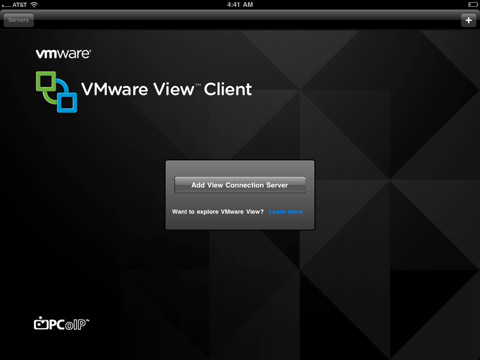
Vmware View Client for iPAD is finally here…….
VMware View Client for iPad makes it easy to access your Windows virtual desktop from your iPad with the best possible user experience on the Local Area Network (LAN) or across a Wide Area Network (WAN).
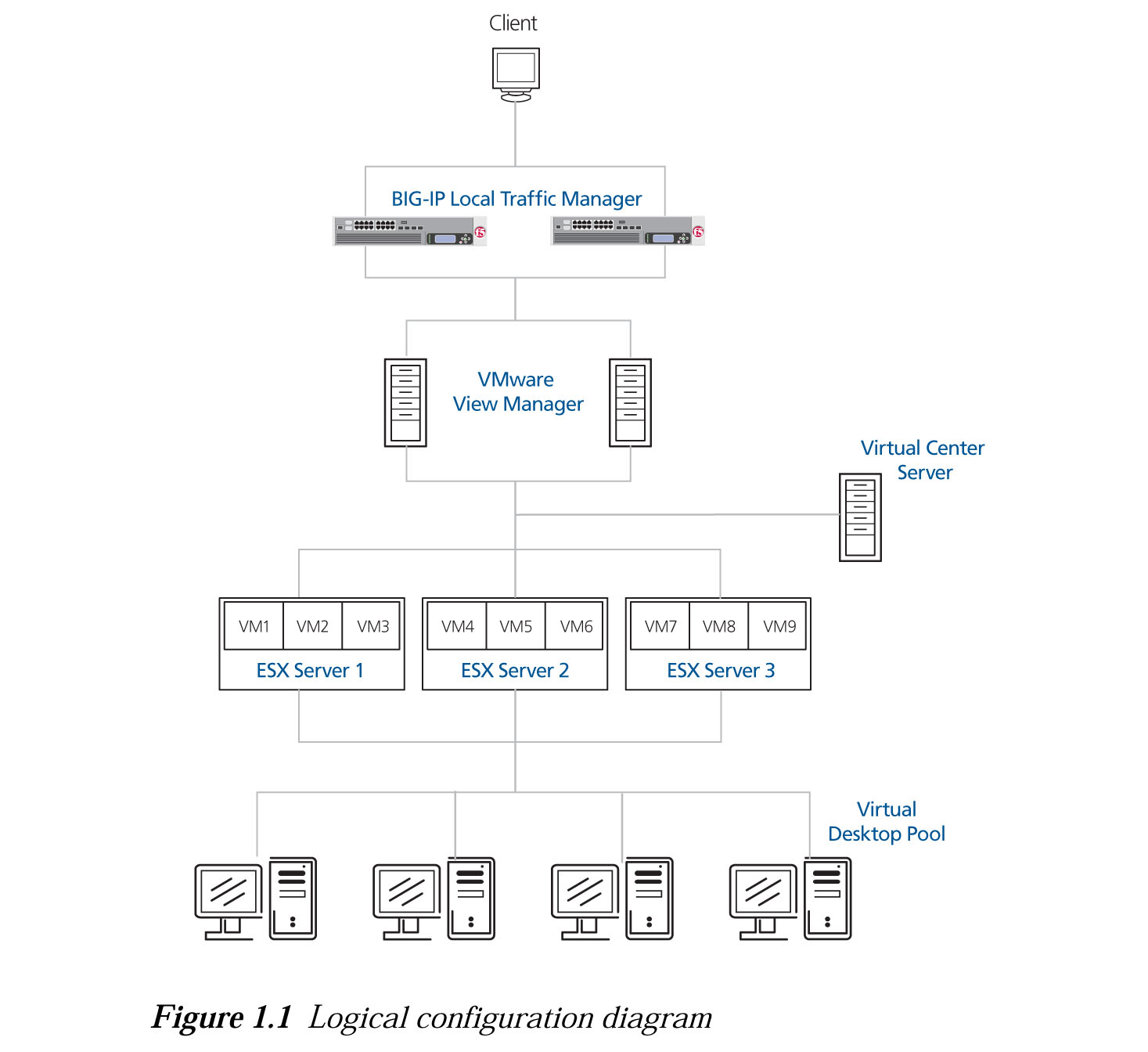
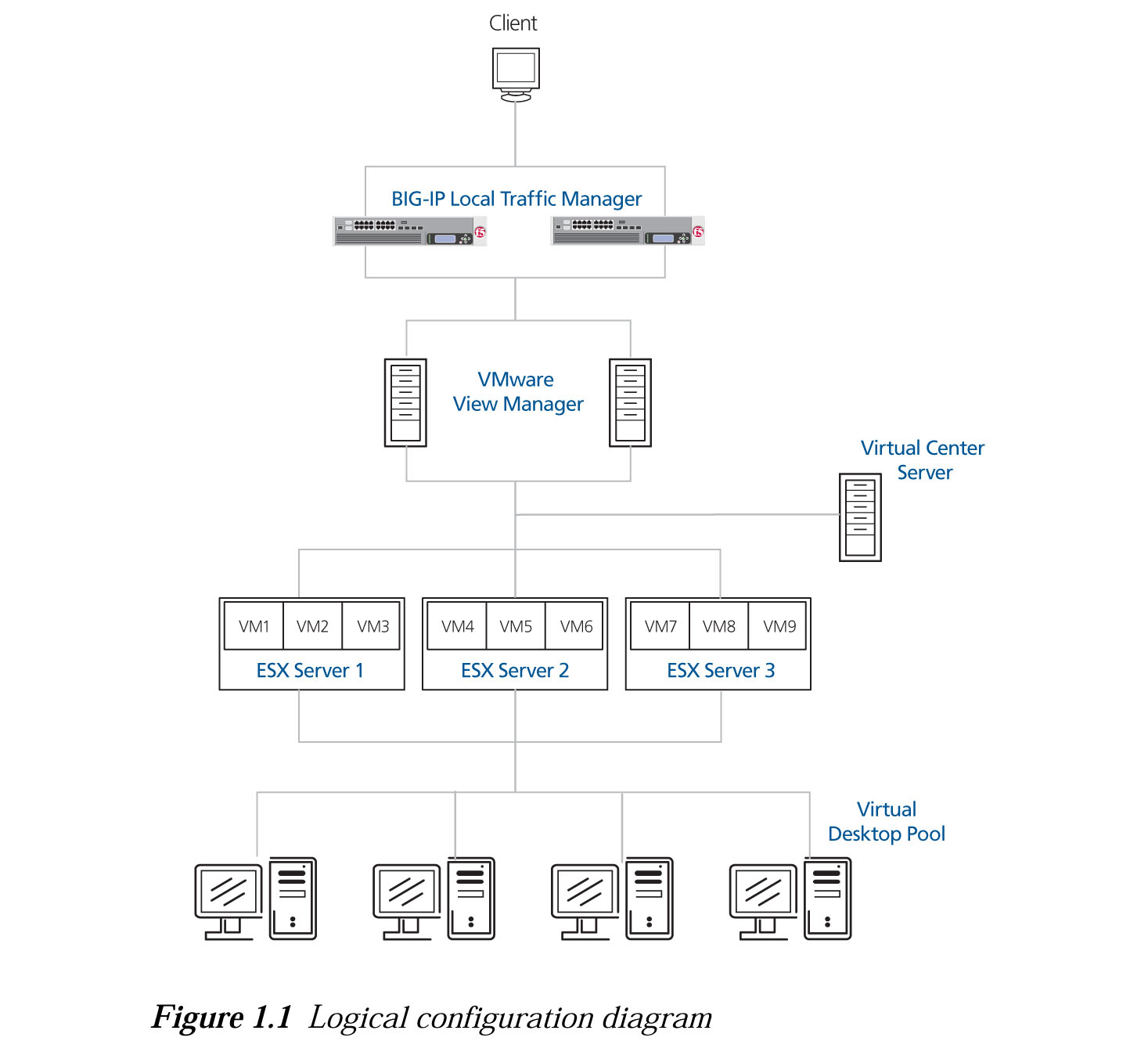
Deploying the BIG-IP Edge Gateway and Local Traffic Manager with Vmware View
The Article from F5 deals with the following issues
- Deploying F5 with Vmware View
- Configuring the BIG-IP Edge Gateway
- Configuring the BIG-IP LTM for Vmware View
Deploying the Big-IP Edge Gateway and Local Traffic Manager with Vmware View 4.0 and 4.5 (pdf)
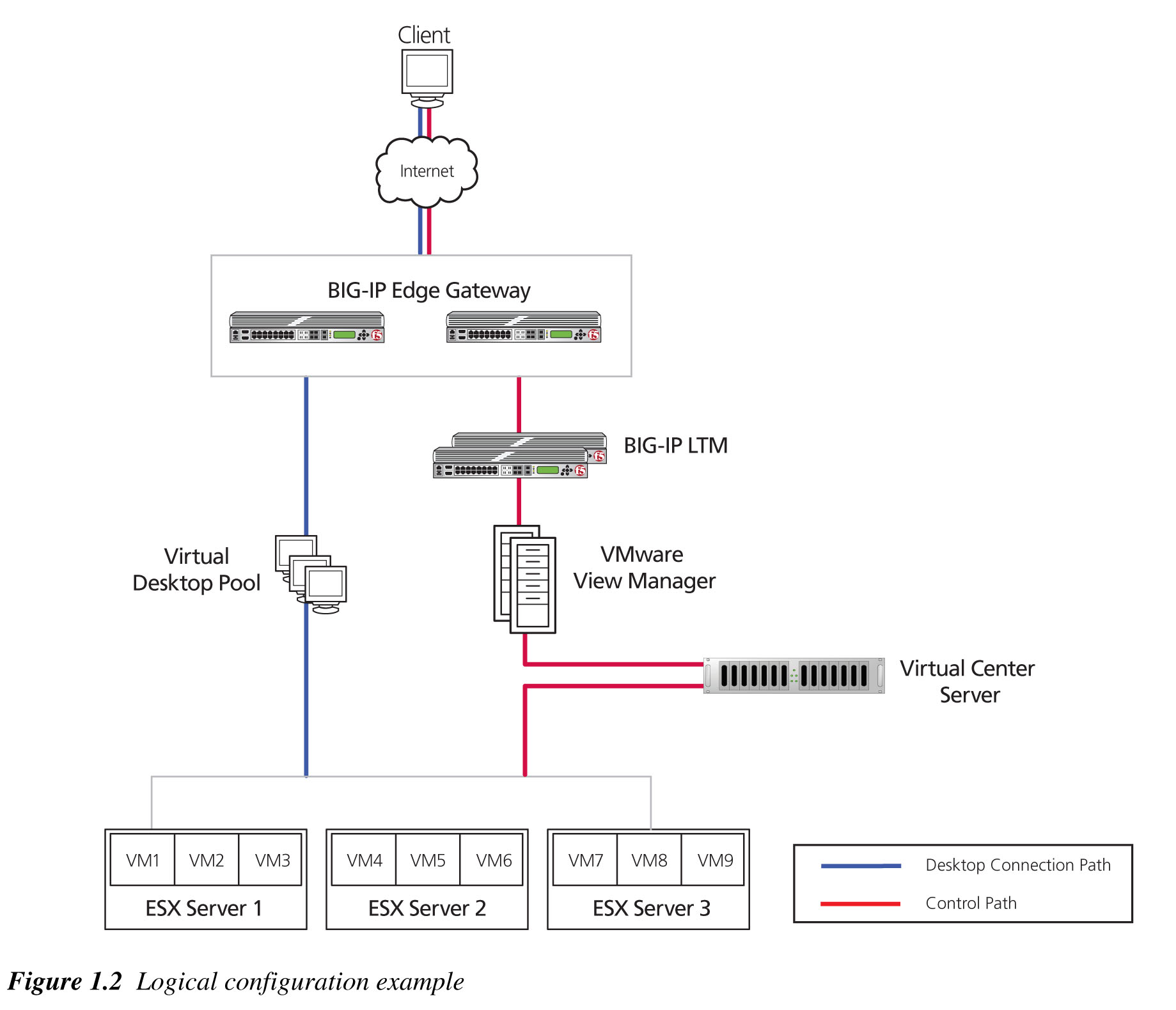
Deploying Big-IP LTM System with VMware View
This article taken from F5 deals with the following
- Modifying the VMware View Manager configuration
- Configuring the BIG-IP LTM system for VMware View
- SSL Certificates on the BIG-IP system
Configuring Vmware ESX Networking via CLI (Part II)
This is a continuation of Configuring Vmware ESX Networking via CLI (Part I). This 2nd Part dealt with Port Group. The material of this blog is taken from
- Configuring networking from the ESX service console command line (kb.vmware.com)
- New User’s Guide to Configuring VMware ESX Networking via CLI (blog.scottlowe.org)
Portgroup Configurations
1. What is vmware Port Group? For more inforamtion, you may want to see the Vmware Virtual Networking Concepts (pdf)
2. Creating a Port Group
# esxcfg-vswitch -A <Port Group Name> <vSwitch Name>
3. To set the VLAN ID for a Port Group
# esxcfg-vswitch -v <VLAN ID> -p <Port Group Name> <vSwitch Name>
For example,
# esxcfg-vswitch -v 0 -p “Service Console” vSwitch0
where 0 is the VLAN ID
4. Deleting a Port Group
# esxcfg-vswitch -D <Port Group Name> <vSwitch Name>
Configuring Vmware ESX Networking via CLI (Part I)
2 useful sites for configuring Vmware ESX Networking via CLI. The material of this blog is taken from the 2 website.
- Configuring networking from the ESX service console command line (kb.vmware.com)
- New User’s Guide to Configuring VMware ESX Networking via CLI (blog.scottlowe.org)
In summary, there are 2 important commands you will need to know
- esxcfg-vswitch: (Manipulate vswitch and port)
- esxcfg-nics: (View network card)
1. Ensure that your Network Cards is connected
# esxcfg-nics –l
Name PCI Driver Link Speed Duplex Description
vmnic0 06:00.00 tg3 Up 1000Mbps Full Broadcom Corporation NetXtreme BCM5721 Gigabit Ethernet
vmnic1 07:00.00 tg3 Up 1000Mbps Full Broadcom Corporation NetXtreme BCM5721 Gigabit Ethernet
* In the Link Column “Up” means that the Network Adapter is up and connected.
2. List the current virtual switches
# esxcfg-vswitch –l
Switch Name Num Ports Used Ports Configured Ports Uplinks
vSwitch0 32 3 32 vmnic0

PortGroup Name Internal ID VLAN ID Used Ports Uplinks
VM Network portgroup2 0 0 vmnic0
3. Creating a new switch
# esxcfg-vswitch –a <vSwitch Name>
4. Create the Service Console portgroup on this new virtual switch
# esxcfg-vswitch -A <Port Group Name> <vSwitch Name>
For example,
# esxcfg-vswitch –A “Service Console” vSwitch1
5. To Link the Physcial Switch to a vSwitch
# esxcfg-vswitch -L <Physical NIC> <vSwitch Name>
For example,
# esxcfg-vswitch –L vmnic0 vSwitch1
6. To unlink the the Physcial Switch to a vSwitch
# esxcfg-vswitch -U <Physical NIC> <vSwitch Name>
7. Verify the new virtual switch configuration
# esxcfg-vswitch –l
8. Delete a vSwitch
# esxcfg-vswitch -d <vSwitch Name>
Resolving "file not found" when powering up VM
I was powering up a Virtual Machine on our ESX 3.5. Almost immediately, I suffered “file not found” on the error. After some searching on the website, I come across this Vmware KB “Recreating a missing virtual machine disk (VMDK) descriptor file” which solve my issue. Apparently, the Disk Descriptor File was missing even though the real content of vmdk is still intact
Interpreting vmware Esxtop statistics
This article is pretty good if you wish to use Esxtop to allows monitoring and collection of data for all system resources: CPU, memory, disk and network. When used interactively, this data can be viewed on different types of screens; one each for CPU statistics, memory statistics, network statistics and disk adapter statistics.
Interpreting esxtop Statistics (Vmware Communities)
 The Linux Cluster